Enable Personal File Sharing in Ubuntu Linux


You enable personal file sharing in Ubuntu Linux to easily share the contents of your Public folder with other computers on your network.
This feature, often referred to as “User Shares,” uses the gnome-user-share package. It allows you to quickly make specific files accessible without complex server configurations.
Once enabled, you can decide whether other users need a password to access your shared Public folder. This is a crucial step for controlling who can view your shared files.
To share files, ensure both your Ubuntu machine and the target device are on the same network. This ensures seamless discovery and access to your shared resources.
How to turn on or off personal file sharing in Ubuntu Linux
As described above, you can allow access to the Public folder in your Home folder from another computer on the network.
Below is how to enable or disable it in Ubuntu Linux.
First, press the Ctrl+Alt+T on your keyboard to open the terminal console, then run the commands below to install gnome-user-share.
sudo apt install gnome-user-share
Ubuntu Linux has a centralized location for the majority of its settings. From system configurations to creating new users and updating, all can be done from the System Settings panel.

Alternatively, click on the System menu at the top-right corner of the top bar on your desktop.
On the System menu, select Settings, as highlighted below.

In the Settings app, click on Sharing tile to open the panel.
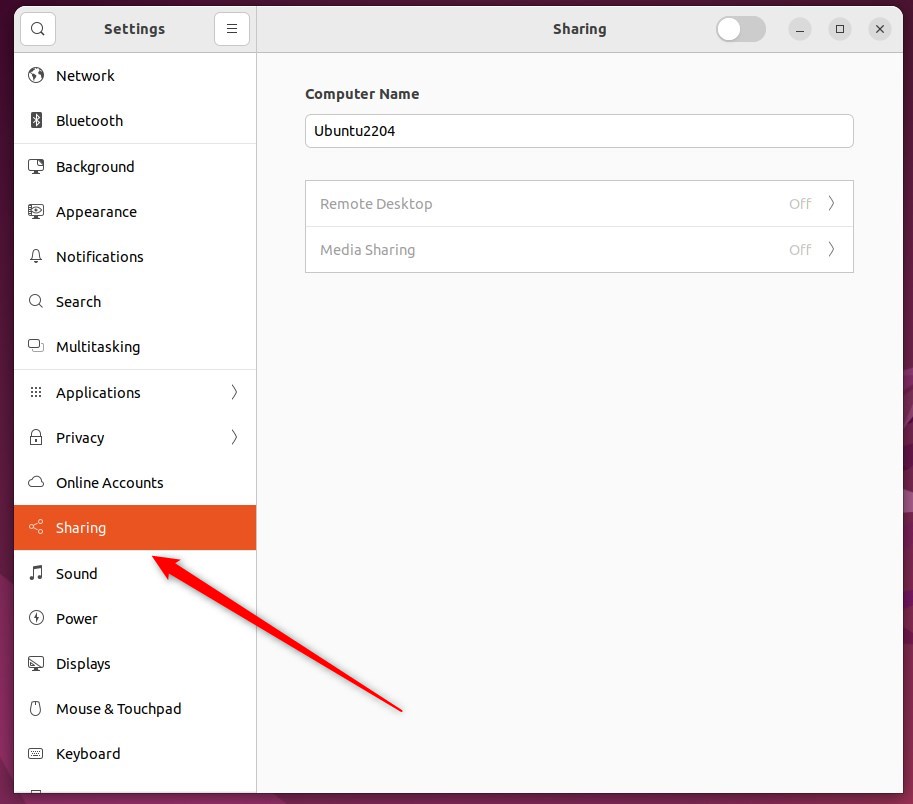
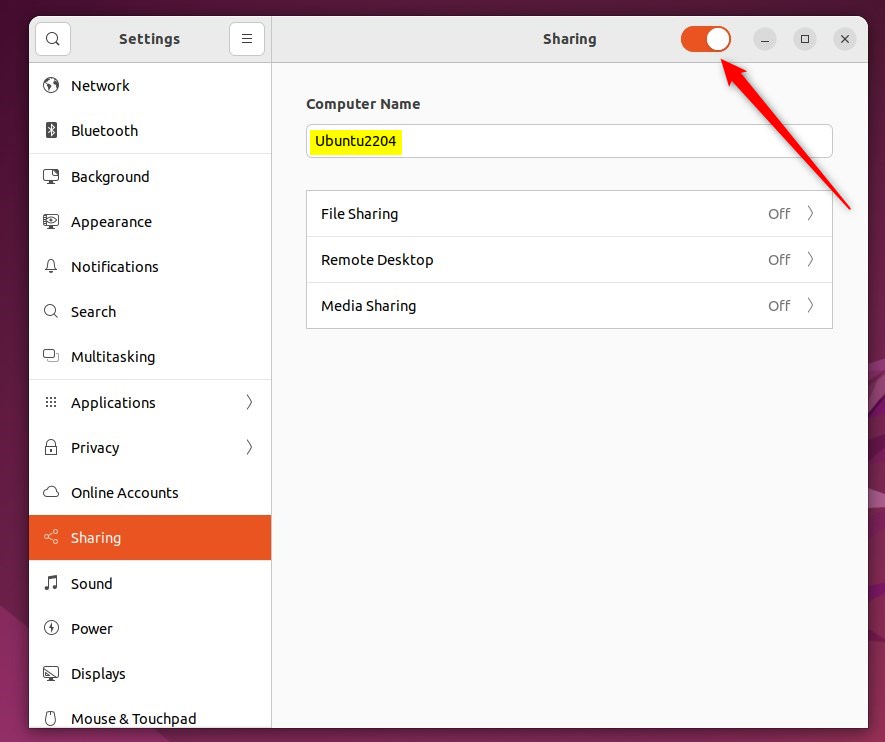
Next, toggle the Sharing switch at the top of the window to On so sharing is enabled.
Sharing is disabled when the switch is set to Off.
If the text below Computer Name allows you to edit it, you can change the name your computer displays on the network.
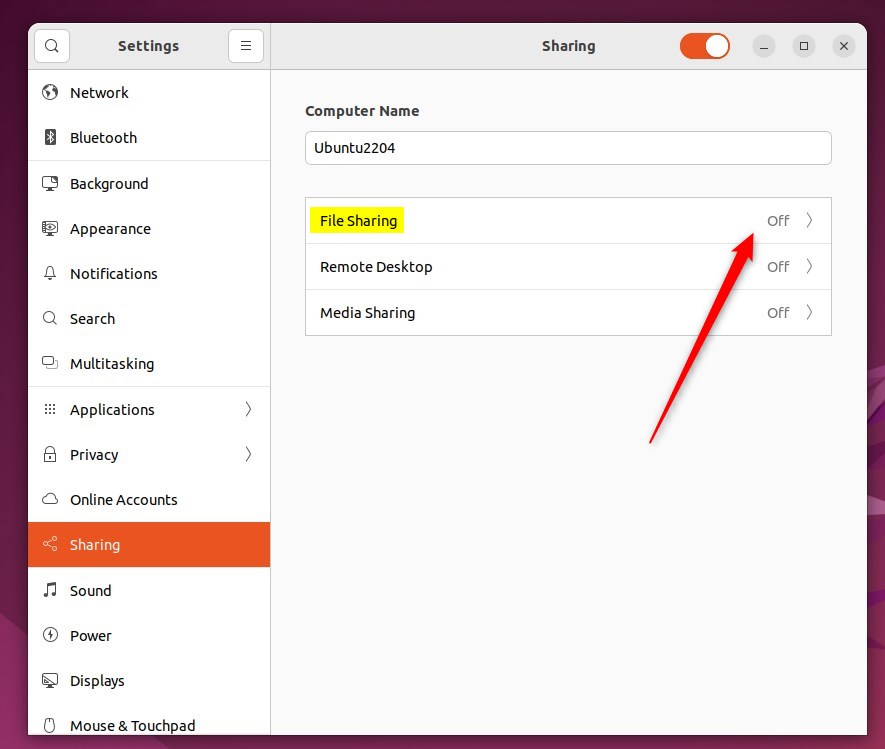
In the System Settings -> Sharing panel, select File Sharing as highlighted below.
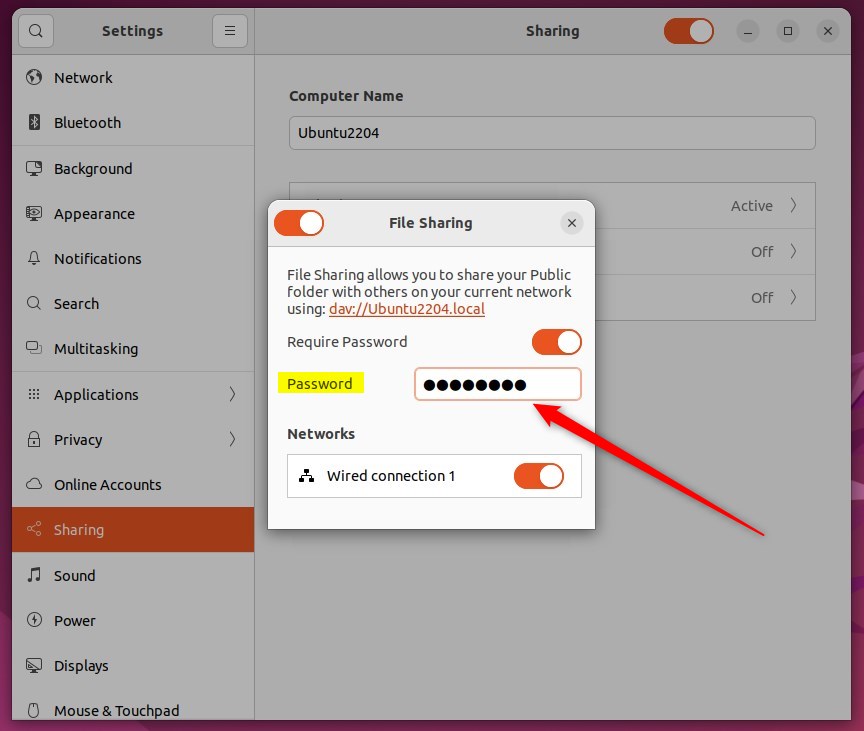
On the File Sharing window, toggle the File Sharing switch to On.
To disable it, switch it back to the Off position.
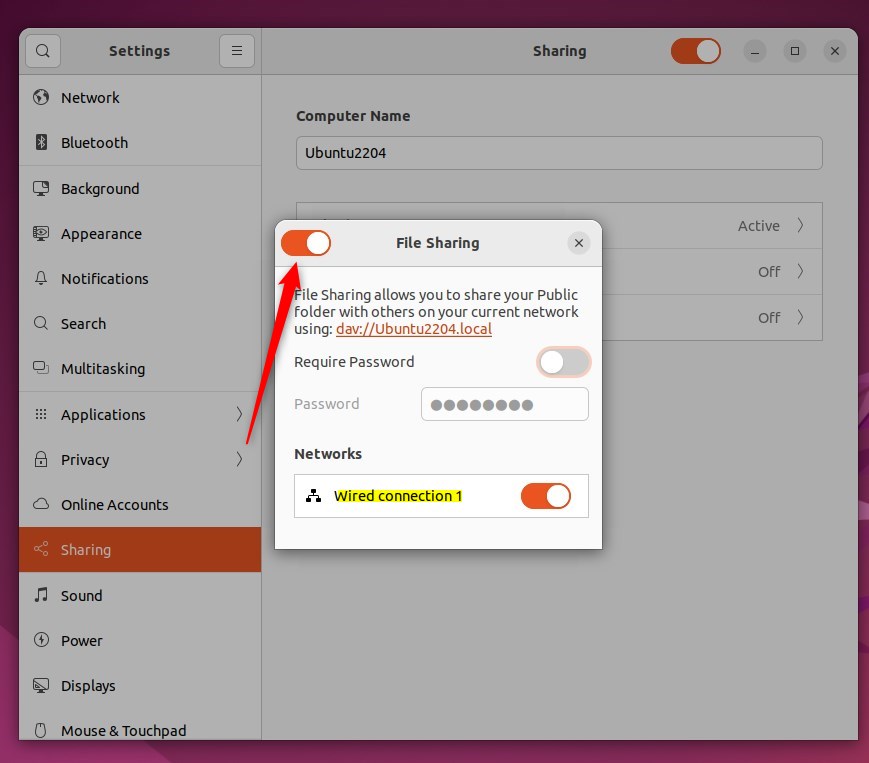
This means that other people on your current network can attempt to connect to your computer and access files in your Public folder.
To require other people to use a password when accessing your Public folder, switch the Require Password to On.
That should do it!
Conclusion:
- Enabling or disabling file sharing in Ubuntu Linux is a straightforward process using the gnome-user-share package.
- By accessing the System Settings panel, users can easily toggle the File Sharing switch to allow or restrict access to the Public folder.
- The option to require a password to access the Public folder adds an extra layer of security for shared files.
- This guide provides a comprehensive overview of managing File Sharing settings in Ubuntu Linux, ensuring a seamless user experience.
Frequently Asked Questions
How do I enable Personal File Sharing in Ubuntu Linux?
Can I require a password for file sharing in Ubuntu?
What is the Public folder in Ubuntu Linux?
Do I need to be connected to a network to share files in Ubuntu?
How can I disable Personal File Sharing in Ubuntu Linux?
Was this guide helpful?

About the Author
Richard
Tech Writer, IT Professional
Richard, a writer for Geek Rewind, is a tech enthusiast who loves breaking down complex IT topics into simple, easy-to-understand ideas. With years of hands-on experience in system administration and enterprise IT operations, he’s developed a knack for offering practical tips and solutions. Richard aims to make technology more accessible and actionable. He's deeply committed to the Geek Rewind community, always ready to answer questions and engage in discussions.


No comments yet — be the first to share your thoughts!