How to Check DirectX Version in Windows 11


DirectX is a collection of tools built into Windows that helps your computer talk to your hardware. It acts as a bridge between your games and your graphics card. It is most important for playing games and running high-quality video software. By using DirectX, your computer can run these programs much faster and more smoothly.
Why check your DirectX version?
You should check it to make sure your computer is ready for the latest games. If a game won’t start, your DirectX version might be too old or your graphics card might not support the required feature level.
What happens when done?
You will see a report that lists your exact DirectX version. This tells you if your system is compatible with the software you want to run.
Prerequisites
Before you begin, ensure your system is connected to the internet. You should also have your graphics card driver updated to the latest version provided by your manufacturer. While checking the version does not require special rights, installing updates may require admin privileges.
How to find your DirectX version
You can use a built-in tool called the DirectX Diagnostic Tool (dxdiag.exe) to see your information. Follow these simple steps:
- Click the Search icon on your taskbar.
- Type
dxdiagand press Enter. - Look at the System tab.
- Find the line that says DirectX Version to see your current number.
Alternatively, you can use the Run command:
- Press the Windows key + R on your keyboard.
- Type
dxdiaginto the box and press Enter.
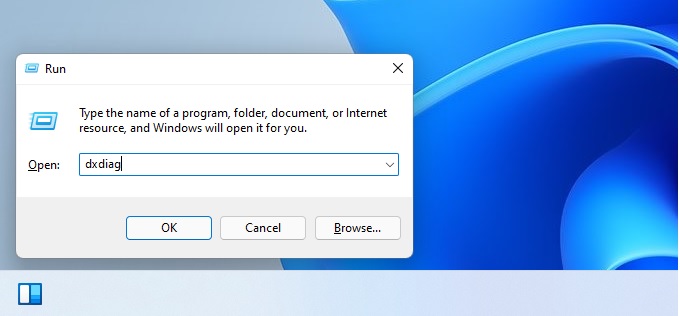
If this is your first time opening the tool, it might ask if you want to check if your drivers are digitally signed. Select Yes to confirm your drivers are safe and verified.
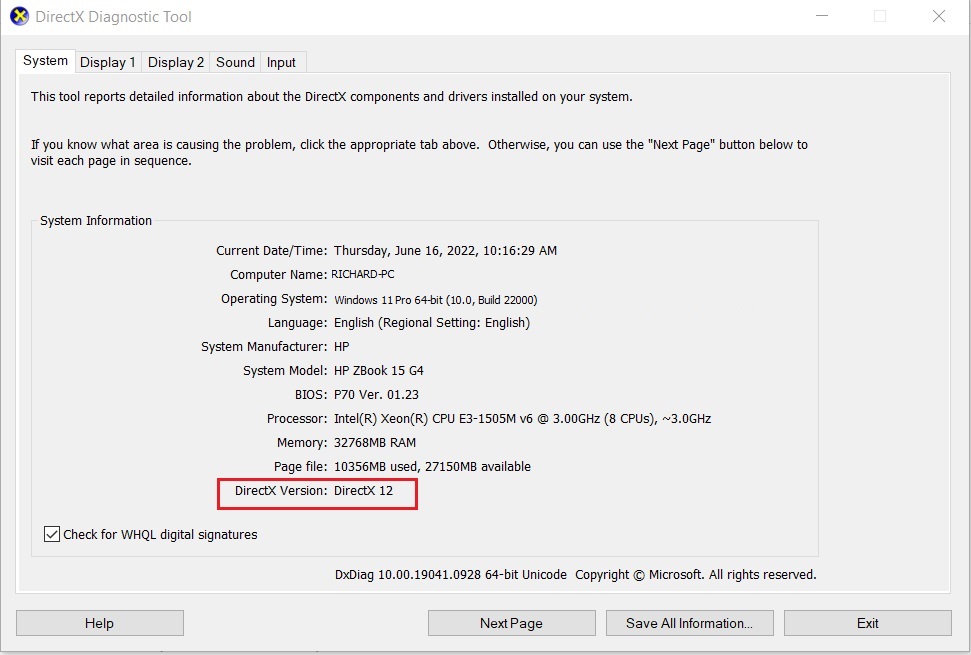
Note: This process does not require admin privileges.
Understanding DirectX Feature Levels
The DirectX version is not the only thing that matters. Your GPU must also support a specific DirectX feature level. This determines which advanced graphics effects your card can handle. You can check this in the Display tab within the dxdiag tool under the Drivers section.
Updating DirectX
Windows 11 updates DirectX automatically through Windows Update. If you are having issues, you can download the DirectX End-User Runtime Web Installer from the official Microsoft website to repair missing files.
Troubleshooting
If you see an error message when launching games, follow these steps:
- Update your graphics driver via Device Manager.
- Run the Windows Update tool to ensure your Windows Display Driver Model (WDDM) is current.
- Check if your game requires legacy components. You may need to enable them in Turn Windows features on or off.
Summary
Checking your DirectX version is a quick way to troubleshoot game errors or system performance issues. By using the dxdiag command, you can quickly verify your system settings and ensure your graphics drivers are working correctly. Keeping your version up to date ensures the best experience for your games and multimedia apps.
Does Windows 11 support DirectX 9?
Yes, Windows 11 supports DirectX 9. While it is an older technology, Windows includes legacy components to ensure that older games and applications continue to run correctly. If a game fails to launch, you may need to manually enable the Legacy Components feature in the Windows Control Panel settings.
How do I reinstall DirectX?
You cannot uninstall DirectX because it is a core part of Windows. However, you can reinstall or repair it by downloading the DirectX End-User Runtime Web Installer from Microsoft. This tool scans your system for missing or corrupted files and replaces them with the correct versions automatically.
Why does dxdiag show a different version than my game requires?
The DirectX version shown in the tool is the highest version your Windows installation supports. If a game asks for a different version, it usually refers to the specific feature level of your graphics card. Ensure your GPU drivers are up to date to support the required feature level.
Was this guide helpful?




Leave a Reply