How to Check Bluetooth Versions on Windows 11

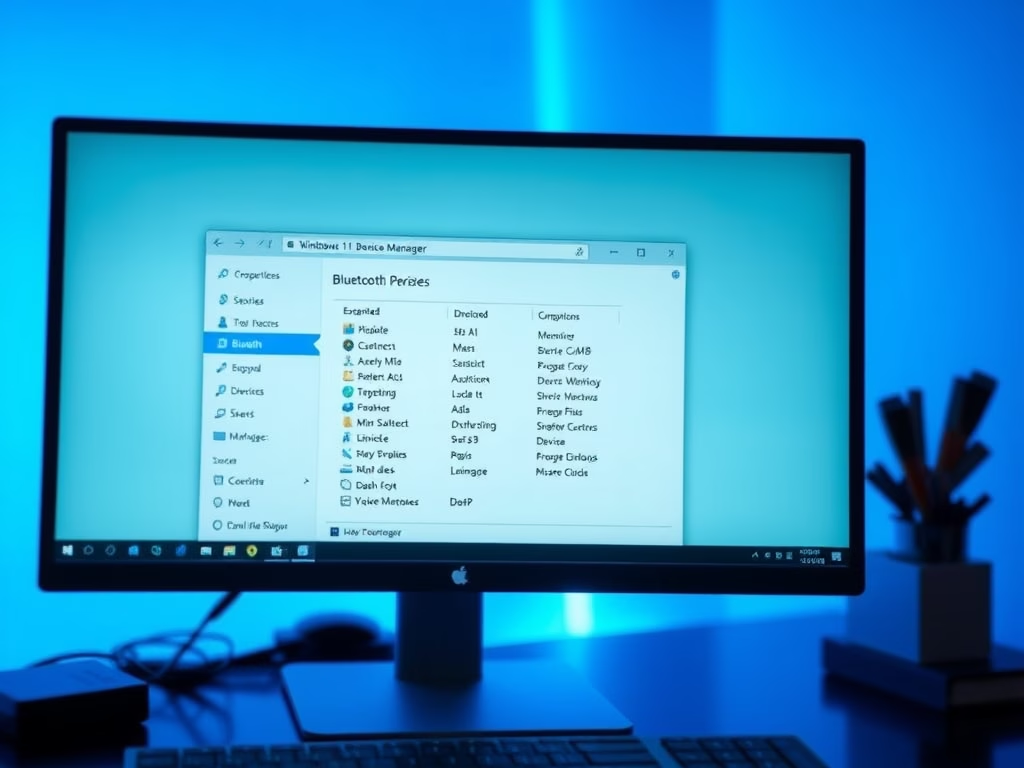
You can check your Bluetooth version on Windows 11 by locating the LMP (Link Manager Protocol) number in Device Manager.
Bluetooth is a wireless technology that lets you connect devices like headphones and keyboards to your PC without cables. Knowing your specific Bluetooth version, often identified by an LMP number like LMP 12.76 on Windows 11, is crucial for ensuring compatibility and troubleshooting connection issues.
This LMP number directly corresponds to the Bluetooth standard your hardware supports. Understanding this helps you determine if your PC can work with newer accessories or features such as Bluetooth Low Energy (BLE).
It also helps you identify potential hardware limitations that might affect device connectivity or signal strength.
Find your Bluetooth version in Windows 11 by opening Device Manager, expanding “Bluetooth,” right-clicking your Bluetooth adapter, selecting “Properties,” and checking the ” LMP” number under the “Advanced” tab. This LMP number indicates your hardware’s Bluetooth standard.
Is Bluetooth 5.0 or 5.2 better?
Key Takeaways: Bluetooth 5.0 offers improved data transfer speed, range, and increased data broadcasting capacity. Bluetooth 5.2 introduces the low complexity communication codec (LC3), enhanced attribute protocol (EATT), and isochronous channels (ISOC).
Was this guide helpful?

About the Author
Richard
Tech Writer, IT Professional
Richard, a writer for Geek Rewind, is a tech enthusiast who loves breaking down complex IT topics into simple, easy-to-understand ideas. With years of hands-on experience in system administration and enterprise IT operations, he’s developed a knack for offering practical tips and solutions. Richard aims to make technology more accessible and actionable. He's deeply committed to the Geek Rewind community, always ready to answer questions and engage in discussions.


No comments yet — be the first to share your thoughts!