How to Connect to Wireless Display in Windows 11

Do you want to show your computer screen on a big TV or projector without using messy cables? Windows 11 makes this simple using wireless technology.
Why use a wireless display?
Wireless displays let you move your content from your small laptop screen to a large TV or projector. It is perfect for showing photos to family, giving a presentation at work, or watching a movie on a big screen. By using screen mirroring, you eliminate the need for messy HDMI cables and adapters.
What happens when you are done?
When you finish your session, your computer will disconnect from the external device. Your screen will return to its normal settings, and all windows will move back to your main monitor. The wireless connection is terminated, and your PC resumes its standard display configuration.
Hardware Compatibility Checklist
Before you start, ensure your hardware supports Miracast. Most modern Windows 11 devices do, but you can check by running dxdiag in the Run command. Look for Miracast: Available, with HDCP in the System Information tab.
How to Connect using Quick Settings
First, make sure your TV or external device is turned on. If you are using a wireless display adapter, make sure it is plugged into your device.
- On your PC, make sure Wi-Fi is turned on.
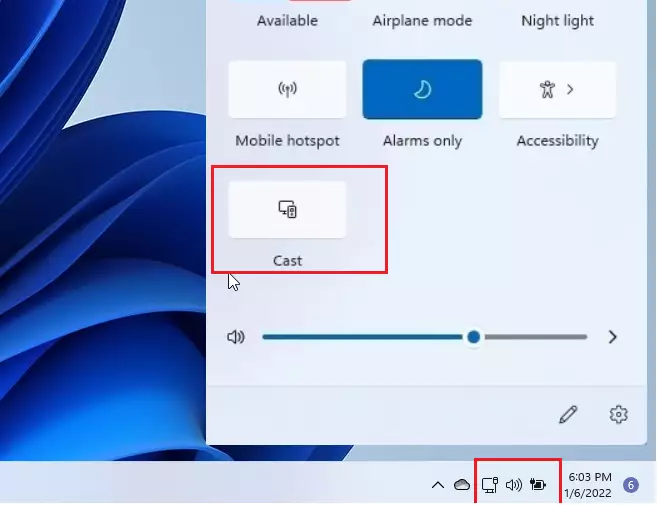
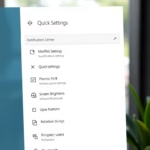
- Press the Windows Key + K on your keyboard to open the Cast menu.
- Alternatively, click the Network icon on your taskbar and select Cast.
- Select your display or adapter from the list that appears.
How to Connect using the Settings App
You can also connect through the main Windows settings menu for more control over your display modes.
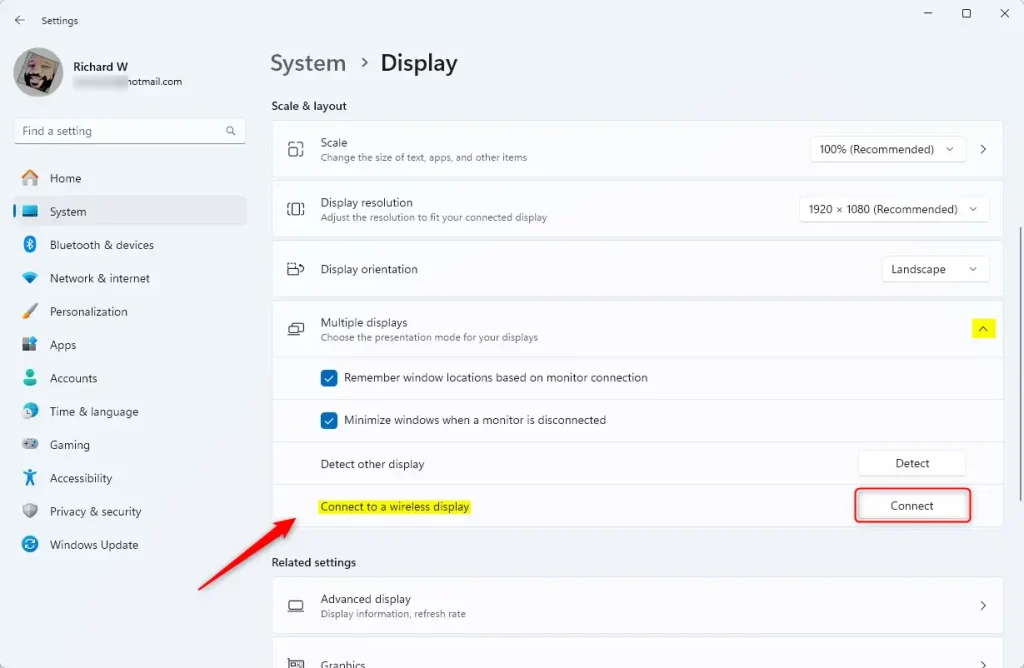
- Open the Settings app by pressing Windows Key + I.
- Click on System in the left menu.
- Select the Display tile on the right side.


- Scroll down to the Multiple displays section and click to expand it.
- Click the Connect button next to “Connect to a wireless display.”
Understanding Display Modes
Once connected, you can choose how your screen behaves. Use this table to decide which mode fits your needs:
| Mode | What it does |
|---|---|
| Duplicate | Shows the exact same content on both screens. |
| Extend | Treats the wireless display as a second monitor. |
Installing the Wireless Display Feature
If you cannot find the option to connect, you may need to install the optional feature. Admin privileges required.
- Go to Settings > Apps > Optional features.
- Click View features and search for Wireless Display.
- Select it and click Install.
Refer to the official Microsoft guide for more details.
Summary
Connecting to a wireless display is a great way to share your screen without cables. You can use the Windows Key + K shortcut for a fast connection or the Settings app for more control. By verifying your hardware supports Miracast and ensuring your network is stable, you can easily extend your desktop or mirror your screen for presentations and media.
Why is my wireless display not appearing in the list?
Ensure both your PC and the display device are on the same local network. Check that Wi-Fi is enabled on your PC and that the display device is set to receive connections. If it still fails, restart both devices to refresh the Miracast handshake process.
How do I fix lag when using a wireless display?
Latency is often caused by network interference. Move your PC closer to the wireless display or the router. Avoid using high-bandwidth activities on the same network simultaneously. Using a 5GHz Wi-Fi connection instead of 2.4GHz can significantly reduce lag during screen mirroring.
Was this guide helpful?

I went out and paid money for the latest Office home & students because the hyperlink within a document, which is correctly set up because Right click and hyperlink works, doesn’t work if I just click the hyperlink. Nothing happens.
I can’t access Easy connect. It says I own this app but it is not listed in the apps on my computer so I still don’t know how to get help for my problem when all the things it says to do I already did and they don’t work.
And none of this is any help. So I’m still stuck with hyperlinks that don’t work and no way to get help.
https://www.groovypost.com/howto/follow-hyperlinks-word-outlook-without-ctrl-key/
good instruction for opening links in a document
Easy connect may be available from doing a search, press the Windows key + S
when the choice box opens select apps, type STORE click Microsoft Store, when the store opens click Library on the left margin there will be several apps listed choose your Easy Connect, notice in the very right next to OPEN there three dots, click the dots and choose PIN to Start
now you will be able to access Easy Connect from the Start Menu, you could also choose to Pin to taskbar
I’ve tried tirelessly to connect my PC (Windows 11) to my firestick TV, and for a few seconds it says “connecting,” but then it is “unable to connect.” Both on the same wi-fi network, firestick is in mirroring mode and waiting for PC, but no joy. I am still not able to cast from my PC to my firestick tv. I’ve tried most all methods mentioned on the internet and nothing is working. Any help? Thanks.
I do not see “cast” as an option in the “Network” panel
I’m with ObieWan. Same issue, only I’m trying to connect to a Roku stick. I have also tried every fix I can find on the web, but to no avail. I have no problem screen mirroring from my Android phone, but Windows 11 just refuses to cooperate. Can anyone HELP????