How to Install 1Password on Ubuntu Linux


You can install the native 1Password app on Ubuntu 20.04 and 18.04 LTS to manage your passwords securely.
1Password is a cross-platform password manager that simplifies securely sharing logins, credit cards, and other sensitive information across all your devices.
The application now offers a stable Linux experience after entering beta last year. This guide walks you through the straightforward installation process on your Ubuntu desktop.
Once installed, 1Password integrates with your system, offering features like GNOME Keyring support and automatic dark mode selection, allowing you to log in and fill forms with a single click.
Install the 1Password DEB file by downloading it from the official website and opening it with Software Install. Alternatively, use the command line to add the 1Password repository and install it with apt. After installation, search for 1Password in the Activities overview to open it.
Install from the DEB file
The quickest way to install 1Password on an Ubuntu desktop is from its official DEB file. From your Ubuntu desktop, click on the link below from your web browser.
https://downloads.1password.com/linux/debian/amd64/stable/1password-latest.deb
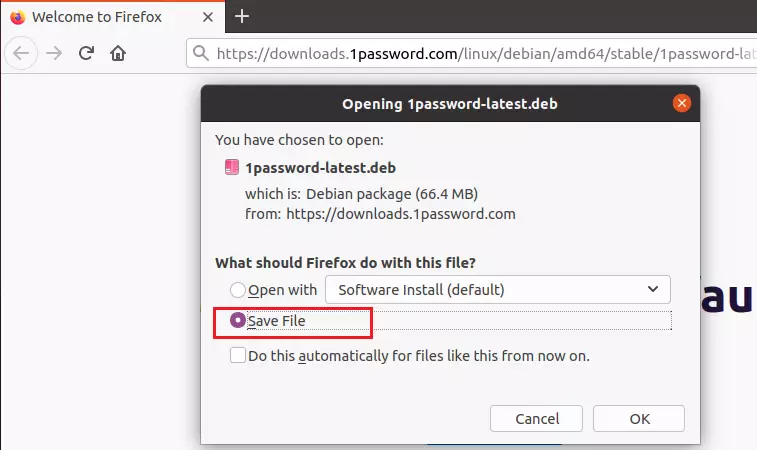
This will launch the installer in Ubuntu. When prompted, choose to Save File, as shown in the image below.
By default, files are downloaded into the Downloads folder of your home directory. Use the file manager to browse the Downloads folder.
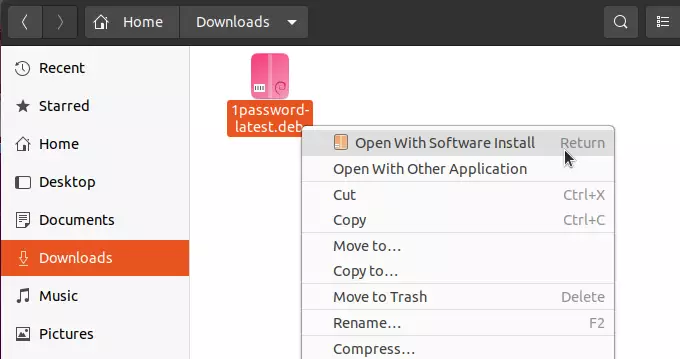
In the Downloads folder, right-click on the downloaded and select Open With Software Install, as shown above.
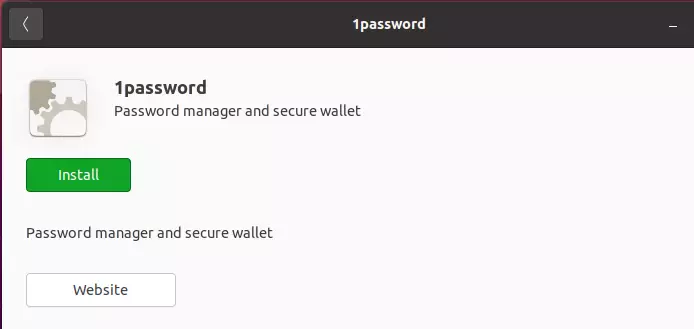
That will launch the Ubuntu apps center. Click Install to begin the installation.
You should be prompted for the account admin password. Confirm and complete the installation.
After installing, go to the Activities overview dashboard, search for 1Password, and select open.
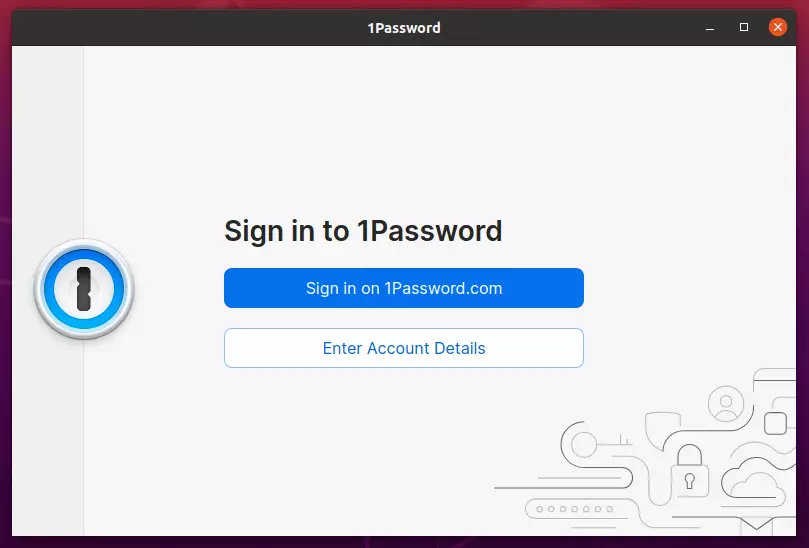
That should do it!
Install from repository
Another way to install 1Password is to use the command line and install the app from its official repository. To do that, use the steps below.
First, install curl by running the commands below:
sudo apt update
sudo apt install curl
Next, add the 1Password repository key to Ubuntu
curl -sS https://downloads.1password.com/linux/keys/1password.asc | sudo gpg --dearmor --output /usr/share/keyrings/1password-archive-keyring.gpg
Then create a repository file.
echo 'deb [arch=amd64 signed-by=/usr/share/keyrings/1password-archive-keyring.gpg] https://downloads.1password.com/linux/debian/amd64 stable main' | sudo tee /etc/apt/sources.list.d/1password.list
To verify packages signatures and make sure they’re authentic, add the lines below:
sudo mkdir -p /etc/debsig/policies/AC2D62742012EA22/

curl -sS https://downloads.1password.com/linux/debian/debsig/1password.pol | sudo tee /etc/debsig/policies/AC2D62742012EA22/1password.pol
Again
sudo mkdir -p /usr/share/debsig/keyrings/AC2D62742012EA22

curl -sS https://downloads.1password.com/linux/keys/1password.asc | sudo gpg --dearmor --output /usr/share/debsig/keyrings/AC2D62742012EA22/debsig.gpg
Finally, run the commands below to update and install 1Password
sudo apt update
sudo apt install 1password
That should do it!
Conclusion:
This post showed you how to install 1Password on Ubuntu 20.04 | 18.04. If you find any error above, please use the form below to report.
Was this guide helpful?

About the Author
Richard
Tech Writer, IT Professional
Richard, a writer for Geek Rewind, is a tech enthusiast who loves breaking down complex IT topics into simple, easy-to-understand ideas. With years of hands-on experience in system administration and enterprise IT operations, he’s developed a knack for offering practical tips and solutions. Richard aims to make technology more accessible and actionable. He's deeply committed to the Geek Rewind community, always ready to answer questions and engage in discussions.




No comments yet — be the first to share your thoughts!