How to Show or Hide Notification Banners for each app in Windows 11

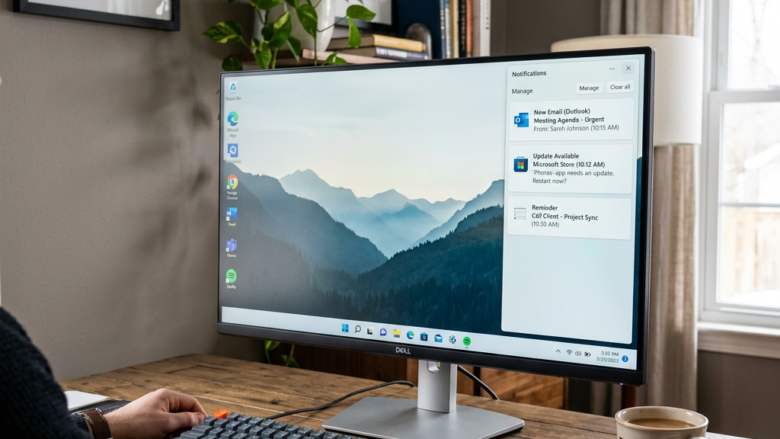
Windows 11 notification banners let you control which apps can pop up alerts.
These banners are those small pop-up messages that appear briefly in the corner of your screen, telling you about new messages, updates, or other events.
You can turn these notification banners on or off for each specific app, giving you fine-grained control over digital interruptions.
For example, you might want Facebook notifications to appear but not for your spreadsheet software.
This guide shows you how to adjust these settings so only the apps you choose can show banners on your Windows 11 PC.
Go to Settings > System > Notifications. Find the app under “Notifications from apps and other senders” and click its name. Toggle “Show notification banners” to turn pop-up alerts on or off for that specific app.
Managing Your Windows Notifications
Windows notifications are alerts that pop up to let you know about new emails, calendar events, or system updates, but they can also be distracting.
How to Find Notification Settings
To manage your Windows notifications, you first need to find the right settings menu within the Windows Settings app.
Tip: Pressing Windows key + I on your keyboard can also open Settings faster!
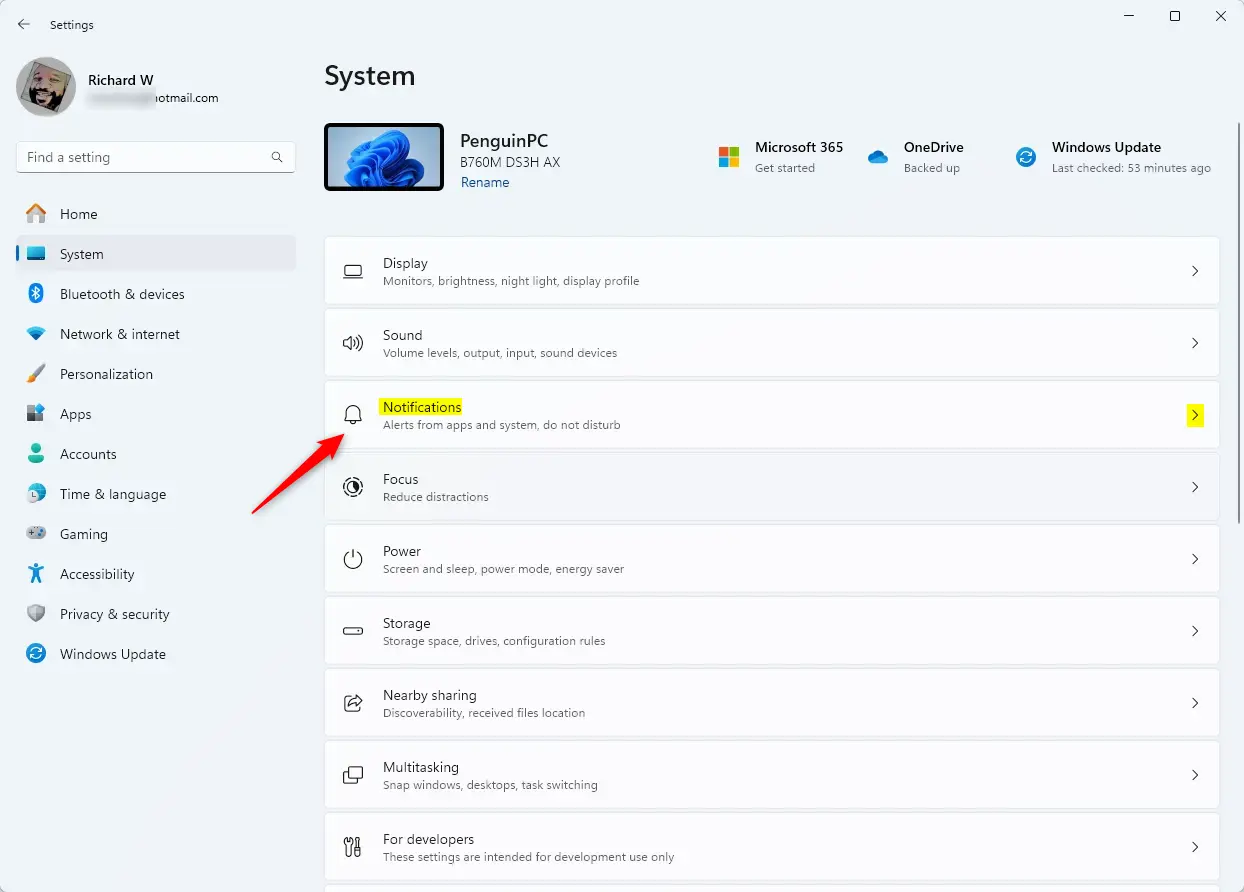
Understanding App Notification Choices
Once you’re in the main Notifications settings, you’ll see a list of apps that can send you alerts, and you can click on each app to change its specific notification choices.
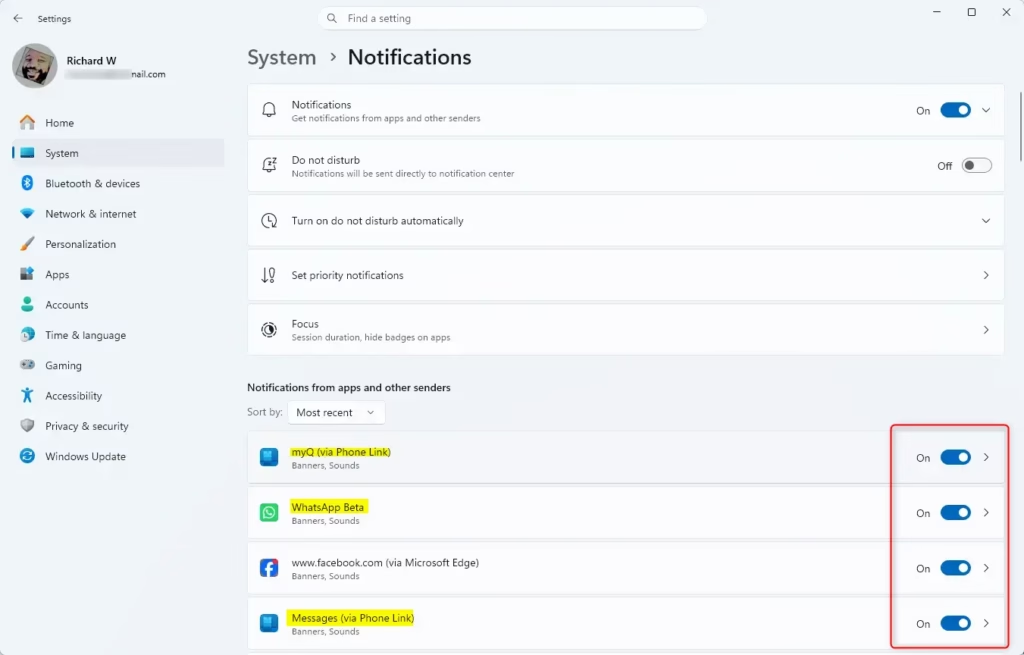
Controlling Notification Pop-ups
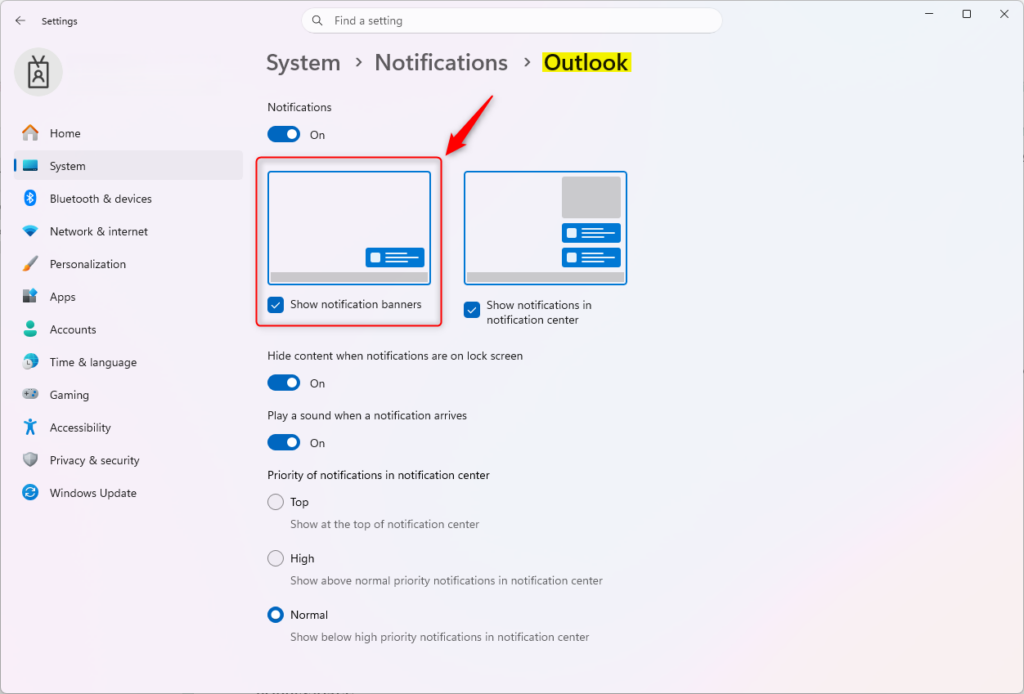
Notification banners are the pop-up messages that appear in the corner of your screen, and you can choose to turn these banners on or off for each individual app.
Look for the switch that says “Show notification banners.” To stop seeing pop-ups from an app, uncheck the box. To see them, ensure the box is checked.
Reference:
Summary
Managing your Windows notifications helps you control distractions, allowing you to decide which alerts are important enough to interrupt your work.
What happens when done? When you adjust these settings, you’ll see fewer pop-up alerts from apps you choose. This means less interruption and more focus on your work or tasks. You can still get important alerts, but only from the apps you want them from.
Was this guide helpful?

About the Author
Richard
Tech Writer, IT Professional
Richard, a writer for Geek Rewind, is a tech enthusiast who loves breaking down complex IT topics into simple, easy-to-understand ideas. With years of hands-on experience in system administration and enterprise IT operations, he’s developed a knack for offering practical tips and solutions. Richard aims to make technology more accessible and actionable. He's deeply committed to the Geek Rewind community, always ready to answer questions and engage in discussions.
No comments yet — be the first to share your thoughts!