How to Change Your Accent Color in Windows 11

You change your accent color in Windows 11 to customize specific interface elements like buttons and highlights.
The accent color is a personalization setting that tints various Windows 11 UI components, making your PC feel more personal. It affects items such as app title bars, the Start menu, and taskbar elements, depending on your chosen theme.
In Windows 11, you can select from predefined Windows colors or choose a custom shade to precisely match your preference. This change can be applied from the Personalization settings menu.
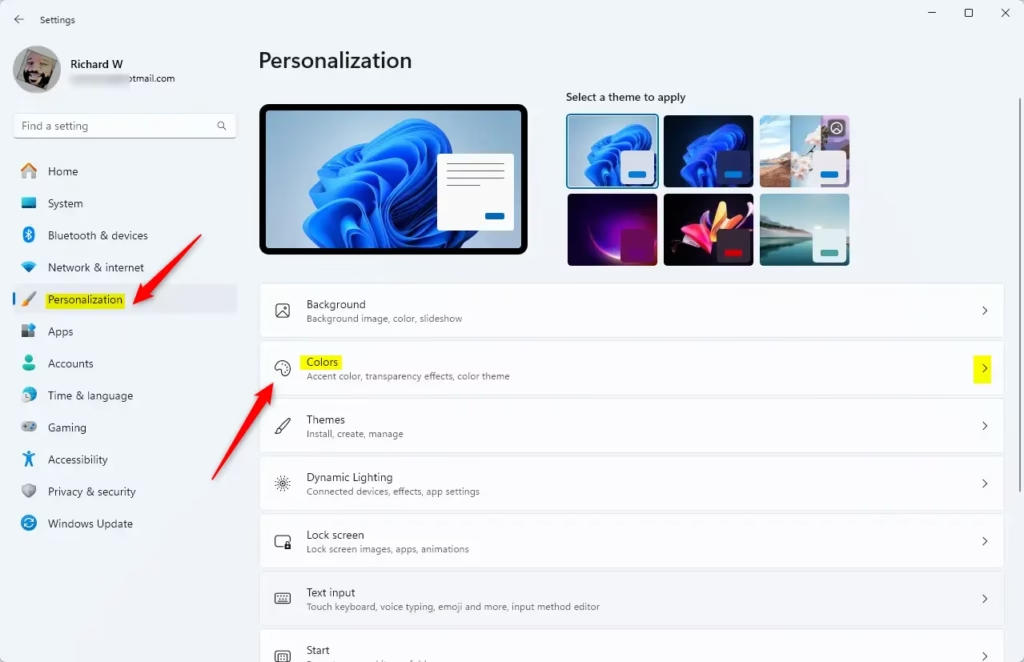
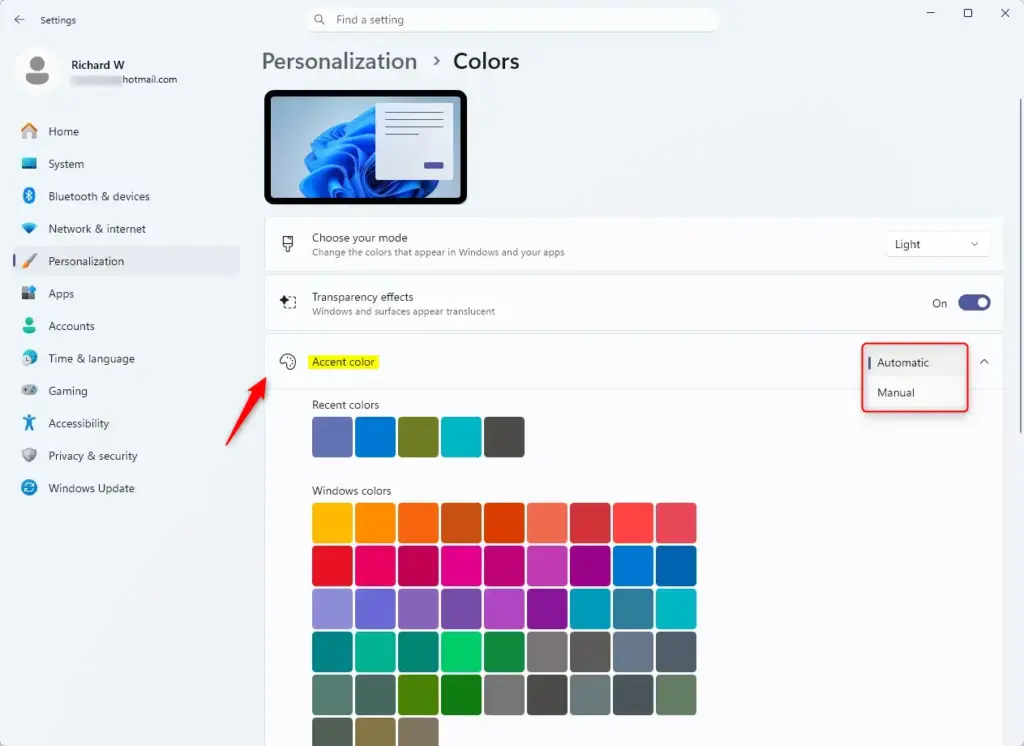
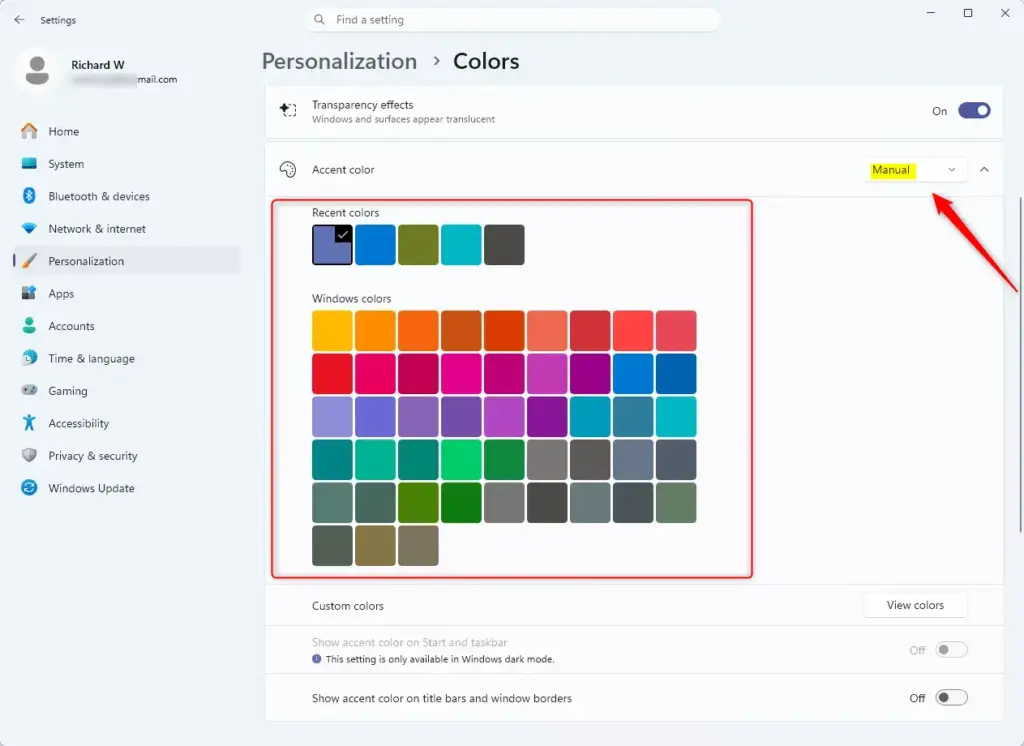
Go to Settings > Personalization > Colors. Under Accent color, choose Automatic to let Windows match your background, or select Manual to pick a specific color from the available options.
What Happens When You Change It?
When you change the accent color, you’ll see it applied in various places. This includes things like the Start menu, taskbar buttons, window borders, and selected items. It’s a visual change that affects how your operating system looks and feels.
How to Change Your Accent Color in 🪟 Windows 11
- First, open the Settings app. You can do this by clicking the Start button and then clicking the gear icon, or by pressing the Windows key + I on your keyboard.
- In the Settings window, click on Personalization in the left-hand menu.
- You will see a section labeled Accent color.
- Click the dropdown menu under Accent color. You have a few options here:
You can change your accent color in Windows 11 by opening the Settings app and going to Personalization.
- Automatic: Windows will pick a color that matches your background.
- Manual: You can choose a specific color yourself.
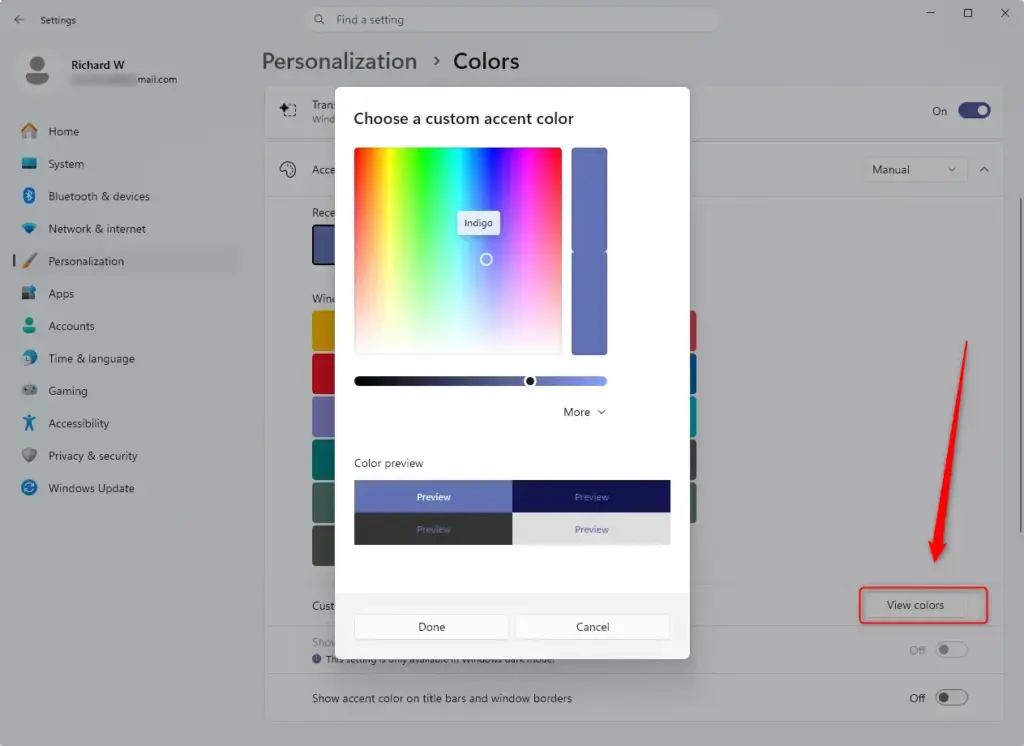
- If you choose Manual, you can select a color from the Recent colors or View colors options. Clicking View colors lets you pick from a wider palette.
- After you select a color, you’ll see it change in the preview area and throughout Windows 11.
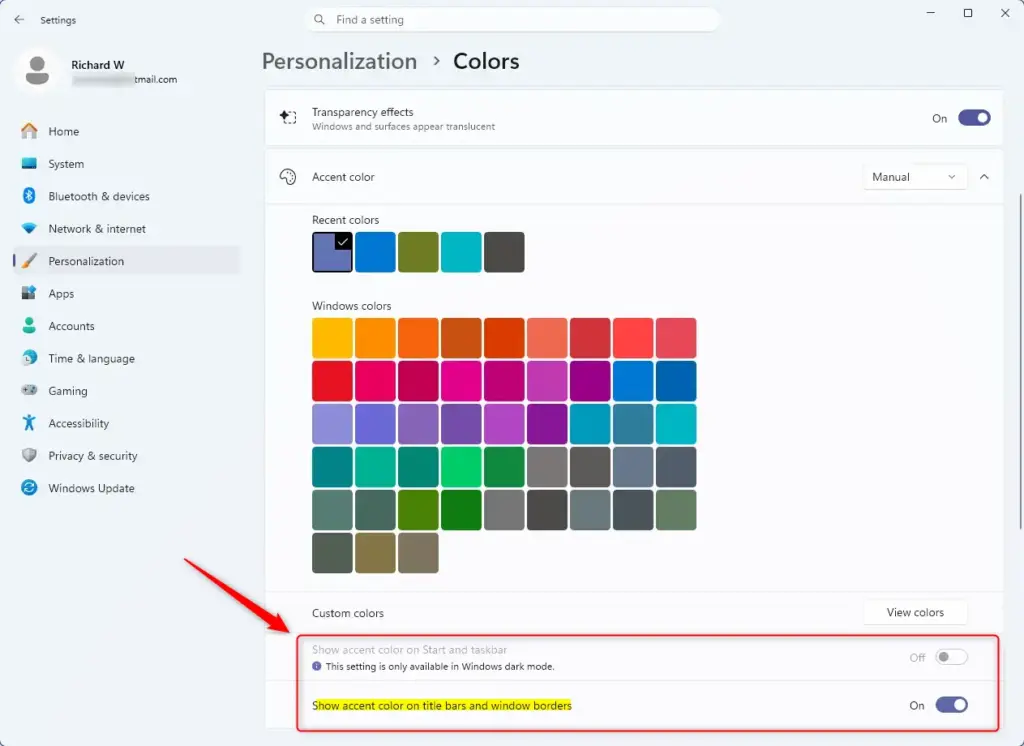
- You can also choose whether the accent color appears on the Start menu and taskbar, and on window borders. Look for the toggle switches labeled Show accent color on Start and taskbar and Show accent color on title bars and window borders.
Reference:
Summary
Changing your accent color in Windows 11 is simple and lets you add a personal touch to your computer.
Was this guide helpful?

About the Author
Richard
Tech Writer, IT Professional
Richard, a writer for Geek Rewind, is a tech enthusiast who loves breaking down complex IT topics into simple, easy-to-understand ideas. With years of hands-on experience in system administration and enterprise IT operations, he’s developed a knack for offering practical tips and solutions. Richard aims to make technology more accessible and actionable. He's deeply committed to the Geek Rewind community, always ready to answer questions and engage in discussions.
No comments yet — be the first to share your thoughts!