How to turn off Phone Link Recent Apps from Windows 11 notification area

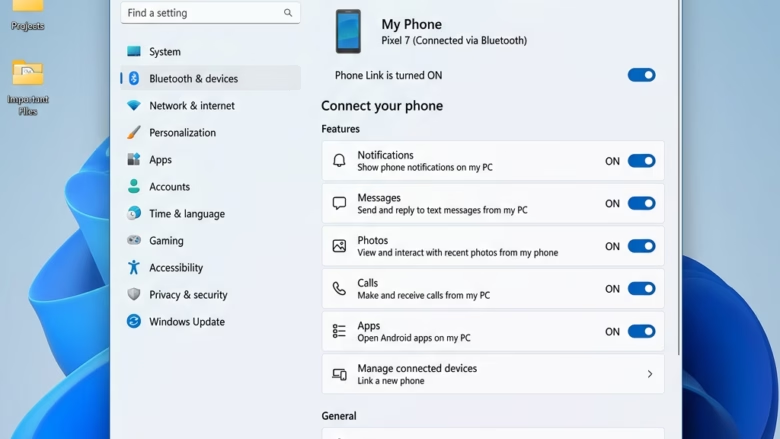
You can turn off Phone Link’s “Recent apps” from the Windows 11 notification area to stop showing your phone’s recently used apps.
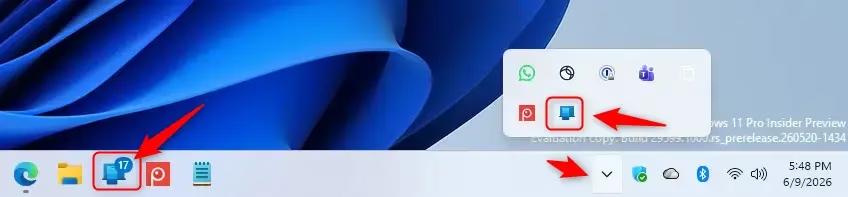
This feature, part of Microsoft’s Phone Link app, displays icons for apps you recently opened on your connected Android phone directly in your PC’s system tray for quick access.
However, if you prefer a less cluttered notification area or don’t find this function useful, disabling it is straightforward.
You’ll need to access the Phone Link app’s settings within Windows 11 to make this change.
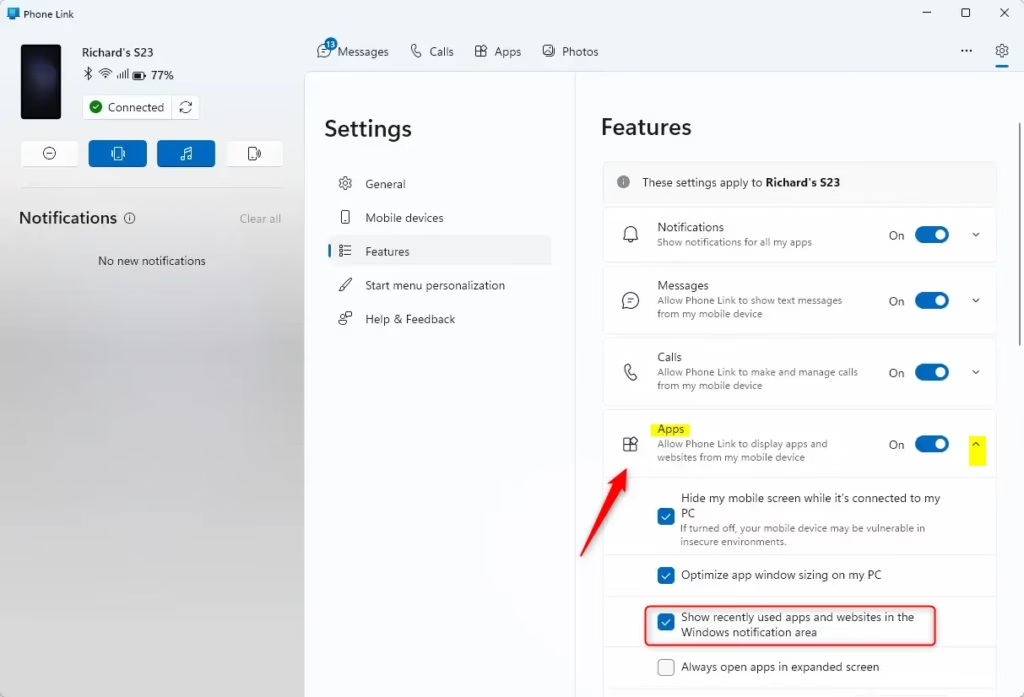
Open Phone Link, go to Settings, click Features, and turn off the toggle for “Show recently used apps in Windows notification area.” This stops recent phone apps from appearing in your PC’s notification area.
Step 1Open the Phone Link App
First things first, you need to launch the Phone Link application on your Windows 11 computer. Think of it as the main place to manage all your connected Android device’s features on your PC.
- Locate the Phone Link app. You can usually find it by typing “Phone Link” into the Windows search bar and clicking on the app when it appears.
- Alternatively, if you’ve pinned it to your Start menu or taskbar, you can open it from there.
Step 2Navigate to Settings
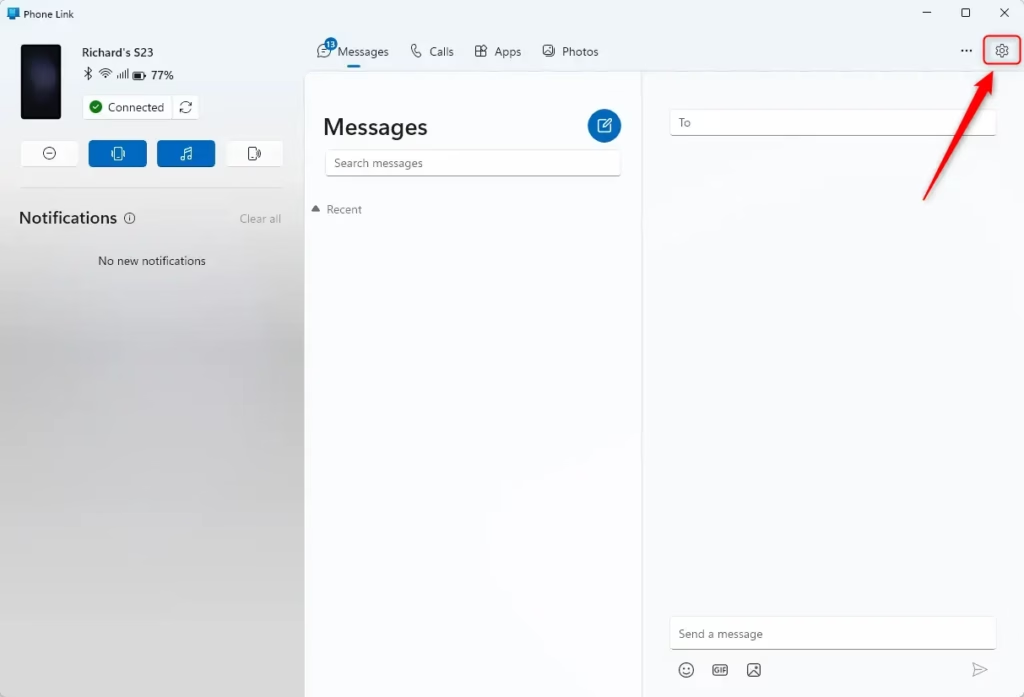
Once the Phone Link app is open, you’ll need to find its settings menu. This is where you can tweak all sorts of settings, including how your apps show up.
- Look for the settings icon within the Phone Link app. It’s often represented by a gear or cogwheel icon.
- Click on this icon to open the Phone Link settings panel.
Step 3Access the Features Section
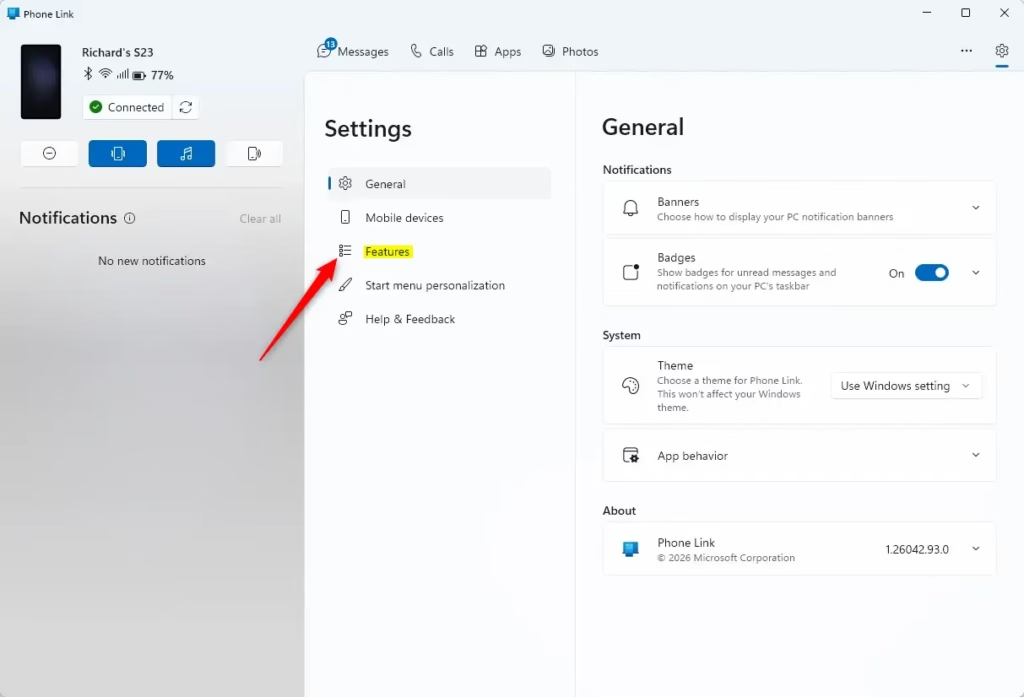
Within the Phone Link settings, you’ll see different categories for managing its various functions. We need to find the section that deals with app integration.
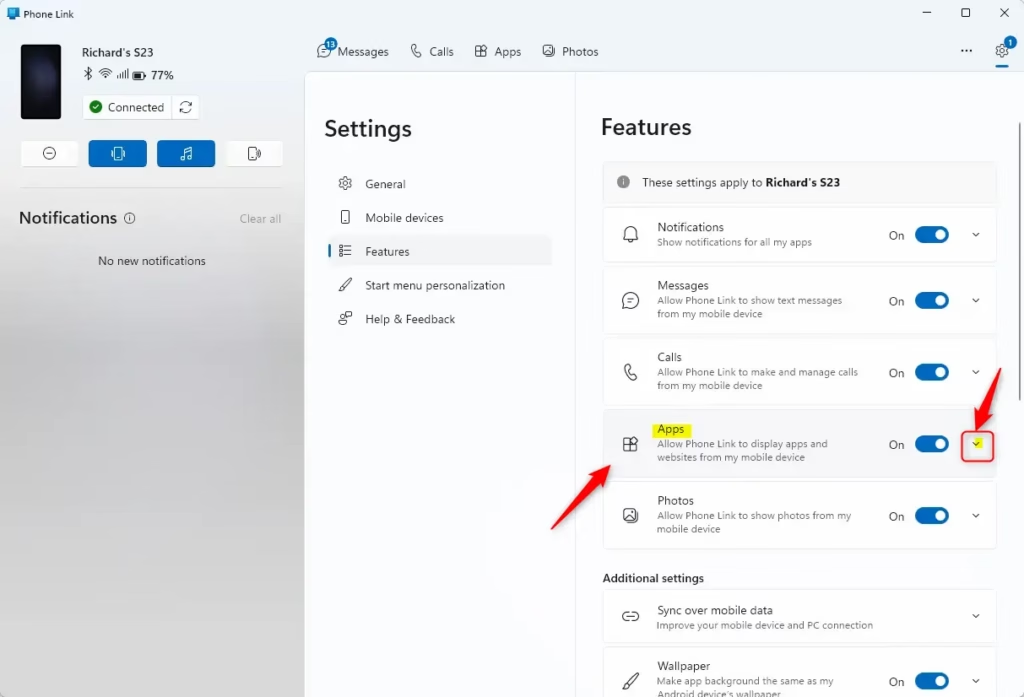
- In the settings menu, find and click on the “Features” option. This section typically contains toggles and options for different aspects of the Phone Link experience, like calls, messages, photos, and apps.
Step 4Locate the “Apps” Setting
Once you’re in the Features section, scroll down a bit until you see the options that manage your Android apps on your PC.
- Look for a heading or a specific option labeled “Apps” or something similar.
- Underneath this “Apps” section, you should see an option that controls the display of recently used apps in the Windows notification area.
Step 5Turn Off “Show recently used apps”
This is the main step where you’ll turn off the feature you no longer want.
- Find the toggle switch or checkbox associated with “Show recently used apps in Windows notification area” (or a very similar phrasing).
- Click on the toggle switch to turn it off. It will usually change color or move to an “off” position to indicate it’s disabled.
Reference:
Conclusion
Turning off those recently used app reminders from your Android device in the Windows 11 notification area can really help tidy up your workspace and make your whole experience smoother. By following the steps outlined above, you can customize the Phone Link app to better suit your preferences. With a cleaner notification area, you can focus more on your important tasks without the distraction of unnecessary app notifications. Enjoy your newly personalized interface and the seamless connectivity between your devices!
Was this guide helpful?

About the Author
Richard
Tech Writer, IT Professional
Richard, a writer for Geek Rewind, is a tech enthusiast who loves breaking down complex IT topics into simple, easy-to-understand ideas. With years of hands-on experience in system administration and enterprise IT operations, he’s developed a knack for offering practical tips and solutions. Richard aims to make technology more accessible and actionable. He's deeply committed to the Geek Rewind community, always ready to answer questions and engage in discussions.


No comments yet — be the first to share your thoughts!