How to turn Show frequent sites on Taskbar on or off in Microsoft Edge on Windows 11

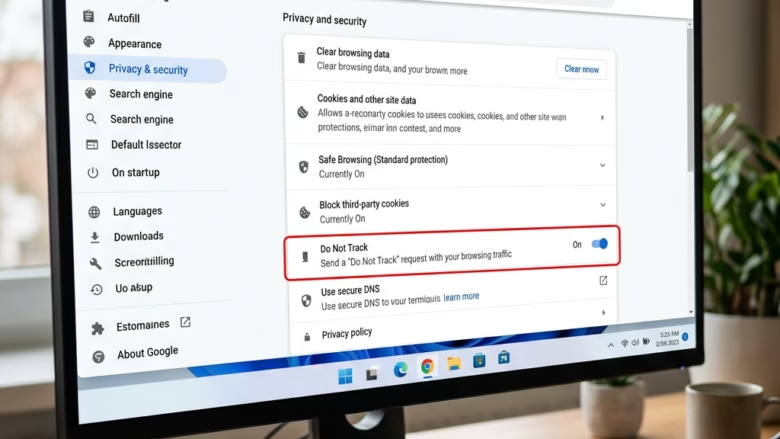
You can turn the “Show frequent sites on Windows taskbar” feature on or off in Microsoft Edge on Windows 11 to control whether your most visited websites appear on your taskbar.
This setting, found in specific Microsoft Edge versions like Canary, Beta, and Dev, aims to provide quick access to your frequently used sites directly from the taskbar.
While the exact functionality is still being confirmed by Microsoft, it’s believed to offer shortcuts when you right-click the Edge icon on your taskbar.
Here’s How to Change the Setting:
- Open Microsoft Edge.
- Click the three dots icon in the top right corner. This is the Settings and more menu (you can also press Alt+F). Then, click on Settings.
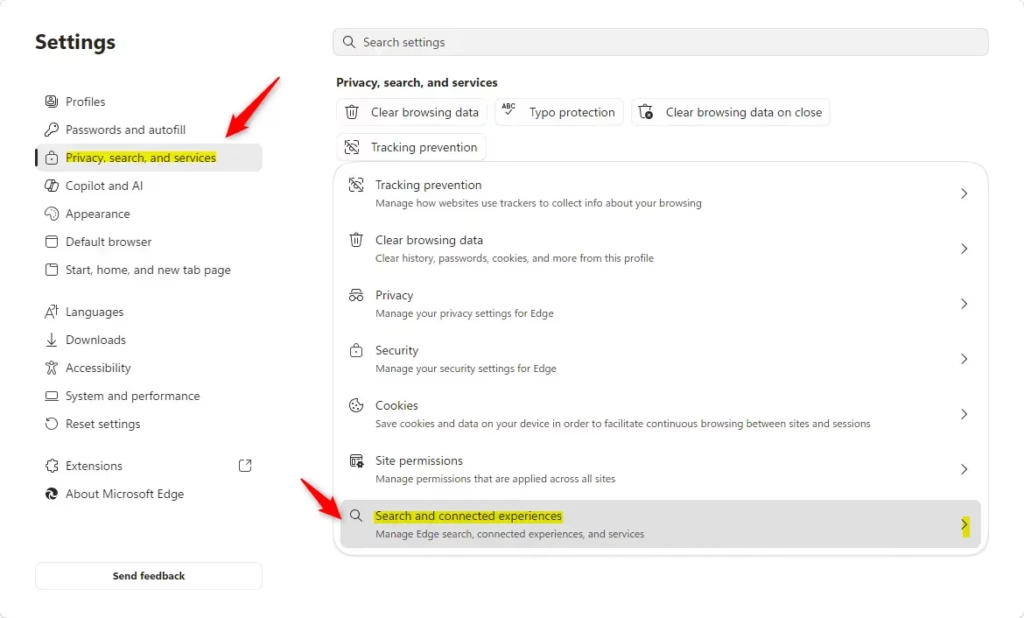
- In the left sidebar, click on Privacy, search, and services. Then, on the right side, click on Search and connected experiences.
- If you don’t see a left sidebar, click the three lines button in the top left corner. Or, make the Edge window wider until the sidebar appears.
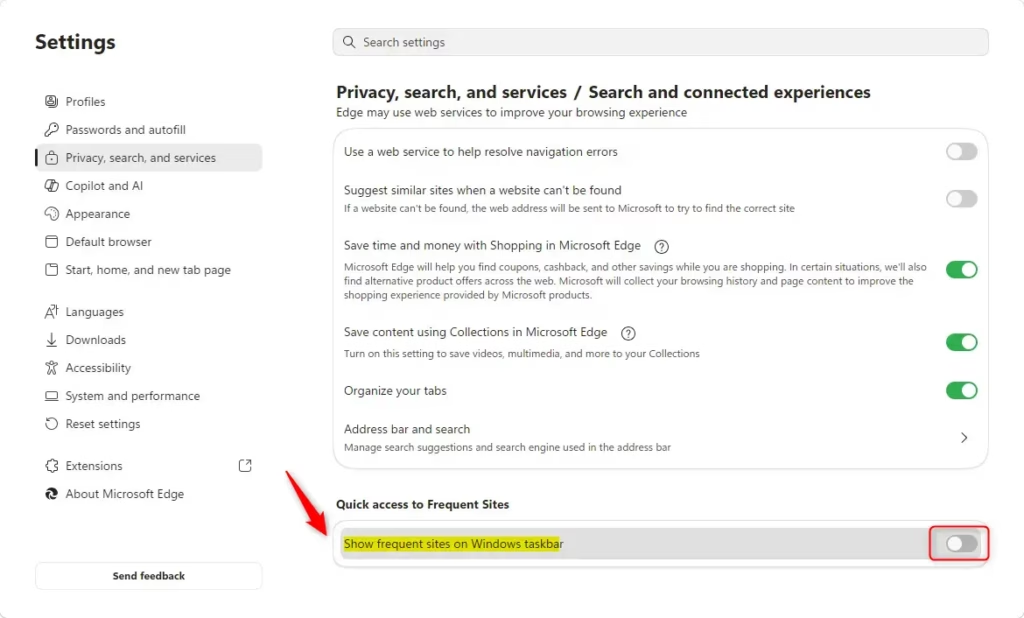
- Find the setting called Show frequent sites on Windows taskbar. Turn it On or Off. The default is Off.
- You can now close the Settings tab in Microsoft Edge.

That’s it!
Summary
In this guide, you learned how to turn the “Show frequent sites on Windows taskbar” option on or off in Microsoft Edge on Windows 11. This setting, located under ‘Privacy, search, and services’ then ‘Search and connected experiences,’ aims to control whether your most visited websites appear on the taskbar’s jump list (the menu that appears when you right-click the app icon) for the Edge icon. We’re still waiting for Microsoft to share more details on exactly how it works, but you can go ahead and change the setting now.
Was this guide helpful?

About the Author
Richard
Tech Writer, IT Professional
Richard, a writer for Geek Rewind, is a tech enthusiast who loves breaking down complex IT topics into simple, easy-to-understand ideas. With years of hands-on experience in system administration and enterprise IT operations, he’s developed a knack for offering practical tips and solutions. Richard aims to make technology more accessible and actionable. He's deeply committed to the Geek Rewind community, always ready to answer questions and engage in discussions.



No comments yet — be the first to share your thoughts!