How to Restore Default Settings of Library in Windows 11

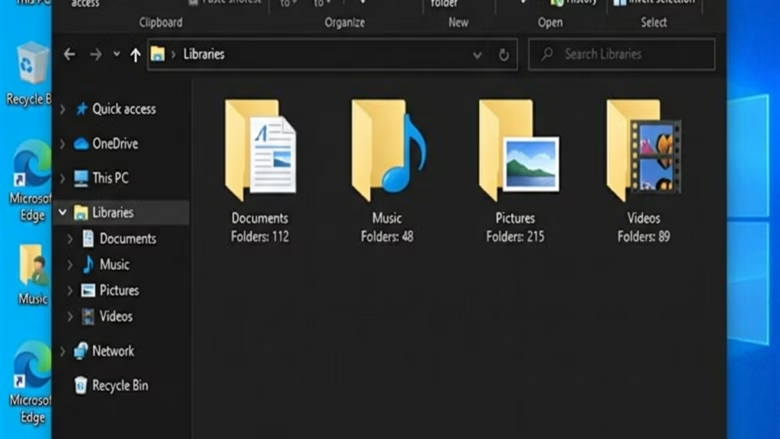
This guide explains how to reset your library settings to their original state. Libraries in Windows 11 help you keep your files organized. They act like a central hub for folders stored in different places on your computer or network.
Why do this?
Sometimes you might change the folders or settings in your library and want to go back to how things were when you first set up Windows. This process resets the folder locations, the order of files, and the icons back to their factory defaults.
What happens when done?
When you restore a library, Windows removes any custom folders you added. It resets the library to point only to the standard folders like Documents or Pictures. Your actual files are not deleted. They just disappear from that specific library view.
How to Restore Libraries via File Explorer
This is the easiest way to reset your settings without using advanced tools.
- Open File Explorer by pressing the Windows Key + E.
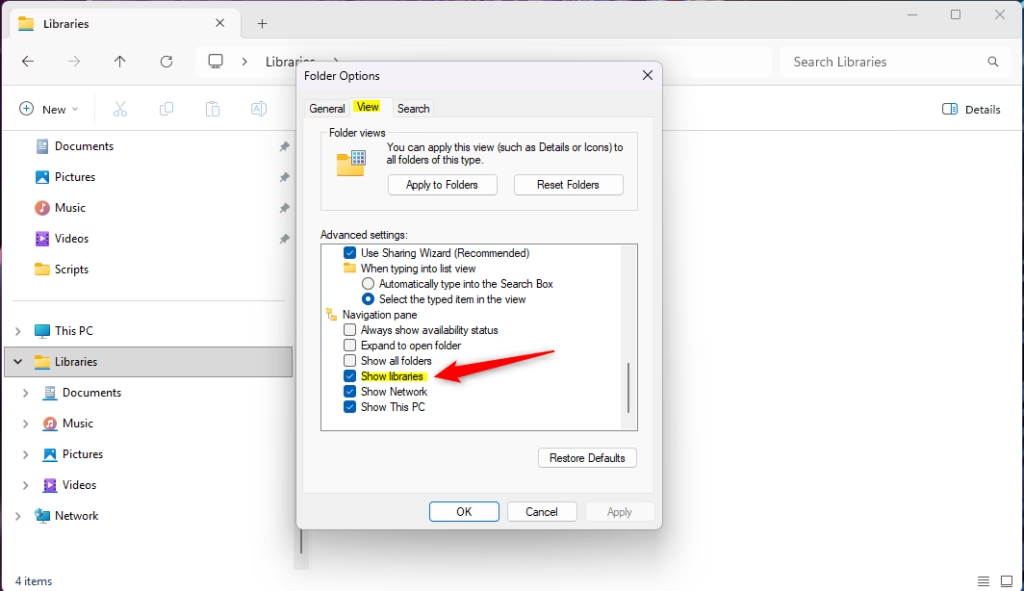
- In the left sidebar, find the Libraries folder. If you do not see it, right-click the empty space in the sidebar and select Show libraries.
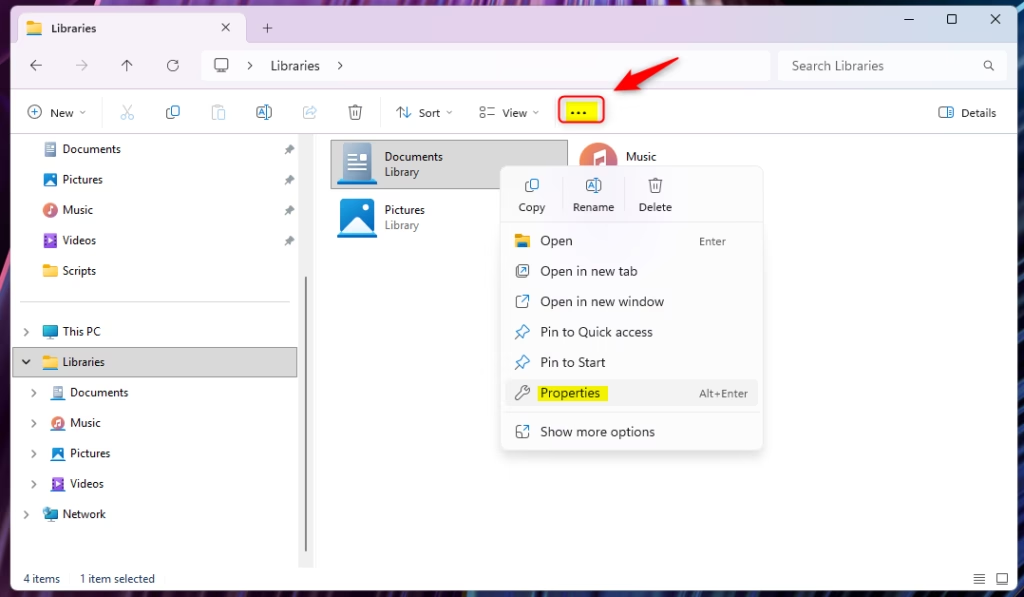
- Right-click the library you want to fix (e.g., Pictures) and choose Properties.
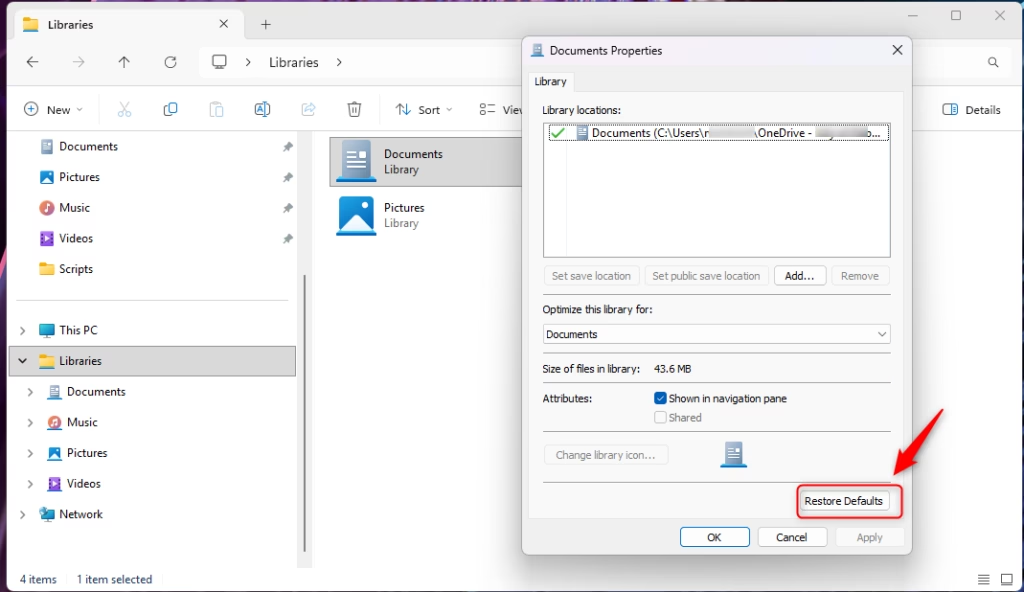
- In the window that pops up, click the Restore Defaults button.
- Click OK to save your changes.
Advanced Fix: Resetting Libraries via Registry Editor
Warning: Modifying the registry can cause system issues if done incorrectly. Always back up your registry before proceeding. This requires Admin Privileges.
To manually reset library definitions, you can delete the corrupted library files in the registry:
- Press Windows Key + R, type regedit, and press Enter.
- Navigate to: HKEY_CURRENT_USER\Software\Microsoft\Windows\CurrentVersion\Explorer\ShellFolders.
- Locate the specific library key and delete it to force Windows to recreate it upon restart.
Troubleshooting: Libraries Not Appearing
If your libraries are missing from the navigation pane, follow these steps:
- Open File Explorer.
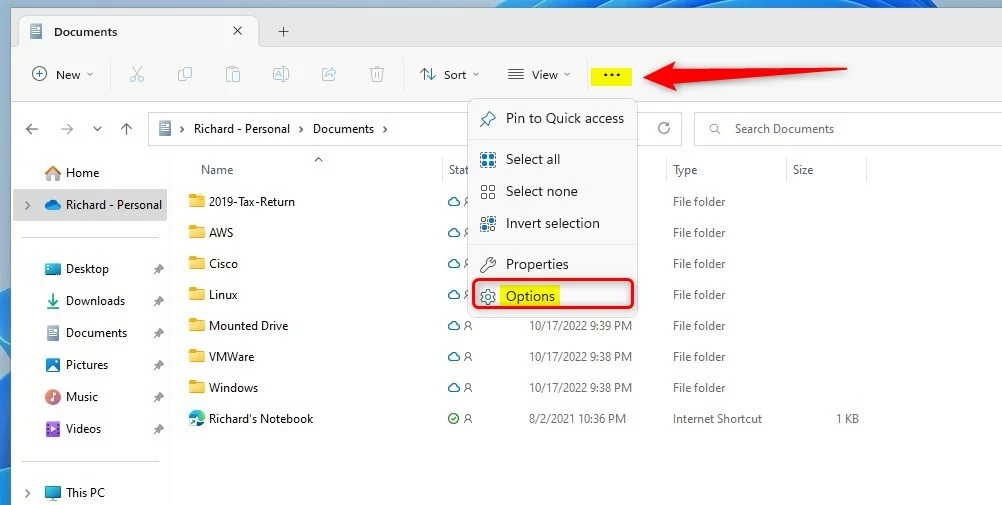
- Click the See more (three dots) button in the top menu.
- Select Options.
- Under the View tab, ensure Show libraries is checked in the Navigation pane section.
Summary
Restoring your library settings is a simple way to fix broken links or display issues in Windows 11. By using the Properties menu in File Explorer, you can quickly reset any library to its factory state. If problems persist, checking your Navigation pane settings or using the Registry Editor can help resolve deeper configuration errors. Always remember to back up your data before making registry changes.
What happens to my files when I restore default libraries?
Restoring default libraries does not delete your personal files. It only removes the links to folders you manually added to the library. Your documents, photos, and music remain safely in their original locations on your hard drive, but the library view will revert to showing only the default Windows folders.
Was this guide helpful?

About the Author
Richard
Tech Writer, IT Professional
Richard, a writer for Geek Rewind, is a tech enthusiast who loves breaking down complex IT topics into simple, easy-to-understand ideas. With years of hands-on experience in system administration and enterprise IT operations, he’s developed a knack for offering practical tips and solutions. Richard aims to make technology more accessible and actionable. He's deeply committed to the Geek Rewind community, always ready to answer questions and engage in discussions.



No comments yet — be the first to share your thoughts!