How to Show or Hide Fonts in Windows 11


This guide explains how to show or hide fonts on your Windows 11 computer.
Why hide fonts?
Over time, your computer may accumulate hundreds of fonts. This makes it hard to find the ones you actually use in programs like Microsoft 365 or Adobe. Hiding fonts keeps your workspace clean and improves performance by reducing the number of active items your apps need to load.
What happens when you hide a font?
When you hide a font, Windows stops showing it in the font selection menus of your installed applications. The font file remains on your hard drive in C:\Windows\Fonts. You can easily unhide it later if you decide you need it again.
Show or Hide Fonts in Settings
1. Press Win+I to open Settings.
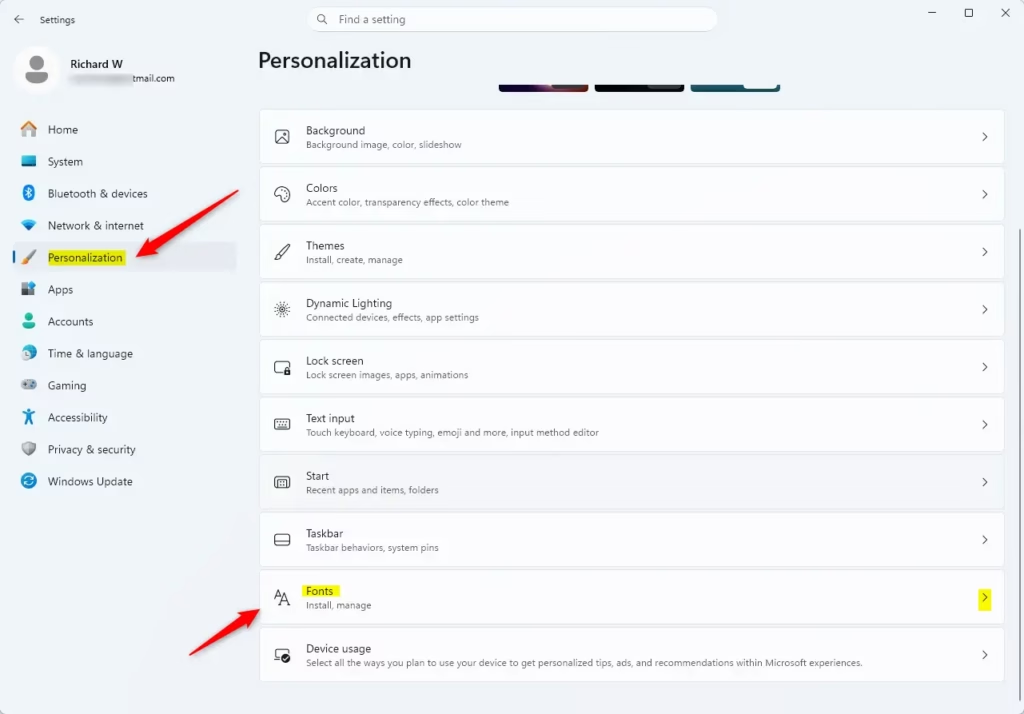
2. Select Personalization on the left, then click Fonts.
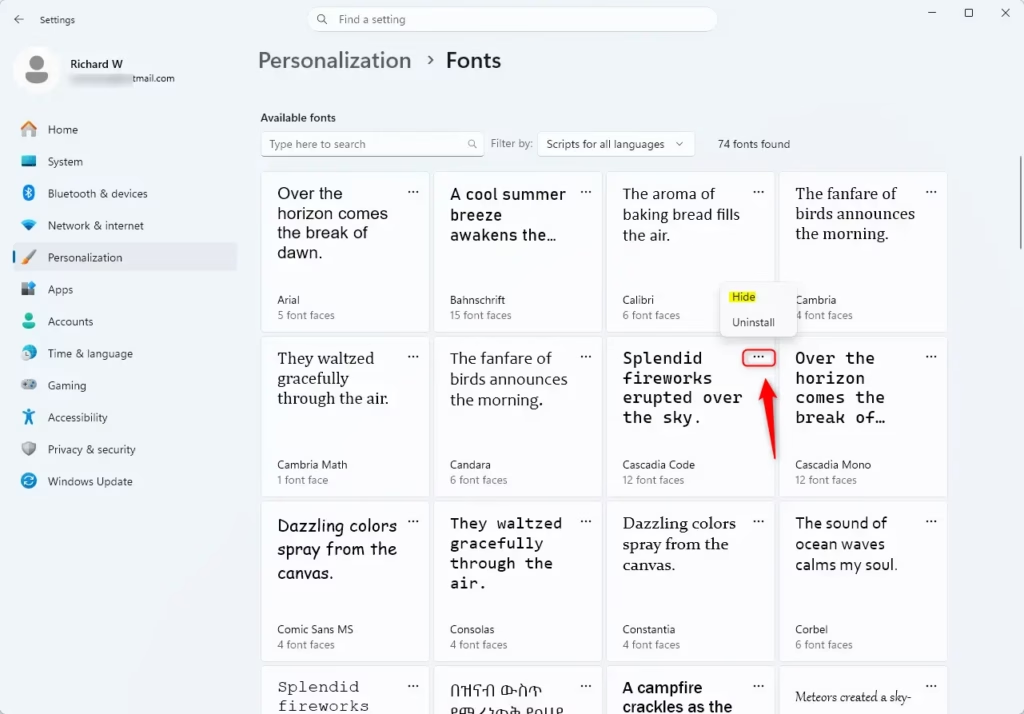
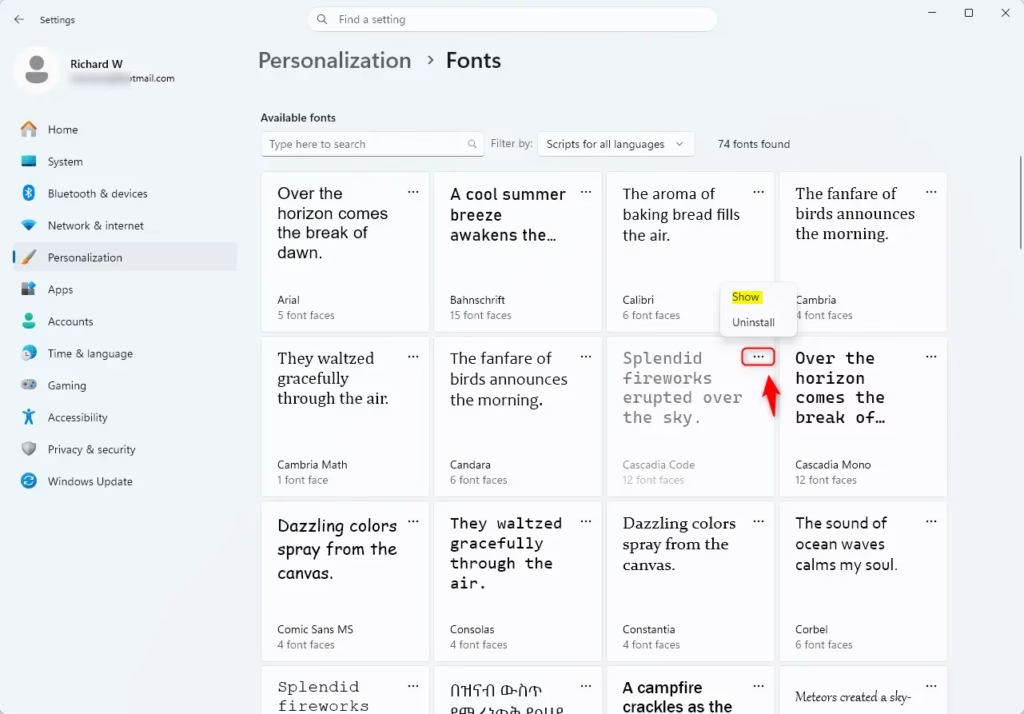
3. Find the font you want to change. Click the three dots next to it and select Hide or Show.
Manage Fonts via File Explorer
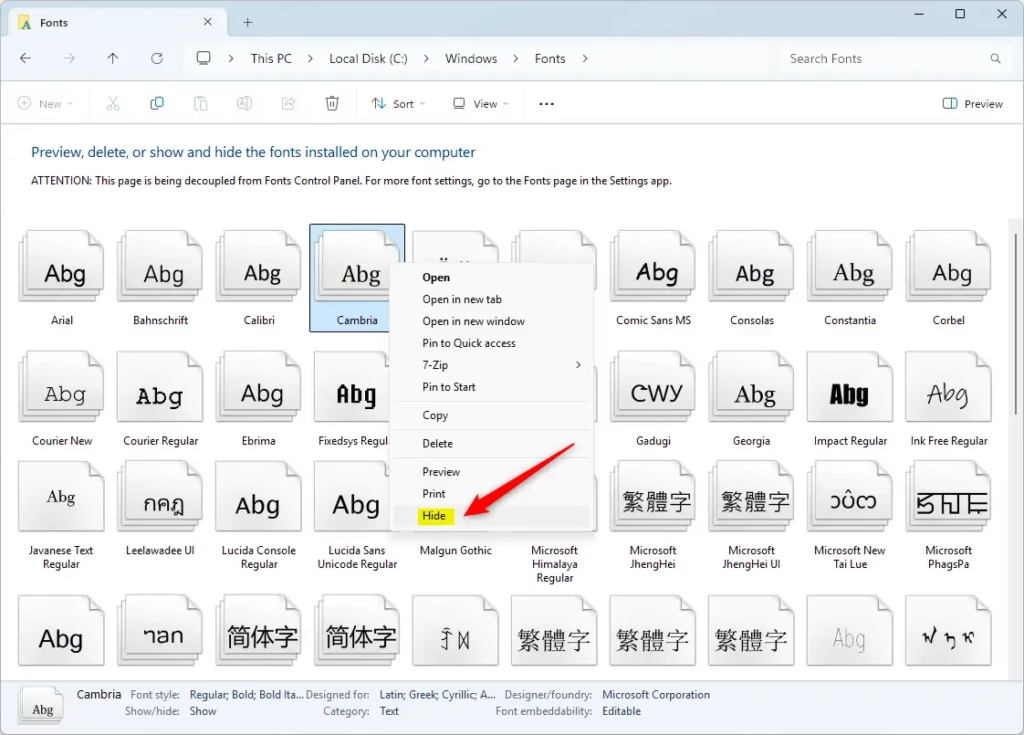
1. Open File Explorer and go to C:\Windows\Fonts.
2. Right-click any font file.
3. Choose Hide or Show from the menu.
Unhide All Fonts (Registry Method)
Note: This action requires administrative privileges.
1. Press Win+R, type regedit, and press Enter.
2. Navigate to: HKEY_CURRENT_USER\Software\Microsoft\Windows NT\CurrentVersion\Font Management
3. Right-click the Inactive Fonts entry on the right side and select Delete to restore all hidden fonts.
Troubleshooting Font Visibility
If you cannot see a font in an app like Notepad or Word, verify it is not hidden by checking the Fonts settings page. If the font is listed as ‘Hidden’ (faded), click the three dots and select Show. For more information, visit the official Microsoft Font management support page.
Does hiding a font delete it from my computer?
No, hiding a font does not delete it. The file remains stored in your system folders. It simply removes the font from the list of available options in your software programs. You can restore its visibility at any time using the same settings menu where you hid it.
Why do hidden fonts still show up in Adobe or Office apps?
Some professional applications use their own font cache or load fonts directly from system directories. If a font still appears, try restarting the application or clearing your font cache. Ensure you have hidden the specific font variant, as some programs treat bold or italic versions as separate files.
Was this guide helpful?

About the Author
Richard
Tech Writer, IT Professional
Richard, a writer for Geek Rewind, is a tech enthusiast who loves breaking down complex IT topics into simple, easy-to-understand ideas. With years of hands-on experience in system administration and enterprise IT operations, he’s developed a knack for offering practical tips and solutions. Richard aims to make technology more accessible and actionable. He's deeply committed to the Geek Rewind community, always ready to answer questions and engage in discussions.




No comments yet — be the first to share your thoughts!