How to Enable or Disable Turn On Do Not Disturb with Focus Session in Windows 11

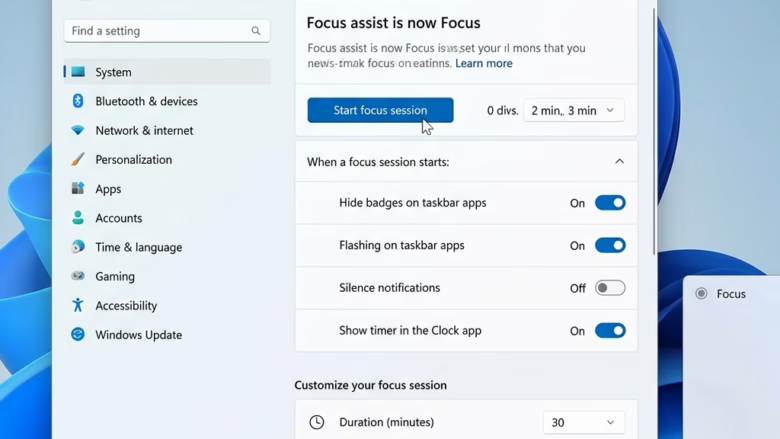
Focus Session in Windows 11 automatically turns on Do Not Disturb, which silences notifications while a timer is running.
This feature turns your PC into a distraction-free zone. It integrates with Microsoft To Do for task management and even Spotify for ambient sound.
By default, Windows 11’s Focus Session activates at 30-minute intervals. However, you can customize its duration and notification settings to fit your needs.
You can toggle Focus Session on or off to manage your workflow and reclaim your concentration.
Go to Settings > System > Focus and toggle the “Turn on do not disturb” option. This setting is grayed out during an active Focus session; you must end the session first to change it.
How to Enable or Disable Turn On Do Not Disturb with Focus Session in 🪟 Windows 11
Windows 11 Focus sessions let you control your notifications, and you can easily turn on or turn off Do Not Disturb right from your Settings.
1. Open Settings by pressing the Windows key + I on your keyboard.
2. Click System on the left menu, then select Focus on the right.
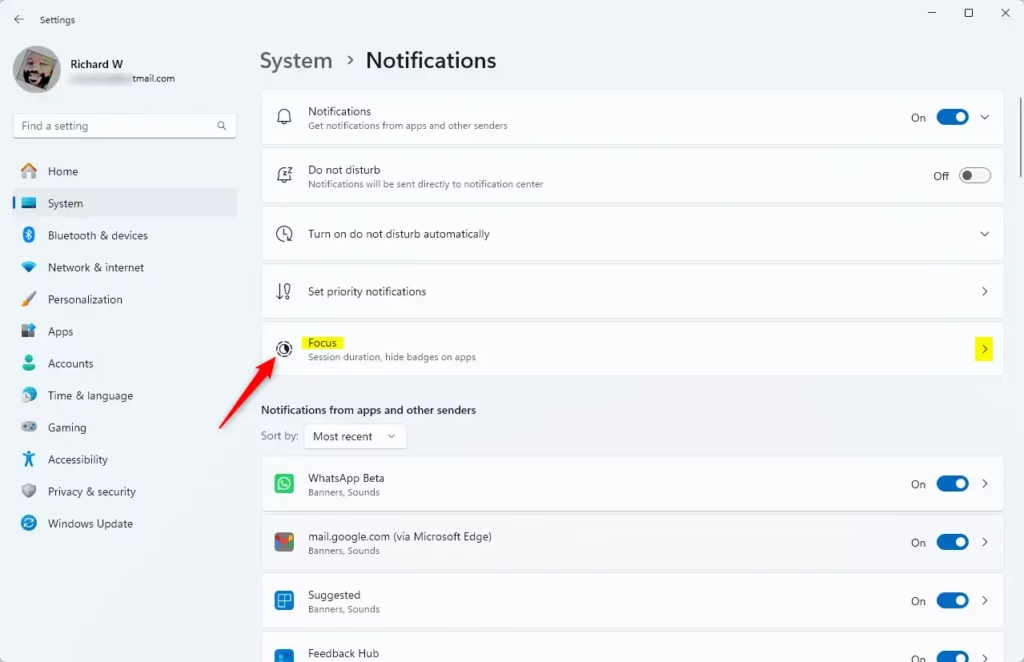
3. Find the option labeled Turn on do not disturb. You’ll see a checkbox to turn it on; click it. To turn it off, uncheck the box.
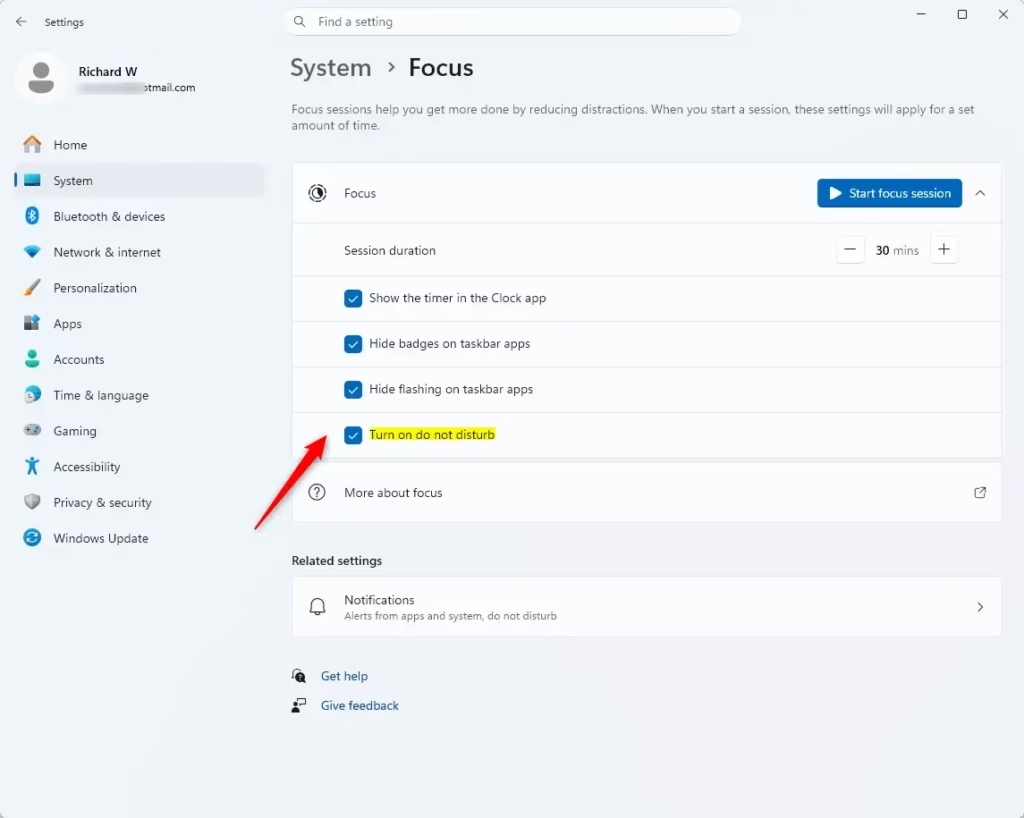
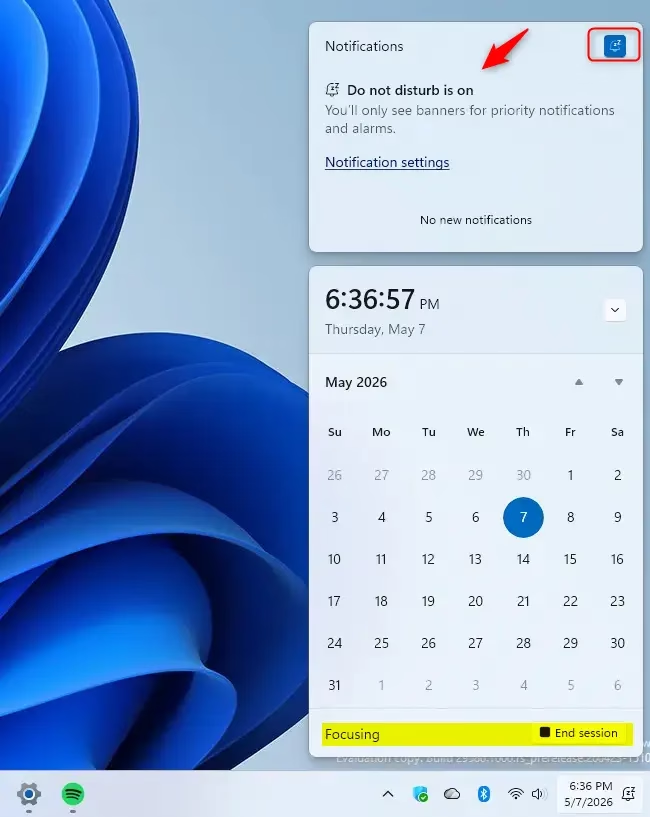
Note: If you are currently in a session, this setting will be grayed out. You must end your session first to change this.
Comparing Focus Mode vs. Manual Do Not Disturb
| Feature | Focus Mode | Manual Do Not Disturb |
|---|---|---|
| Timer | Yes | No |
| Task Integration | Yes | No |
| Automatic Start | Yes | No |
| Notification Blocking | Yes | Yes |
Configuring Priority Notifications
You might want to see important alerts even while in Focus mode. Go to Settings > System > Notifications > Do not disturb. Here, you can select Priority notifications. This allows specific apps or people to break through your silence.
Integrating Microsoft To Do and Spotify
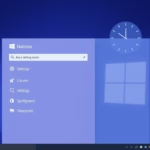
Windows 11 Focus sessions let you connect Microsoft To Do and Spotify right within the Clock app.
Summary
Windows 11 Focus sessions help you get more done by automatically turning on Do Not Disturb.
References
Can I customize the duration of a Focus session?
Yes. Open the Clock app and go to the Focus sessions tab. You can click the plus or minus buttons next to the timer to adjust the duration. You can also set break intervals to ensure you stay refreshed throughout your work session.
How do I stop a Focus session early?
If you need to finish your session before the timer runs out, click the Stop button on the Focus timer window. Your computer will immediately exit the focus state, and your normal notification settings will kick back in.
Do notifications still appear in the Notification Center during Focus?
Yes, they do. While Do Not Disturb prevents pop-ups and sounds from interrupting you, all incoming alerts are saved. You can view them at any time by opening the Notification Center in the bottom right corner of your taskbar.
Was this guide helpful?

About the Author
Richard
Tech Writer, IT Professional
Richard, a writer for Geek Rewind, is a tech enthusiast who loves breaking down complex IT topics into simple, easy-to-understand ideas. With years of hands-on experience in system administration and enterprise IT operations, he’s developed a knack for offering practical tips and solutions. Richard aims to make technology more accessible and actionable. He's deeply committed to the Geek Rewind community, always ready to answer questions and engage in discussions.

No comments yet — be the first to share your thoughts!