How to Enable or Disable BitLocker to Unlock OS Drive with PIN or USB at Startup in Windows 11


You enable or disable BitLocker to unlock your OS drive with a PIN or USB at startup in Windows 11. This adds a crucial extra security layer on top of the default Trusted Platform Module (TPM 2.0).
BitLocker Drive Encryption is a Windows feature that protects your data by scrambling your entire hard drive. This stops anyone from accessing your files if your PC gets lost or stolen.
When you add a startup PIN or USB drive alongside your TPM 2.0, your computer won’t boot without the right authentication. You’ll need to provide it every time you turn your PC on.
This guide walks you through configuring this enhanced security setting in Windows 11, giving you peace of mind.
Enable BitLocker startup authentication by navigating to Computer Configuration > Administrative Templates > Windows Components > BitLocker Drive Encryption > Operating System Drives in Group Policy Editor and enabling “Require additional authentication at startup.” Ensure “Allow BitLocker without a compatible TPM” is unchecked unless your PC lacks a TPM.
Important: Backup Your Recovery Key
Warning: Before changing any security settings, you must back up your recovery key. If something goes wrong, this key is the only way to get back into your data. Visit the official Microsoft documentation to learn how to save your key safely.
Enable or Disable BitLocker Settings (Admin Required)
You need administrator privileges to perform these steps. If you’re using Windows 11 Pro, you can use the Group Policy Editor.
Using Group Policy Editor
You can easily turn on or off the BitLocker PIN startup requirement for your Windows 11 PC using the Group Policy Editor.
- Press ⊞ Win+R, type
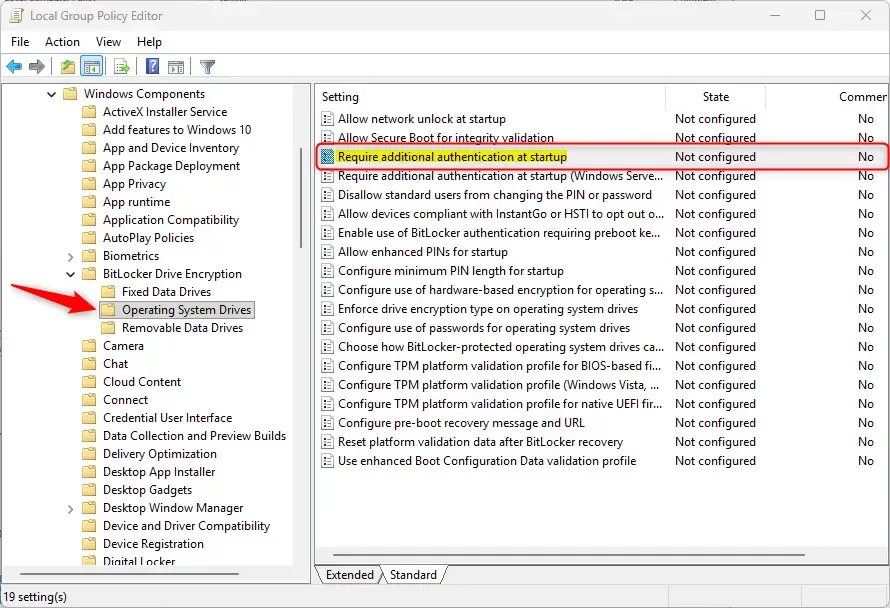
gpedit.msc, and hit Enter. - Go to: Computer Configuration > Administrative Templates > Windows Components > BitLocker Drive Encryption > Operating System Drives.
3. Double-click Require additional authentication at startup.
4. Select Enabled. Ensure the box for Allow BitLocker without a compatible TPM is unchecked unless your PC lacks a TPM.
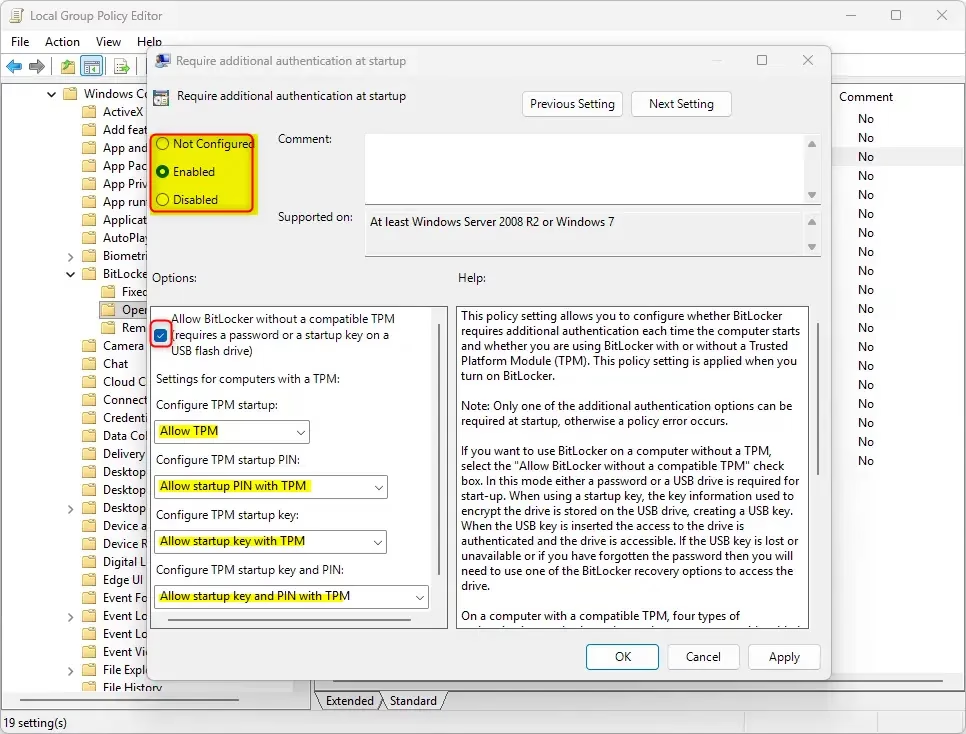
5. Click OK.
Using Registry Editor (GUI Alternative)
If you prefer not to use Group Policy, you can set up your BitLocker PIN startup requirement using the Registry Editor instead.
1. Press ⊞ Win+R, type regedit, and hit Enter.
2. Navigate to: HKEY_LOCAL_MACHINE\SOFTWARE\Policies\Microsoft\FVE.
3. In the right-hand pane, right-click, choose ‘New’ > ‘DWORD (32-bit) Value’, and name it UseAdvancedStartup. Set its value to 1.
4. Repeat this for the other keys below with their values:
EnableBDEWithNoTPMset to 0UseTPMset to 2UseTPMPINset to 2UseTPMKeyset to 2UseTPMKeyPINset to 2
To restore the default behavior, delete the keys created above.
Using Command Line (manage-bde)
For advanced users, you can also use the manage-bde command-line tool. Open Command Prompt as an administrator and type: manage-bde -protectors -add C: -TPMAndPIN. This command sets up the PIN requirement for your C: drive.
Troubleshooting ‘PIN Not Available’
If your PIN isn’t working, check that your BIOS/UEFI is set to use UEFI mode and that Secure Boot is enabled. If you can’t enter a PIN, try using your recovery key to boot, then remove and re-add the PIN protector in the BitLocker settings menu.
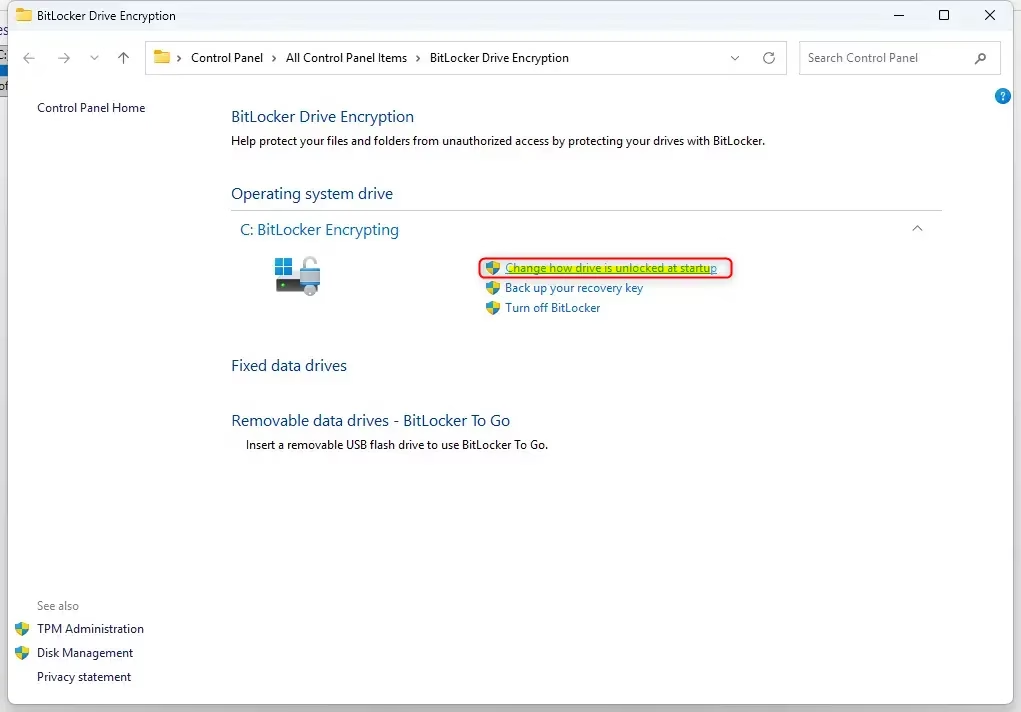
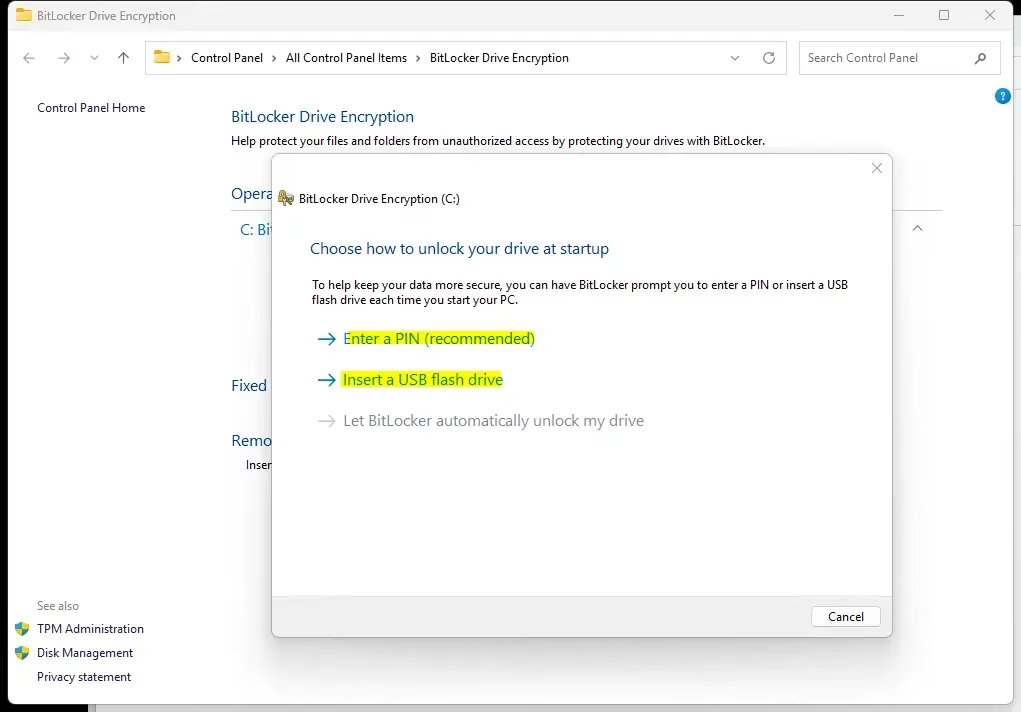
Summary
Adding a BitLocker PIN or USB key at startup makes your Windows 11 computer more secure.
Can I use a BitLocker PIN on a device without a TPM?
Yes, you can, but it requires changing a specific Group Policy setting to allow BitLocker without a compatible TPM. Note that this is less secure than using a TPM 2.0 chip, as the encryption key is stored on the USB drive rather than inside a secure hardware chip.
What happens if I lose my BitLocker USB startup key?
If you lose your startup USB key, you will be locked out of your computer. You must use your 48-digit BitLocker Recovery Key to regain access. Always back up this recovery key to a safe location, such as your Microsoft account or a printed document, before enabling startup requirements.
Was this guide helpful?

About the Author
Richard
Tech Writer, IT Professional
Richard, a writer for Geek Rewind, is a tech enthusiast who loves breaking down complex IT topics into simple, easy-to-understand ideas. With years of hands-on experience in system administration and enterprise IT operations, he’s developed a knack for offering practical tips and solutions. Richard aims to make technology more accessible and actionable. He's deeply committed to the Geek Rewind community, always ready to answer questions and engage in discussions.



No comments yet — be the first to share your thoughts!