How To Fix Microsoft Edge Not Opening On Windows 11


It is incredibly frustrating when you click your browser icon and nothing happens. You have work to do, emails to check, or websites to visit, but Microsoft Edge refuses to launch on your Windows 11 computer. This usually happens because of corrupted system files, conflicting background processes, outdated software settings, or interference from third-party antivirus programs.
When Edge won’t launch on Windows 11, it often points to a deeper issue with the browser process termination or corrupted browser files.
What Happens When You Fix Edge?
Once you follow these steps, your browser will regain its ability to launch properly. You will be able to access your favorite websites, sync your bookmarks, and browse the internet without further interruptions. Fixing these underlying issues often makes your entire Windows 11 experience faster and more stable, ensuring your browser process runs smoothly without startup failure.
Step 1: Close Background Processes
Sometimes Edge is already running in the background but is stuck. Closing these processes forces it to restart fresh.
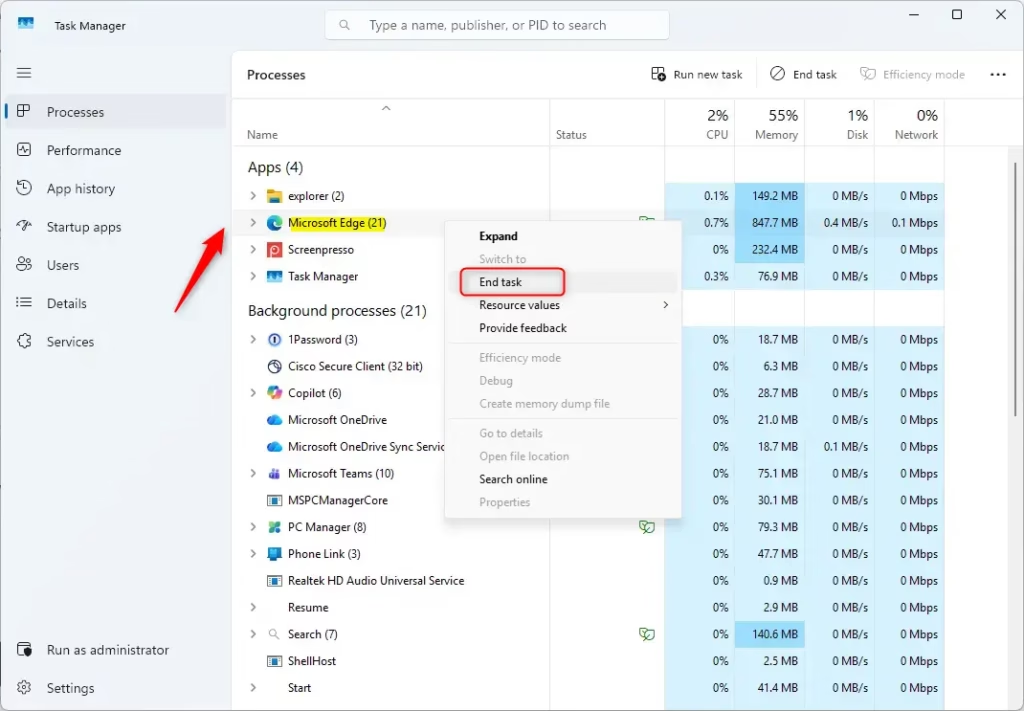
- Press Ctrl + Shift + Esc to open Task Manager.
- Find Microsoft Edge in the list.
- Right-click it and select End task.
Step 2: Repair Microsoft Edge
Windows 11 has a built-in tool to fix broken apps. This is the safest way to repair your browser without losing your data.
- Open Settings by pressing Windows Key + I.
- Go to Apps > Installed apps.
- Find Microsoft Edge, click the three dots, and select Modify.
- Click Repair. (Requires Admin Privileges)
Step 3: Check for Windows Updates
Outdated system files can cause compatibility issues. Keeping your OS current is vital for browser health.
- Open Settings and select Windows Update.
- Click Check for updates.
- Install any pending updates and restart your computer.
Step 4: Run System File Checker (SFC) and DISM
If core Windows files are corrupted, Edge may fail to open. Use these tools to fix them. (Requires Admin Privileges)
- Search for cmd, right-click it, and select Run as administrator.
- Type
sfc /scannowand press Enter. - After that finishes, type
DISM /Online /Cleanup-Image /RestoreHealthand press Enter.
Step 5: Disable Extensions via Command Line
If a bad extension is causing the crash, you can launch Edge without them.
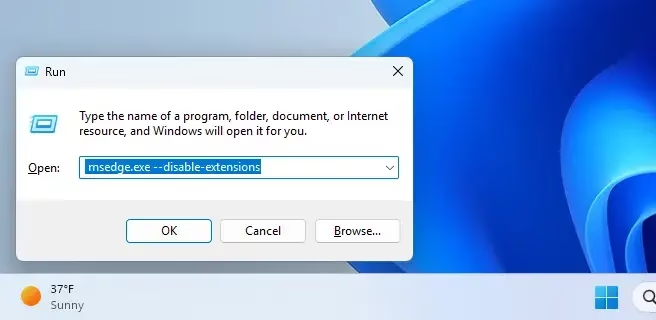
- Press Windows Key + R.
- Type
msedge.exe --disable-extensionsand press Enter. - If it opens, remove your extensions one by one to find the culprit.
Step 6: Clear Cache and Browsing Data
If Edge opens but crashes immediately, your cache might be corrupted. Since you cannot open the browser, you must delete the folder manually.
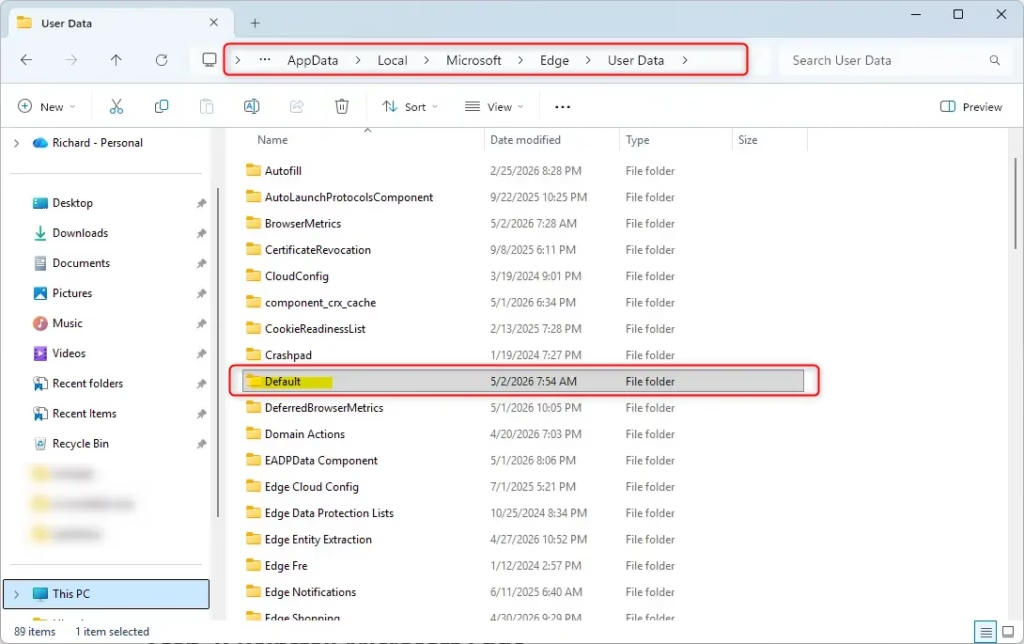
Navigate to this path in File Explorer:
C:\Users\Username\AppData\Local\Microsoft\Edge\User Data
Delete the folder named Default. This will reset your browser settings to their original state.
Step 7: Reinstall Microsoft Edge
If nothing else works, a fresh install is the best solution. Download the latest version from the official Microsoft Edge download page. (Requires Admin Privileges)
Step 8: Check Registry Settings
Sometimes, registry keys get modified by third-party software. Check this path to ensure nothing is blocking the browser:
HKEY_LOCAL_MACHINE\SOFTWARE\Policies\Microsoft\Edge
If you see suspicious entries here, consult a professional before deleting them. (Requires Admin Privileges)
Summary
Microsoft Edge not opening is usually caused by temporary glitches, corrupted files, or software conflicts. By closing background tasks, running the Windows repair tool, clearing your cache, and checking for system updates, you can resolve most issues. If the problem persists, a clean reinstallation usually fixes the browser startup failure.
How do I reinstall Microsoft Edge on Windows 11?
To reinstall, visit the official Microsoft Edge website and download the installer. Run the file as an administrator. This process will overwrite corrupted files while keeping your personal data, such as bookmarks and saved passwords, intact. It is a highly effective way to fix persistent browser startup failures.
Will I lose my bookmarks if I repair Microsoft Edge?
No, repairing Microsoft Edge through the Windows Settings menu is designed to fix application errors without deleting your personal data. Your bookmarks, history, and saved passwords are stored in a separate profile folder, which remains untouched during the repair process. You can safely use this tool to troubleshoot browser issues.
How do I check if Edge is running in the background?
Press Ctrl + Shift + Esc to open the Task Manager. Look under the Processes tab for Microsoft Edge. If you see multiple entries or a single entry that won’t close, the browser is stuck in the background. Right-click the process and select End task to force it to shut down completely.
Was this guide helpful?


Leave a Reply