How to Enable or Disable Mouse Haptic Feedback Windows 11

You enable or disable mouse haptic feedback in Windows 11 through the Settings app.
Mouse haptic feedback provides tactile vibrations from your mouse, giving you a physical confirmation of certain on-screen actions. This feature aims to enhance user interaction by allowing you to feel system events.
Starting with Windows 11 builds like 26300.8142, you can experience these vibrations on compatible mice. You’ll feel feedback when snapping windows, resizing them, or hovering over interactive elements.
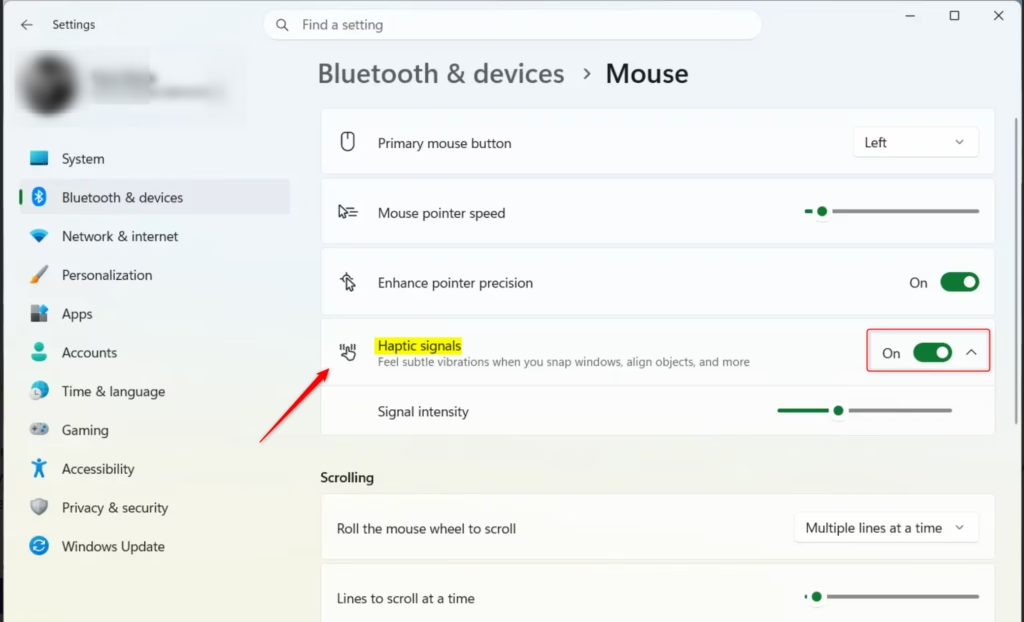
To manage this setting, navigate to Settings > Bluetooth & devices > Mouse, where you can toggle haptic signals on or off and adjust their intensity.
Option One
Turn Mouse Haptic Feedback On or Off in Settings
- Open Settings by pressing
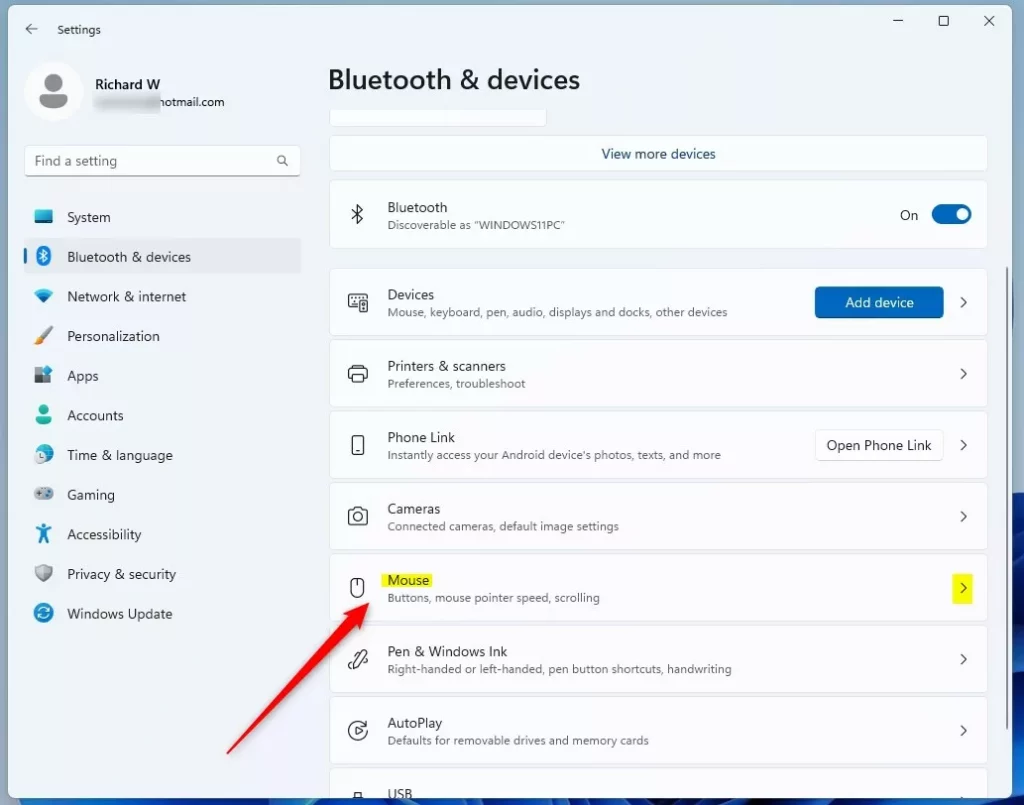
Win+I. - Click on Bluetooth & devices on the left side. Then click on Mouse on the right side. (See screenshot below)
- Turn Haptic signals on or off. The default is on.
- You can close Settings now.
Option Two
Turn Mouse Haptic Feedback On or Off Using Registry
⚠️ Admin privileges required
Open Windows Terminal as an administrator and run the commands below.
Turn On Mouse Haptic Feedback
This is the default setting.
reg add "HKEY_CURRENT_USER\Software\Microsoft\Windows NT\CurrentVersion\Windows\EnhancedPenSupport" /v MouseFeedbackEnabled /t REG_DWORD /d 1 /f
Turn Off Mouse Haptic Feedback
reg add "HKEY_CURRENT_USER\Software\Microsoft\Windows NT\CurrentVersion\Windows\EnhancedPenSupport" /v MouseFeedbackEnabled /t REG_DWORD /d 0 /f
Option Three
Turn Mouse Haptic Feedback On or Off in Logi Options+
This option only works with supported Logitech mice like the MX Master 4.
- Open Logi Options+.
- Click on your supported mouse.
- Click on HAPTIC FEEDBACK.
- Click on the haptic feedback details.
- Turn Haptic feedback on or off. The default is on.
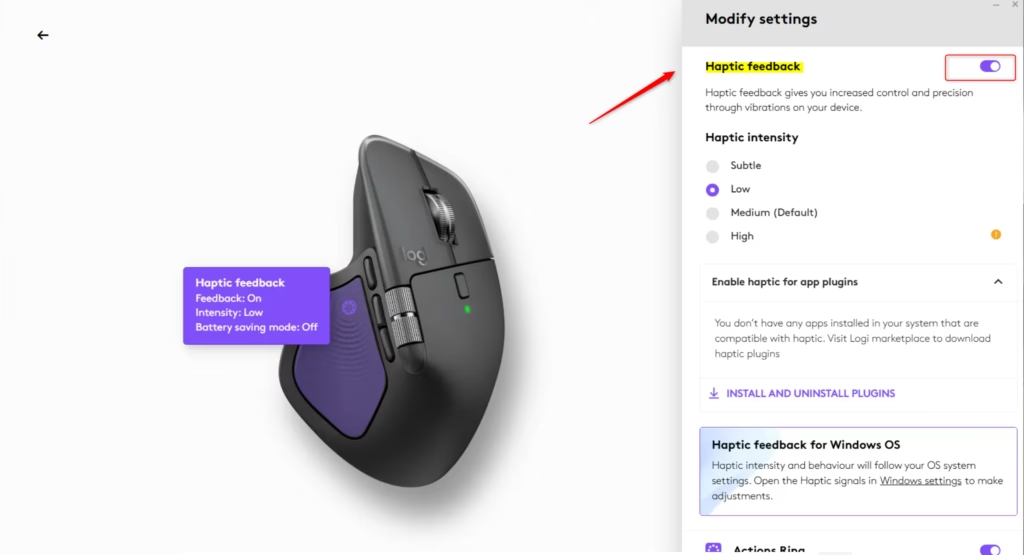
Note: If you turn off haptic feedback in Logi Options+, it will override your settings in Option One and Option Two.
Summary
Mouse haptic feedback lets your mouse vibrate when you perform actions in Windows 11. You can turn this feature on or off in three ways: through Settings, through the Windows Registry, or through Logi Options+ if you have a Logitech mouse. The default setting is on. Turning off haptic feedback in Logi Options+ will override any settings you made in the other options.
Is there a haptic feedback mouse?
Yes, specific modern mice support haptic feedback, which provides physical vibrations during computer tasks. Starting with Windows 11 build 26300.8142 and 26220.8148, compatible hardware can trigger vibrations when snapping windows, resizing elements, or hovering over buttons. You must ensure your mouse hardware supports this feature to enable it in settings.
Is haptics just vibration?
Haptics is primarily based on vibration, but it encompasses any technology that creates an experience of touch by applying forces, vibrations, or motions to the user. While mouse haptics specifically use vibration to provide tactile feedback for screen actions, the broader field of haptic technology can also include resistance and texture simulation.
How do I get the mouse click circle effect on 🪟 Windows 11?
Windows 11 does not have a built-in setting for a mouse click circle effect. To achieve this, you must download third-party software like PowerToys or specialized cursor highlighting tools. These applications allow you to customize your cursor appearance and add visual indicators that trigger whenever you perform a mouse click.
What is haptic feedback for a mouse?
Haptic feedback for a mouse is a feature that provides tactile sensations through subtle vibrations when you interact with your screen. It activates during tasks like snapping or resizing windows, aligning objects in applications, or hovering over UI elements, giving you physical confirmation of your actions to improve control and precision.
Was this guide helpful?

About the Author
Richard
Tech Writer, IT Professional
Richard, a writer for Geek Rewind, is a tech enthusiast who loves breaking down complex IT topics into simple, easy-to-understand ideas. With years of hands-on experience in system administration and enterprise IT operations, he’s developed a knack for offering practical tips and solutions. Richard aims to make technology more accessible and actionable. He's deeply committed to the Geek Rewind community, always ready to answer questions and engage in discussions.



No comments yet — be the first to share your thoughts!