How Do You Adjust Pen Press and Hold Duration Windows 11?

You adjust the pen press and hold duration in Windows 11 by changing the delay time for right-clicking.
This setting controls how long you must press and hold your pen on the screen before Windows registers it as a right-click action. It’s a useful tweak if you find the default timing feels unnatural for your workflow.
For instance, the default delay is typically around 500 milliseconds, but you can shorten or lengthen this to suit your preference.
By modifying this setting, you can make your pen feel more responsive or give yourself a bit more leeway before a right-click activates. This ensures a smoother, more intuitive experience when using your pen for tasks like accessing context menus.
Option One
Change Pen Press and Hold Speed and Duration in Settings
You can easily change how long you need to press and hold your pen in Windows 11 using the Settings app. Just open Settings, go to ‘Pen & Windows Ink’, click ‘Additional pen settings’, and use the slider to pick your preferred press and hold time.
- Open Settings by pressing
Win+I. - Click on Bluetooth & devices on the left side. Then click on Pen & Windows Ink on the right side.
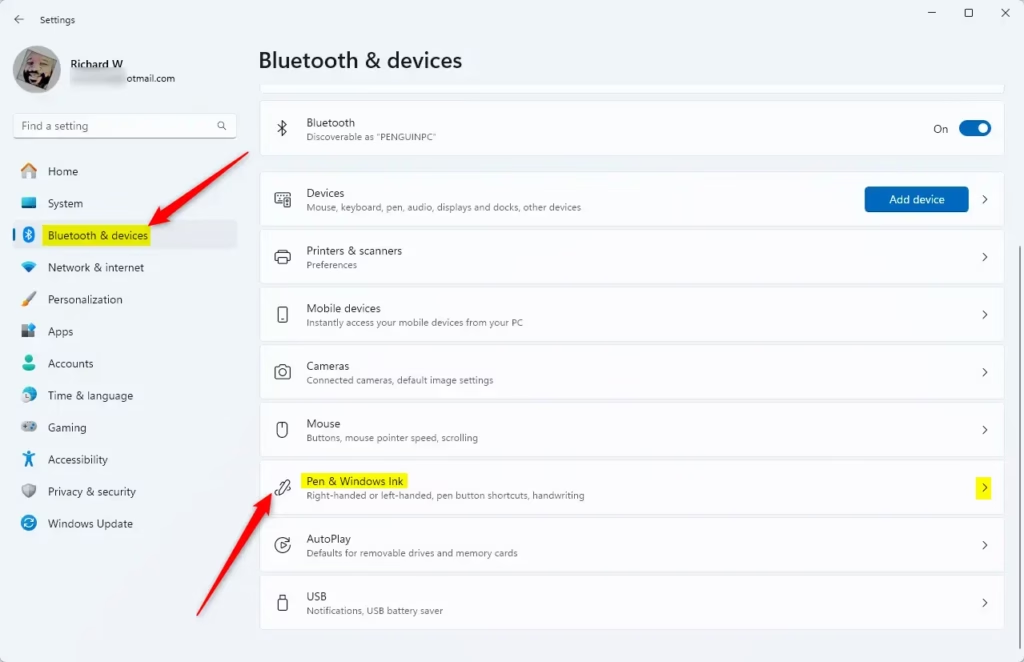
Windows 11 Pen and Windows Ink settings menu interface - Click on Additional pen settings to expand it open.
- Find the slider that says The amount of time you must press and hold to perform the gesture. Move it left for less time or right for more time.
The default time is 1 second. You can hover your mouse over the slider to see the current time.
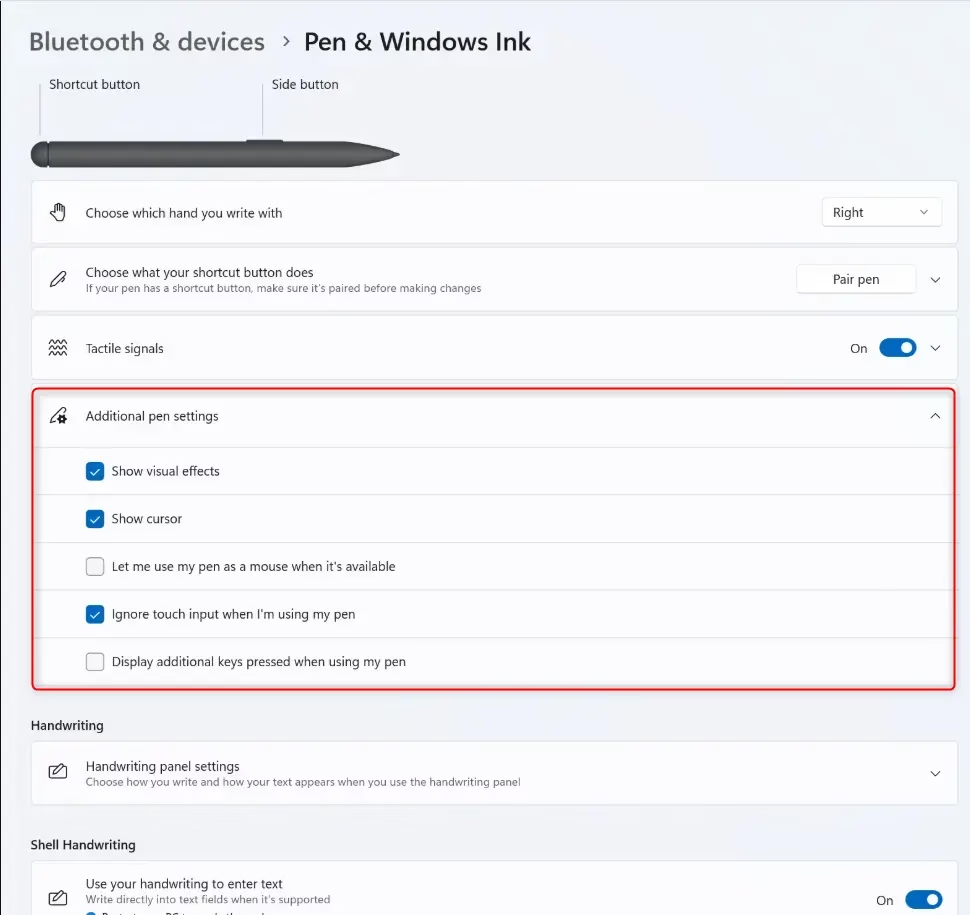
Additional pen settings options expanded in Windows 11 - Close Settings when you are done.
Option Two
Change Touch Press and Hold Speed and Duration in Control Panel
- Open Control Panel in icons view. Click on the Pen and Touch icon.
- Do the following:
- Click on the Pen Options tab.
- Select Press and hold.
- Click on Settings.
- Do the following:
- Adjust the Speed slider left (short) or right (long) to set how fast the right-click mode action happens.
- Adjust the Duration slider left (short) or right (long) to set how long the press and hold lasts.
- Click on OK.
To adjust your pen’s press and hold settings using the Control Panel, first open it and find the ‘Pen and Touch’ icon. This older method lets you fine-tune how quickly the press and hold action registers and how long you need to hold it.
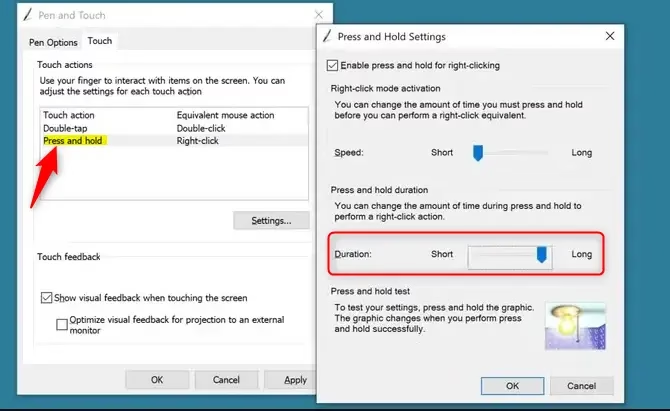
Pen and Touch press and hold settings sliders Windows 11 - Click on OK again.
- Close Control Panel when you are done.
Option Three
Change Pen Press and Hold Speed in Registry Editor
- ⚠️ Requires admin privileges. Open Registry Editor by typing
regedit.exein the search box. - Navigate to this path in the left pane:
For advanced users, you can change the pen press and hold speed in Windows 11 using the Registry Editor. After opening regedit.exe with admin rights, you’ll navigate to a specific path and adjust the ‘WaitTime’ value to set your preferred speed.
- In the right pane, double-click on the WaitTime DWORD value.
- Select Decimal and type a number between 100 (short) and 5000 (long) for your press and hold speed.
The default speed is 300. Then click OK.
- Close Registry Editor when finished.
Option Four
Change Pen Press and Hold Duration in Registry Editor
- ⚠️ Requires admin privileges. Open Registry Editor by typing
regedit.exein the search box. - Navigate to this path in the left pane:
You can also adjust the pen press and hold duration in Windows 11 through the Registry Editor, but this requires admin access. Navigate to the correct path in regedit.exe and modify the ‘HoldTime’ DWORD value to set how long you need to press and hold.
- In the right pane, double-click on the HoldTime DWORD value.
- Select Decimal and type a number between 600 (short) and 4500 (long) for your press and hold duration.
The default duration is 2300. Then click OK.
- Close Registry Editor when finished.
Summary
You’ve learned four ways to adjust your pen’s press and hold speed and duration in Windows 11. You can use the simple Settings app, the Control Panel with its test feature, or for more control, the Registry Editor to fine-tune specific values.
- Settings: The easiest way using the built-in Settings app.
- Control Panel: An older method that gives you a test feature to try out your settings.
- Registry Editor (Speed): For advanced users who want to adjust the speed value directly.
- Registry Editor (Duration): For advanced users who want to adjust the duration value directly.
All methods work in Windows 10 and Windows 11. Pick whichever method feels easiest for you.
How to activate Pen and touch in 🪟 Windows 11?
Activating pen and touch settings in Windows 11 is done through the Settings app. Go to ‘Bluetooth & devices’ and then select ‘Pen & Windows Ink’ to find options for customizing your pen’s behavior, including its press and hold duration.
How do I get the classic taskbar back on 🪟 Windows 11?
Windows 11 doesn’t offer a built-in way to get the classic taskbar back, though you can move icons to the left in Settings. To fully restore the old taskbar look and feel, you’ll need to use unofficial third-party tools like ExplorerPatcher or StartAllBack.
Is 🪟 Windows 11 ice cream real?
No, Windows 11 ice cream is not a real product. The term is likely a misunderstanding or a humorous reference to the Windows 11 'Bloom' wallpaper, which features a blue, flowing aesthetic that some users have jokingly compared to ice cream or abstract art. There is no official edible Windows merchandise.
Can I revert to the old start menu design?
Windows 11 does not include a built-in setting to revert to the Windows 10 Start menu. You can only adjust basic alignment settings in the Taskbar menu. To fully restore the classic Start menu design, you must use third-party customization tools like Start11 or ExplorerPatcher to replace the default Windows 11 interface.
Was this guide helpful?

About the Author
Richard
Tech Writer, IT Professional
Richard, a writer for Geek Rewind, is a tech enthusiast who loves breaking down complex IT topics into simple, easy-to-understand ideas. With years of hands-on experience in system administration and enterprise IT operations, he’s developed a knack for offering practical tips and solutions. Richard aims to make technology more accessible and actionable. He's deeply committed to the Geek Rewind community, always ready to answer questions and engage in discussions.




No comments yet — be the first to share your thoughts!