How to Change Hover Activate Window Time in Windows 11

You change the hover activate window time in Windows 11 to adjust how long your mouse cursor must hover over a window before it automatically opens.
This feature, often called “Activate a window by hovering over it,” lets you switch between open applications without clicking. The default hover time in Windows 11 is 500 milliseconds (half a second).
Adjusting this setting lets you fine-tune your workflow, making it faster to access the window you want. You can set a shorter duration for quicker activation or a longer one to prevent accidental openings.
Option One: Change Hover Time in Settings
Change your hover activate window time through Windows 11 Settings by navigating to Accessibility > Mouse, then adjusting the hover duration slider under Activate on hover—this method works on Windows 11 build 26100.4202 (24H2) and newer.
- Open Settings by pressing
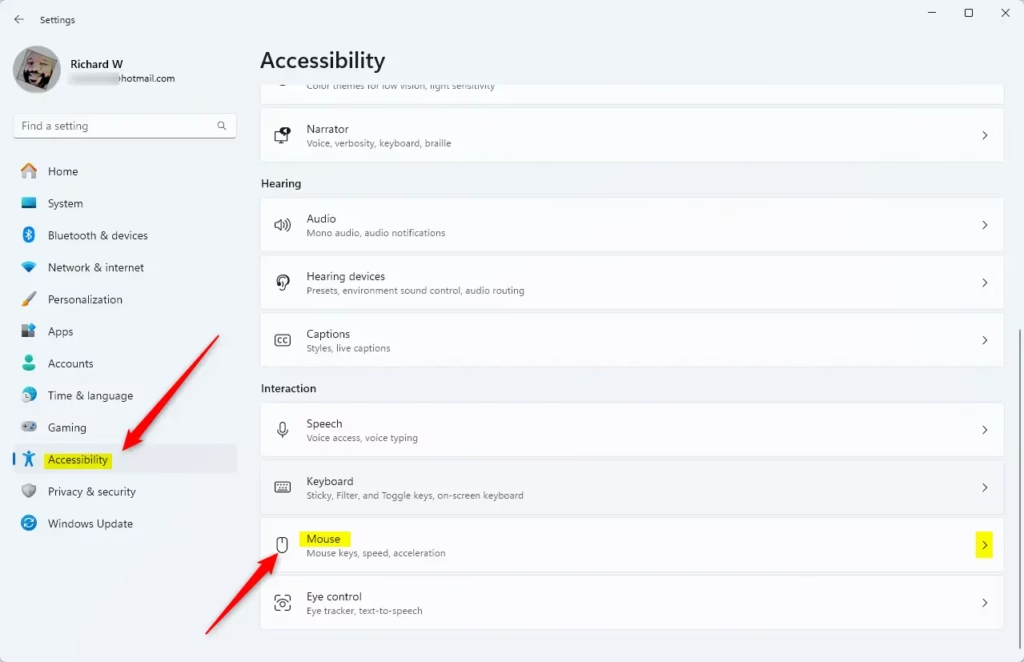
Win+I. - Click Accessibility on the left side, then click Mouse on the right side under Interaction.
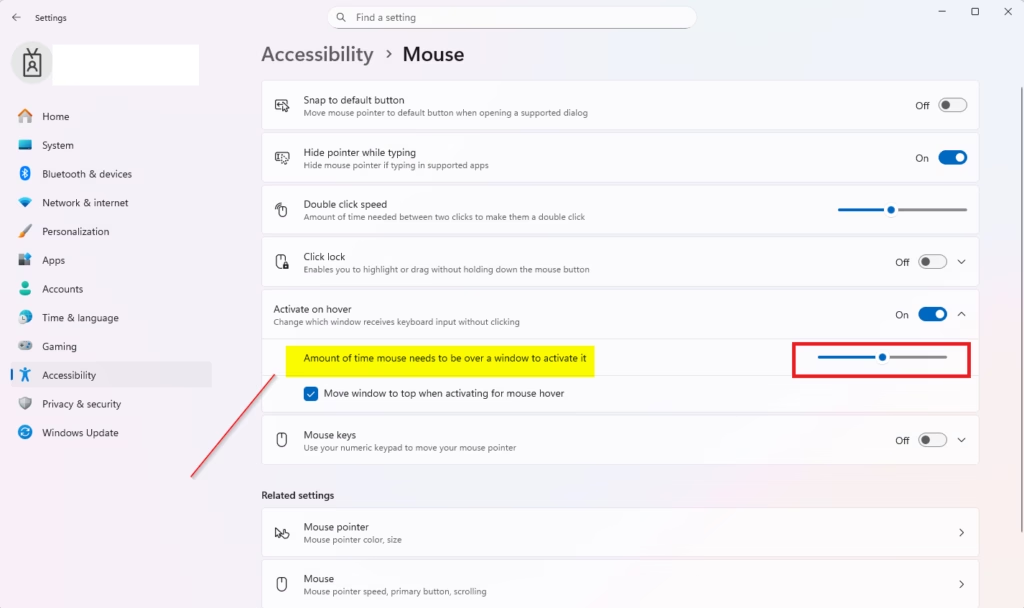
- Under Activate on hover, adjust the Amount of time mouse needs to be over a window to activate it to what you want.
Note: This requires Activate on hover to be turned on first.
- You can now close Settings if you like.
Option Two: Change Hover Time Using Registry Editor
- Open Registry Editor by typing
regedit.exein your search bar and pressing Enter.⚠️ Requires admin privileges
- Navigate to the location below in the left pane of Registry Editor.
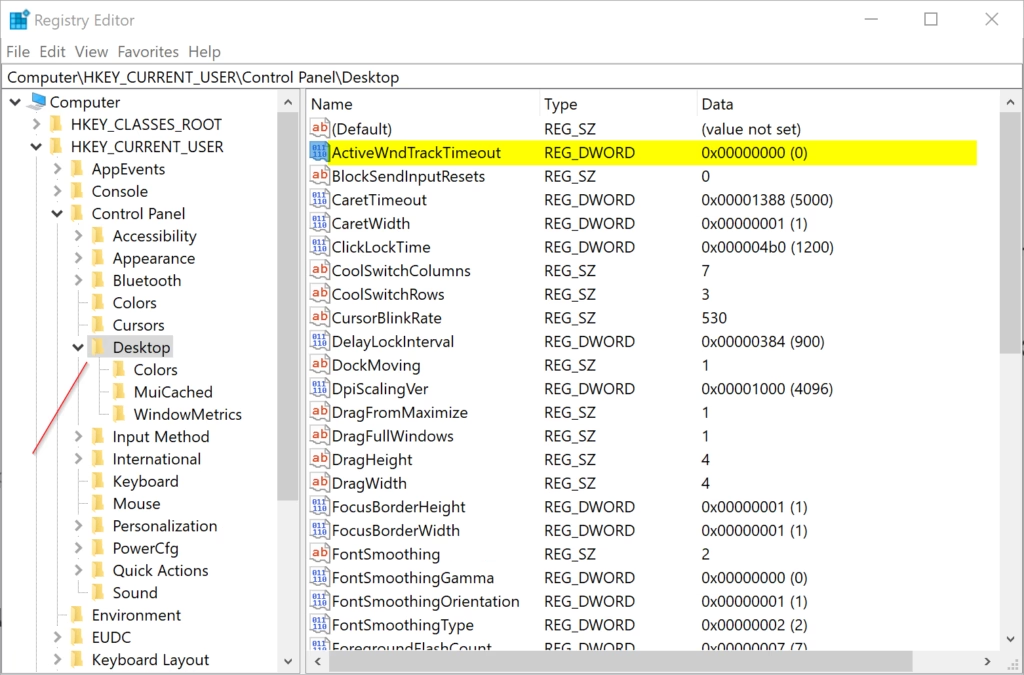
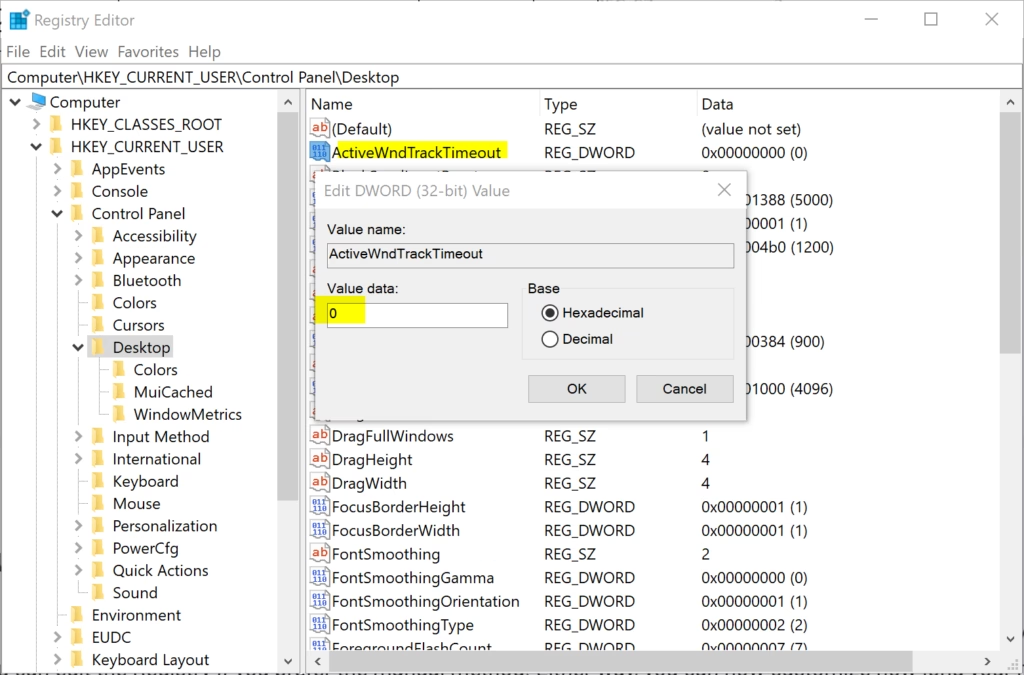
HKEY_CURRENT_USER\Control Panel\Desktop - In the right pane of the Desktop key, double-click the ActiveWndTrkTimeout entry to modify it.
Note: If you do not see the ActiveWndTrkTimeout entry, verify you have turned on Activate a window by hovering over it with the mouse, refresh by pressing
F5in Registry Editor, and check again. - Select Decimal, type in a number for how many milliseconds (ms) you want for the timeout, and click OK.
Tip: The default time is 500 ms. 1000 ms equals 1 second.
- Close Registry Editor.
Summary
Changing your hover activation time is easy. You can use the Settings app if you have the latest Windows 11 version, or you can edit the Registry if you prefer the manual method. Either way, you can now customize how long your mouse needs to hover over a window before it automatically opens. This helps you work the way that feels most comfortable to you.
Why is my PC randomly saying "Activate Windows"?
Your PC displays this message because your copy of Windows is not genuine or the product key has not been validated. This watermark appears when the operating system detects an unlicensed installation. To remove it, you must purchase a valid license or enter a legitimate product key in your system settings.
How do you hover to activate a window in 🪟 Windows 11?
To activate a window by hovering, navigate to Settings, select Accessibility, and click on Mouse. Locate the Activate a window by hovering over it with the mouse option and toggle it on. You can then adjust the hover duration slider to customize how long the cursor must pause before activation occurs.
How do I Make a window active on my mouse over 🪟 Windows 10?
In Windows 10, open the Control Panel and go to Ease of Access Center. Select Make the mouse easier to use, then check the box labeled Activate a window by hovering over it with the mouse. Click Apply and OK to enable this feature, allowing windows to focus automatically upon hovering.
How do I scroll inactive windows when I hover over them?
You can scroll inactive windows by going to Settings, selecting Bluetooth & devices, and clicking on Mouse. Ensure the option Scroll inactive windows when I hover over them is toggled to On. This feature allows you to scroll through content in background windows without needing to click and bring them forward first.
Was this guide helpful?

About the Author
Richard
Tech Writer, IT Professional
Richard, a writer for Geek Rewind, is a tech enthusiast who loves breaking down complex IT topics into simple, easy-to-understand ideas. With years of hands-on experience in system administration and enterprise IT operations, he’s developed a knack for offering practical tips and solutions. Richard aims to make technology more accessible and actionable. He's deeply committed to the Geek Rewind community, always ready to answer questions and engage in discussions.


No comments yet — be the first to share your thoughts!