How to Enable or Disable Pen Cursor in Windows 11

You can enable or disable the pen cursor in Windows 11 to improve your touchscreen experience when using a stylus.
Think of the pen cursor as a little on-screen target that shows up when your stylus is close. Turning it off can help reduce distractions if you find it unnecessary or bothersome while writing or drawing.
This feature is especially helpful for Windows 11 devices with touchscreens, letting you customize how the stylus interacts for better precision. You can manage this setting through the Pen & Windows Ink settings menu.
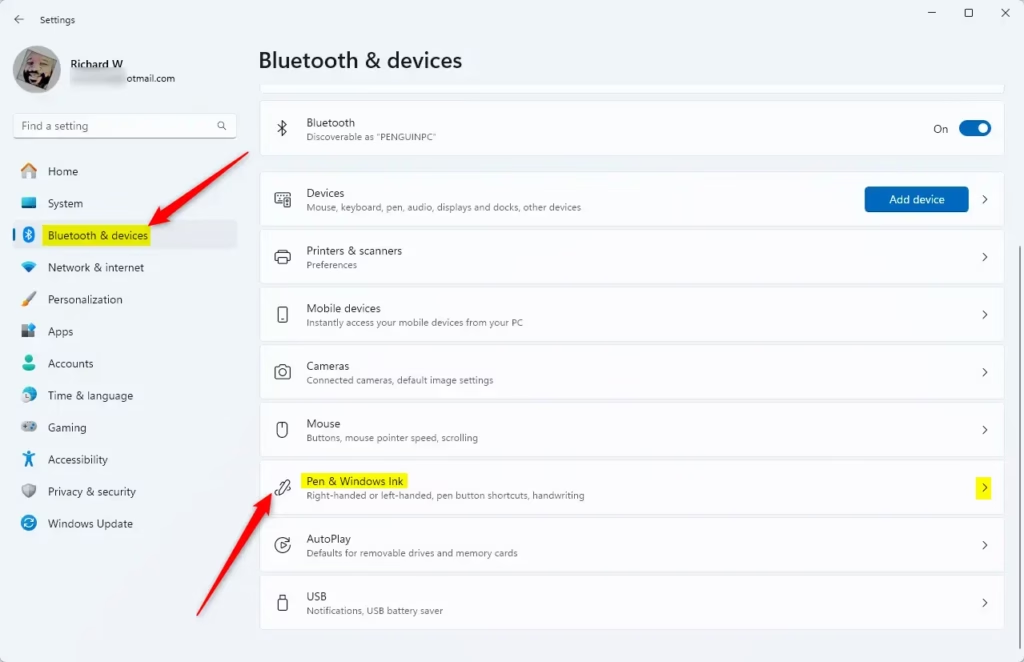
Go to Settings > Bluetooth & devices > Pen & Windows Ink. Expand Additional pen settings and check or uncheck the box next to Show cursor to enable or disable it. This setting controls the visual indicator that appears when your stylus is near the screen.
Option One
Enable or Disable Show Pen Cursor in Settings
- Open Settings by pressing
Win+I. - Click on Bluetooth & devices on the left side. Then click on Pen & Windows Ink on the right side. (see screenshot below)
You can easily turn the pen cursor on or off in Windows 11 through the Settings app.
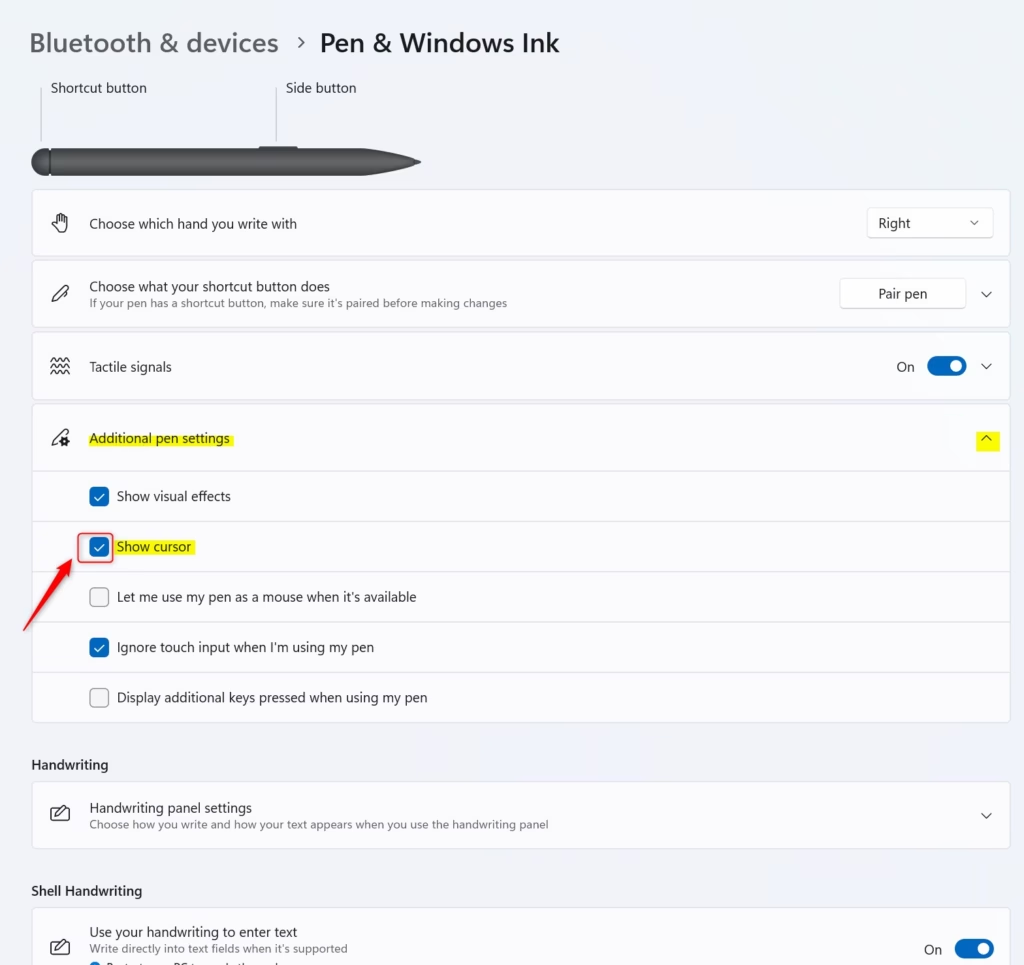
- Click on Additional pen settings to expand it.
- Check the box (to turn on ) or uncheck the box (to turn off ) next to Show cursor. What happens? The pen cursor will appear or disappear when you use your pen.
- You can now close Settings.
Option Two
Enable or Disable Show Pen Cursor Using Registry
Changing the pen cursor in Windows 11 using the Registry is an advanced option that requires administrator rights.
Open the Windows Terminal app. You’ll need to enter a command here. This command uses registry keys (think of them as settings for Windows) to control the pen cursor’s behavior. Here are the commands:
To enable both “Show visual effects” and “Show cursor” (this is the default):
This is the default setting.
reg add "HKEY_CURRENT_USER\Control Panel\Cursors" /v PenVisualization /t REG_DWORD /d 35 /f
To disable both “Show visual effects” and “Show cursor”:
reg add "HKEY_CURRENT_USER\Control Panel\Cursors" /v PenVisualization /t REG_DWORD /d 0 /f
To disable “Show visual effects” but keep “Show cursor” on:
reg add "HKEY_CURRENT_USER\Control Panel\Cursors" /v PenVisualization /t REG_DWORD /d 32 /f
To enable “Show visual effects” but turn off “Show cursor”:
reg add “🗝️HKEY_CURRENT_USER\Control Panel\Cursors” /v PenVisualization /t REG_DWORD /d 3 /f
Summary
You’ve learned two simple ways to control the pen cursor in Windows 11, either through Settings or using the Registry.
How do I change the pen cursor in Windows?
If you’re looking to change the actual look of your pen cursor (like its shape or color), you’ll need to go into Mouse Properties. Open Settings, search for ‘Mouse’, then find the ‘Pointers’ tab. From there, you can browse through different pointer styles.
Was this guide helpful?

About the Author
Richard
Tech Writer, IT Professional
Richard, a writer for Geek Rewind, is a tech enthusiast who loves breaking down complex IT topics into simple, easy-to-understand ideas. With years of hands-on experience in system administration and enterprise IT operations, he’s developed a knack for offering practical tips and solutions. Richard aims to make technology more accessible and actionable. He's deeply committed to the Geek Rewind community, always ready to answer questions and engage in discussions.



No comments yet — be the first to share your thoughts!