How to Enable or Disable Improve Inking and Typing in Windows 11

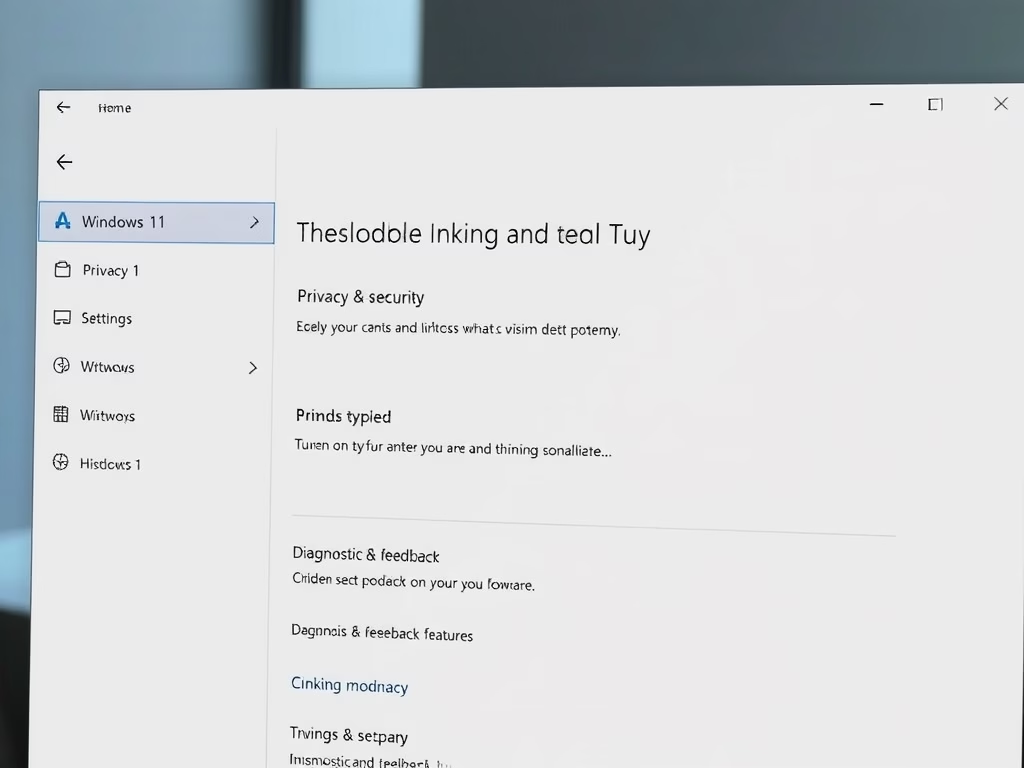
This tutorial will show you how to turn on or off the Improve inking and typing feature in Windows 11. You can do this for just your account or for all users on your computer.
Why This Feature Matters
Microsoft collects information to keep Windows secure and working well. Even if you don’t send optional diagnostic data, your device will stay secure and run normally. This data goes to Microsoft with unique identifiers so they can understand device issues and help individual users.
When you turn on Improve inking and typing, Microsoft collects samples of what you type or write. This helps improve features like:
- Handwriting recognition
- Autocompletion
- Next word prediction
- Spelling correction
Microsoft uses this data to make inking and typing better for all Windows users. The collected data is processed to remove unique identifiers and personal information. This means it can’t be linked back to you. It also includes performance data, like changes you make to text and words you’ve added to the dictionary.
What happens: If you turn off Send optional diagnostic data, the Improve inking and typing feature will also turn off.
Option One
Turn On or Off Improve Inking and Typing Using Settings
- Open Settings by pressing ⊞ Win+I.
- Click on Privacy & security on the left side.
- Click on Diagnostics & feedback on the right side. (see screenshot below)
- Click on Improve inking & typing to expand it. (see screenshot below step 4)
- Turn Improve inking and typing on or off as you wish. (see screenshot below)
- You can now close Settings.

Option Two
Turn On or Off Improve Inking and Typing Using Registry
⚠️ Requires admin privileges
Turn On Improve Inking and Typing:
reg add "HKEY_CURRENT_USER\Software\Microsoft\Input\TIPC" /v Enabled /t REG_DWORD /d 1 /fTurn Off Improve Inking and Typing:
reg add "HKEY_CURRENT_USER\Software\Microsoft\Input\TIPC" /v Enabled /t REG_DWORD /d 0 /fSummary
You now know how to enable or disable the Improve inking and typing feature in Windows 11. You can use the Settings app for an easy way, or use the Registry Editor if you need more control. Keep in mind that admin privileges may be needed for registry changes. By adjusting these settings, you can control how much data Microsoft collects about your typing habits.
Was this guide helpful?

About the Author
Richard
Tech Writer, IT Professional
Richard, a writer for Geek Rewind, is a tech enthusiast who loves breaking down complex IT topics into simple, easy-to-understand ideas. With years of hands-on experience in system administration and enterprise IT operations, he’s developed a knack for offering practical tips and solutions. Richard aims to make technology more accessible and actionable. He's deeply committed to the Geek Rewind community, always ready to answer questions and engage in discussions.



No comments yet — be the first to share your thoughts!