How to Change Text Cursor Thickness in Windows 11

The text cursor is that blinking line you see when you’re typing in Windows. It helps you know where your text will appear.
Windows 11 lets you make this cursor thicker and easier to see. This is helpful if you have a high-resolution screen or if your eyesight needs a little extra help.
Why Change Your Cursor Thickness?
By default, the text cursor is only 1 pixel wide. This can be hard to spot on modern screens. Making it thicker helps you see exactly where you’re typing.
You can make your cursor anywhere from 1 to 20 pixels thick. Let’s look at three easy ways to do this.
Learn More
Make your mouse, keyboard, and other input devices easier to use – Microsoft Support Learn how to use Windows accessibility features to make your mouse, keyboard, and other input devices easier to use. CaretWidth
Option One: Use Settings
This is the easiest way to change your cursor thickness.
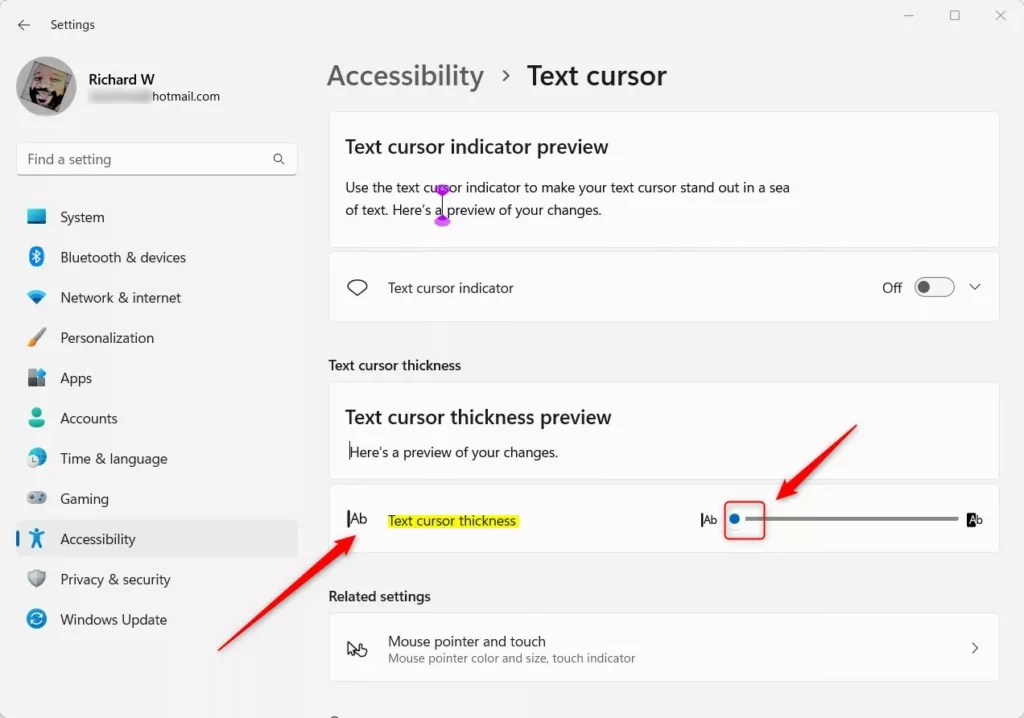
- Open Settings by pressing
Win+Ion your keyboard. - Click Accessibility on the left side.
- Click Text cursor on the right side. Open Text cursor settings
- Find the Text cursor thickness slider.
- Move the slider between 1 and 20 pixels until it looks right to you.
- The preview will show you how thick your cursor will be.
- Close Settings when you’re done.
Option Two: Use Control Panel
This older method still works in Windows 11.
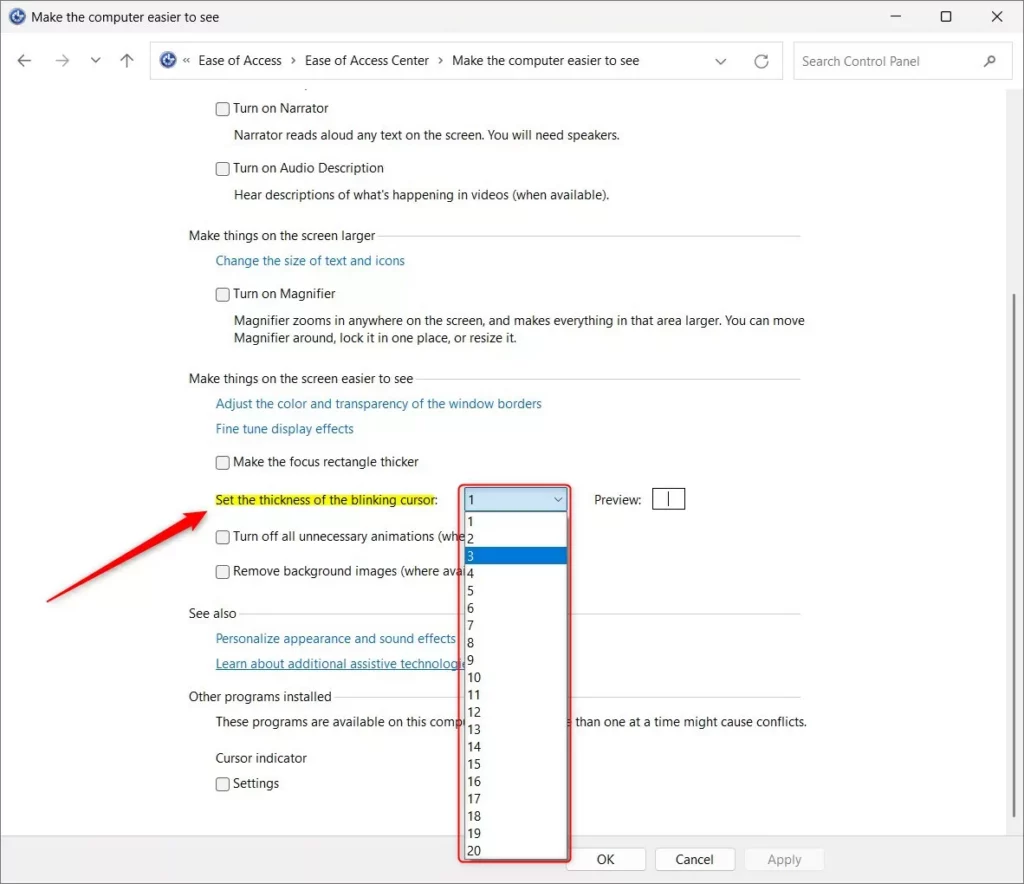
- Open Control Panel and switch to icons view.
- Click Ease of Access Center.
- Click Make the computer easier to use.
- Find the Set the thickness of the blinking cursor dropdown menu.
- Select a thickness between 1 and 20 pixels.
- Click OK to save your changes.
Option Three: Use Registry Editor
⚠️ This requires administrator privileges. Only use this method if you’re comfortable editing the registry.
- Press
Win+Rto open Run. - Type
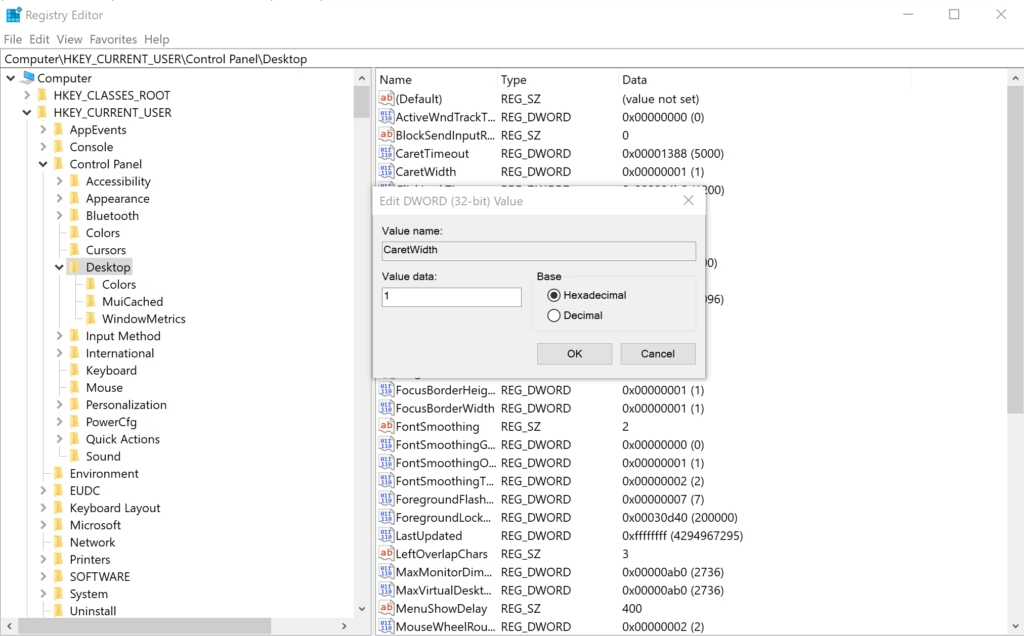
regedit.exeand press Enter. - Navigate to this location in the left pane:
HKEY_CURRENT_USER\Control Panel\Desktop
- In the right pane, find CaretWidth.
- Double-click CaretWidth to open it.
- Select Decimal.
- Type a number between 1 and 20 for your cursor thickness.
- Click OK to save.
- Close Registry Editor.
- Sign out and sign back in, or restart your computer for the changes to take effect.
Summary
Changing your text cursor thickness in Windows 11 is simple and can make typing much easier. The Settings method is the quickest option for most people. If you prefer older tools, the Control Panel method works just as well. For advanced users, the Registry Editor offers direct control. Choose whichever method feels most comfortable for you, and enjoy a cursor that’s easier to see!
Was this guide helpful?




Leave a Reply