How to Turn On or Off Random Hardware (MAC) Addresses for Wi-Fi in Windows 11

You can turn random hardware addresses (think of them as unique, temporary IDs for your Wi-Fi connection) on or off in Windows 11 to boost your online privacy.
Random hardware addresses, sometimes called MAC randomization, give your PC a different, temporary ID for every Wi-Fi network you join. This stops network operators from tracking your device across different spots using its permanent hardware identifier.
Windows 11 offers this privacy feature by default for Wi-Fi connections. You can manage this setting right within your network adapter properties.
Open Settings, go to Network & internet, then Wi-Fi. Use the toggle to turn Random hardware addresses On or Off for all networks. For specific networks, go to Manage known networks, select a network, and choose your preferred setting from the Random hardware addresses drop-down.
What is Wi-Fi and MAC Address?
Wi-Fi lets your computer connect to the internet wirelessly, and every device using it has a unique identifier called a MAC address, which is like a digital name tag.
When your PC looks for Wi-Fi networks nearby, it sends out this MAC address. Some public places, like shopping malls or stores, might use this information to track your device as you move around.
That’s where Windows 11’s random hardware addresses come in. By using a different, random ID for Wi-Fi connections, your PC makes it harder for others to track you.
Two Ways to Use Random Hardware Addresses
- For all Wi-Fi networks: Use random addresses for every network your PC connects to.
- For a specific Wi-Fi network: Use random addresses only for certain networks you pick.
How to Turn On or Off Random Hardware Addresses for All Wi-Fi Networks
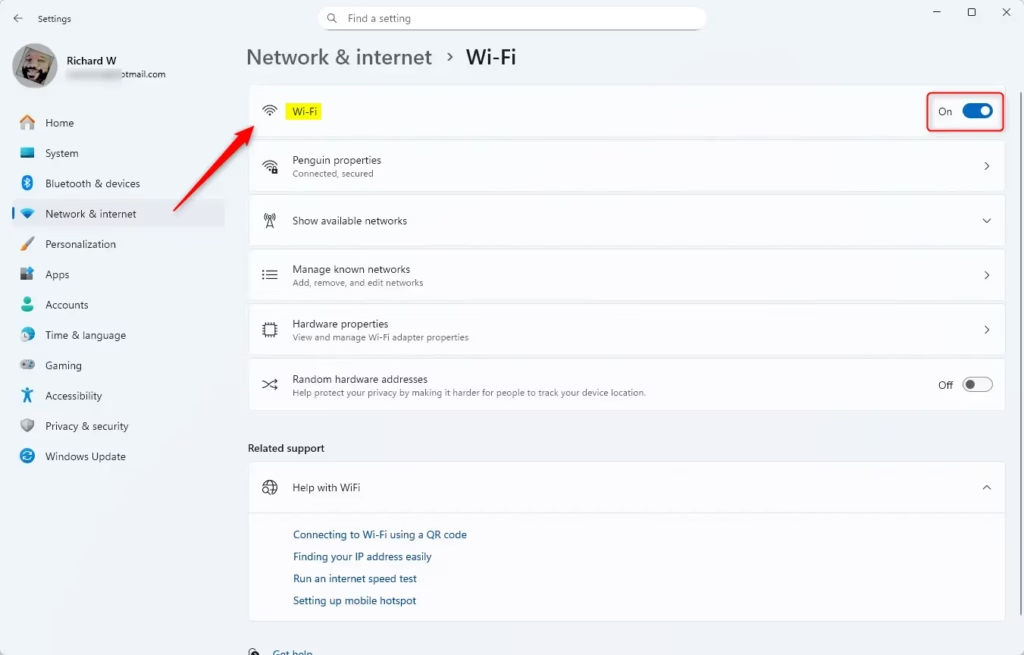
- Press Windows key + I to open Settings.
- Click Network & internet on the left side, then click Wi-Fi on the right.
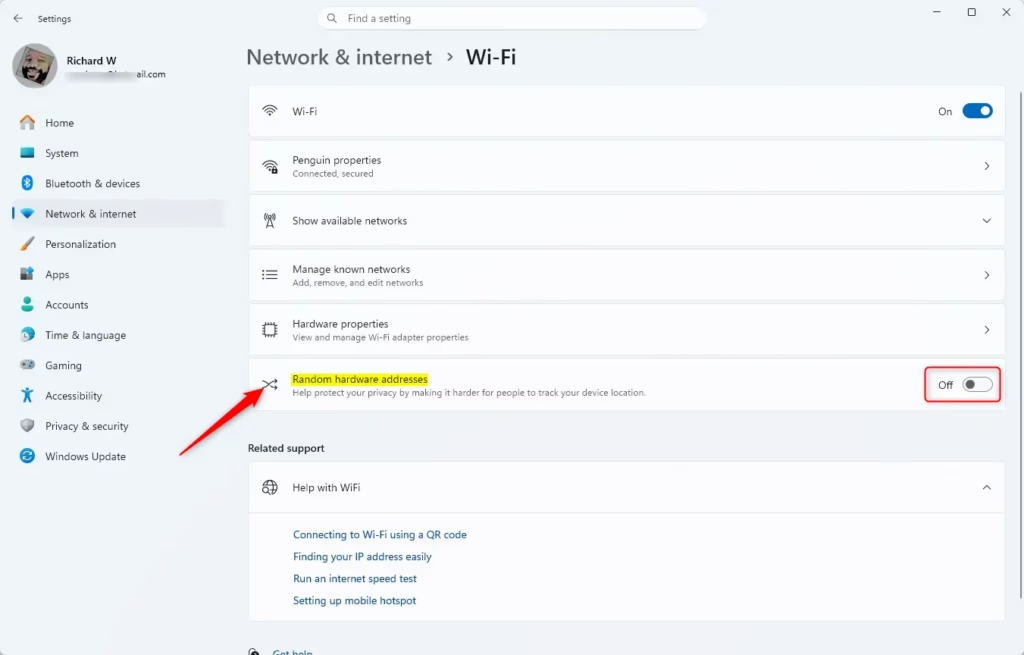
- Click the toggle to turn Random hardware addresses On or Off for all networks.
- Close Settings when done.
How to Turn On or Off Random Hardware Addresses for a Specific Wi-Fi Network
- Press Windows key + I to open Settings.
- Click Network & internet on the left, then Wi-Fi on the right.
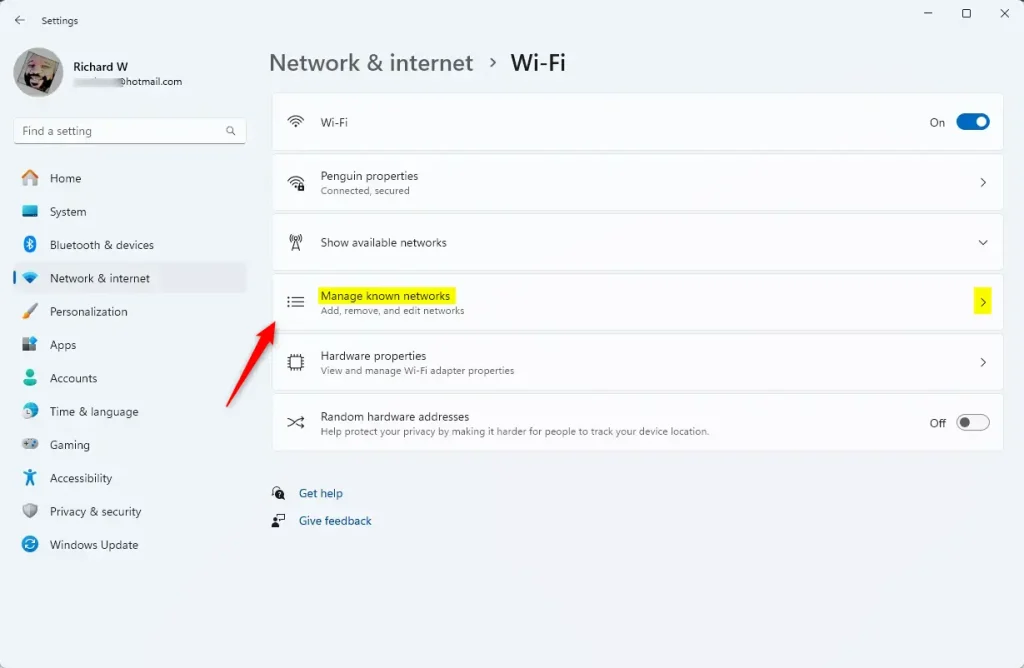
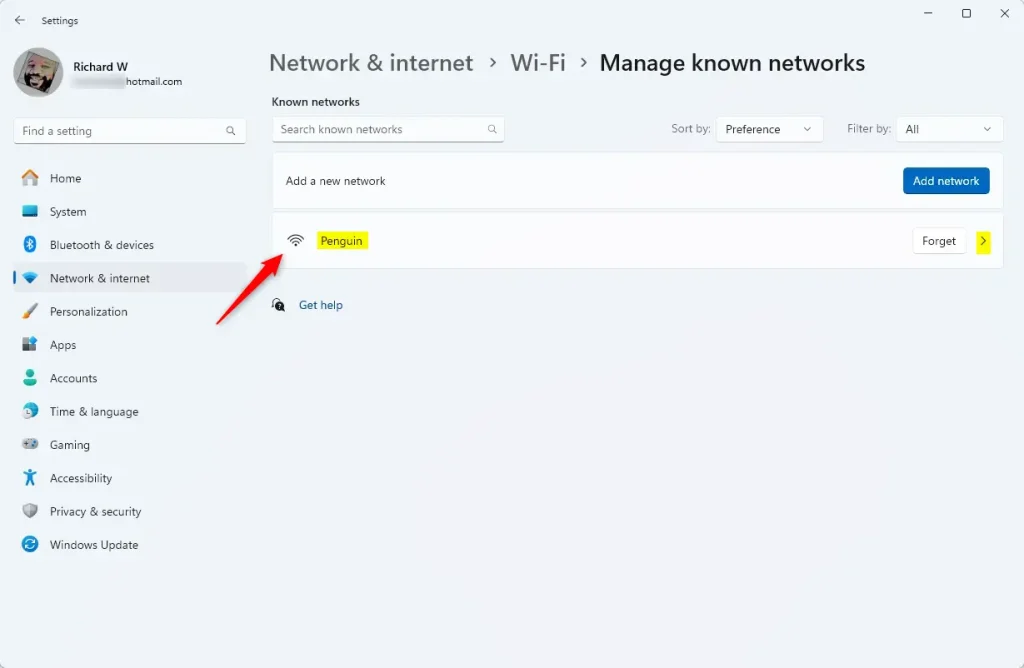
- Click Manage known networks.
- Find and click the Wi-Fi network you want to change.
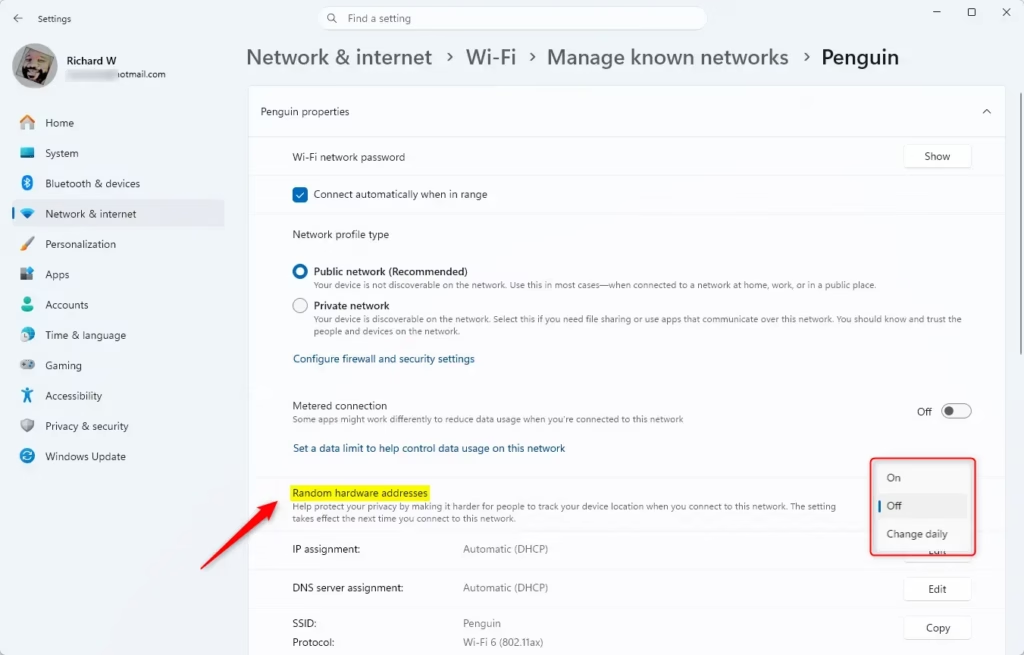
- In the drop-down for Random hardware addresses, choose On, Off, or Change daily.
- Close Settings when finished.
To turn on or off random hardware MAC addresses for a specific Wi-Fi network in Windows 11, you’ll need to adjust settings for that particular network.
Why Should You Use Random Hardware Addresses?
- It helps keep your device private by stopping others from tracking your location using your MAC address.
- You can turn it on for all networks or just for some you want extra privacy on.
- It’s easy to change anytime in your Windows 11 Settings.
- Good practice to check your Wi-Fi privacy settings regularly.
- Protect yourself especially when using public Wi-Fi in places like cafes, airports, or shopping centers.
Using random hardware MAC addresses helps protect your privacy by making it harder for networks or apps to track your device’s location when you connect to Wi-Fi.
Does 🪟 Windows 11 use a random MAC address?
To change the random MAC address setting in Windows 10/11: Find the Network icon in the bottom right system tray and click it. Then, click Network & Internet Settings. You’ll find a toggle labeled ‘Use Random Hardware Addresses’ – switch it to enable or disable this privacy feature.
Is it safe to turn off random MAC address?
Yes. Apple allows users to disable MAC randomization per network. However, the default behavior is for the feature to be turned on, and users often don’t realize it’s enabled. This can result in recurring issues every time they connect to secure or managed Wi-Fi.
Was this guide helpful?

About the Author
Richard
Tech Writer, IT Professional
Richard, a writer for Geek Rewind, is a tech enthusiast who loves breaking down complex IT topics into simple, easy-to-understand ideas. With years of hands-on experience in system administration and enterprise IT operations, he’s developed a knack for offering practical tips and solutions. Richard aims to make technology more accessible and actionable. He's deeply committed to the Geek Rewind community, always ready to answer questions and engage in discussions.



No comments yet — be the first to share your thoughts!