How to the Change Size of Taskbar Icons in Windows 11

You can change the size of your Windows 11 taskbar icons using a simple registry edit, adjusting them from small to large. This allows you to personalize your desktop experience and improve visibility for your most-used applications.
The Windows 11 taskbar, by default, displays icons at a medium size. However, there’s no direct setting within the standard Windows interface to alter this. You’ll need to access the Registry Editor to make the necessary modifications.
By following these steps, you can easily control the icon size, making them smaller for more space or larger for better accessibility on your PC.
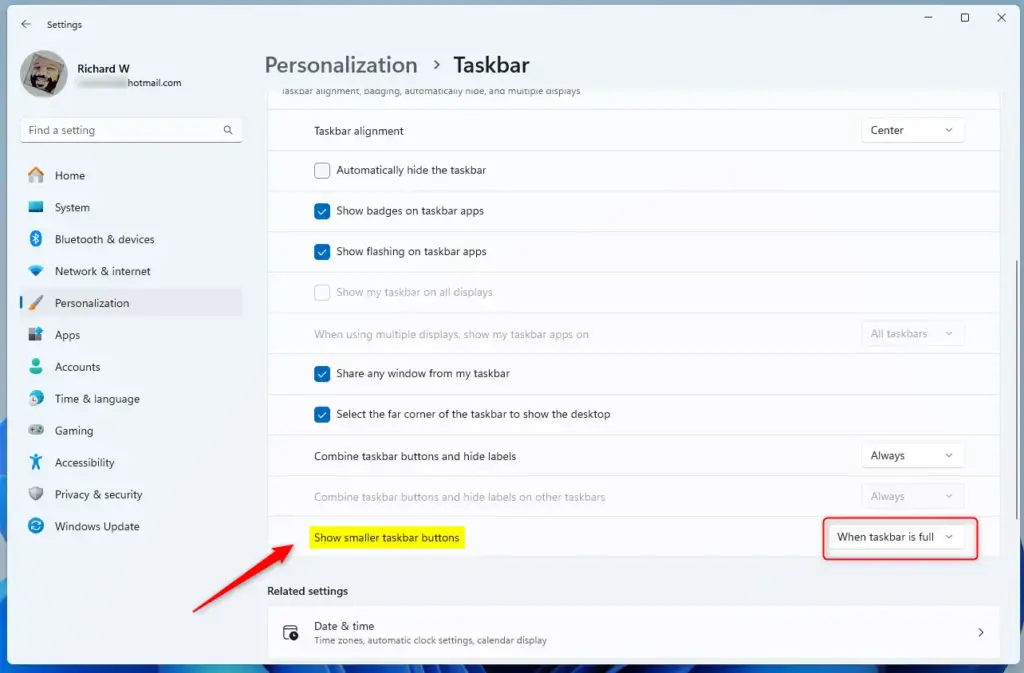
Open Settings, go to Personalization, then Taskbar, and expand Taskbar behaviors. Select your preferred option from the “Show smaller taskbar buttons” dropdown menu.
What’s New?
Windows 11 (starting with build 26100.4484) now lets your taskbar automatically resize icons to fit more apps when needed. You can control this behavior:
- When taskbar is full (default): Icons get smaller only when there’s no more space.
- Never: Icons stay the original size no matter what.
- Always: Icons are small all the time.
How to Change Taskbar Icon Size Using Settings
Follow these simple steps:
- Open Settings by pressing
Win + Ion your keyboard. - Click on Personalization on the left side, then select Taskbar on the right.
- Scroll down and click Taskbar behaviors to expand it.
- Find the drop-down menu labeled Show smaller taskbar buttons. Choose one of these:
- Always – icons stay small all the time.
- Never – icons stay the original size.
- When taskbar is full – icons shrink only when taskbar runs out of space.
- Close Settings. Your changes will apply right away.
Open Taskbar Settings directly

Change Taskbar Icon Size Using the Registry (Advanced)
Note: Editing the Registry can affect your system. Be sure to follow carefully and consider backing up your Registry first. Open Taskbar Settings directly.
This method lets you set the icon size by adding a small code change:
Always show smaller icons:
reg add "HKEY_CURRENT_USER\Software\Microsoft\Windows\CurrentVersion\Explorer\Advanced" /v IconSizePreference /t REG_DWORD /d 0 /f
Never show smaller icons:
reg add "HKEY_CURRENT_USER\Software\Microsoft\Windows\CurrentVersion\Explorer\Advanced" /v IconSizePreference /t REG_DWORD /d 1 /fShow smaller icons only when taskbar is full (default):
reg add "HKEY_CURRENT_USER\Software\Microsoft\Windows\CurrentVersion\Explorer\Advanced" /v IconSizePreference /t REG_DWORD /d 2 /fHow to edit the Registry manually:
- Press
Win + R, typeregedit, and press Enter to open Registry Editor. - Navigate to:
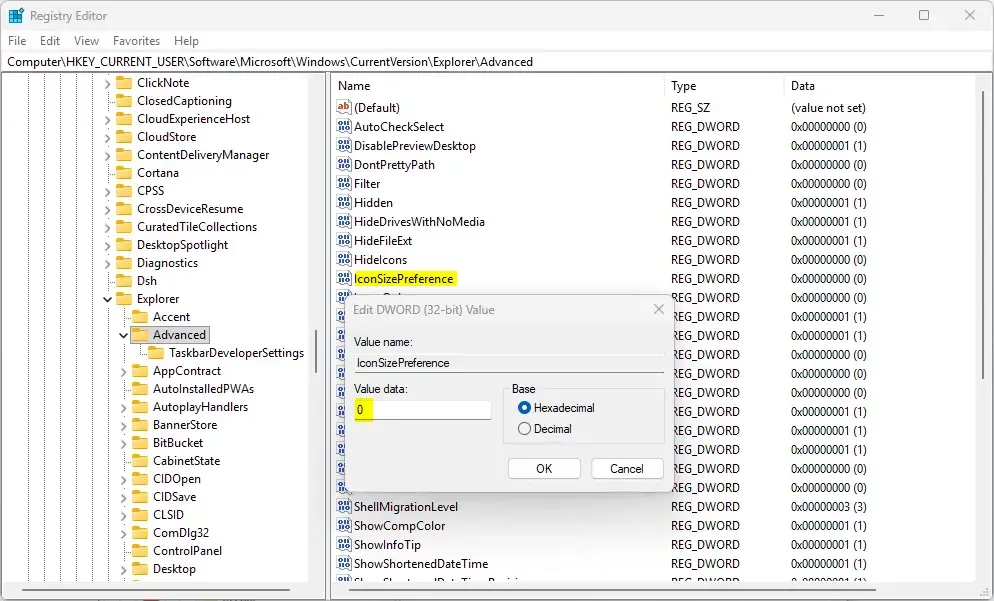
HKEY_CURRENT_USER\Software\Microsoft\Windows\CurrentVersion\Explorer\Advanced - Find IconSizePreference on the right. If it doesn’t exist, right-click and create a new DWORD (32-bit) Value with that name.
- Double-click IconSizePreference and set the value to:
- 0 for always small
- 1 for never small
- 2 for small only when full
- Click OK and close Registry Editor.
- Sign out and back in, or restart your PC to see the changes.
Change Taskbar Icon Size for All or Specific Users (Using Local Group Policy Editor)
Note: This tool is only available in Windows 11 Pro, Enterprise, and Education editions.
- Open the Local Group Policy Editor:
- Press
Win + R, typegpedit.msc, and press Enter.
- Press
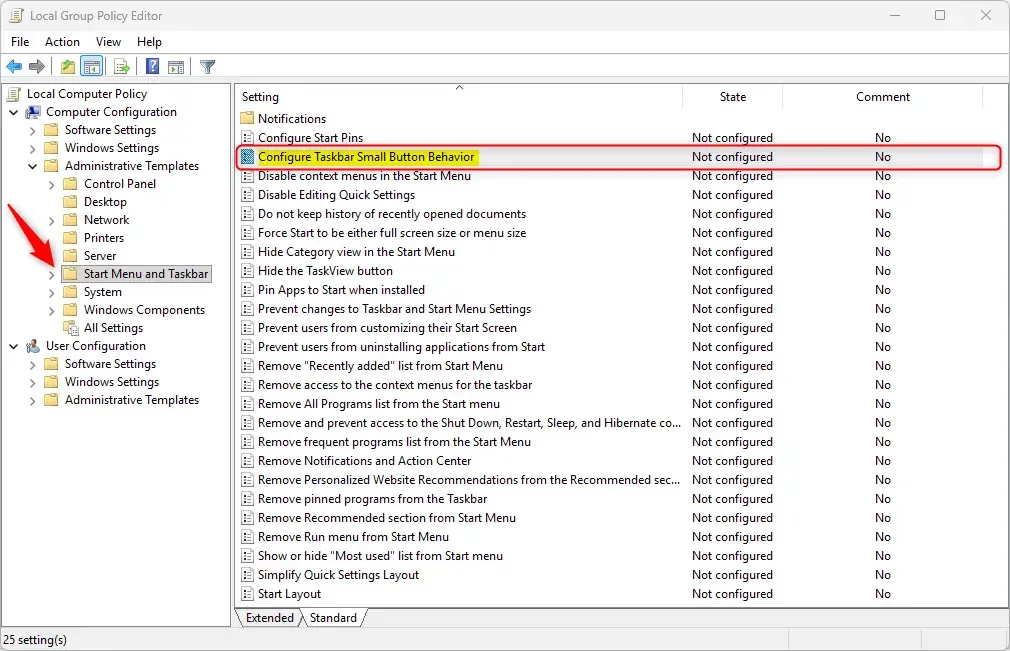
- To apply for all users: Go to Computer Configuration > Administrative Templates > Start Menu and Taskbar
- To apply for specific users: Go to User Configuration > Administrative Templates > Start Menu and Taskbar
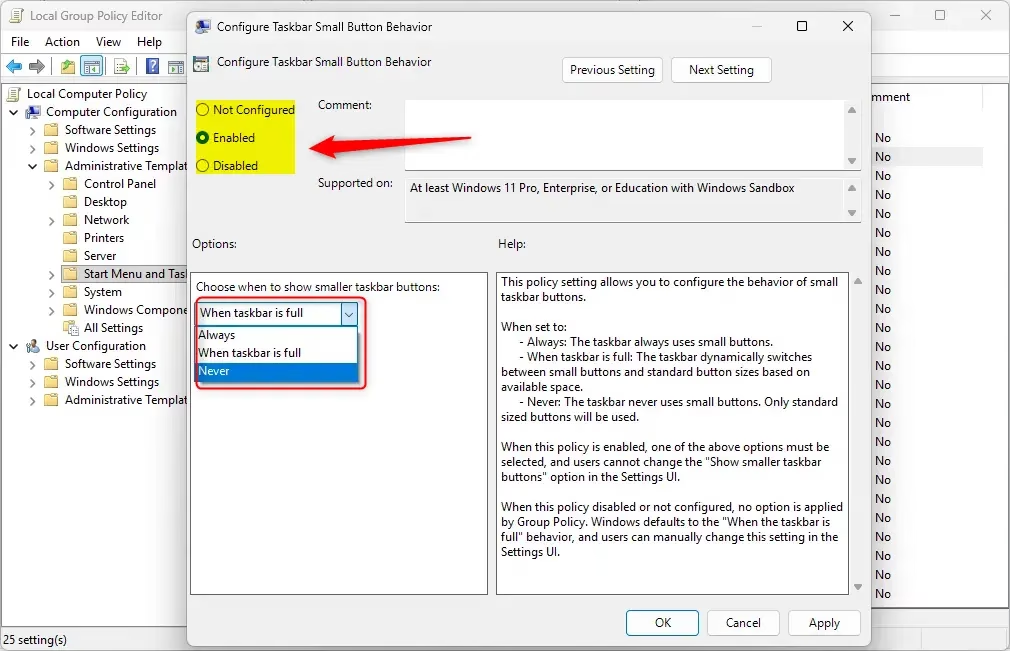
- In the right pane, double-click Configure Taskbar Small Button Behavior.
- Choose one of the following:
- Not Configured: lets users choose their own size (default).
- Enabled: then pick “Always”, “Never”, or “When taskbar is full” from the dropdown.
- Click OK.
- Restart your PC or sign out and sign back in to apply changes.
Summary
Here’s what you should remember:
- You have choices: Use Settings for simple changes, or Registry/Group Policy for advanced control.
- Flexible options: Keep icons normal size, always small, or only small when the taskbar is crowded.
- User-friendly: Easy to do with just a few clicks in Settings.
- Save screen space: Smaller icons help fit more apps on your taskbar.
- Customize your PC: Make your Windows 11 look and work the way you like.
Enjoy your personalized taskbar!
Was this guide helpful?

About the Author
Richard
Tech Writer, IT Professional
Richard, a writer for Geek Rewind, is a tech enthusiast who loves breaking down complex IT topics into simple, easy-to-understand ideas. With years of hands-on experience in system administration and enterprise IT operations, he’s developed a knack for offering practical tips and solutions. Richard aims to make technology more accessible and actionable. He's deeply committed to the Geek Rewind community, always ready to answer questions and engage in discussions.


No comments yet — be the first to share your thoughts!