How to Enable or Disable Firewall Notifications in Windows 11

You can enable or disable firewall notifications in Windows 11 to control security alerts from the Windows Security app.
Firewall notifications are messages that inform you about potential security events, such as when the firewall blocks a new application from running on your PC.
These alerts are part of Windows Security, which is your central hub for protecting your computer. The Windows Defender Firewall specifically helps manage network traffic, and its notifications are designed to keep you informed. You can customize whether you receive these alerts for events like an app being blocked.
Knowing whether your firewall is actively blocking something or if there’s a security issue can be crucial. You have the power to choose if you want these pop-up reminders or prefer a quieter system.
How to Turn On or Off Firewall Notifications in 🪟 Windows 11
Follow these simple steps to control the firewall notifications on your computer:
- Open the Start menu: Click the Start button (the Windows icon) on the bottom-left of your screen.
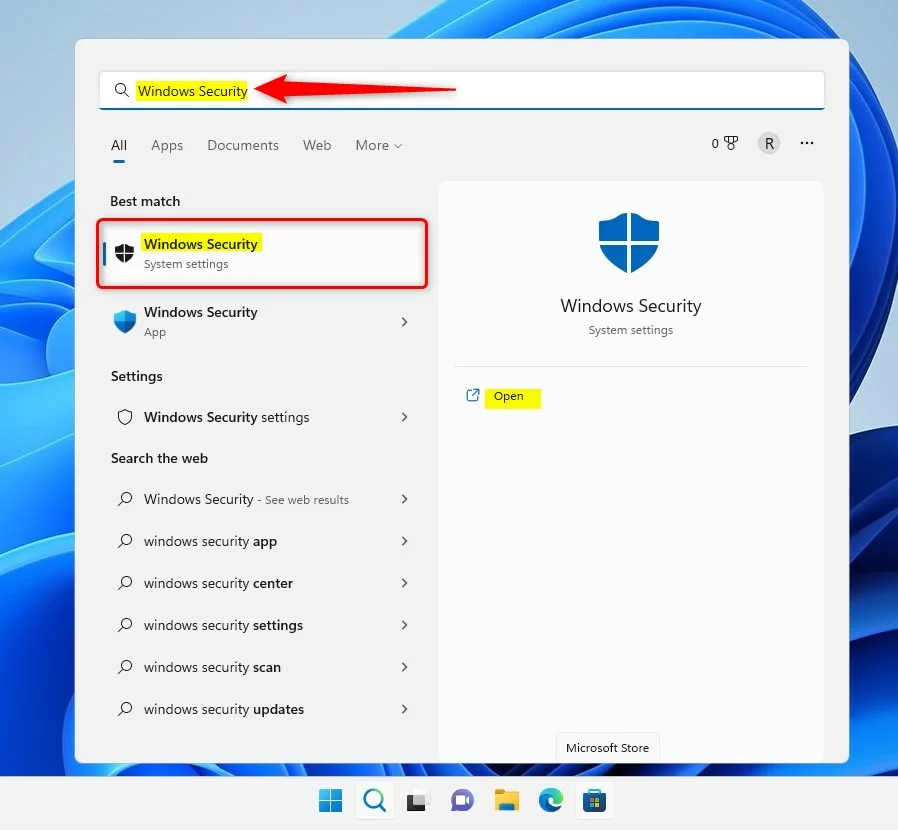
- Search for Windows Security: Type Windows Security into the search box and click the Windows Security app from the list.
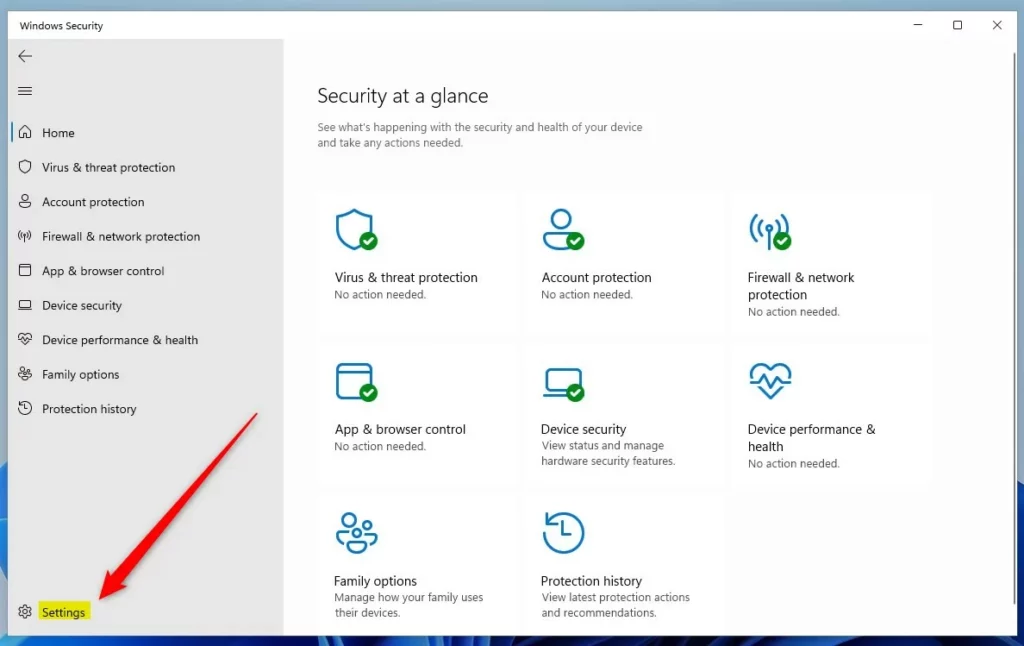
- Open app settings: In the Windows Security app, click the Settings button. It looks like a gear. You’ll find it near the top-left corner.
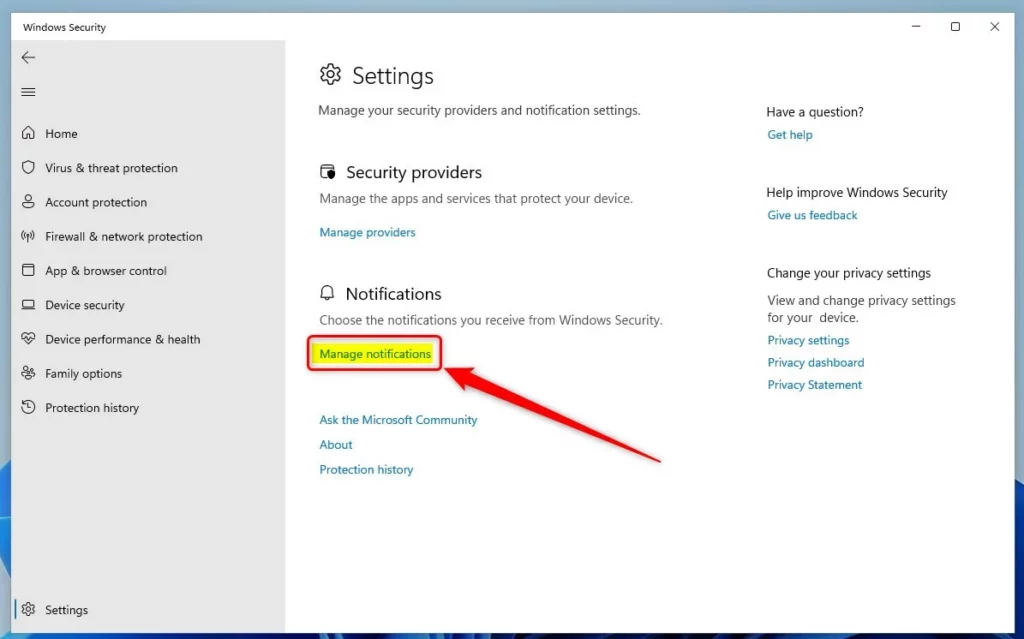
- Manage notifications: On the Settings page, find the Notifications section and click the Manage notifications link.
- Turn notifications on or off: Look for Firewall & network protection notifications. Use the toggle switch to turn notifications Off or On.
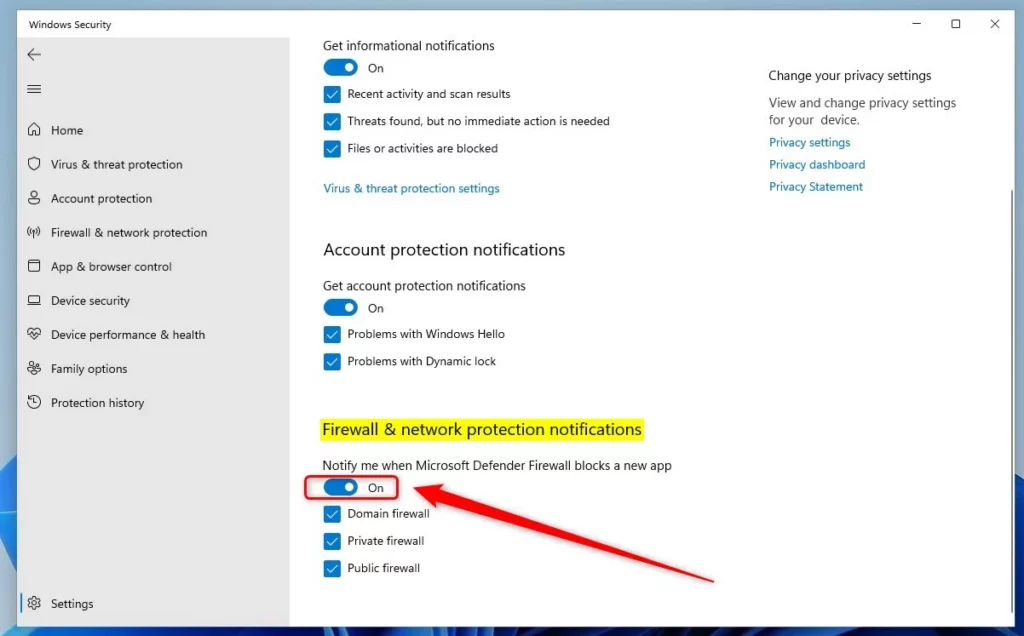
You can also choose which types of notifications you want. Check or uncheck the options for Domain firewall, Private firewall, and Public firewall.
Note: Even if you turn off these notifications, Windows will still alert you. It will send alerts if there is a serious problem that needs your immediate attention.
That’s it! You’ve now learned how to control your firewall notifications in Windows 11.
More Info
For more details, you can visit the official Microsoft page about notifications in Windows Security: Microsoft.com – Hide Windows Security notifications
Summary
- You can turn firewall and network protection notifications on or off using the Windows Security app.
- These notifications help keep you informed about your computer’s security.
- Follow simple steps to open Windows Security, go to settings, and manage notifications.
- Choose which firewall notifications you want to see, or turn them off if you don’t want any messages.
- Windows will still alert you for urgent security issues no matter your notification settings.
Was this guide helpful?

About the Author
Richard
Tech Writer, IT Professional
Richard, a writer for Geek Rewind, is a tech enthusiast who loves breaking down complex IT topics into simple, easy-to-understand ideas. With years of hands-on experience in system administration and enterprise IT operations, he’s developed a knack for offering practical tips and solutions. Richard aims to make technology more accessible and actionable. He's deeply committed to the Geek Rewind community, always ready to answer questions and engage in discussions.



No comments yet — be the first to share your thoughts!