How to Move Microsoft Store Apps to Another Drive in Windows 11

Is your main drive running out of space? You can move apps from the Microsoft Store to another drive. This frees up room on your system drive so your PC runs better.
Why Move Apps to Another Drive?
- Free up space on your main system drive (C:)
- Help your PC run faster
- Use a larger or faster drive for your apps
What Kinds of Apps Can You Move?
There are two main types of apps on Windows:
- Microsoft Store apps: Apps you get from the Microsoft Store (like games, utilities, or other programs). These can be moved to another drive.
- Standalone apps: Programs you install using their own installers (like Google Chrome or Spotify). These usually cannot be moved this way.
Where Are Microsoft Store Apps Stored?
By default, Microsoft Store apps are saved on your Windows (C:) drive inside special folders like WindowsApps and Packages. But you can move them to other drives. These can be internal drives or external drives like USB drives or SD cards. The drive must be formatted with NTFS.
How to Move Microsoft Store Apps to Another Drive in 🪟 Windows 11
Follow these simple steps:
- Open Settings
Click the Start button (Windows icon in the bottom-left corner) and then click Settings. Or press Windows key + I on your keyboard.
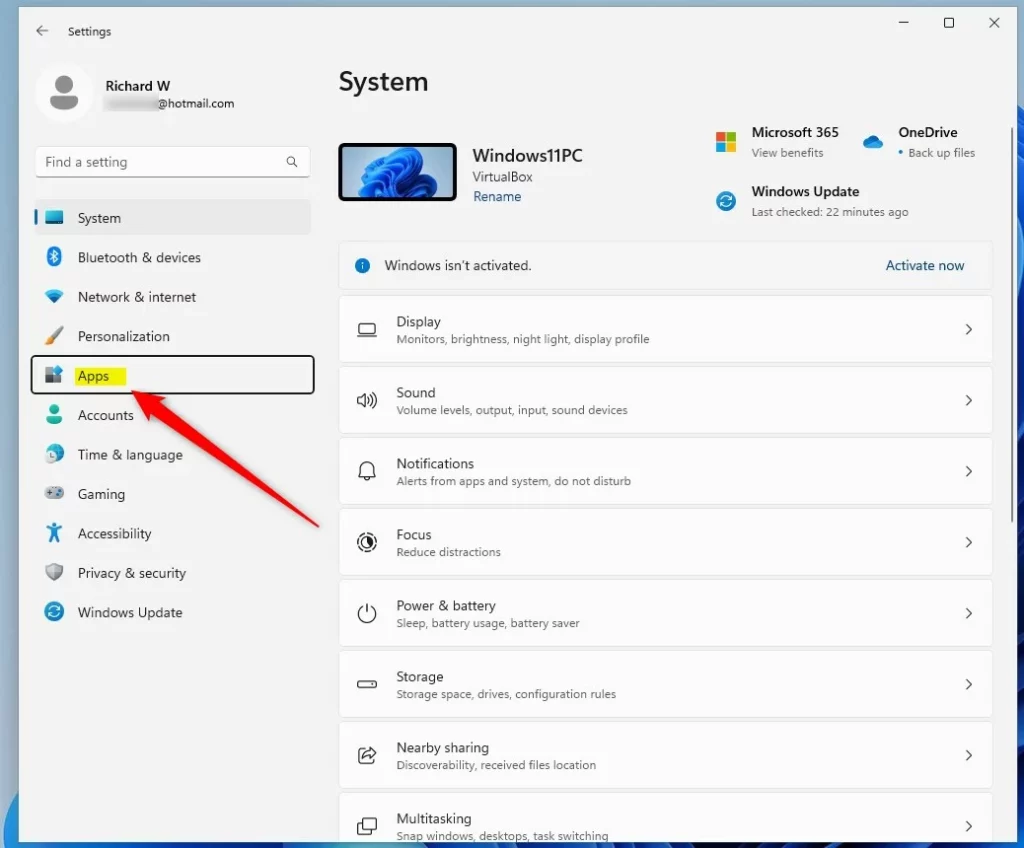
- Click Apps on the left menu
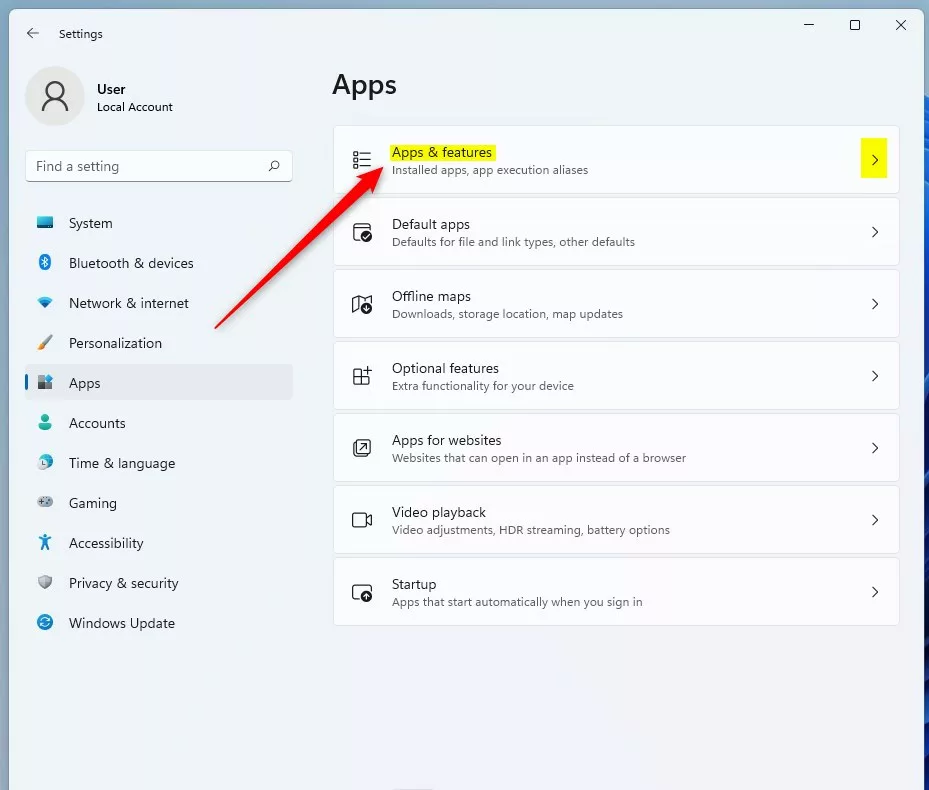
- Click Apps & features on the right
- Find the app you want to move
Scroll or search the list for the Microsoft Store app you want to move.
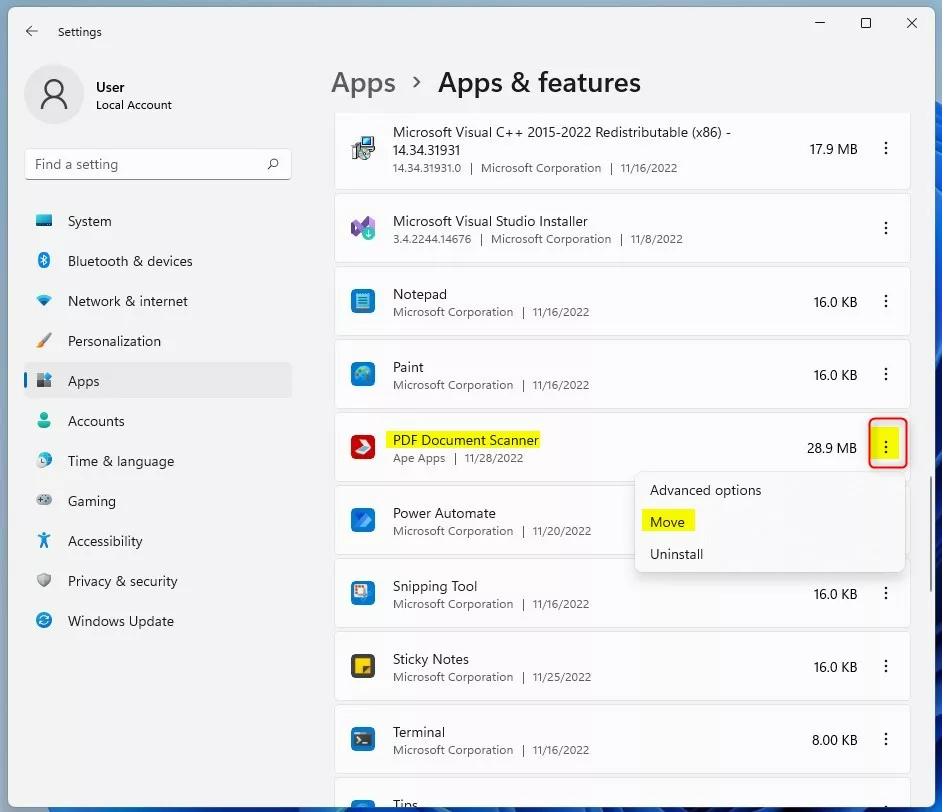
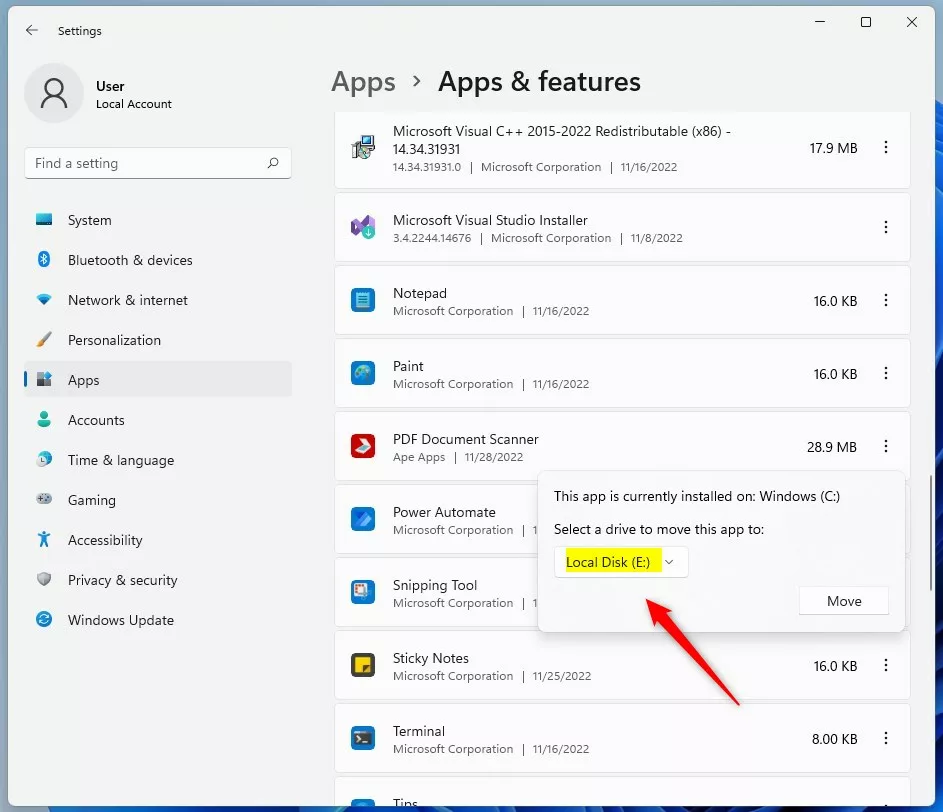
- Click the three dots (⋮) next to the app, then select Move
- Choose the new drive
A small window will pop up. It tells you the app is currently on your C: drive. Click the drop-down menu. Pick the drive you want to move the app to. Then click Move.
- Wait for the app to move
Windows will create two folders named WindowsApps and WpSystem on the new drive. These folders will store your app files.
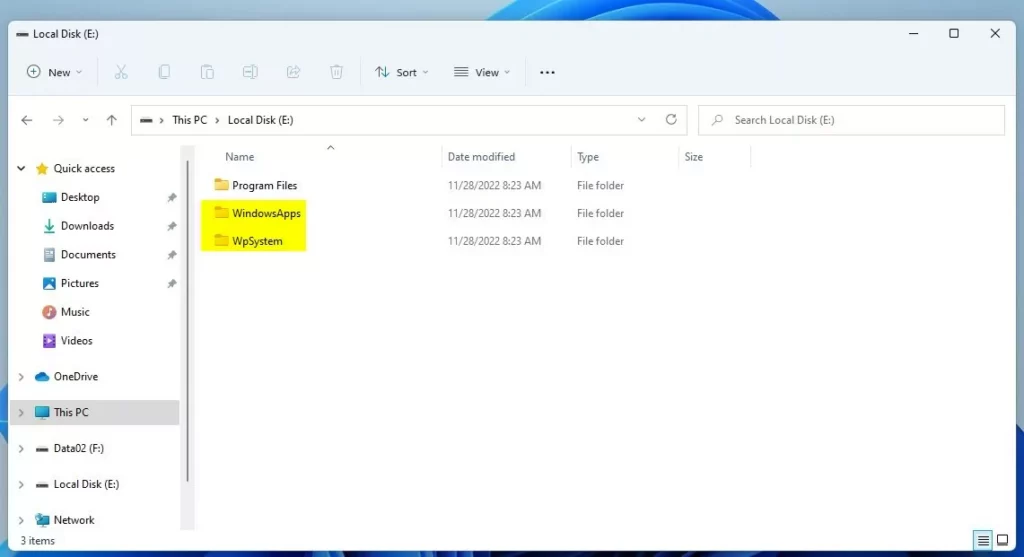
That’s it! Your app is now running from the new drive. This frees up space on your main drive.
Important Tips to Know
- You can only move apps installed from the Microsoft Store this way.
- External drives like USB sticks or SD cards must be NTFS format (not FAT32 or exFAT) to move apps to them.
- If you remove the drive with the moved app, the app will not work until you reconnect it.
If you want to learn more about managing apps on Windows 11, check out this guide on how to reset Microsoft Store apps.
Summary
Moving Microsoft Store apps to another drive is easy and helps free up space on your main C: drive. Use the Settings menu to find your app, click Move, and select a new drive. Windows does the rest automatically. Remember that only Microsoft Store apps can be moved this way, and external drives must be NTFS format.
Was this guide helpful?

About the Author
Richard
Tech Writer, IT Professional
Richard, a writer for Geek Rewind, is a tech enthusiast who loves breaking down complex IT topics into simple, easy-to-understand ideas. With years of hands-on experience in system administration and enterprise IT operations, he’s developed a knack for offering practical tips and solutions. Richard aims to make technology more accessible and actionable. He's deeply committed to the Geek Rewind community, always ready to answer questions and engage in discussions.


No comments yet — be the first to share your thoughts!