How to Download Fonts for All Languages in Windows 11

Do you want your computer to work with many different languages? You might want to download fonts for all languages in Windows 11. Fonts are the styles of text you see on your screen. Windows lets you download fonts for many languages. But keep in mind this uses a lot of space on your computer. It might also slow it down a little.
Fonts you install are saved in the C:\Windows\Fonts folder. You can also add fonts by dragging font files into that folder.
Here’s an easy way to download fonts for all languages on your Windows 11 PC.
Step 1Open Windows Settings
First, open the Settings app:
- Click the Start menu button (the Windows icon on the bottom left). Then click Settings.
- Or, press Windows key + I on your keyboard to open Settings quickly.
Step 2Go to Personalization > Fonts
Once the Settings window opens, follow these steps:
- Click Personalization on the left side menu.
- On the right, click the Fonts tile to open the fonts settings.
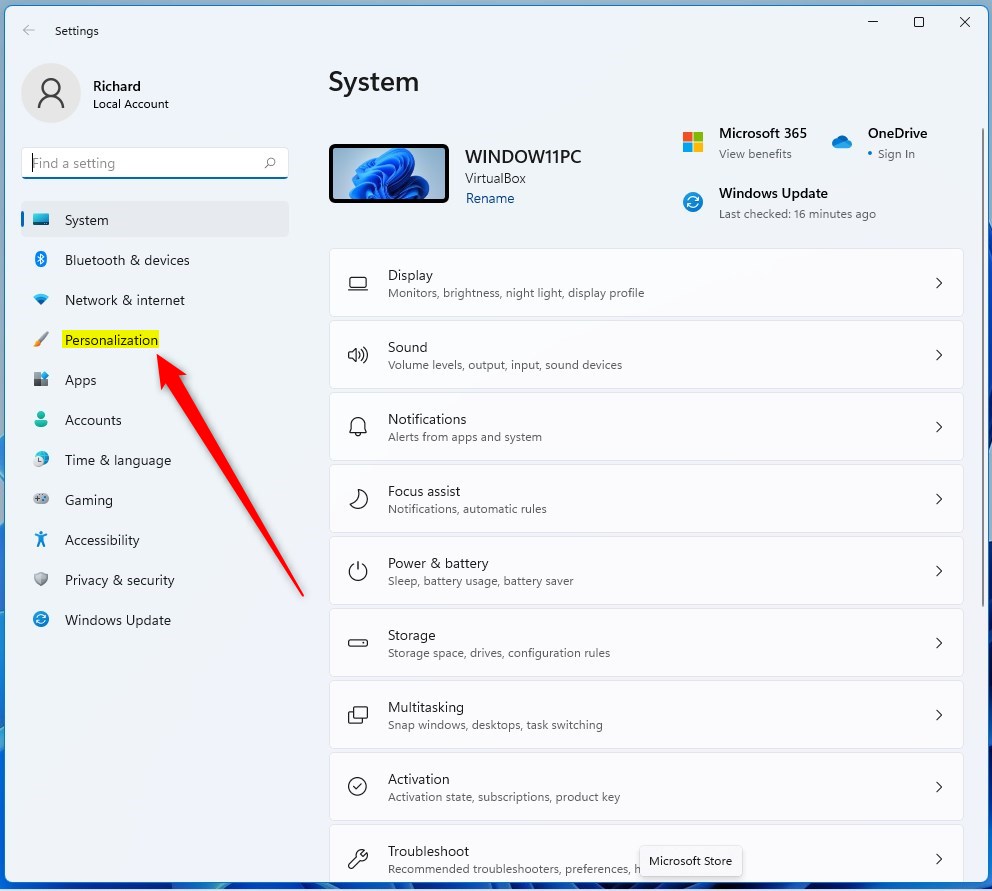
Windows 11 Personalization Settings
Next, you’ll see the Fonts settings page:
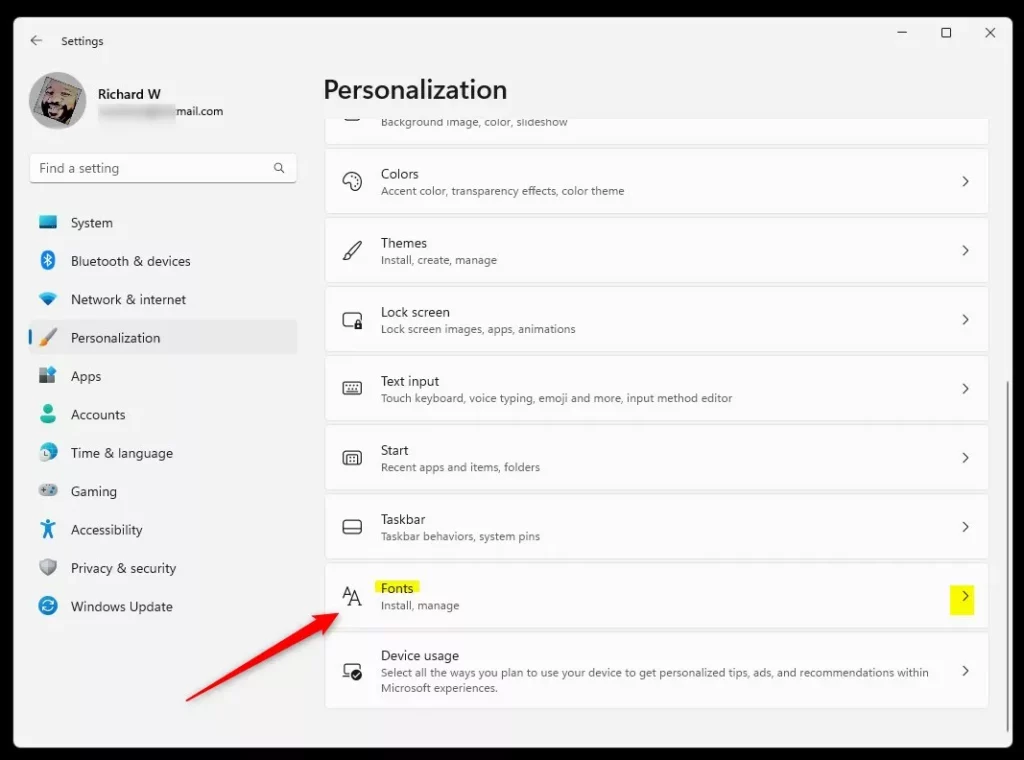
Fonts Settings in Windows 11
Step 3Download Fonts for All Languages
Scroll down to the Related settings section. Click the button that says Download fonts for all languages.
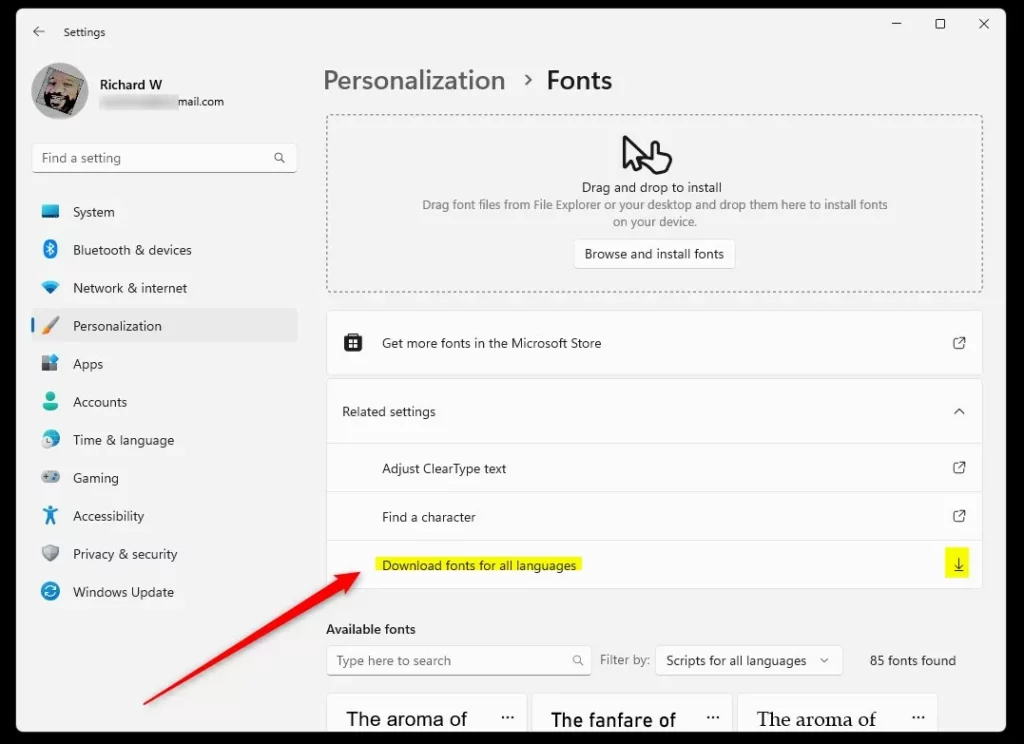
Download fonts for all languages button
Windows will ask you to confirm that you want to download these fonts. Click Yes or OK to start the download.
When the download finishes, you can close the Settings app.
Alternative Way: Use the Control Panel
If you prefer, you can also download fonts using the Control Panel:
- Open the Control Panel. You can search for it by typing Control Panel in the Start menu.
- Go to Appearance and Personalization > Fonts.
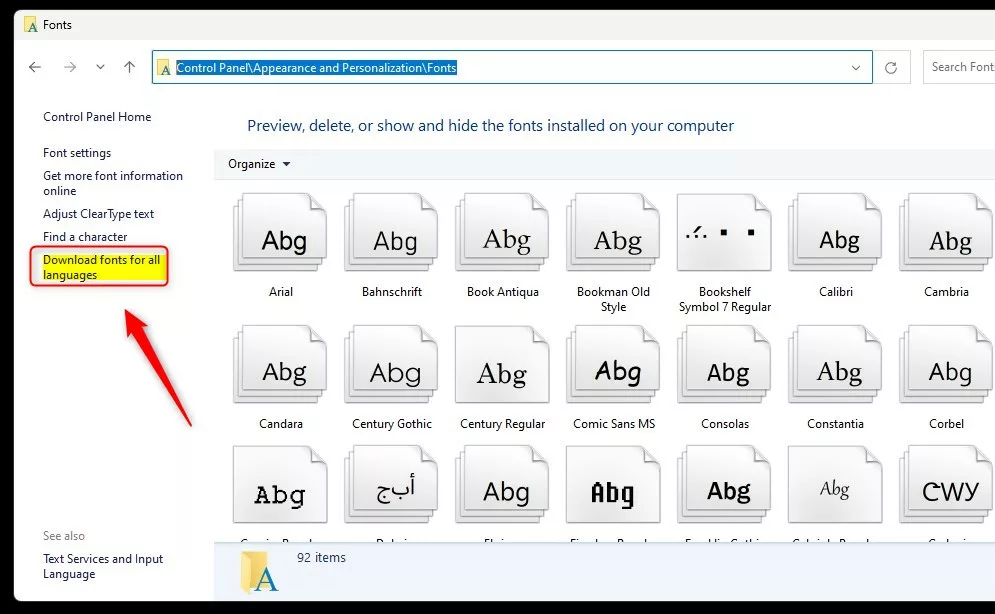
Fonts section in Control Panel
- On the left side, click the link Download fonts for all languages.
- Confirm your choice by clicking OK. Windows will start downloading the fonts.
Important Notes
- Downloading fonts for all languages will take up a lot of space on your computer. Make sure you have enough free disk space.
- This can slow down your computer a little. Windows will have more fonts to manage.
- Only download all fonts if you really need to use many different languages.
Summary
Why do this? Windows 11 lets you download fonts for all languages. This helps you read and write in many different languages.
What happens when you do it? Your computer will have fonts for languages from around the world. Text in different languages will display correctly on your screen.
- You can download all fonts from the Settings app or the Control Panel.
- Remember to check your disk space before downloading all fonts.
- Following these steps will make your computer ready for many languages.
Need more help? Check out this guide on how to install fonts on Windows 11.
Was this guide helpful?

About the Author
Richard
Tech Writer, IT Professional
Richard, a writer for Geek Rewind, is a tech enthusiast who loves breaking down complex IT topics into simple, easy-to-understand ideas. With years of hands-on experience in system administration and enterprise IT operations, he’s developed a knack for offering practical tips and solutions. Richard aims to make technology more accessible and actionable. He's deeply committed to the Geek Rewind community, always ready to answer questions and engage in discussions.




No comments yet — be the first to share your thoughts!