How to Add or Remove the Restart Button in Windows 11

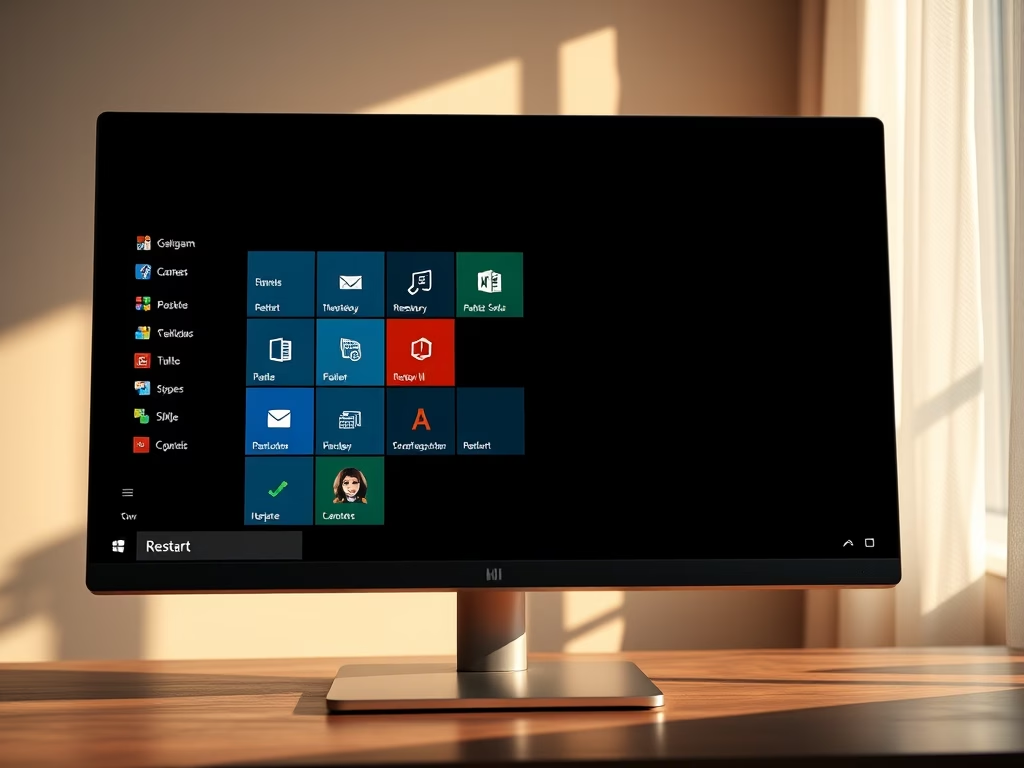
Ever wondered how to hide or show the Restart button in your Windows 11 Start menu? This guide walks you through the process, step by step.
Use the Registry Editor to hide or show the Restart button. Navigate to 🗝️HKEY_LOCAL_MACHINESOFTWAREMicrosoftPolicyManagerdefaultStartHideRestart, create a String Value named “value”, and set its data to 1 to hide or 0 to show.
What Does the Restart Button Do?
The Restart button closes all your open apps, signs you out, and restarts your computer. You typically click Restart after saving your work to reboot your PC.
Keep in mind: If you restart without saving, you risk losing your work, as Windows may not restore your session precisely where you stopped. Restarting can also help if your PC freezes or stops responding.
Why Hide or Show the Restart Button?
Windows 11 shows the Restart button by default. However, in environments like offices or on shared computers, you might want to hide this option to prevent accidental restarts.
Hiding Restart helps ensure users save their work before rebooting. If you’re the sole user and prefer quick access to Restart, you can keep it visible.
How to Hide or Show the Restart Button in 🪟 Windows 11
We’ll use a tool called the Registry Editor. This tool manages many of Windows’ deeper settings. Follow these steps carefully:
Step 1Open the Registry Editor
Click the Start button, type ‘regedit,’ and press Enter. For a more in-depth guide on opening it, you can refer to this link: How to open the Registry Editor in Windows 11.
Step 2Find the Right Folder
In the Registry Editor, navigate to this folder path:
HKEY_LOCAL_MACHINE\SOFTWARE\Microsoft\PolicyManager\default\Start\HideRestart
Note: If you don’t see the HideRestart folder, you need to create it:
- Right-click on the Start folder.
- Choose New > Key.
- Name the new folder HideRestart.
Step 3Create a New Value
Click on the HideRestart folder.
On the right side, right-click an empty space and select New > String Value.
Name this new value ‘value’.
Step 4Set the Value Data
Double-click the new value you just created.
In the box that appears, set the data to:
0— to show the Restart button.1— to hide the Restart button.
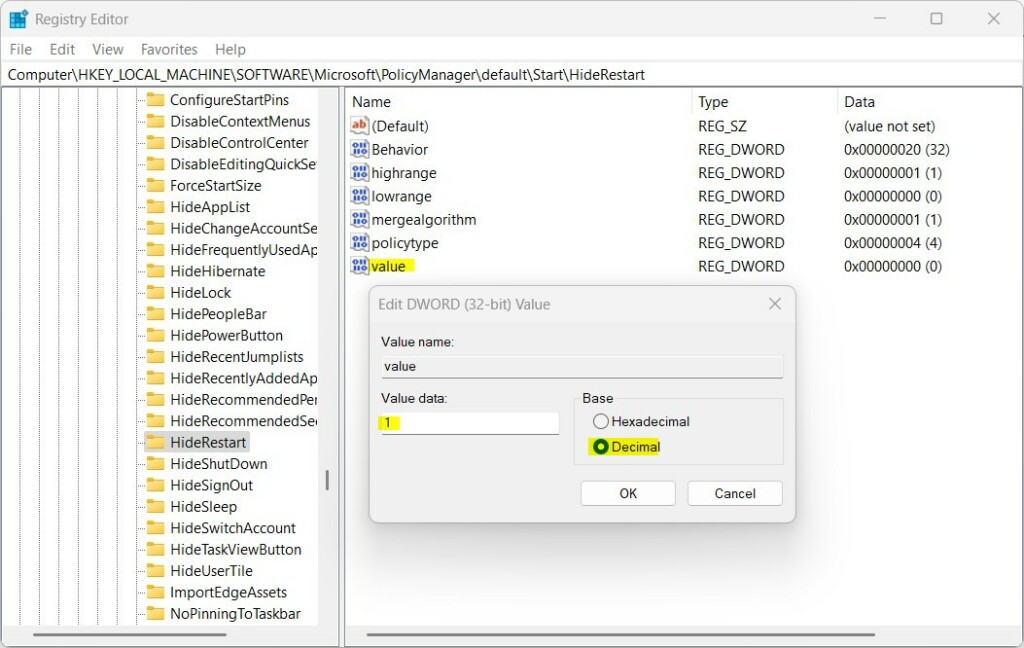
Step 5 Restart Your PC ⚠️ Admin Privileges Required
Close the Registry Editor and restart your computer to see the change.
Summary
You can hide or show the Restart button in Windows 11’s Start menu using the Registry Editor. Hiding Restart helps prevent accidental restarts and loss of unsaved work, especially on shared or work computers. Showing Restart gives you easy access to reboot your PC when needed. Always be careful when editing the registry; incorrect changes can sometimes cause issues. It’s a good idea to back up the registry before you start.
For more official details, visit: Microsoft’s official guide.
How do I hide the shutdown button in Group Policy?
If you’re using Windows 10 Pro or Enterprise, you can hide the shutdown button on the login screen using the Local Group Policy Editor. On the Local Security Setting tab, click Disabled and then click OK. Exit the Local Group Policy Editor and restart your computer to test the changes.
How to show restart button in 🪟 Windows 11?
To Restart a Windows 11 Computer, click the Start button in the lower center of your screen. At the right, click the Power button, which is to the right of your name. Choose Restart from the pop-up list.
Was this guide helpful?

About the Author
Richard
Tech Writer, IT Professional
Richard, a writer for Geek Rewind, is a tech enthusiast who loves breaking down complex IT topics into simple, easy-to-understand ideas. With years of hands-on experience in system administration and enterprise IT operations, he’s developed a knack for offering practical tips and solutions. Richard aims to make technology more accessible and actionable. He's deeply committed to the Geek Rewind community, always ready to answer questions and engage in discussions.



No comments yet — be the first to share your thoughts!