How to Change What the Power Button Does in Windows 11

Want to change what happens when you press the power button on your Windows 11 computer? This simple guide will show you how to do it in just a few clicks.
What is Power Button Behavior?
The power button on your computer usually turns it on or off. But did you know you can change what it does? You can make it put your PC to sleep, hibernate, shut down, or even do nothing at all when pressed.
Why would you want to do this? Maybe you want your computer to quickly go to sleep instead of shutting down. Or maybe you want it to turn off immediately to save power or improve security.
How to Change the Power Button Action in 🪟 Windows 11
Newer versions of Windows 11 let you change the power button settings right from the Settings app. You don’t need to use the old Control Panel anymore.
Follow these easy steps:
- Open the Settings app. Click the Start button and select Settings. Or press
Windows key + Ion your keyboard. - Click System on the left side menu.
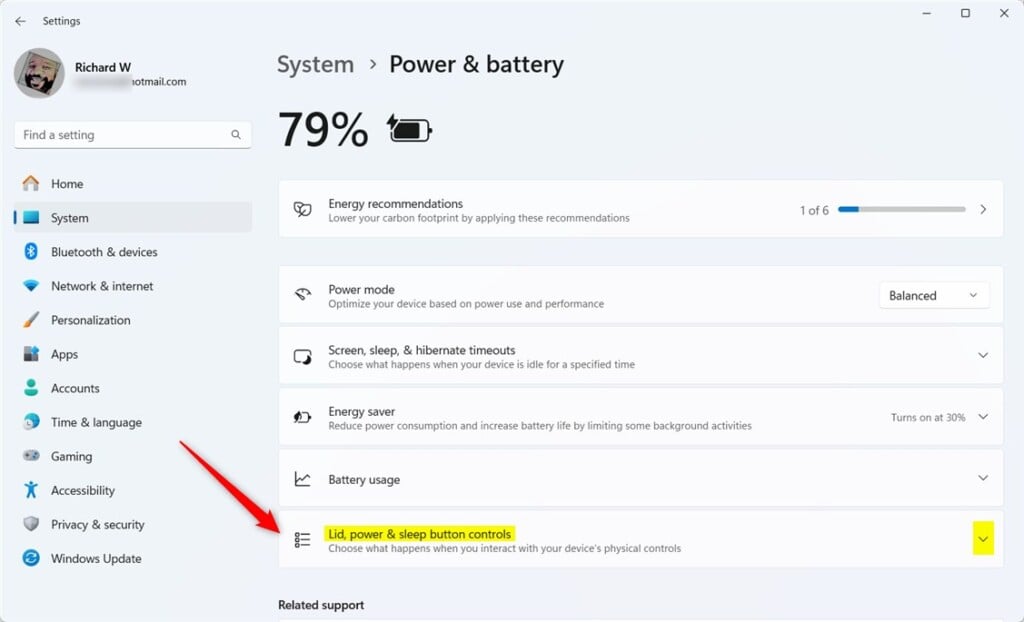
- Select Power & battery on the right side.

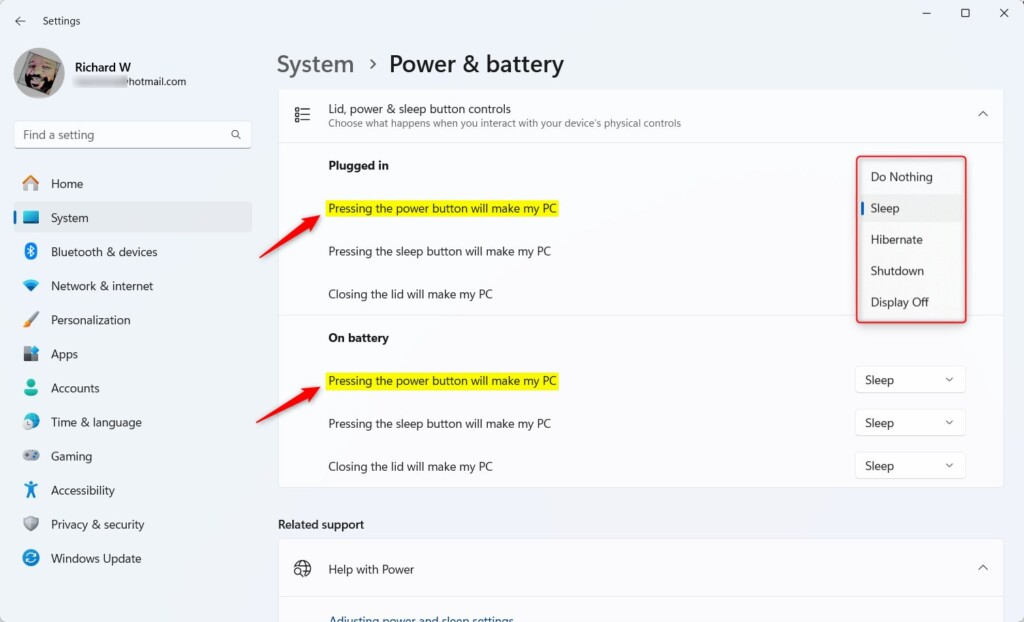
- Look for “Pressing the power button will make my PC” under either Plugged in or On battery.
- Click the dropdown menu and choose what you want the power button to do:
- Do Nothing – Pressing the power button won’t do anything.
- Sleep – Puts your PC to sleep (default setting).
- Hibernate – Saves your work and turns off your PC.
- Shutdown – Turns off your PC completely.
- Display Off – Turns off the screen only.
- Once you pick an option, just close the Settings app. Your choice will be saved automatically.
Why Change This Setting?
- Save time: Make your PC sleep quickly instead of shutting down.
- Save power: Shut down immediately when you press the button.
- Prevent accidental shutdowns: Set the button to do nothing if you often press it by mistake.
Summary
You can now easily change what the power button does in Windows 11 using the Settings app. Your options include Sleep, Hibernate, Shutdown, Display Off, or Do Nothing. This helps you control your PC’s power and saves you time or energy depending on your needs. If you have questions, feel free to ask in the comments below.
More details on changing power button action How to change sleep button action How to use hibernate mode
Was this guide helpful?
No comments yet — be the first to share your thoughts!