How to Enable Mouse Pointer Indicator in Windows 11

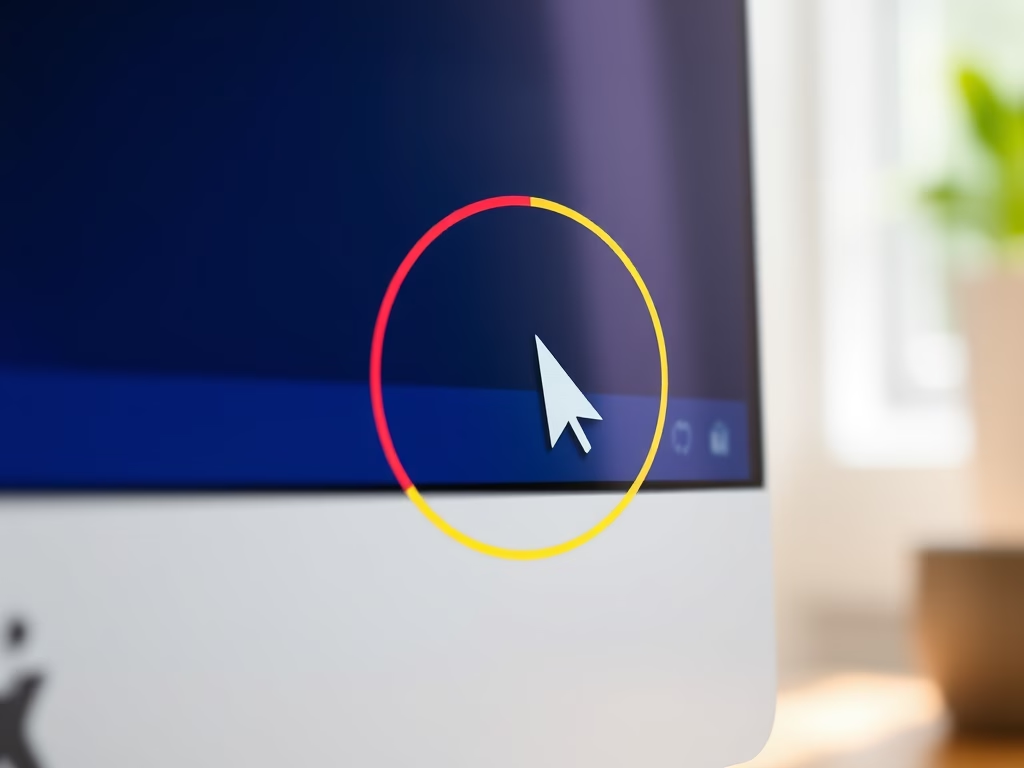
This guide will show you how to turn on or off the Mouse Pointer Indicator in Windows 11. This feature helps you see your mouse pointer more clearly by putting a colored circle around it.
This is especially helpful if you find it hard to see the mouse pointer on your screen.
What is the Mouse Pointer Indicator?
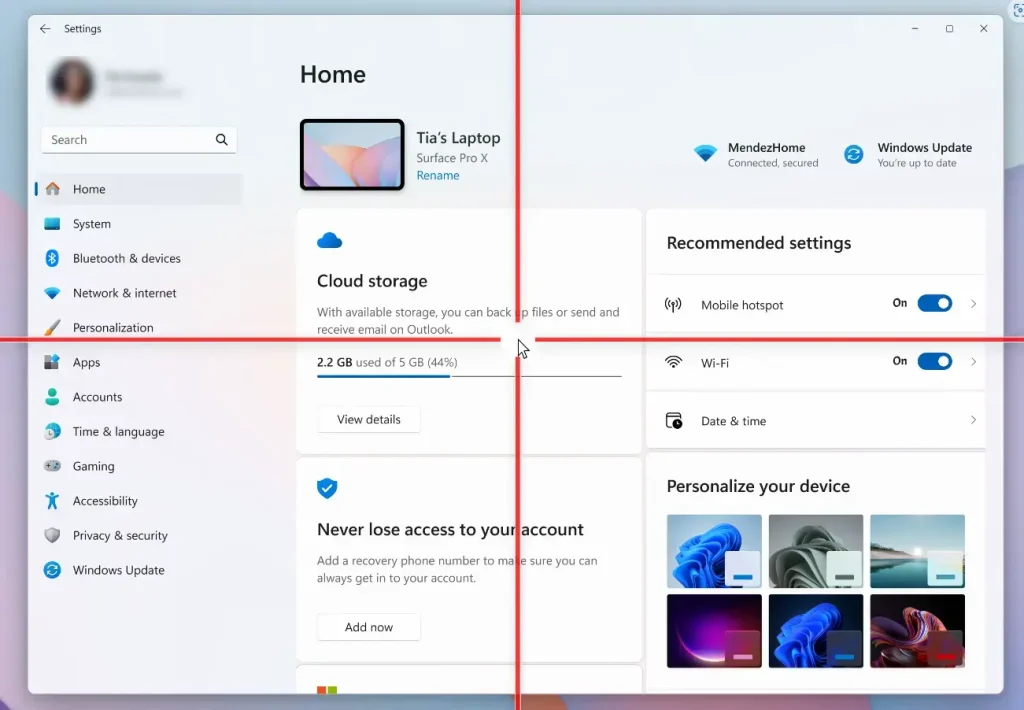
Starting with Windows 11 build 26058, you can add a circle around your mouse pointer. This makes it easier to find and use the cursor, especially if you have trouble seeing it.
Once turned on, you can quickly turn this feature on or off anytime by pressing Win + Ctrl + X on your keyboard.
How to Turn On or Off the Mouse Pointer Indicator
- Open Settings. Click the Start button and select Settings, or press
Windows key + Ion your keyboard. - In Settings, click Accessibility on the left menu.
- On the right side, find and click Mouse pointer and touch under the Vision section.
- Click on the Pointer indicator option.
- Toggle the switch to On to enable the pointer indicator. You can also pick a color for the circle around your pointer.
- To turn it off, just toggle the switch to Off.
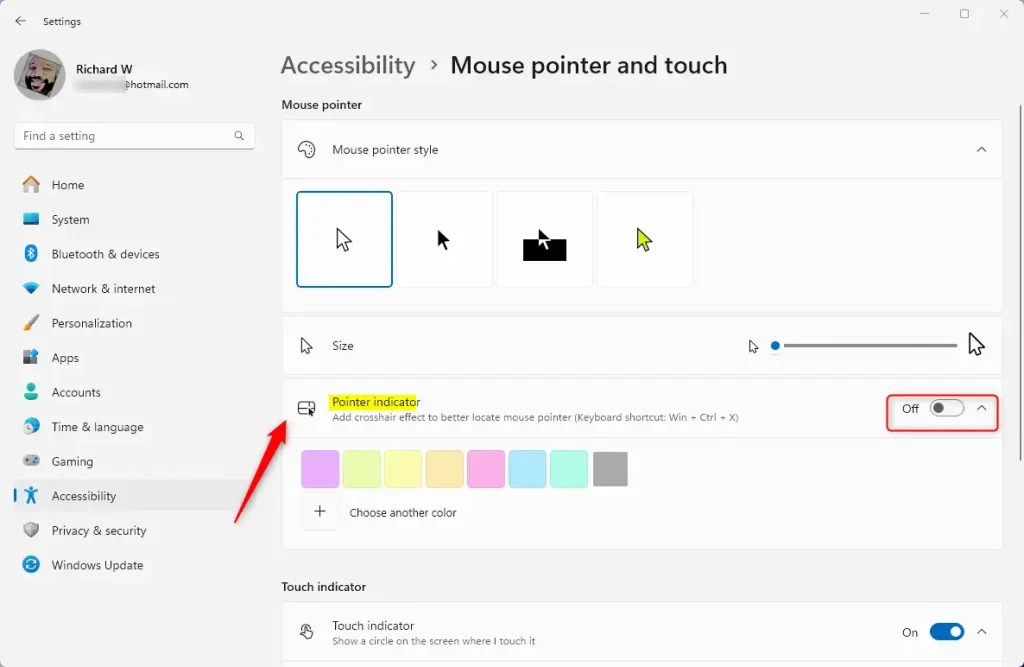
When enabled, you can press Win + Ctrl + X anytime to quickly turn the circle on or off.
Alternative Method: Using the Windows Registry Editor
If you are comfortable using advanced tools, you can also turn this setting on or off using the Windows Registry Editor.
Warning: Be careful when editing the registry. Making wrong changes can cause problems with your computer. It’s a good idea to back up your registry before making changes.
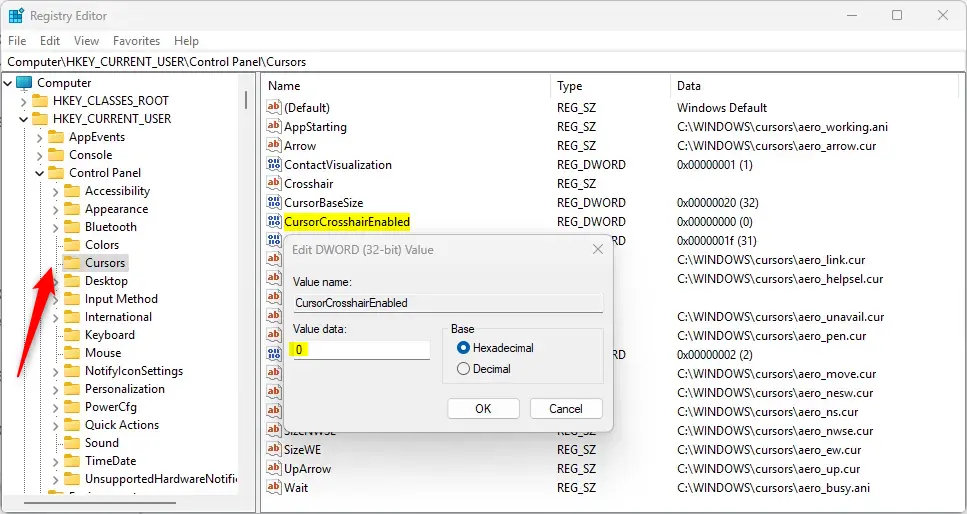
- ★ Admin privileges required: Open the Registry Editor. You can do this by pressing
Windows key + R, typingregedit, and pressingEnter. - Navigate to this folder path:
Computer\HKEY_CURRENT_USER\Control Panel\Cursors - In the right panel, find the entry named
CursorCrosshairEnabled. - Double-click on it and change its value:
- Set to
1to turn the Mouse Pointer Indicator ON.
- Set to
- Set to
0to turn it OFF. - Click OK and close the Registry Editor.
- Restart your computer to apply the change.
Summary
- The Mouse Pointer Indicator helps you find your mouse pointer easily by adding a colored circle around it.
- You can turn it on or off quickly using the keyboard shortcut
Win + Ctrl + X. - To enable or disable the feature, use the Windows Settings app or the Registry Editor if you prefer.
- This feature makes Windows 11 more user-friendly, especially for people with vision difficulties.
That’s all! Now you can make your mouse pointer easier to see on your Windows 11 PC.
Was this guide helpful?

About the Author
Richard
Tech Writer, IT Professional
Richard, a writer for Geek Rewind, is a tech enthusiast who loves breaking down complex IT topics into simple, easy-to-understand ideas. With years of hands-on experience in system administration and enterprise IT operations, he’s developed a knack for offering practical tips and solutions. Richard aims to make technology more accessible and actionable. He's deeply committed to the Geek Rewind community, always ready to answer questions and engage in discussions.




No comments yet — be the first to share your thoughts!