How to Change Narrator’s Pause for Punctuation in Windows 11

What is Narrator?
Narrator is a helpful tool built right into Windows that reads whatever’s on your screen out loud, making it easier for anyone who has trouble seeing or reading text.
Why Change Narrator’s Pause for Punctuation?
Adjusting the narrator pause punctuation settings makes Windows read aloud more naturally, helping you understand where sentences end and improving your overall listening experience.
- Understand where sentences or phrases end
- Make the reading sound natural and clear
- Improve your overall listening experience
Some people like a little pause. Others prefer no pause for faster reading. You can choose what works best for you.
How to Turn On or Off Pause for Punctuation
- Open Settings: Click the Start menu (Windows icon at the bottom-left) and then click Settings. Or, press
Windows key + Ion your keyboard to open Settings directly. - Go to Accessibility: In the Settings window, click Accessibility on the left side.
- Open Narrator settings: On the right side, find and click Narrator to open its settings.
- Find Verbosity Settings: Scroll down to the Verbosity section and click to expand Verbosity level.
- Toggle Pause for Punctuation: Find the option called “Pause slightly when reading punctuation”. Switch it On if you want Narrator to pause a little at punctuation, or Off if you want it to read without pausing.
To turn on or off narrator pause punctuation, first open your Windows Settings by clicking the Start menu and then Settings, or by pressing Windows key + I.
Visual Guide
Here is what you will see in the Settings app:

Open Narrator settings inside Accessibility.
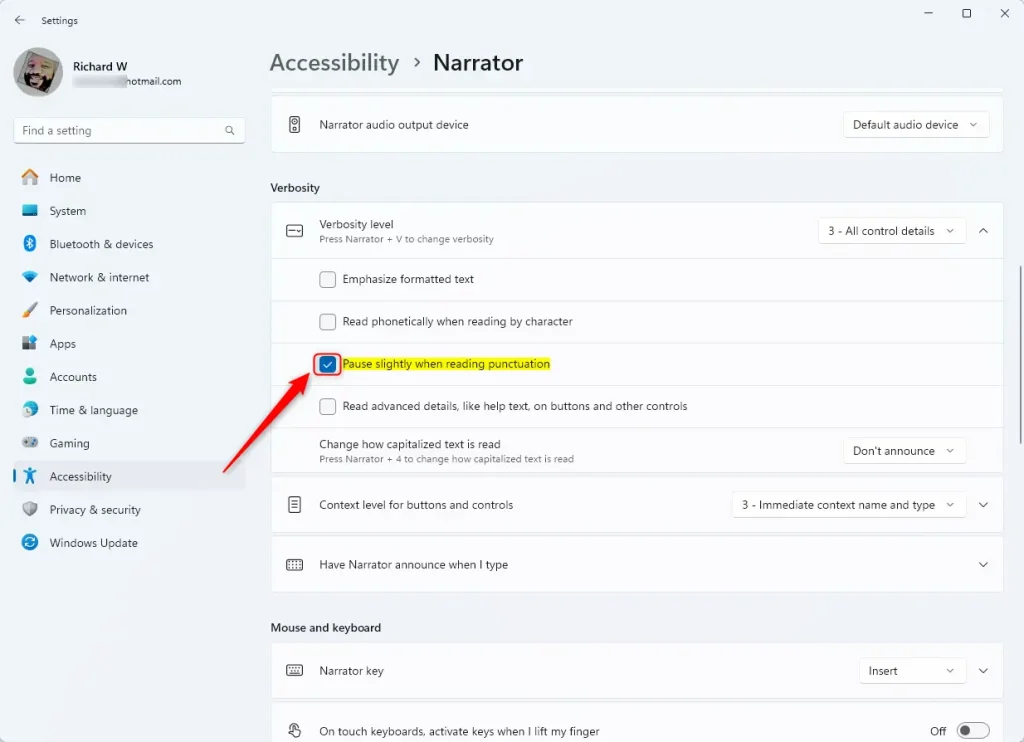
Toggle the “Pause slightly when reading punctuation” option On or Off.
Summary
The narrator pause punctuation setting lets you control how much Narrator pauses after commas or periods, which can make listening much easier and help you follow along better.
How to punctuate a pause in dialogue?
Pauses in speech help people plan what to say next and highlight important points. In writing, pauses can be shown with ellipsis points or dashes to indicate breaks or suspense. Pauses in public speaking can prevent filler words and give the audience time to understand the message.
How do you punctuate a dramatic pause?
To use a dramatic pause in dialog, use an ellipsis (“ . . . ”). An em dash (“ — ”) indicates an interruption in speech.
Was this guide helpful?

About the Author
Richard
Tech Writer, IT Professional
Richard, a writer for Geek Rewind, is a tech enthusiast who loves breaking down complex IT topics into simple, easy-to-understand ideas. With years of hands-on experience in system administration and enterprise IT operations, he’s developed a knack for offering practical tips and solutions. Richard aims to make technology more accessible and actionable. He's deeply committed to the Geek Rewind community, always ready to answer questions and engage in discussions.




No comments yet — be the first to share your thoughts!