How to Turn On or Off Recommended Actions from Apps in Windows 11

You turn on or off recommended actions from apps in Windows 11 through the “Recommended actions” settings page.
Recommended actions are suggestions that Windows 11 provides based on what you’re doing in certain applications, helping you complete tasks more quickly.
For Copilot+ PCs, you can now find a dedicated section within Settings to manage which apps have permission to display these helpful prompts.
This new control for recommended actions is currently available on Copilot+ PCs, with broader rollout expected soon.
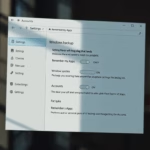
You manage recommended actions from apps in Windows 11 by opening Settings, navigating to Apps, then clicking Actions. From there, you can toggle recommended actions on or off for each individual app. This feature is currently focused on Copilot+ PCs.
How to Turn Recommended Actions On or Off
Follow these steps to decide which apps can suggest actions to you:
Step 1Open the Settings App
Click the Start menu (the Windows icon in the bottom left corner) and then click Settings.
Or press the Windows key + I on your keyboard to jump right to Settings.
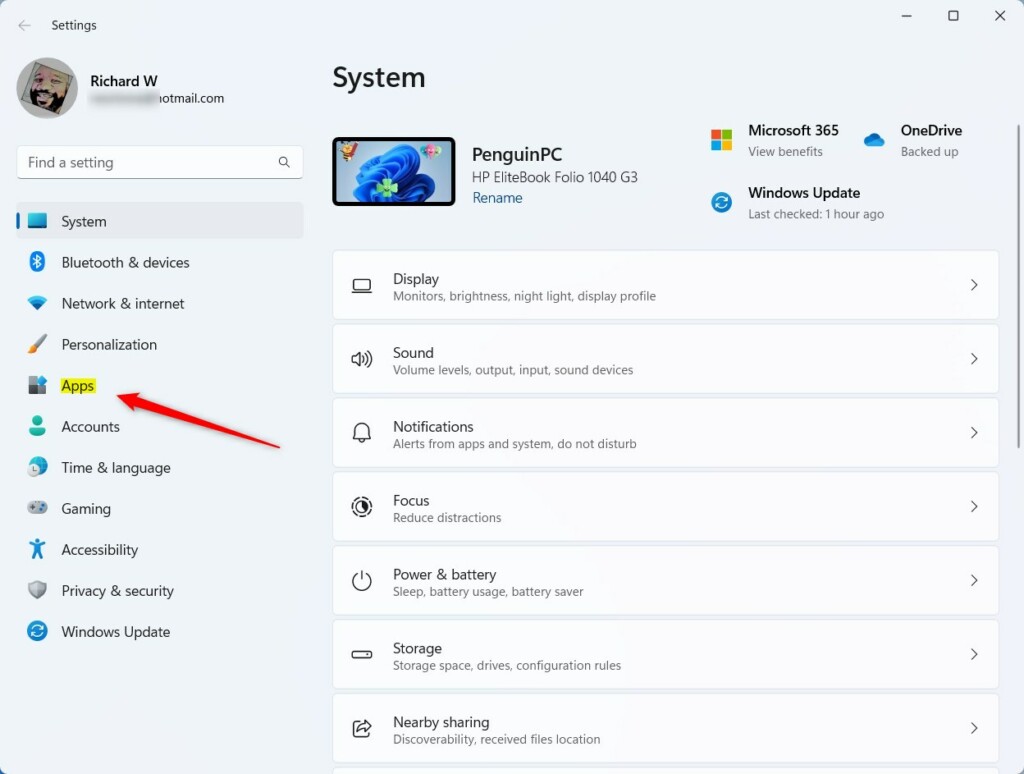
Step 2Go to Apps Settings
In the Settings window, click Apps from the left menu.
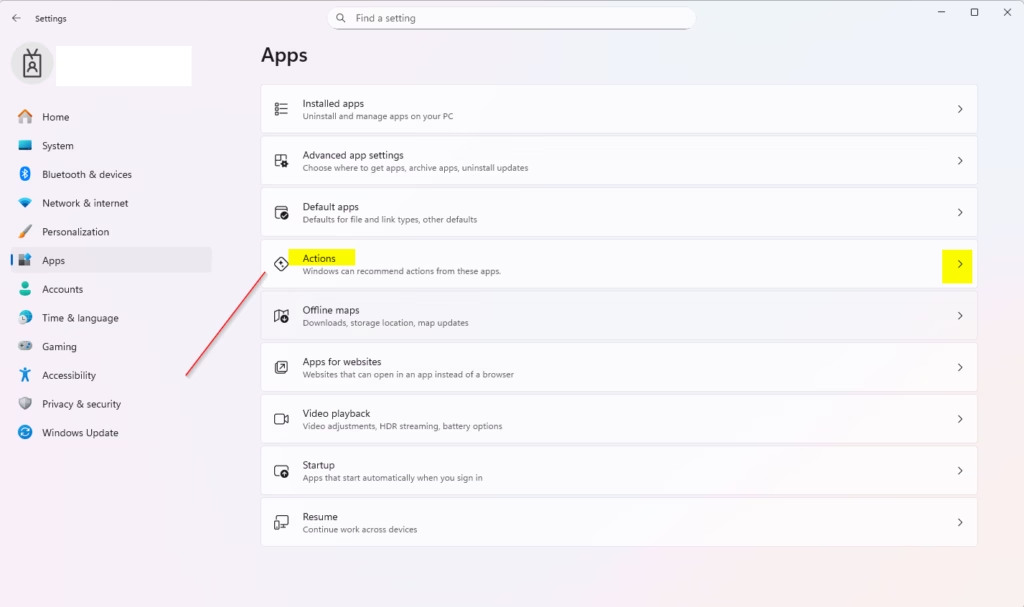
Step 3Open Actions
On the right side, find and click the Actions tile.
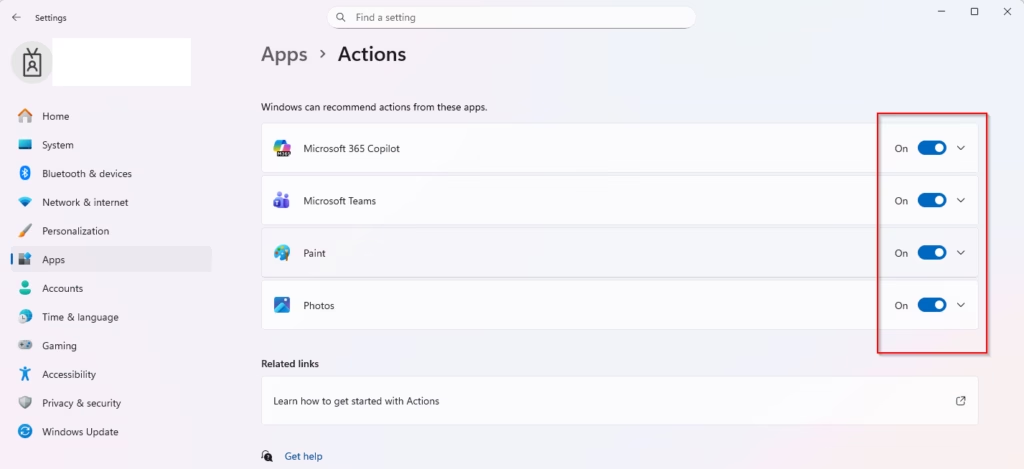
Step 4Choose Which Apps Can Make Suggestions
You will see a list of your apps. Turn the switch on or off next to each app. On means that app can show you recommended actions. Off means it cannot.
Step 5Close Settings
Once you finish, close the Settings window. Your choices are saved automatically.
Why Use Recommended Actions?
- Faster tasks: Get quick suggestions right when you need them.
- You stay in control: Pick exactly which apps can show you helpful tips.
- Works great with Copilot+: This feature is made for Copilot+ PCs.
Remember: This is a new feature. Windows 11 will bring it to more people with upcoming updates.
Want more Windows 11 tips and tricks? Check out this guide on using Windows Settings.
Summary
Recommended Actions in Windows 11 let your apps suggest quick tasks you can do. You can turn this feature on or off for each app. Just open Settings, go to Apps, click Actions, and toggle each app on or off based on what you prefer. This feature is new and mostly available on Copilot+ PCs, but will reach everyone soon.
Why does Windows Security keep saying actions recommended?
Among the causes of the “Actions recommended” notification in Windows 11 Security, the system may have incomplete or missing security updates installed on the computer.
How to enable suggested actions in 🪟 Windows 11?
Manage suggested actions in Settings You can turn suggested actions on or off from Windows Settings: Select Start > Settings > System > Clipboard > and turn the Suggested actions toggle Off or On.
Was this guide helpful?

About the Author
Richard
Tech Writer, IT Professional
Richard, a writer for Geek Rewind, is a tech enthusiast who loves breaking down complex IT topics into simple, easy-to-understand ideas. With years of hands-on experience in system administration and enterprise IT operations, he’s developed a knack for offering practical tips and solutions. Richard aims to make technology more accessible and actionable. He's deeply committed to the Geek Rewind community, always ready to answer questions and engage in discussions.


No comments yet — be the first to share your thoughts!