How to Uninstall Apps in Windows 11

Do you have apps on your Windows 11 computer that you no longer use? Removing them is easy. This guide will show you how to uninstall apps step-by-step.
Why Uninstall Apps?
Uninstalling apps frees up space on your computer. It can also help your PC run faster and smoother.
Types of Apps in Windows 11
Windows 11 has two main types of apps:
- Desktop apps: These are traditional programs like web browsers, games, or tools. You usually download them from the internet or the Microsoft Store.
- Windows apps: These apps come built-in or are downloaded from the Microsoft Store. All users on your PC can access them.
How to Uninstall Apps Using Settings
Why use Settings? Settings is the main control center for your computer. It makes managing your apps simple.
Step 1: Open Settings. Press the Windows key + I on your keyboard. Or click the Start button and then click Settings.
Here is what it looks like when you open the Start menu and click Settings:

Step 2: In the Settings window, click on Apps from the list on the left side.
Step 3: Next, click Apps & features on the right side.
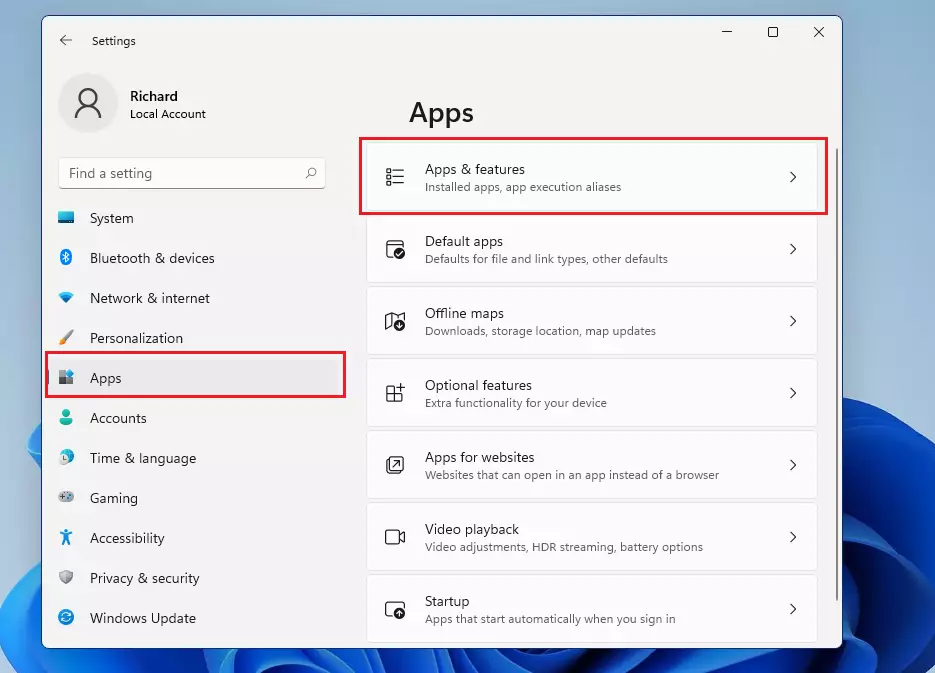
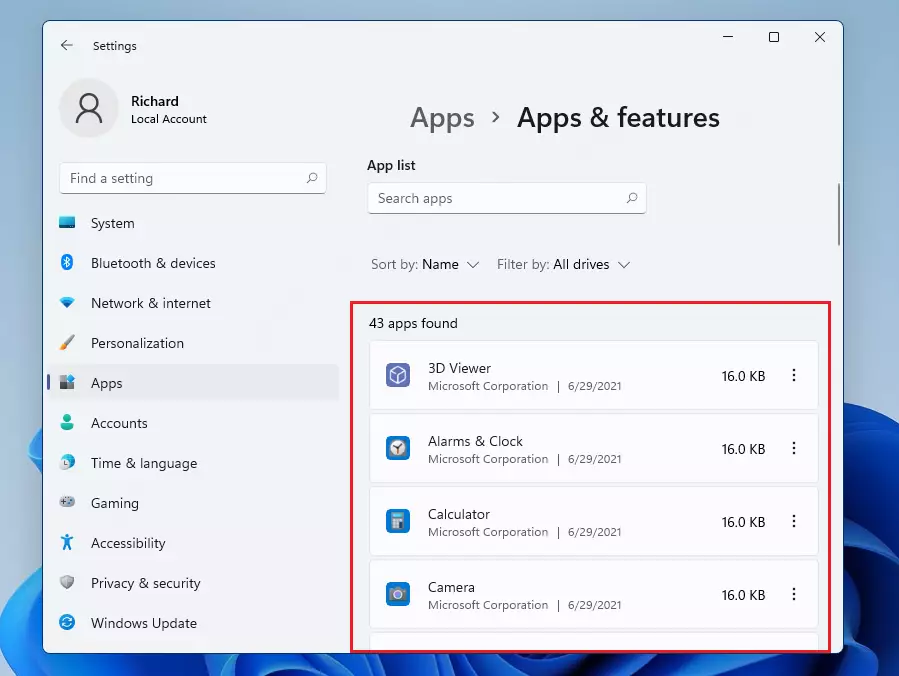
Step 4: Scroll down the list to find the app you want to remove.
Step 5: Click the three dots next to the app name. Then click Uninstall.
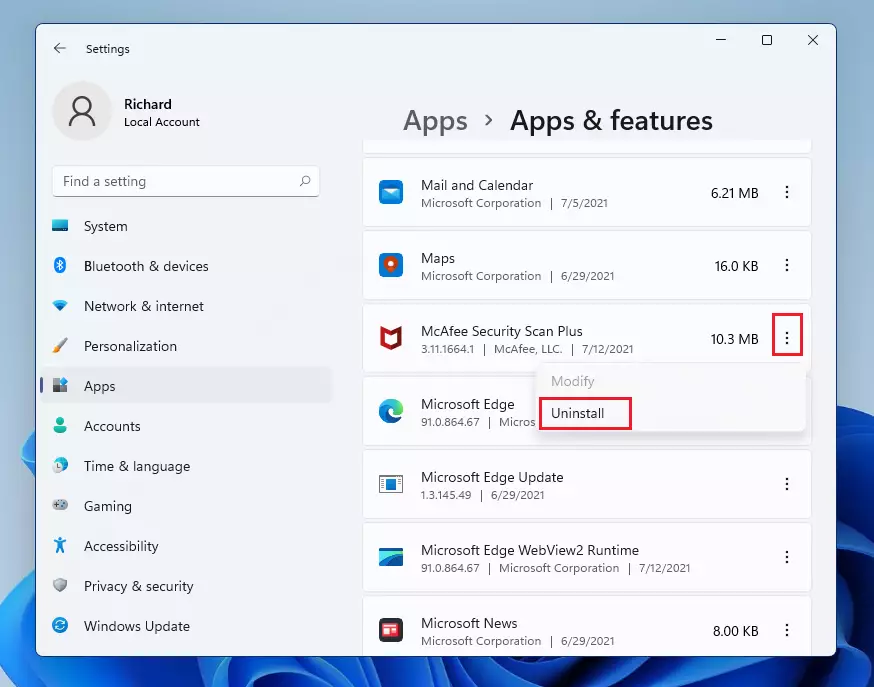
Follow the instructions on the screen to finish uninstalling the app. What happens? The app will be completely removed from your computer.
How to Uninstall Apps Using Control Panel
Control Panel is the older way to manage your computer. You can also use it to remove apps:
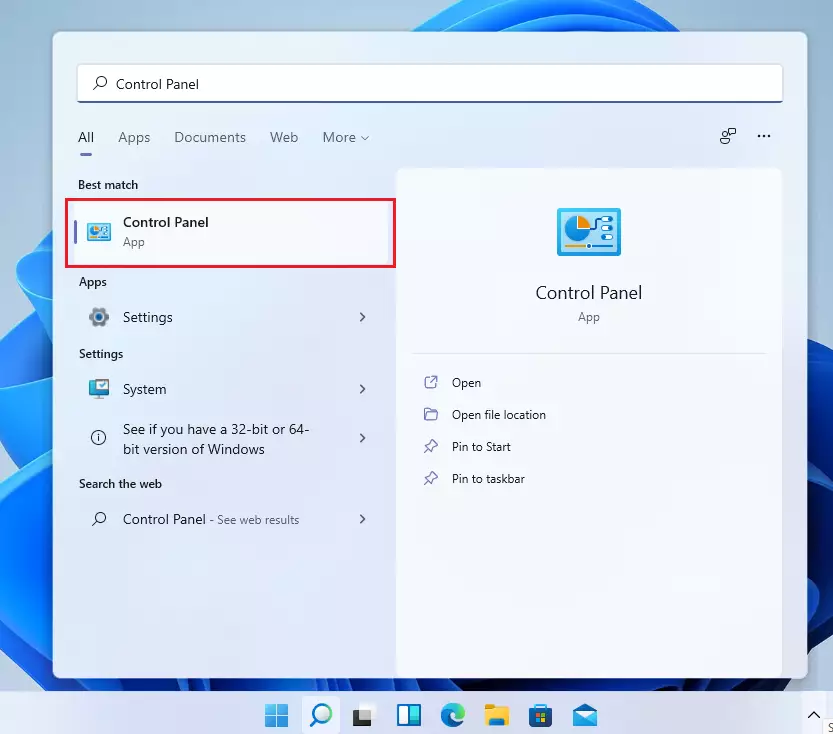
Step 1: Click the Start button. Type Control Panel in the search box. Then open it.
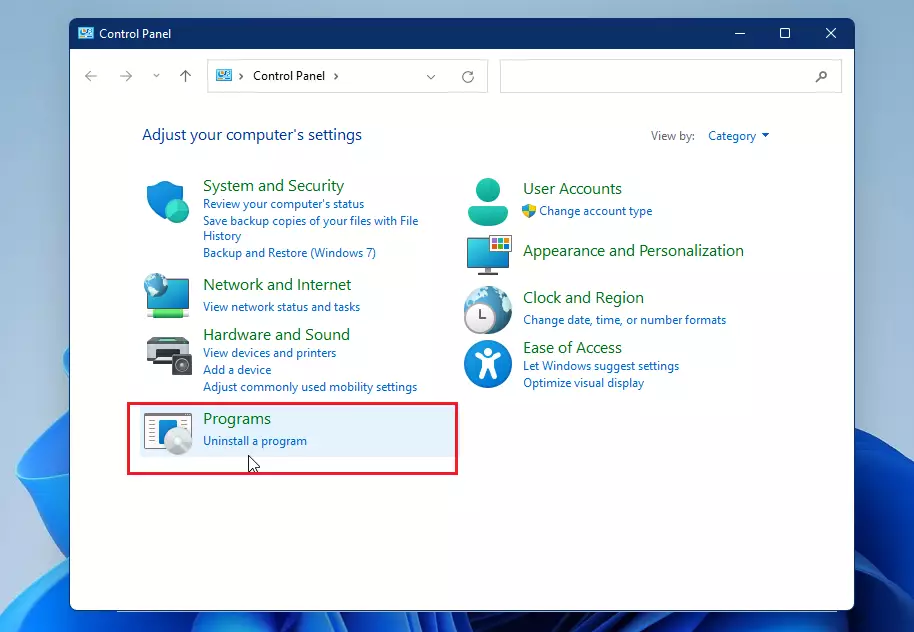
Step 2: In Control Panel, click on Programs. Then click Programs and Features (or “Uninstall a program”).
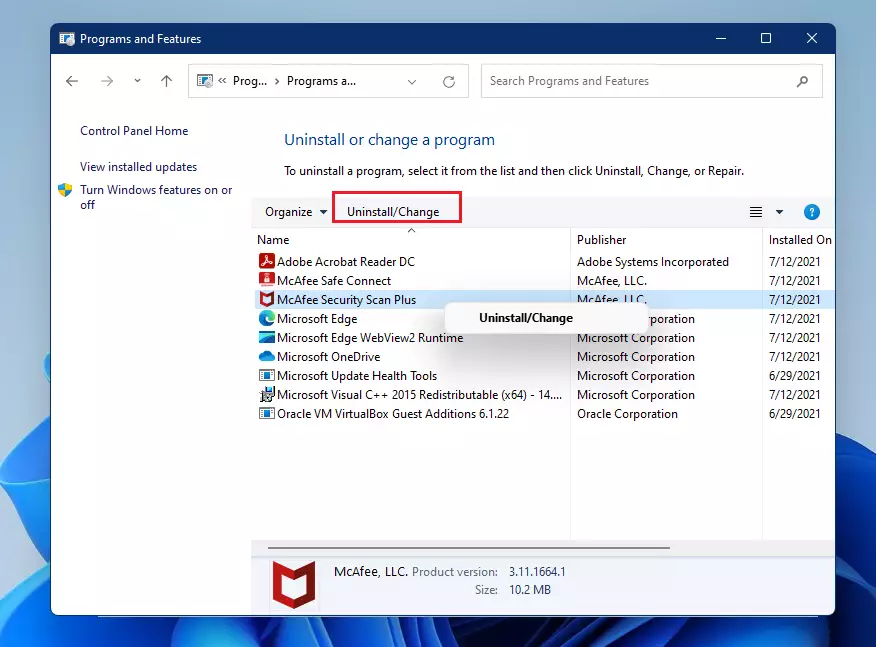
Step 3: Find the program you want to uninstall from the list. Click on it. Then click Uninstall/Change at the top. You can also right-click the app and select Uninstall/Change.
Follow the uninstall instructions that appear. What happens? The program will be removed from your PC.
How to Uninstall Desktop Apps from the Start Menu
Here is the fastest way to uninstall desktop apps:
- Click the Start button and find the app you want to remove.
- Right-click on the app.
- Select Uninstall.
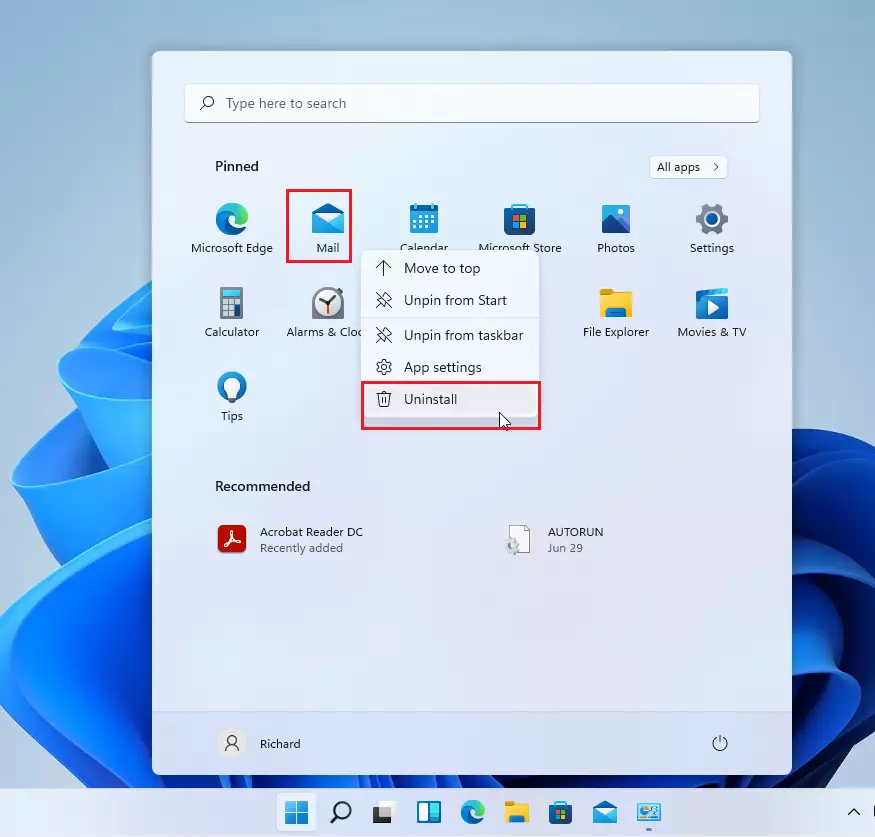
Follow the on-screen steps to complete the uninstall process. What happens? The app will be deleted from your computer.
Summary
- Uninstalling apps frees up space and helps your computer run better.
- Windows 11 has two types of apps: Desktop apps and Windows apps.
- You can uninstall apps from Settings or Control Panel.
- Right-clicking apps in the Start menu is the quickest way to uninstall desktop apps.
- Regularly removing apps you don’t use keeps your PC clean and fast.
- For more help with Windows 11, visit the official Microsoft Support page: https://support.microsoft.com/en-us/windows
Was this guide helpful?





Leave a Reply