
This article explains how to use your Android Phone connection in the Copilot app on Windows 11.
A Windows 11 Copilot+ PC has a dedicated Copilot key on the keyboard. When you press this Copilot key, the Copilot app opens by default.
When Copilot is installed on Windows, you can enable or disable it, open Copilot when Windows starts, Pin or Unpin the Copilot side panel, Resize the Copilot side panel, delete chat history in Copilot, create a desktop shortcut, hide the sidebar, and more.
Starting with the Copilot app (version 1.25023.101.0 and higher), Copilot is now a native XAML application featuring an updated UI with a side panel.
Another feature of this release is the new Phone connection settings, which allow you to connect to your mobile device. This makes Copilot more personalized by incorporating the rich data stored on your Android device, including messages and contacts.
To connect your Android phone, you need to add it to the Phone Link app on your Windows 11 PC.
Turn on or off Phone connection in Copilot
Once you link your Android phone to your Windows PC, you can use the Phone connection feature in the Copilot app.
Here’s how to do it.
Open the Copilot app.
While in full view, click the Account profile button, and select Settings.
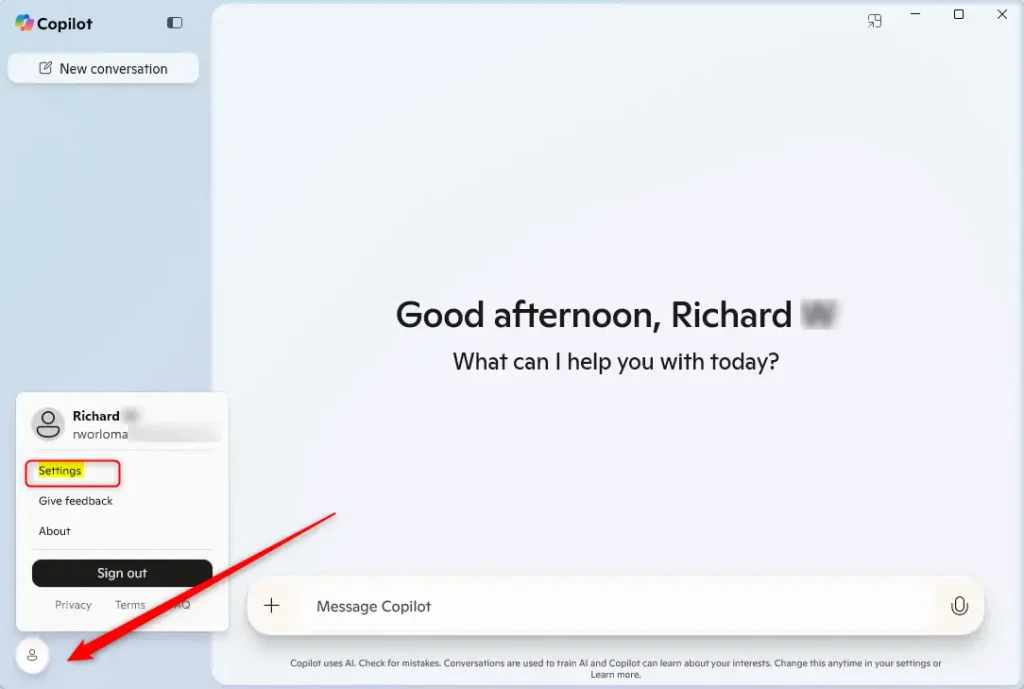
On the Settings pane, under ‘Phone Connection,’ select the Android phone you want to associate with Copilot.
Toggle the button to the On/Off button to enable or disable it.
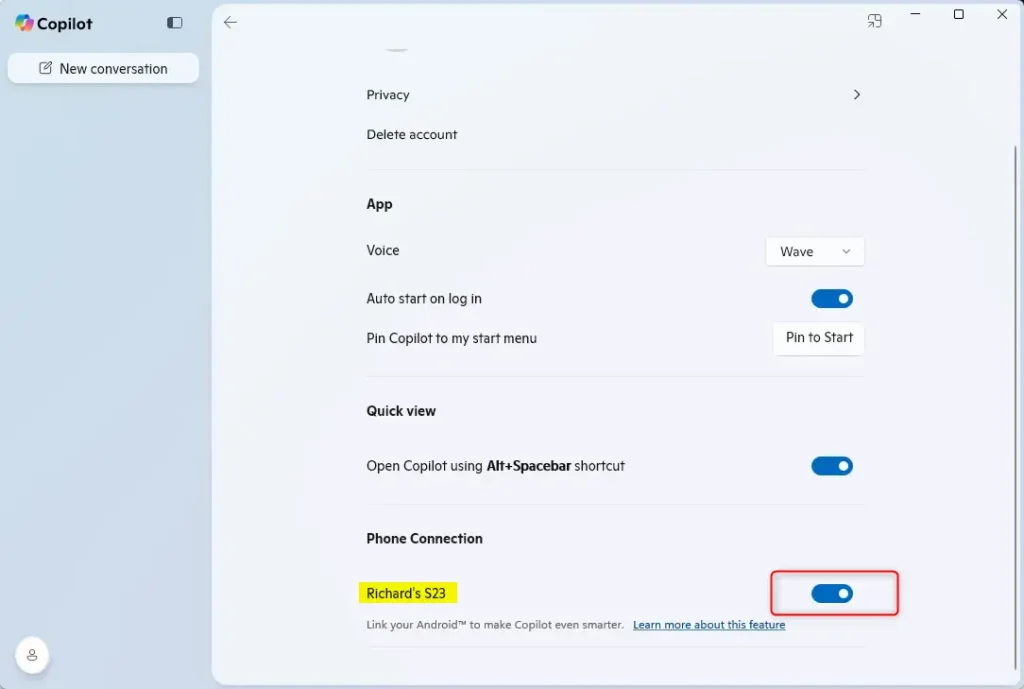
You can close the Settings pane once you are finished.
Turn On or Off Phone Connection from the web
Another way to enable or disable Phone Connection with Copilot is through its web portal.
To do that, open the copilot.microsoft.com site.
Then, sign into Copilot web with your Microsoft account.
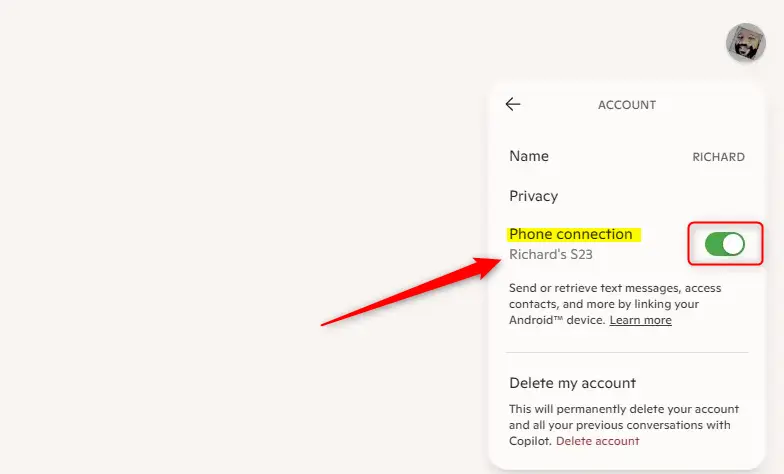
After signing in, click your profile button at the top right corner and select your account name.
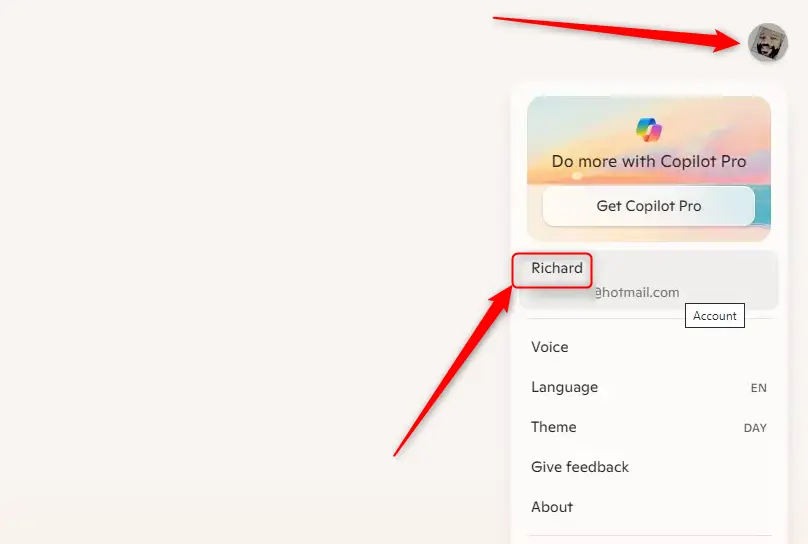
On the account profile settings page, find the ‘Phone connection’ tile and switch the button to the On or Off position to enable or disable it.
That should do it!
Conclusion
In summary, utilizing the Phone connection feature in the Copilot app on Windows 11 enhances your experience by integrating your Android device seamlessly. Here are the key takeaways:
- Integration: Connects your Android phone to Copilot for personalized access to messages and contacts.
- Easy Access: You can manage settings directly within the Copilot app or via the web portal.
- Flexibility: Toggle the Phone connection feature on or off based on your preference.
- User-Friendly: Simple steps to link your phone ensure minimal hassle for users.
- Enhanced Productivity: Access critical information from your mobile device without switching contexts.
Following these guidelines, you can effectively leverage the Phone connection feature with Windows 11’s Copilot app to maximize your productivity.
Leave a Reply Cancel reply