Ho wto Use Your Android Phone Camera as a Webcam on Windows 11

Did you know you can use your Android phone’s camera as a webcam for your Windows 11 computer? This means you can join video calls and meetings using your phone’s high-quality camera instead of a regular webcam.
What You Need to Know
This feature is called Mobile devices in Windows 11.
It lets you connect your Android phone or tablet to your PC and use its camera for video apps.
You can also view and edit your recent phone photos right from your PC.
You can switch between your phone’s front and back cameras and pause the video when needed.
Right now, this feature is being tested by Windows Insiders, so it might not be on all PCs yet.
How to Set Up Your Phone Camera as a Webcam
Follow these simple steps to get started:
Step 1Open Windows Settings
Click the Start menu (the Windows icon in the bottom-left corner) and select Settings. Or press Windows key + I on your keyboard to open Settings quickly.
Step 2Go to Bluetooth & Devices
In the Settings window, click on Bluetooth & devices on the left side panel.
Step 3Find Mobile Devices
On the right side, find and click the Mobile devices box to open it.
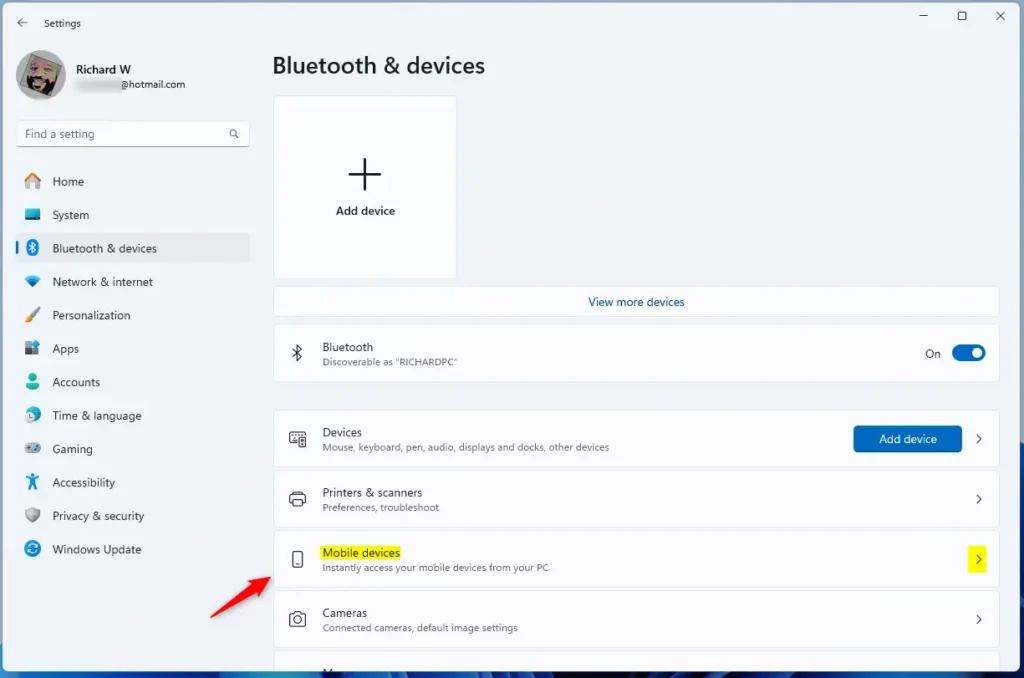
Step 4Manage Device Access
Click the Manage devices button under the option that says “Allow this PC to access your mobile devices.”
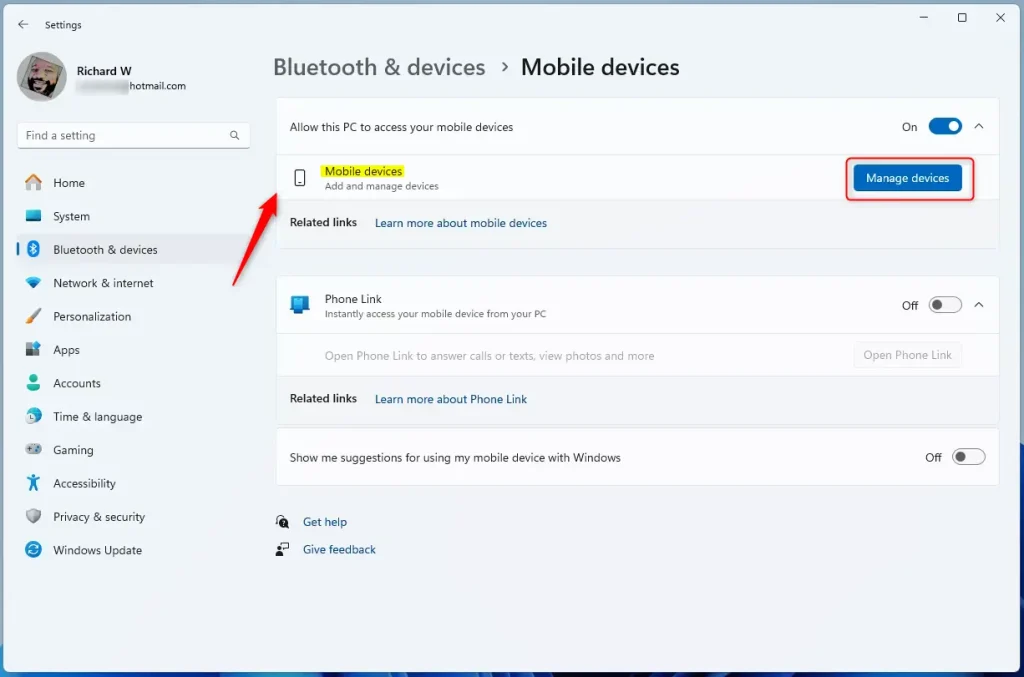
Step 5Turn on “Use as a connected camera”
Look for the option called Use as a connected camera and turn the switch to On.
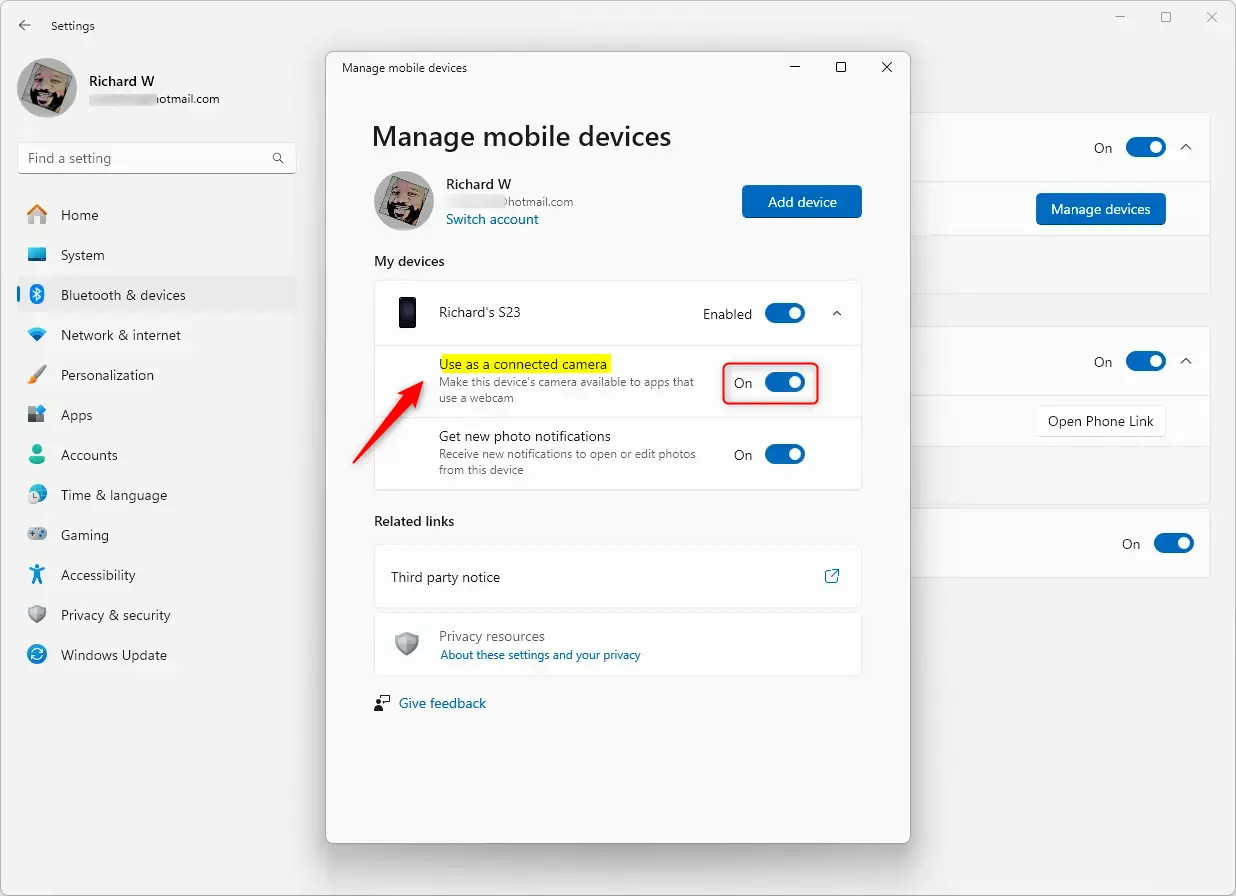
Step 6Connect Your Phone
Make sure your Android phone is nearby and connected to your PC (usually via Bluetooth or Wi-Fi). When everything is set up, your phone’s cameras will show up as options you can use as your webcam.
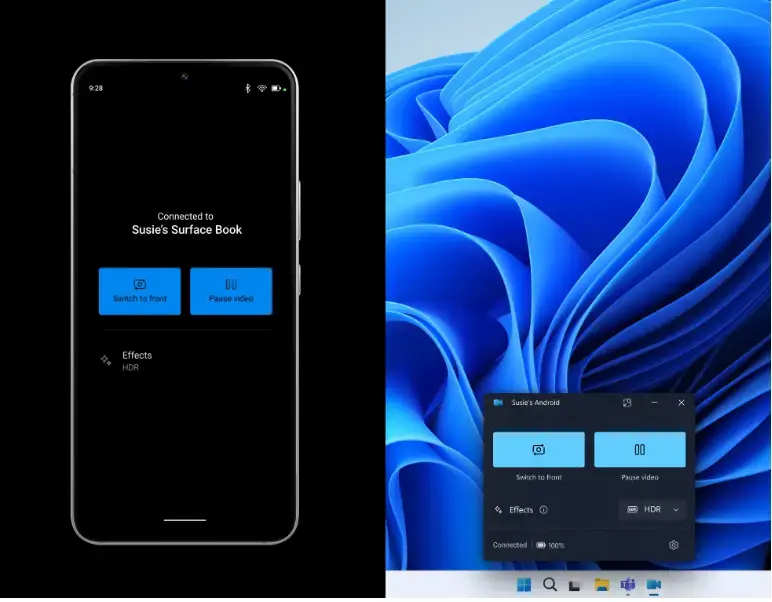
Image credit: Microsoft
That’s It!
Now you can open any video app like Zoom, Microsoft Teams, or Skype and select your phone’s camera as the webcam. Enjoy better video quality and more flexibility without buying extra hardware!
Learn More
If you want to read more details or check if this feature is available on your PC, visit the official Microsoft blog.
Summary
- Windows 11 now lets you use your Android phone’s camera as a webcam.
- You can connect your phone easily through the new Mobile devices setting.
- This feature lets you switch cameras and pause video streams.
- It’s still rolling out to some users, so check if you have it yet.
Was this guide helpful?

About the Author
Richard
Tech Writer, IT Professional
Richard, a writer for Geek Rewind, is a tech enthusiast who loves breaking down complex IT topics into simple, easy-to-understand ideas. With years of hands-on experience in system administration and enterprise IT operations, he’s developed a knack for offering practical tips and solutions. Richard aims to make technology more accessible and actionable. He's deeply committed to the Geek Rewind community, always ready to answer questions and engage in discussions.




No comments yet — be the first to share your thoughts!