How to Setup Snipe-IT with Nginx on Ubuntu Linux


Snipe-IT with Nginx on Ubuntu Linux is a free, open-source IT asset management system that lets you track company gear like laptops, monitors, and software licenses on an Ubuntu server. Snipe-IT runs on PHP, and Nginx acts as a fast web server to load the pages smoothly without slowing down your hardware.
This setup works best on an Ubuntu server running version 22.04 or 24.04 with PHP and a database installed. You get a reliable way to keep tabs on all your physical and digital assets in one place.
Install Nginx and MariaDB using `apt install nginx mariadb-server`. Then, install PHP 7.2-FPM and necessary modules via a PPA. Finally, configure Nginx to serve the Snipe-IT application.
Install Nginx HTTP
Nginx HTTP serves as the web server for your Ubuntu server, handling incoming requests and sending them to your Snipe-IT application. You can install Nginx HTTP on Ubuntu by running the update command and the installation command in your terminal. This gets the web server running and sets it to start automatically whenever your server boots up.
To install Nginx HTTP on the Ubuntu server, run the commands below.
sudo apt update
sudo apt install nginx
After installing Nginx, the commands below can be used to stop, start, and enable the Nginx service to always start up with the server boots.
sudo systemctl stop nginx.service
sudo systemctl start nginx.service
sudo systemctl enable nginx.service
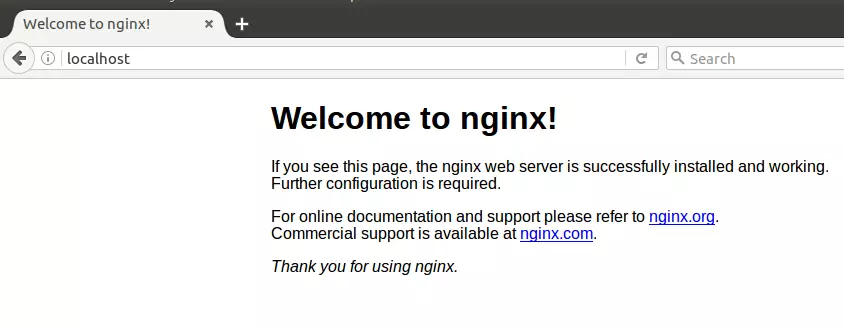
To determine if the Nginx HTTP server is installed, open your web browser and type in the server’s IP or hostname.
Nginx is installed and working when you see a page like the one below.
http://localhost
Install MariaDB Database Server
MariaDB database server stores all important Snipe-IT information, including asset details, software licenses, and user accounts. You can install MariaDB on Ubuntu by running the server and client installation command in your terminal. This sets up the database backend and ensures it starts automatically every time your server boots.
To install MariaDB, run the commands below.
sudo apt install mariadb-server mariadb-client
After installing MariaDB, the commands below can stop, start, and enable the service to start when the server boots.
Run these on Ubuntu
sudo systemctl stop mariadb.service
sudo systemctl start mariadb.service
sudo systemctl enable mariadb.service
sudo mysql_secure_installation
When prompted, answer the questions below by following the guide.
- Enter current password for root (enter for none): Just press the Enter
- Set root password? [Y/n]: Y
- New password: Enter password
- Re-enter new password: Repeat password
- Remove anonymous users? [Y/n]: Y
- Disallow root login remotely? [Y/n]: Y
- Remove test database and access to it? [Y/n]: Y
- Reload privilege tables now? [Y/n]: Y
Restart MariaDB server
To test if MariaDB is installed, type the commands below to log on to the MariaDB server.
sudo mysql -u root -p
Then, type the password you created above to sign on. If successful, you should see a MariaDB welcome message.
Install PHP 7.2-FPM and Related Modules.
PHP 7.2-FPM processes the backend code that Snipe-IT needs to run properly on your server. You can install PHP 7.2-FPM and its required modules on Ubuntu by adding a third-party software repository, updating your system package list, and running the installation command. This provides the exact PHP version and modules required by Snipe-IT.
Run the commands below to add the below third party repository to upgrade to PHP 7.2-FPM
sudo apt-get install software-properties-common
sudo add-apt-repository ppa:ondrej/php
Then update and upgrade to PHP 7.2-FPM
sudo apt update
Next, run the commands below to install PHP 7.2-FPM and related modules.
sudo apt install php7.2-fpm php7.2-common php7.2-gmp php7.2-curl php7.2-intl php7.2-mbstring php7.2-xmlrpc php7.2-mysql php7.2-gd php7.2-bcmath php7.2-xml php7.2-cli php7.2-zip php7.2-sqlite
After installing PHP 7.2, run the commands below to open Nginx's PHP default config file.
sudo nano /etc/php/7.2/fpm/php.ini
Then, save the changes on the following lines below in the file. The value below is an ideal setting to apply in your environment.
file_uploads = On
allow_url_fopen = On
short_open_tag = On
cgi.fix_pathinfo = 0
memory_limit = 256M
upload_max_filesize = 100M
max_execution_time = 360
max_input_vars = 1500
date.timezone = America/Chicago
After making the change above, please save the file and close it.
Create Snipe-IT Database
A dedicated Snipe-IT database in MariaDB holds all your asset tracking data and user login information separately from other services. You can create this database by logging into MariaDB with your root account and running SQL commands to set up the new database and a dedicated user. This gives Snipe-IT the secure access it needs to read and write data.
Run the commands below to log on to MariaDB. When prompted for a password, type the root password you created above.
sudo mysql -u root -p
Then, create a database called snipeit
CREATE DATABASE snipeit;
Create a database user called snipeituser with a new password
CREATE USER 'snipeituser'@'localhost' IDENTIFIED BY 'new_password_here';
Then, grant the user full access to the snippet database.
GRANT ALL ON snipeit.* TO 'snipeituser'@'localhost' WITH GRANT OPTION;
Finally, save your changes and exit.
FLUSH PRIVILEGES;
EXIT;
Download Snipe-IT Latest Release
The latest Snipe-IT release files get downloaded to your server using command-line tools like Curl and Composer. You can download Snipe-IT by installing Git and Curl, using Curl to download the Composer installer, and letting Composer fetch all the necessary application files. This prepares the software directory for your final configuration steps.
sudo apt install curl git
curl -sS https://getcomposer.org/installer | sudo php -- --install-dir=/usr/local/bin --filename=composer
After installing curl and Composer above, change into the Nginx root directory and download Snipe-IT packages from Github.
cd /var/www/
sudo git clone https://github.com/snipe/snipe-it snipeit
sudo cp /var/www/snipeit/.env.example /var/www/snipeit/.env
Next, edit the .env file created above and make the highlighted changes to suit your environment.
sudo nano /var/www/snipeit/.env
Make the highlighted changes.
# --------------------------------------------
# REQUIRED: BASIC APP SETTINGS
# --------------------------------------------
APP_ENV=production
APP_DEBUG=false
APP_KEY=ChangeMe
APP_URL=example.com
APP_TIMEZONE='UTC'
APP_LOCALE=en
MAX_RESULTS=500

# --------------------------------------------
# REQUIRED: DATABASE SETTINGS
# --------------------------------------------
DB_CONNECTION=mysql
DB_HOST=127.0.0.1
DB_DATABASE=snipeit
DB_USERNAME=snipeituser
DB_PASSWORD=type_password_here
DB_PREFIX=null
DB_DUMP_PATH='/usr/bin'
DB_CHARSET=utf8mb4
DB_COLLATION=utf8mb4_unicode_ci

# --------------------------------------------
# OPTIONAL: SSL DATABASE SETTINGS
Save the file and exit.
Next, return to the Snipe-IT root directory and update all packages via Composer.
cd /var/www/snipeit
sudo composer install --no-dev --prefer-source
From the Snipe-IT directory, run the commands below:
sudo php artisan key:generate
It should prompt and show you an application key.
**************************************
*     Application In Production!     *
**************************************

 Do you really wish to run this command? (yes/no) [no]:
 > yes

Application key [base64:6KnX/HGkNNcUGw2uucxBKT8+OwQ58yBp7vfa7sfwpDg=] set successfully.
Since you just ran the web server as root, you should ensure the www-data user and group own any newly created files.
To do that, run the commands below:
sudo chown -R www-data:www-data /var/www/snipeit/
sudo chmod -R 755 /var/www/snipeit/
Configure Nginx
Nginx configuration tells your web server how to direct traffic to your Snipe-IT application using your domain name. You can configure Nginx by creating a new site configuration file in the sites-available folder and pasting your server block settings. This makes the asset management system accessible through your web browser.
sudo nano /etc/nginx/sites-available/snipeit
Then copy and paste the content below into the file and save it. Replace the highlighted line with your domain name and directory root location.
server {
    listen 80;
    listen [::]:80;

    server_name  example.com www.example.com;
    root   /var/www/snipeit/public;
    index  index.php;

    access_log /var/log/nginx/example.com.access.log;
    error_log /var/log/nginx/example.com.error.log;

    client_max_body_size 100M;

    autoindex off;

    location / {
    try_files $uri $uri/ /index.php$is_args$args;
      }

    location ~ .php$ {
         include snippets/fastcgi-php.conf;
         fastcgi_pass unix:/var/run/php/php7.2-fpm.sock;
         include fastcgi_params;
         fastcgi_intercept_errors on;
    }
}
Save the file and exit.
Enable the Snipe-IT and Rewrite Module
After configuring the VirtualHost above, please enable it by running the commands below.
sudo ln -s /etc/nginx/sites-available/snipeit /etc/nginx/sites-enabled/
sudo systemctl restart nginx.service
Then open your browser and browse to the server domain name or hostname. This is often localhost but can be a hostname or IP address. Your server admin or hosting company will have this information available.
http://example.com/
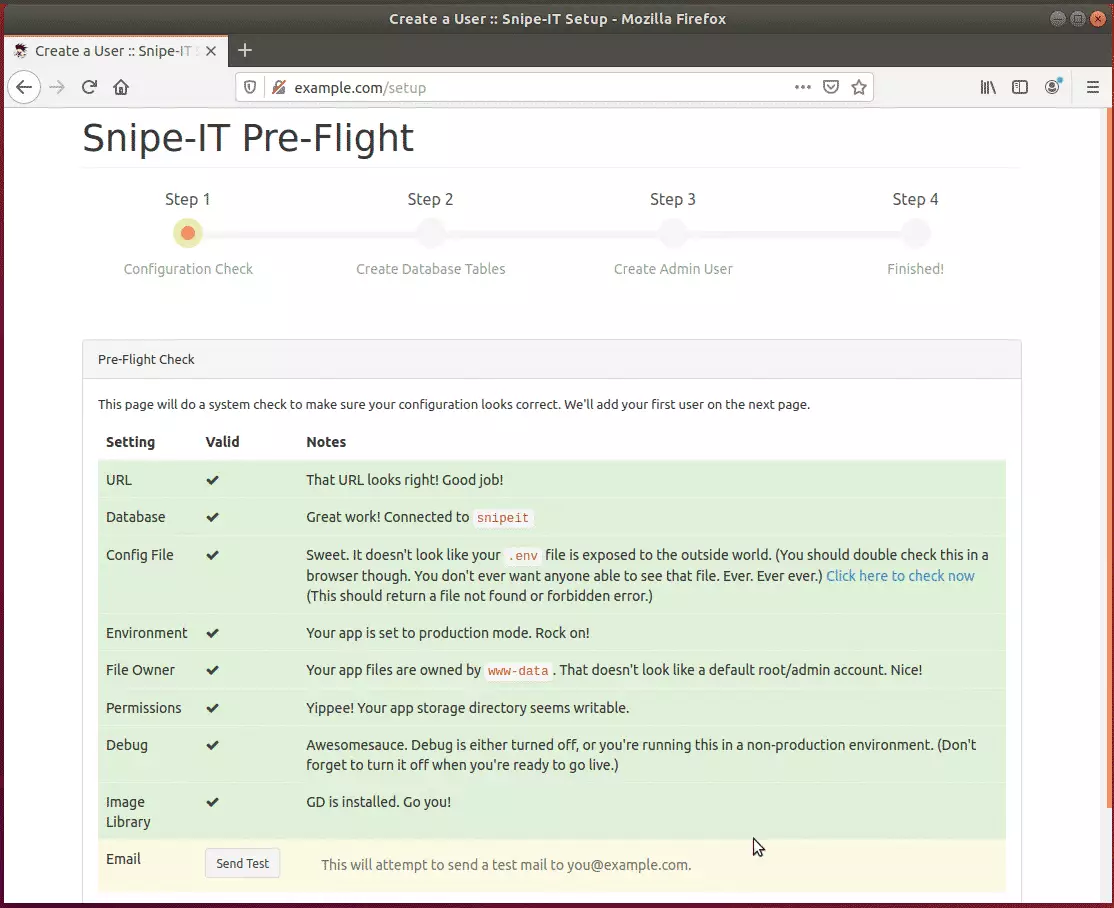
Continue with the installation wizard, validate that all requirements are met, and continue.
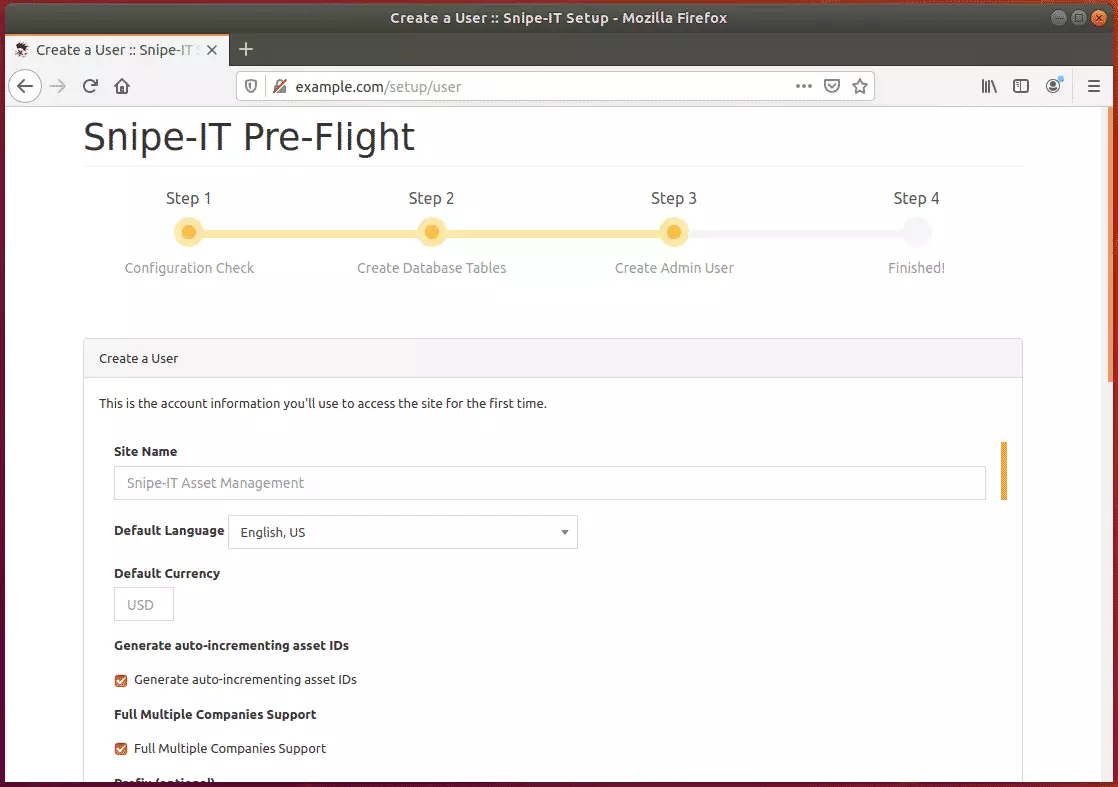
Next, create a system admin account to manage the platform.
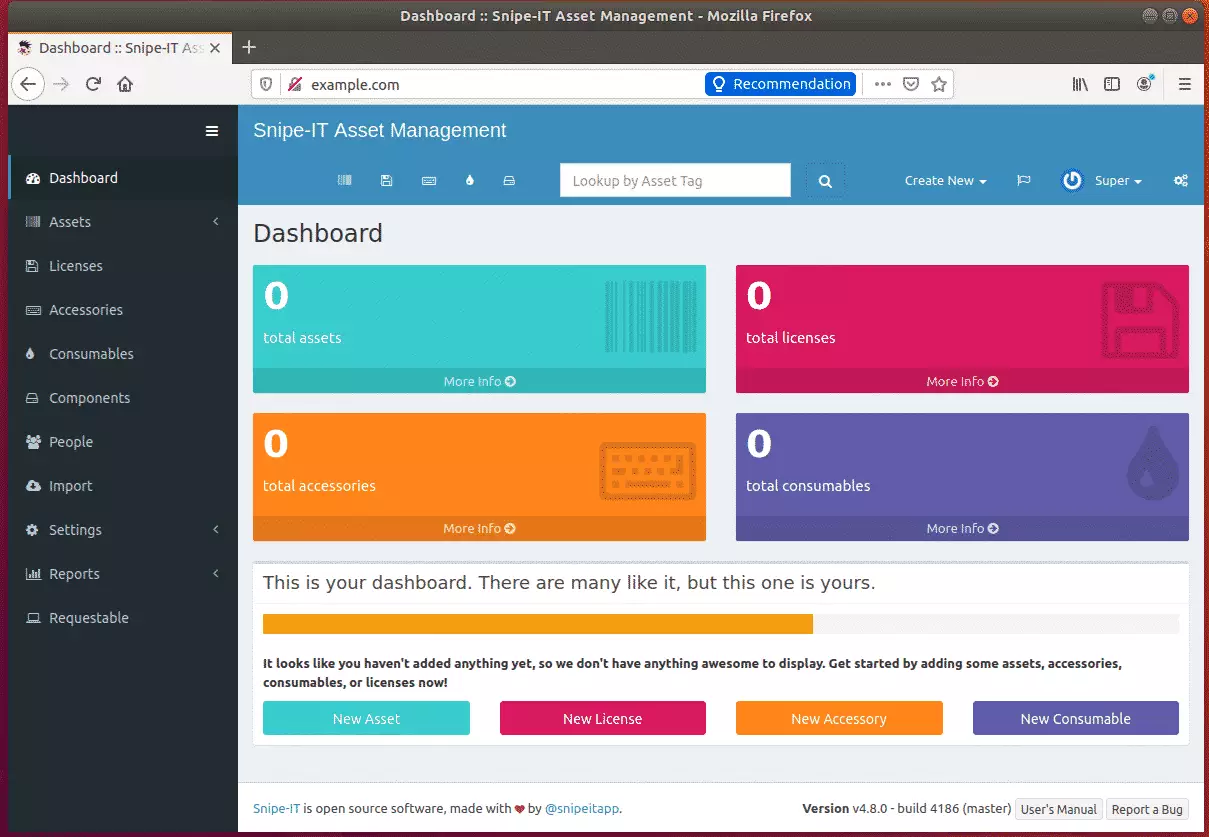
After installing, log in and start to begin managing your IT assets.
Conclusion:
You have learned to install Snipe-IT on Ubuntu with the Nginx HTTP server. If you find any errors above, please leave a comment below.
Thanks,
Was this guide helpful?

About the Author
Richard
Tech Writer, IT Professional
Richard, a writer for Geek Rewind, is a tech enthusiast who loves breaking down complex IT topics into simple, easy-to-understand ideas. With years of hands-on experience in system administration and enterprise IT operations, he’s developed a knack for offering practical tips and solutions. Richard aims to make technology more accessible and actionable. He's deeply committed to the Geek Rewind community, always ready to answer questions and engage in discussions.




This is the only installation method/guide that I found that worked (even including their documentation)!
Thank you so much