
You can set up WordPress locally on Windows 11 using XAMPP to create a private development environment.
XAMPP is a free and open-source cross-platform web server solution stack package. It bundles Apache, MariaDB (a fork of MySQL), and interpreters for PHP and Perl, allowing you to run websites and applications offline.
This process gives you a staging ground to build and test your WordPress site before deploying it live, without requiring an internet connection.
You’ll leverage XAMPP version 8.2.4 (or a later compatible version) on your Windows 11 PC to host WordPress.
Install XAMPP, create a database using the XAMPP shell or phpMyAdmin, and then download WordPress files into the 📁C:\xampp\htdocs folder. Finally, run the WordPress installation from your web browser.
Why use a local environment?
Why bother with a local environment? Running WordPress locally is perfect for testing new themes, trying out plugins, or building a website from scratch without the public seeing your work in progress. Once you’re done, you’ll have a fully functional website ready to be moved to a live server.
Step 1Install XAMPP
XAMPP includes everything you need to run WordPress, like Apache (a web server software) and a database. If you haven’t installed it yet, check out our guides:
Step 2Create a WordPress Database
Your WordPress local installation needs a database to keep all your website’s information, and you’ll create this using XAMPP’s tools by logging into the database server and running a few simple commands.
Note: This step requires admin privileges.
Log into your database server with this command:
mysql -u root
Now, run these commands to create your database and a secure user account:
CREATE DATABASE wordpressdb CHARACTER SET utf8mb4 COLLATE utf8mb4_general_ci;
CREATE USER wordpressdbuser@localhost IDENTIFIED BY 'type_your_password_here';
GRANT ALL ON wordpressdb.* TO wordpressdbuser@localhost;
FLUSH PRIVILEGES;
exit
Make sure to change type_your_password_here to a password you will remember. If you prefer a visual interface, click the ‘Admin’ button next to MySQL in the Control Panel to use phpMyAdmin instead.
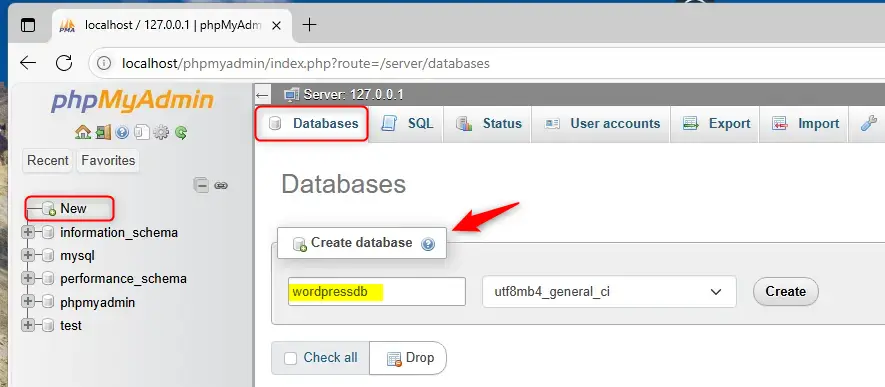
Step 3Download and Set Up WordPress
Now, you’ll download the WordPress files and put them in the right folder on your computer so XAMPP can find them for your local setup.
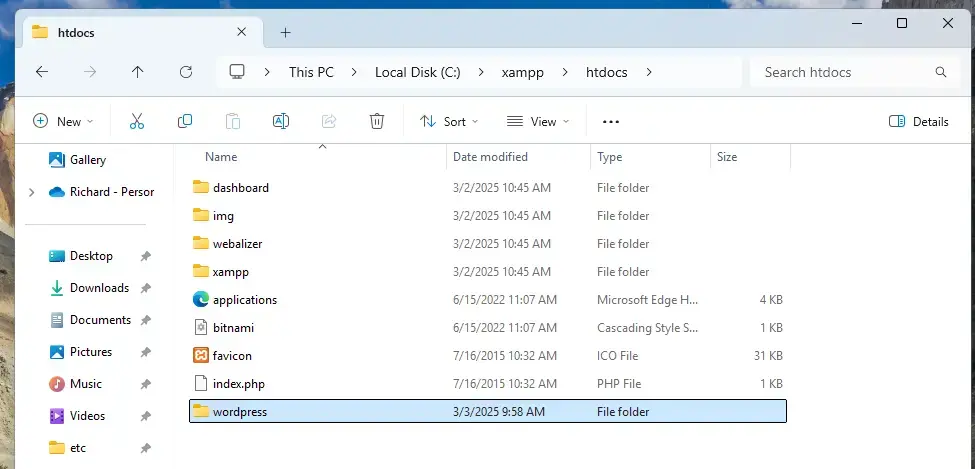
Download the latest version of WordPress from official download page. Extract the files and move them into your new wordpress folder.
To have your browser open your site automatically, find the index.html file in 📁C:\xampp\htdocs and replace its contents with this code:
<?php if (!empty($_SERVER['HTTPS']) && ('on' == $_SERVER['HTTPS'])) { $uri = 'https://'; } else { $uri = 'http://'; } $uri .= $_SERVER['HTTP_HOST']; header('Location: '.$uri.'/wordpress/'); exit; ?>
Save this file and restart Apache in your XAMPP Control Panel.
Step 4Complete the WordPress Installation
To finish your WordPress local installation using XAMPP, you’ll go to a web address in your browser and enter the database details you just created.
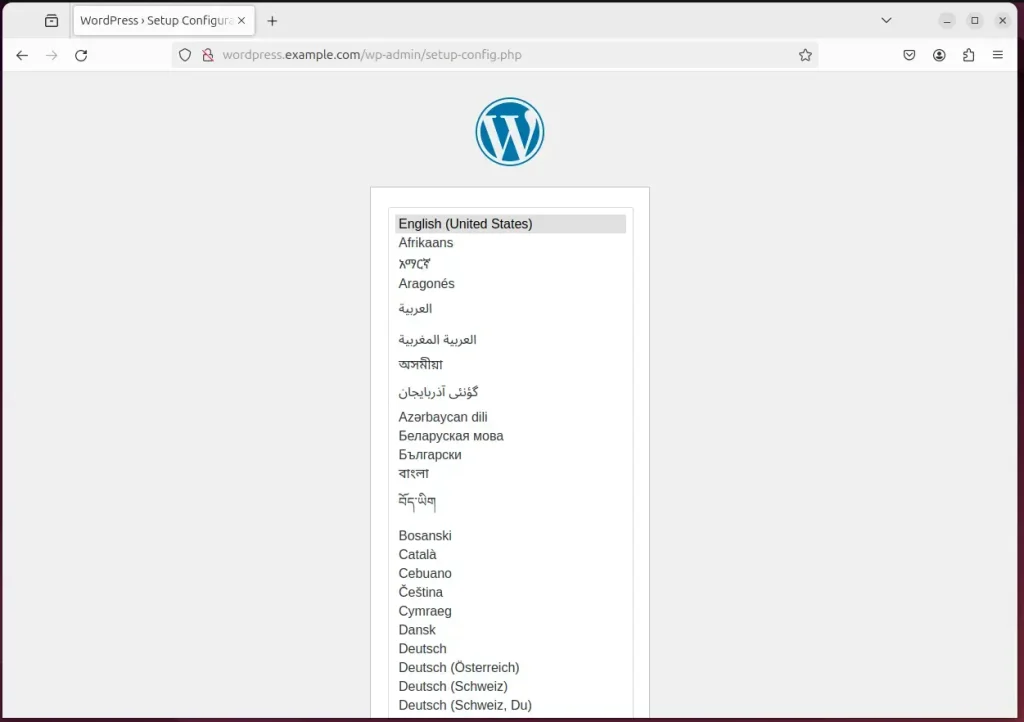
Click “Let’s go” to start.
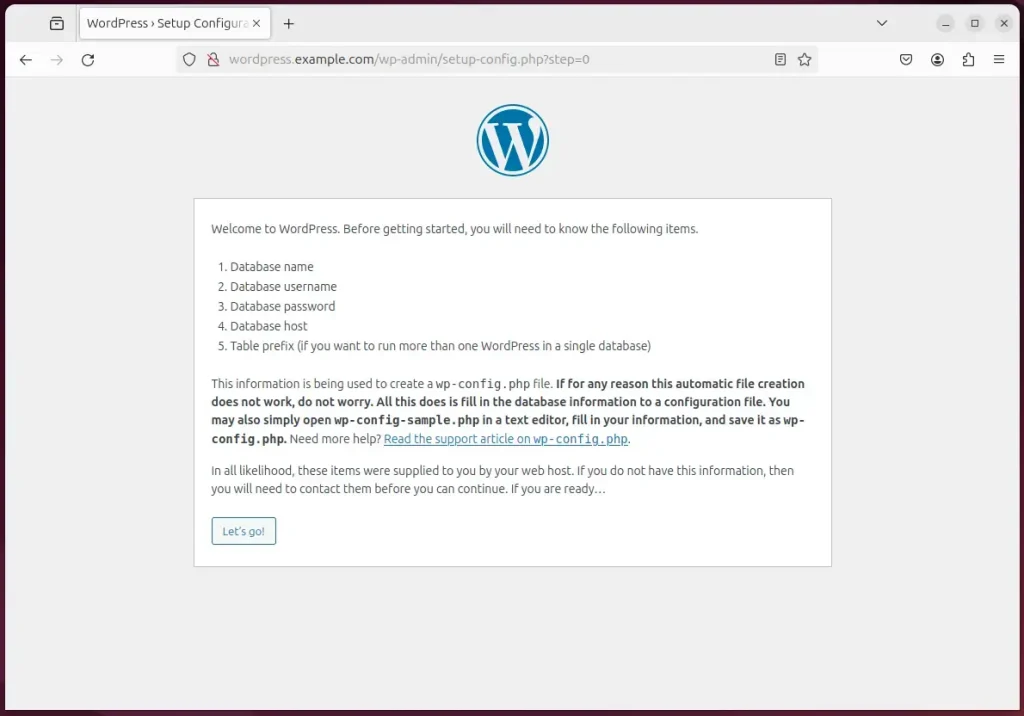
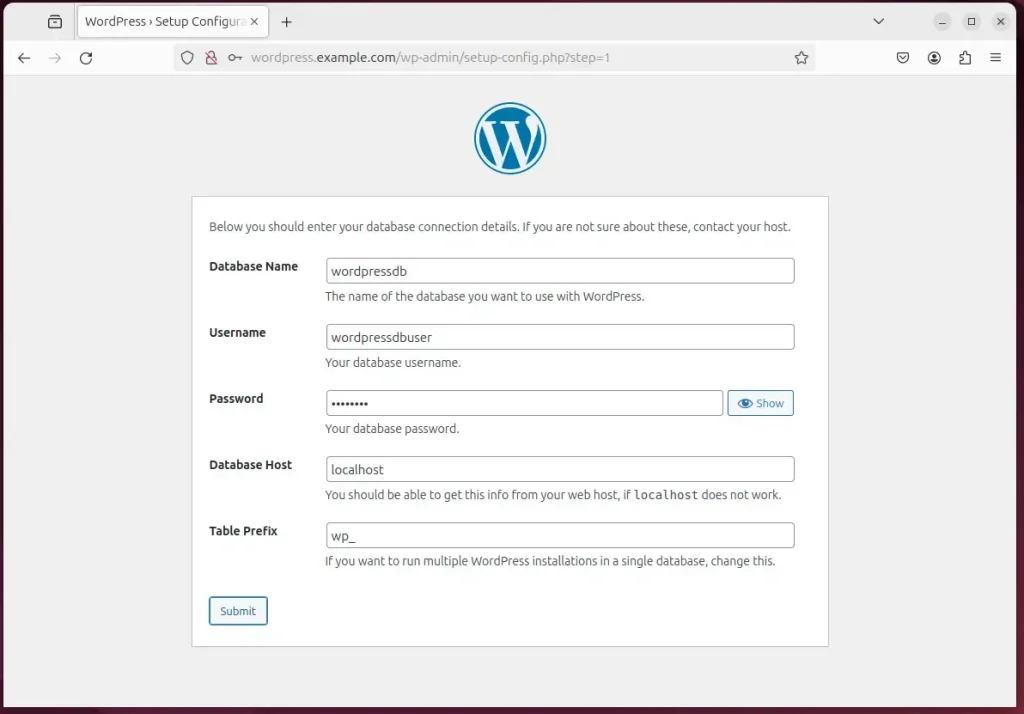
Enter the database name (wordpressdb), the username (wordpressdbuser), and the password you created earlier. Click “Submit”.
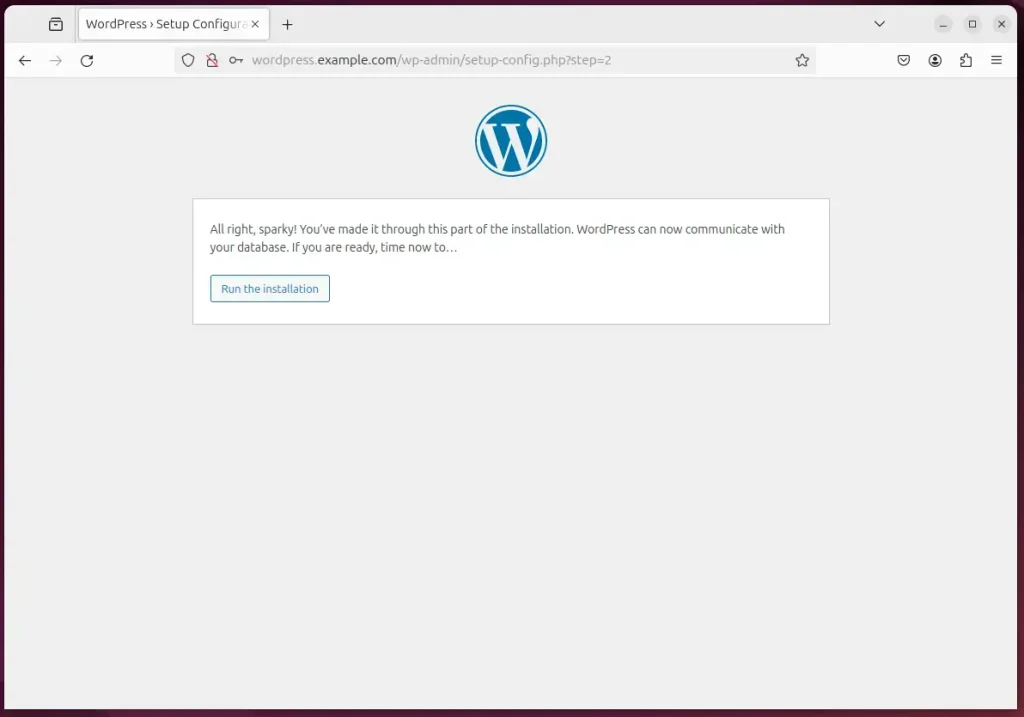
Click “Run the installation”.
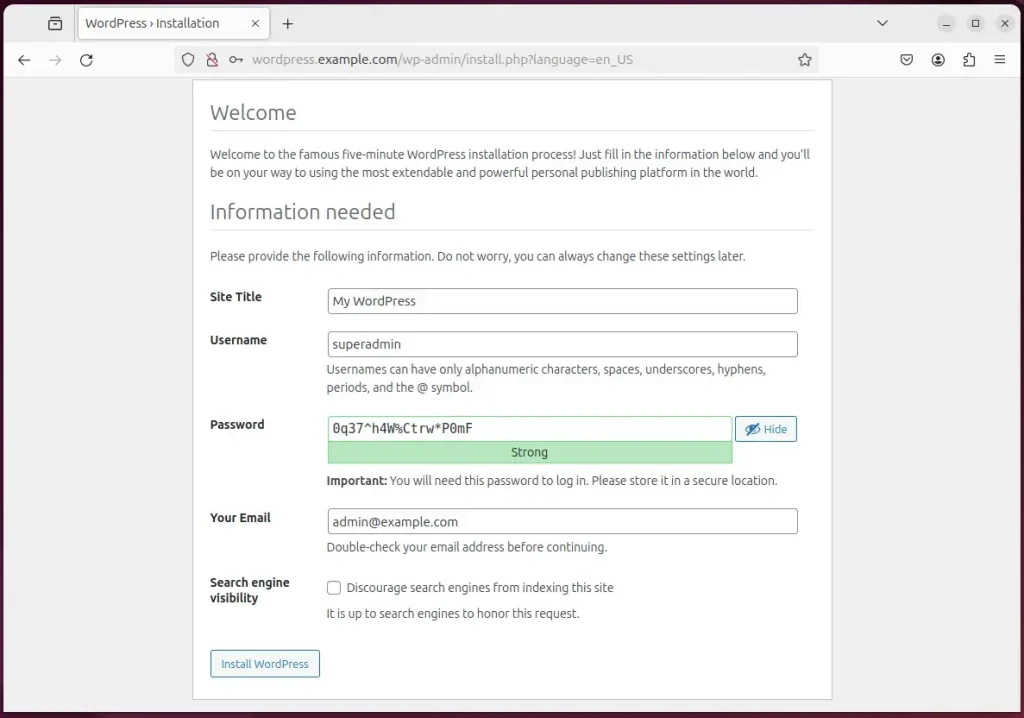
Fill in your site title and create your admin login details, then click “Install WordPress”.
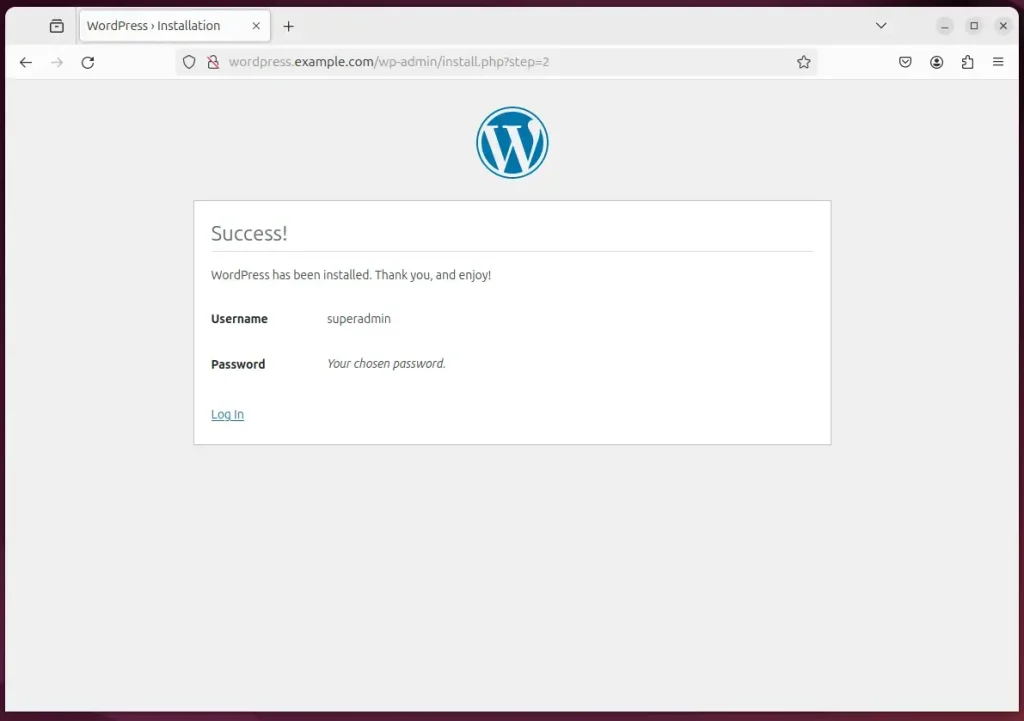
You are all set!
Summary
By installing XAMPP and setting up a local database, you’ve created a private environment to build your website. This setup allows you to develop and experiment safely on your own machine. When you are finished, you can easily migrate your local site to a live web host.
[C:xampphtdocswordpress]
How to install WordPress locally without XAMPP?
Continue after that you have to provide the site name. So let's say.
Was this guide helpful?

About the Author
Richard
Tech Writer, IT Professional
Richard, a writer for Geek Rewind, is a tech enthusiast who loves breaking down complex IT topics into simple, easy-to-understand ideas. With years of hands-on experience in system administration and enterprise IT operations, he’s developed a knack for offering practical tips and solutions. Richard aims to make technology more accessible and actionable. He's deeply committed to the Geek Rewind community, always ready to answer questions and engage in discussions.



No comments yet — be the first to share your thoughts!