
You install Joomla locally on Windows 11 by using XAMPP, a free, all-in-one package that transforms your PC into a web server.
XAMPP bundles Apache, MariaDB, and PHP, essential components for running dynamic websites like Joomla. This setup allows you to develop and test Joomla sites offline before deploying them.
Joomla is a powerful, open-source content management system (CMS) used for creating professional websites and complex online applications.
Install XAMPP, then create a database named ‘joomladb’ using its shell or phpMyAdmin. Download Joomla files into the C:xampphtdocsjoomla folder and configure the redirect in C:xampphtdocsindex.html. Finally, run http://localhost/joomla in your browser and follow the Joomla installation wizard.
Why run Joomla locally?
Running Joomla on your computer lets you build and test your website privately. You can experiment with designs and features before you ever go live on the internet.
What happens when you are done?
Once finished, you will have a fully functional Joomla website running on your machine. You can access it through your web browser to create content and manage your site settings.
Install XAMPP
XAMPP bundles all the necessary software into one package. If you haven’t installed it yet, follow these guides:
Create a Joomla Database
Your Joomla site needs a place to store all its information, and creating this database with XAMPP on Windows 11 is easy. You’ll set up a database named ‘joomladb’ and a user called ‘joomladbuser’ using simple commands in the XAMPP shell.
Open the XAMPP Control Panel and click the ‘Shell’ button to open the command window. (Requires admin privileges)
We will create a database named ‘joomladb’ and a user named ‘joomladbuser’. Use the following commands:
mysql -u root
CREATE DATABASE joomladb CHARACTER SET utf8mb4 COLLATE utf8mb4_general_ci;CREATE USER joomladbuser@localhost IDENTIFIED BY 'your_password_here';GRANT ALL ON joomladb.* TO joomladbuser@localhost;FLUSH PRIVILEGES;exit
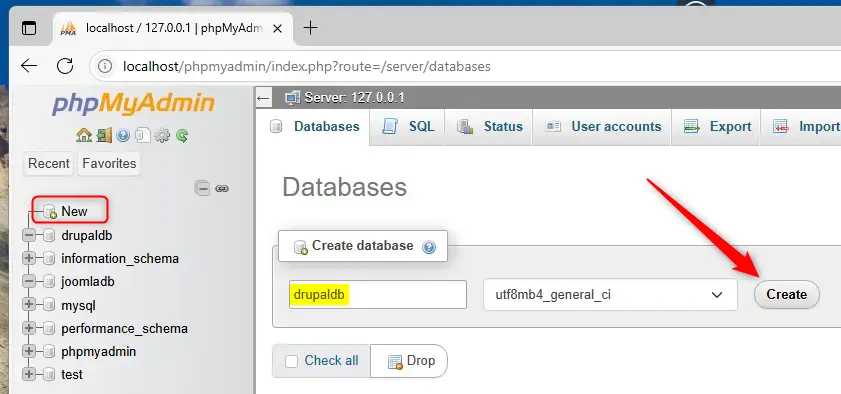
Remember to replace ‘your_password_here’ with your own secure password. If you prefer not to use the command line, you can click the ‘Admin’ button next to MySQL in the XAMPP Control Panel to use the phpMyAdmin web interface instead.
Download Joomla Files
Next, grab the Joomla files and put them where your web server can find them. Go to the 📁C:\xampp\htdocs folder on your computer and make a new folder called ‘joomla’. Then, download the Joomla files and extract them right into this new ‘joomla’ folder.
- Navigate to
C:\xampp\htdocson your computer. - Create a new folder named
joomla.
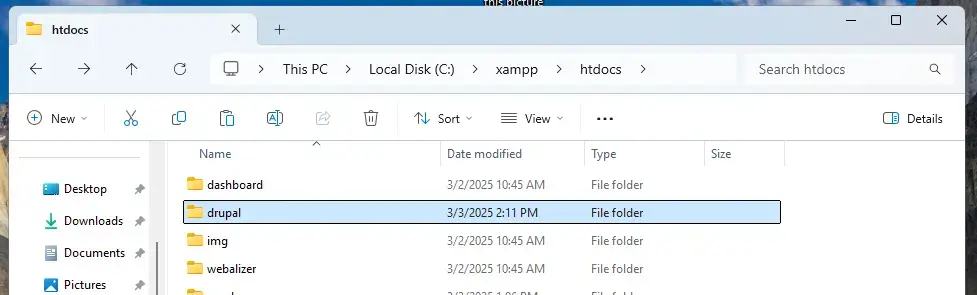
Download the Joomla files from official download page and extract them directly into your new C:\xampp\htdocs\joomla folder.
Next, open the C:\xampp\htdocs\index.html file in a text editor to update your redirect settings. Replace the contents with the following code so your browser opens your site automatically:
<?php if (!empty($_SERVER['HTTPS']) && ('on' == $_SERVER['HTTPS'])) { $uri = 'https://'; } else { $uri = 'http://'; } $uri .= $_SERVER['HTTP_HOST']; header('Location: '.$uri.'/joomla/'); exit;?>Save the file. Go back to the XAMPP Control Panel and stop and start the Apache server to apply these changes.
Finalize the Setup
Finishing your Joomla installation on Windows 11 with XAMPP is done right in your web browser. You’ll set up your site’s name, your admin login details, and then enter the database information you created earlier: ‘joomladb’ for the name, ‘joomladbuser’ for the username, and your password.

Follow the on-screen instructions to set your site name, admin username, and password.

When asked for database details, enter the database name (joomladb), the username (joomladbuser), and the password you created earlier. Click “Install Joomla” to finish.

Your site is now ready to use!

Summary
You’ve successfully set up Joomla locally on Windows 11 using XAMPP by creating a database, adding files, and running the installer.
[joomla]
[C:xampphtdocsjoomla]
How to install Joomla on localhost?
Provide the necessary. Information such as the database. Type host name username. And password in our case we use the default information for our database.
Do I need to install PHP if I have XAMPP?
To run any PHP program, you will need Apache or MYSQL databases, both supported by XAMPP. XAMPP helps you to run your program smoothly.
Was this guide helpful?

About the Author
Richard
Tech Writer, IT Professional
Richard, a writer for Geek Rewind, is a tech enthusiast who loves breaking down complex IT topics into simple, easy-to-understand ideas. With years of hands-on experience in system administration and enterprise IT operations, he’s developed a knack for offering practical tips and solutions. Richard aims to make technology more accessible and actionable. He's deeply committed to the Geek Rewind community, always ready to answer questions and engage in discussions.

No comments yet — be the first to share your thoughts!