How to Install XAMPP on Ubuntu 24.04

You install XAMPP on Ubuntu 24.04 by downloading its official installer script and executing it in your terminal.
XAMPP is a popular, free software package that bundles Apache, MariaDB, PHP, and Perl. It’s designed to help you quickly set up a local web development environment on your PC.
This all-in-one solution means you avoid the complex process of installing and configuring each component, like Apache or MariaDB, separately. For instance, using the latest XAMPP 8.2.12 installer ensures you have up-to-date software for building your projects.
Download the XAMPP installer script from its website and save it. Make the script executable using `chmod 755` in the terminal, then run it with `sudo ./xampp-linux-x64-*-installer.run`. Follow the on-screen prompts to complete the installation.
Download XAMPP
Downloading XAMPP on Ubuntu 24.04 is the first step to getting Apache, MariaDB, and PHP running. You’ll need to grab the installer file from the official XAMPP website, choosing the version that has the PHP you want to use.
wget https://sourceforge.net/projects/xampp/files/XAMPP%20Linux/8.2.12/xampp-linux-x64-8.2.12-0-installer.run
Once downloaded, run the command to make the installer executable.
chmod 755 xampp-linux-*-installer.run
Install XAMPP
Installing XAMPP on Ubuntu 24.04 is straightforward once you have the installer file ready. You’ll run a simple command in your terminal to start the installation process, then follow the on-screen prompts to choose what to install.
sudo ./xampp-linux-*-installer.run
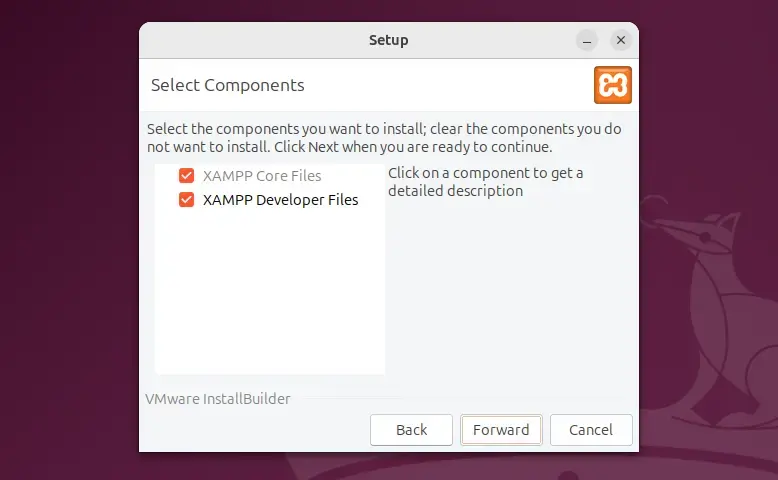
Select the XAMPP core files and developer file you want to install, then continue.
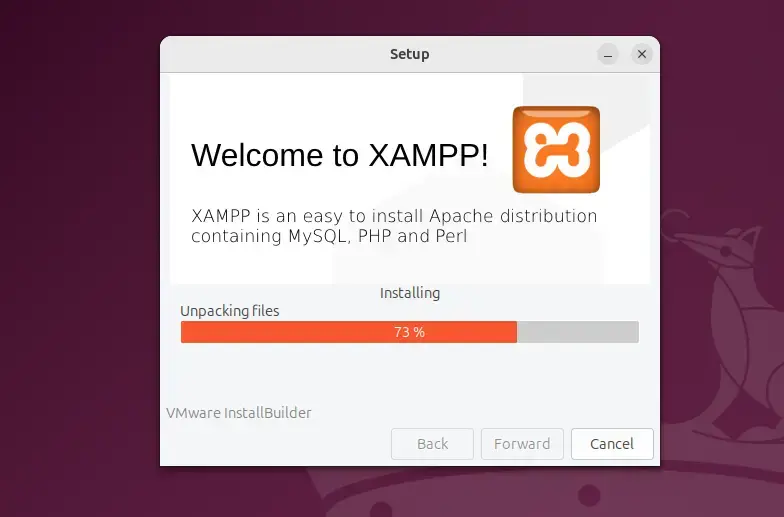
Wait for the installer to complete.
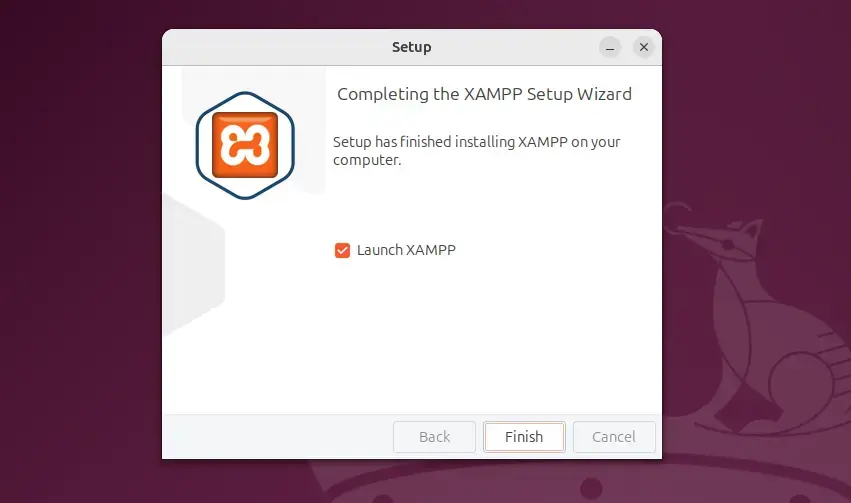
Once complete, click the Finish button to launch the app.
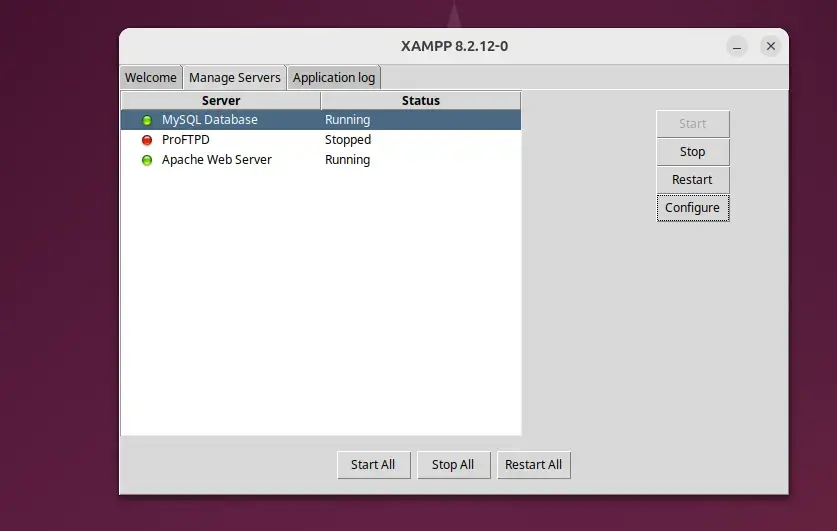
Under the Manage Servers tab, you can start and stop all the servers.
You can also use the command line. Run the command below to start and stop all servers.
sudo /opt/lampp/lampp stop
sudo /opt/lampp/lampp start
Operation
Operating XAMPP on Ubuntu involves using its main directory at /opt/lampp to manage your web servers and databases. From here, you can easily start and stop services, check your PHP setup, and access phpMyAdmin to work with your MariaDB databases.
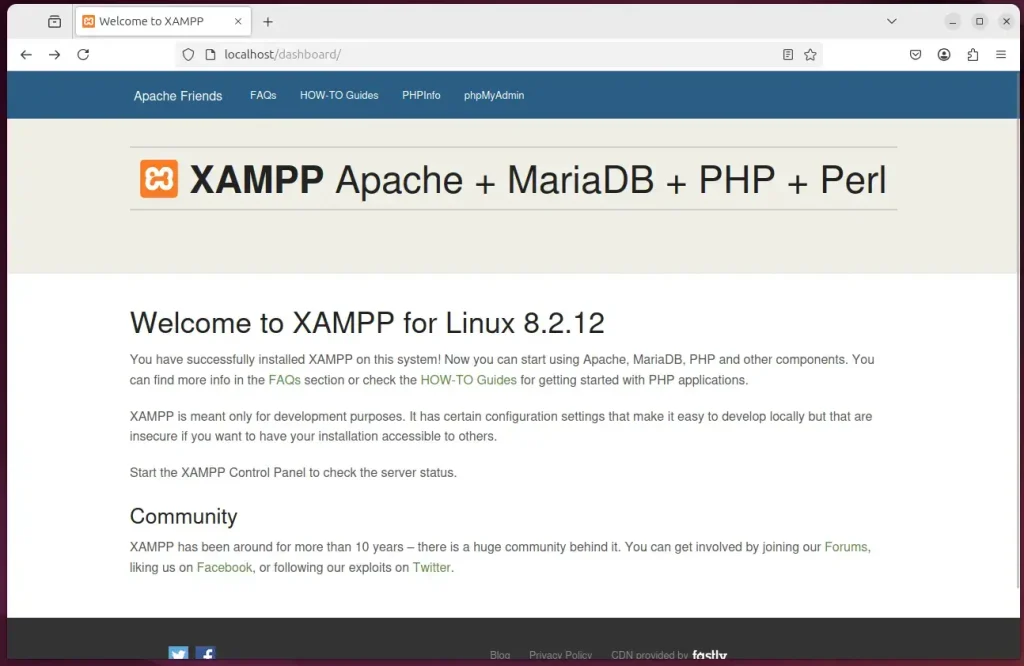
Browse to the server IP address or hostname to visit the XAMPP default Apache web page.
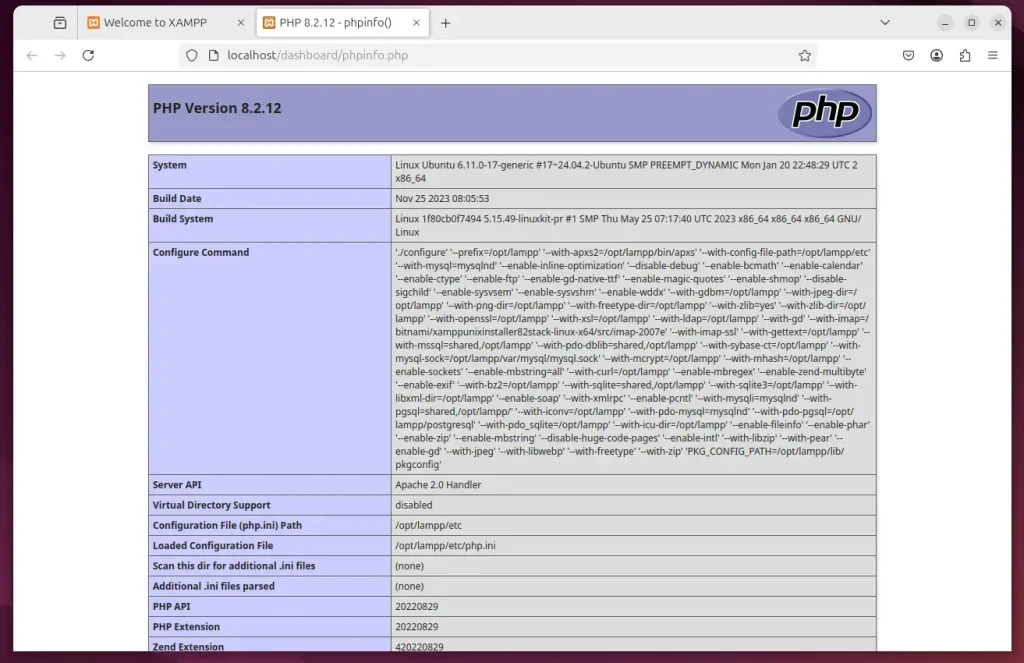
Click the PHPInfo link to display PHP information.
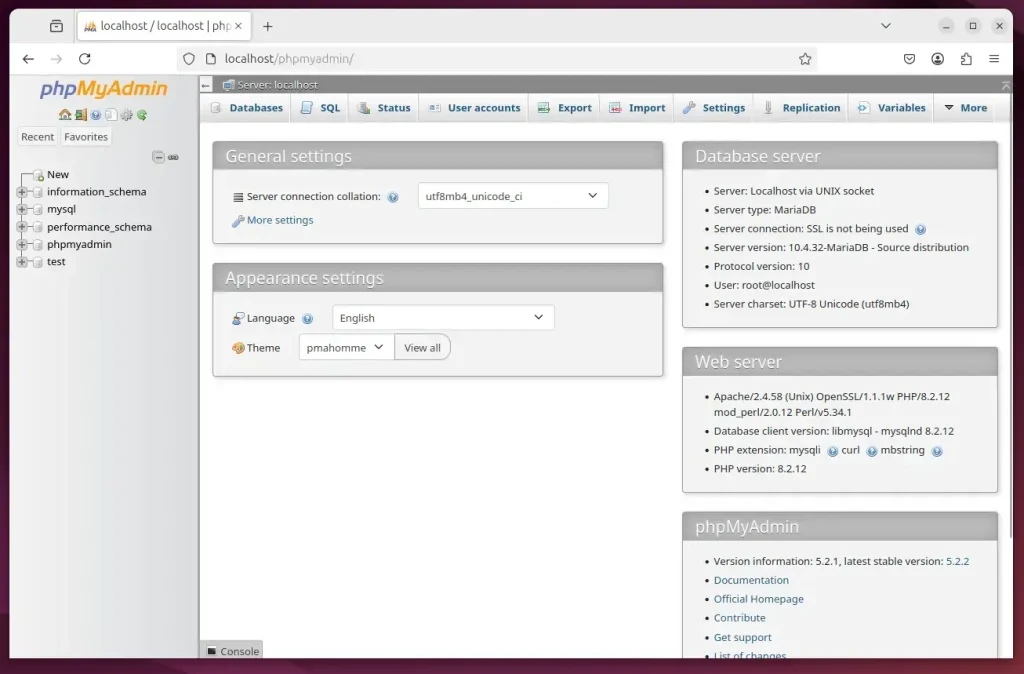
Click the phpMyAdmin link to manage MariaDB.
That should do it!
Conclusion:
- XAMPP provides an efficient way to set up a local server environment on Ubuntu, facilitating PHP development.
- The installation process is straightforward, requiring only a few terminal commands.
- This package includes essential components such as Apache, MariaDB, and interpreters for PHP and Perl, streamlining web development.
- Users can manage their servers easily through the XAMPP application or command line.
- With XAMPP, you can easily create, run, and manage PHP-based websites and applications from a single installation, enhancing developer productivity.
How to install XAMPP in Ubuntu 24.04 using terminal?
Once downloaded, we’ll head to the terminal for installation. First, change your directory to the downloads folder. Next, let’s give the installer permission to run. Then, run the installer using this command.
Where is XAMPP installed in Ubuntu?
The main XAMPP configuration files are located as follows: Apache configuration file: /opt/lampp/etc/httpd.conf, /opt/lampp/etc/extra/httpd-xampp.conf.
Was this guide helpful?

About the Author
Richard
Tech Writer, IT Professional
Richard, a writer for Geek Rewind, is a tech enthusiast who loves breaking down complex IT topics into simple, easy-to-understand ideas. With years of hands-on experience in system administration and enterprise IT operations, he’s developed a knack for offering practical tips and solutions. Richard aims to make technology more accessible and actionable. He's deeply committed to the Geek Rewind community, always ready to answer questions and engage in discussions.


[…] can install XAMPP on Windows or Ubuntu to run PHP apps locally on your […]
[…] you need to run websites, like Apache, MariaDB, and PHP. You can also use XAMPP on Windows or Ubuntu to run PHP apps. Joomla is a popular, free system used to build and manage professional […]