How to Install XAMPP on Windows 11

This guide shows you how to install XAMPP on your Windows 11 computer. It’s easy to do, even if you’ve never done it before.
Download the XAMPP installer from the official website. Run the installer, select components, choose an installation folder (like C:xampp), and click through the prompts. Allow Apache through the firewall when prompted.
What is XAMPP?
XAMPP is a free program. It lets you run a web server on your own computer. A web server is the software that displays websites. XAMPP includes everything you need to build and test websites and apps using PHP and databases. You don’t need the internet to use it.
What Does XAMPP Stand For?
- X = Works on many types of computers (Cross-platform)
- A = Apache web server (shows websites)
- M = MariaDB database (stores your website data)
- P = PHP programming language (makes websites work)
- P = Perl programming language (another coding language)
XAMPP is a helpful package for building websites on your computer, and its name tells you what it does. X stands for cross-platform, meaning it works on different operating systems, while A is for Apache, a web server that shows your sites.
Why Use XAMPP?
Testing on your own computer is safer. You don’t have to worry about breaking a live website. You can learn web development without paying for hosting. You can work offline.
Installation Steps
Step 1Download XAMPP
Go to the official XAMPP download page. Find the Windows version. Choose the PHP version you want.
Step 2Run the Installer
Open your Downloads folder. Double-click the installer file. The installer window will open.
Step 3Choose Components
The installer shows you different parts of XAMPP. You can pick which ones to install. If you’re not sure, leave the default choices. Click Next.
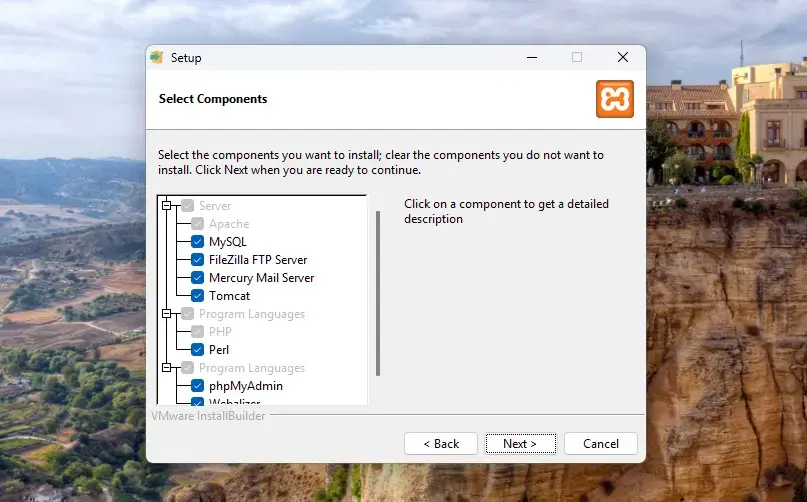
Step 4Choose Installation Folder
The default folder is C:\xampp. Keep this folder. It’s the best place for XAMPP. Click Next.
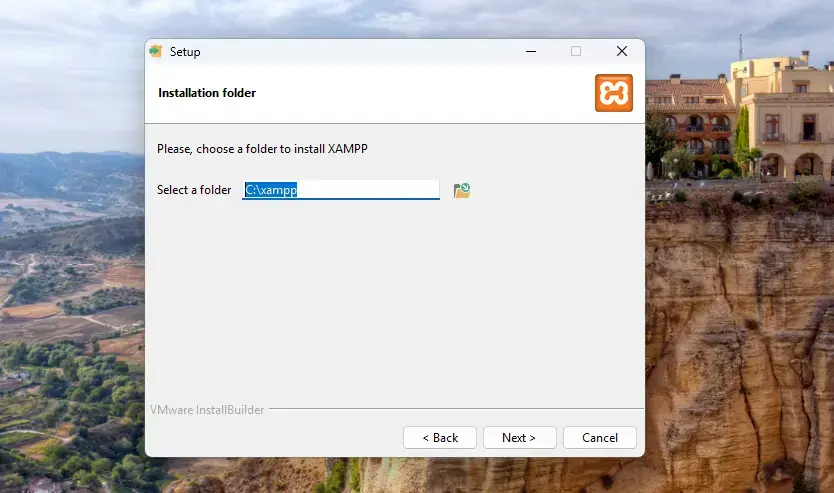
Step 5Wait for Installation
The installer copies files and sets everything up. This takes a few minutes. Don’t close the window.
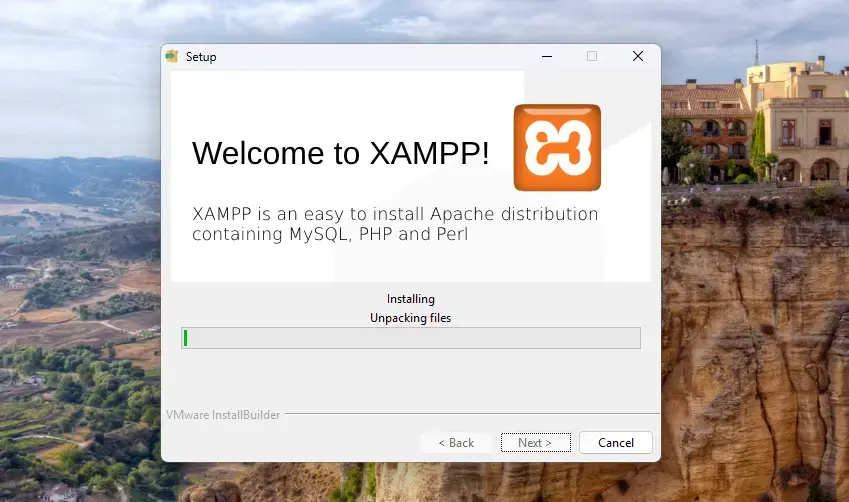
Step 6Allow Apache Through Firewall [Admin Privileges Required]
Windows will ask for permission. Apache needs to run on your computer. Click Allow access. This lets your computer show websites.
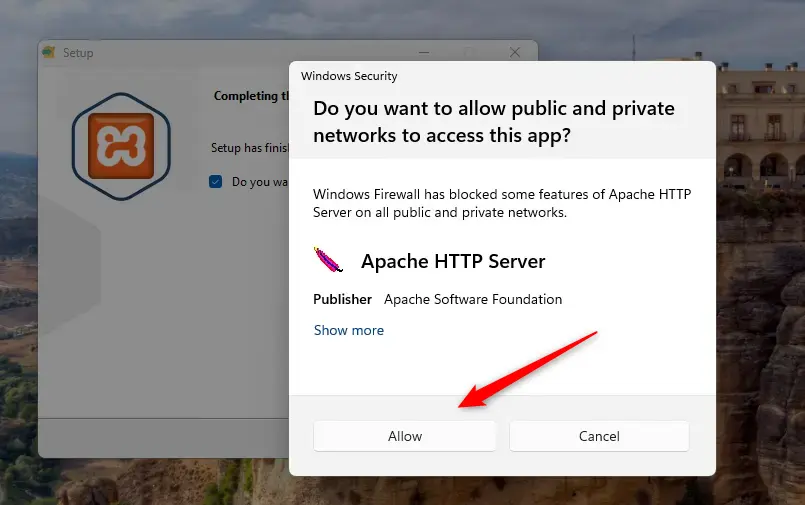
Step 7Finish and Open XAMPP
When setup is done, click Finish. The XAMPP Control Panel opens automatically.
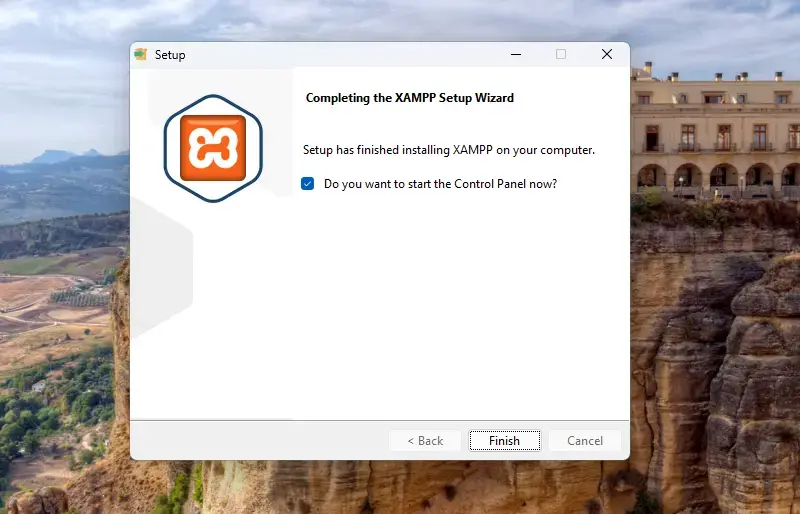
Using the XAMPP Control Panel
The XAMPP Control Panel is where you manage your web server and database. You can easily turn the Apache web server and MariaDB database on or off with simple clicks, making it simple to start and stop your local development environment.
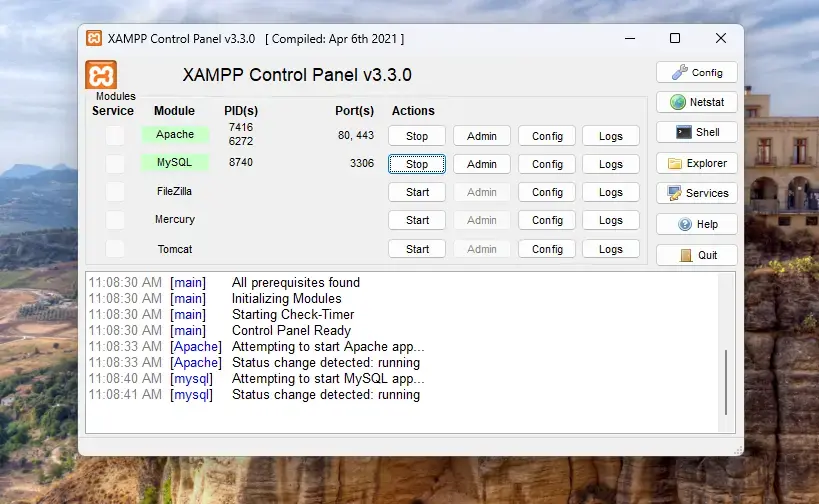
You can also click the Shell button. This opens a command window. Type these commands to start or stop all servers:
xampp\xampp_start.exe
xampp\xampp_stop.exe
Where to Put Your Website Files
Your website files go in C:\xampp\htdocs. Anything you put here can be viewed in your web browser. Create folders inside htdocs for different projects.
Test Your Web Server
After you install XAMPP, testing your web server is easy. Just open your web browser and type ‘http://localhost’ into the address bar. If you see the XAMPP welcome page, your server is running, and you’re ready to start building websites.
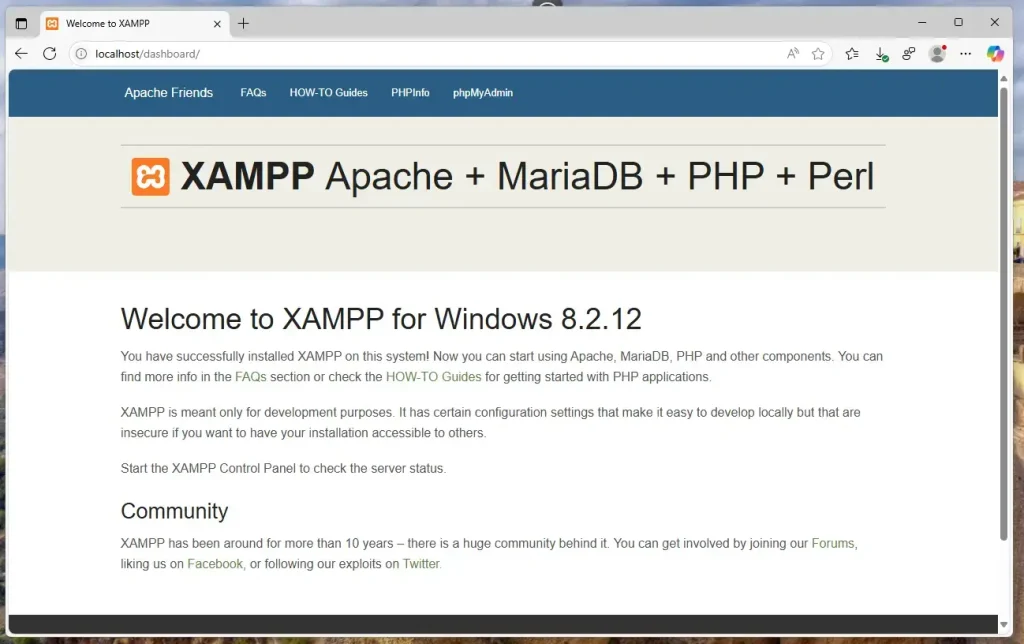
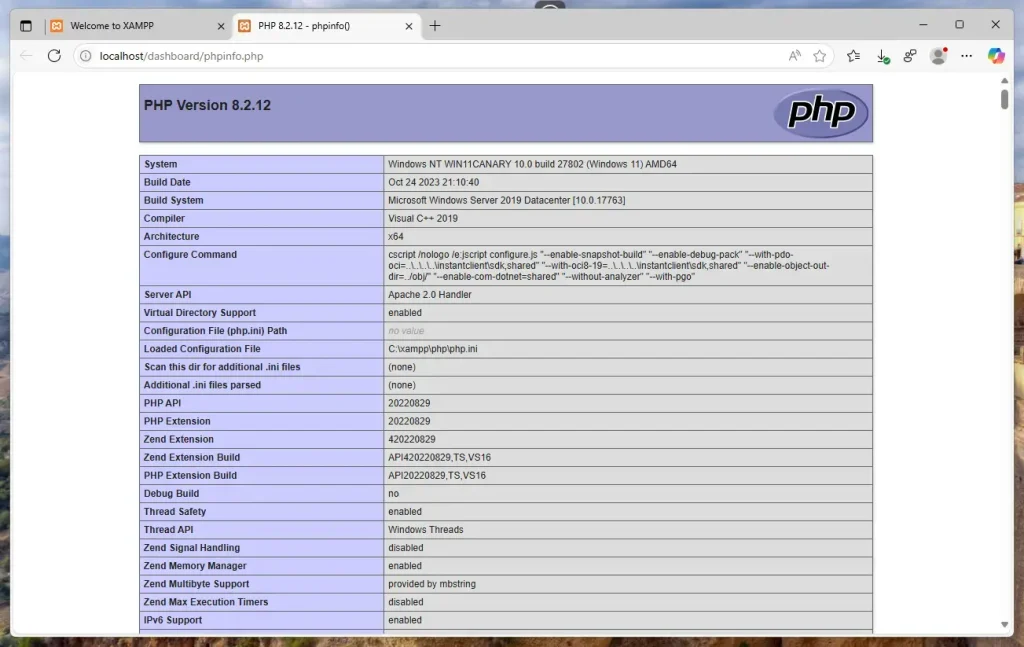
Click PHPInfo. This shows details about PHP on your computer.
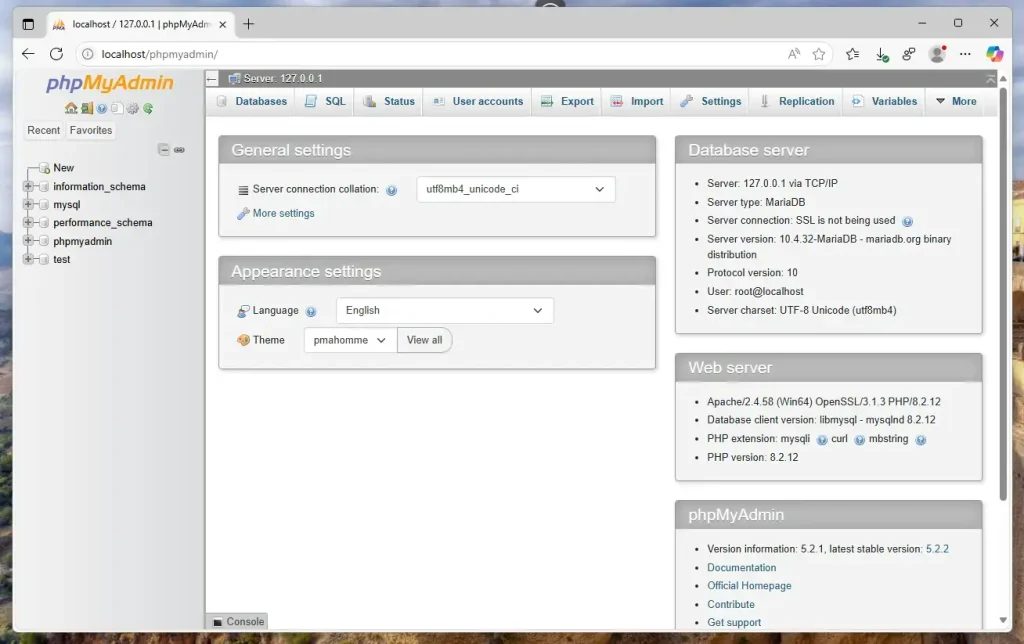
Click phpMyAdmin. This is where you manage your databases (MariaDB). It’s easy to use. You don’t need to type commands.
Summary
- XAMPP is a free program that runs a web server on your Windows 11 PC.
- It installs everything you need in one place.
- The Control Panel makes starting and stopping servers simple.
- You can manage PHP and databases with helpful web tools.
- XAMPP helps you build and test websites before sharing them online.
XAMPP is a free program that lets you run a web server right on your Windows 11 computer. It bundles all the tools you need, like a web server and database, into one simple package, making it easy to build and test websites locally.
Was this guide helpful?

About the Author
Richard
Tech Writer, IT Professional
Richard, a writer for Geek Rewind, is a tech enthusiast who loves breaking down complex IT topics into simple, easy-to-understand ideas. With years of hands-on experience in system administration and enterprise IT operations, he’s developed a knack for offering practical tips and solutions. Richard aims to make technology more accessible and actionable. He's deeply committed to the Geek Rewind community, always ready to answer questions and engage in discussions.



No comments yet — be the first to share your thoughts!