How to Start or Stop Windows Automatic Maintenance

This guide shows you how to turn Windows Automatic Maintenance (WAM) on or off on your Windows 11 computer.
You can start or stop Windows Automatic Maintenance via the Control Panel. Navigate to Security and Maintenance, then click Start maintenance or Stop maintenance as needed. Alternatively, use the Windows Terminal with commands like MSchedExe.exe Start or MSchedExe.exe Stop.
Understanding Windows Automatic Maintenance
Windows Automatic Maintenance, often called WAM, is a handy built-in tool that keeps your computer running well by doing important jobs in the background.
How to Start or Stop Windows Automatic Maintenance
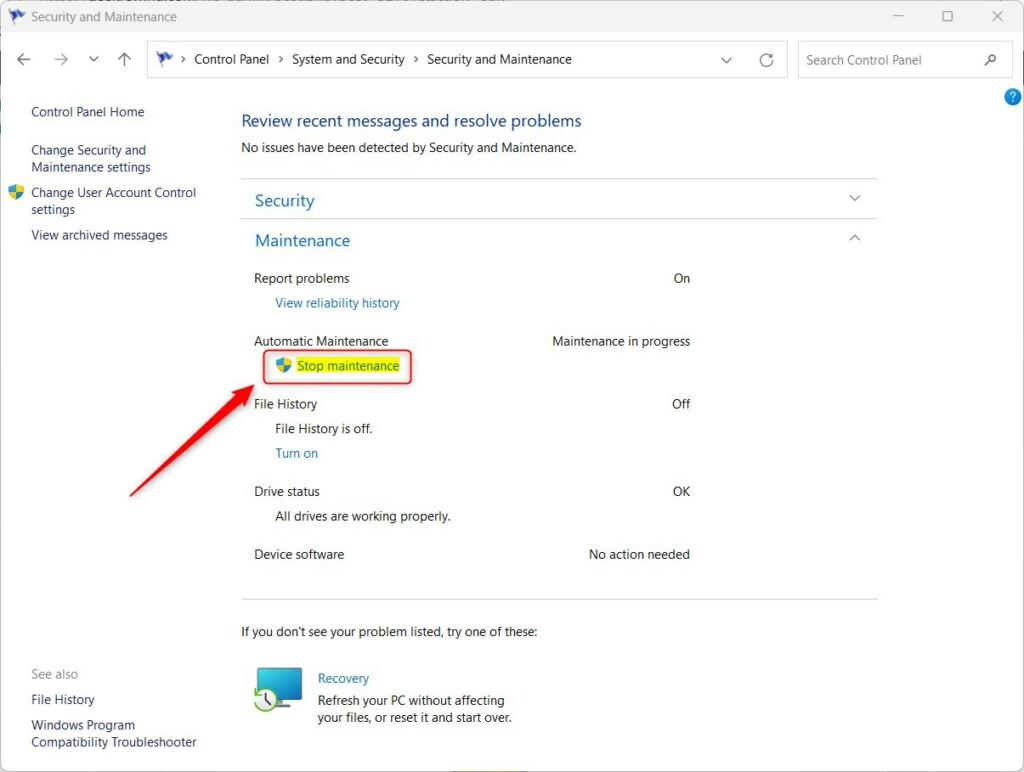
Windows Automatic Maintenance helps keep your PC running smoothly, but you can start or stop it anytime you want. If you need to manually begin the maintenance tasks or halt them if they’re already running, it’s a simple process through the Control Panel.
- Open the Control Panel.
- Go to System and Security > Security and Maintenance > Automatic Maintenance.
- If the task is not running, click the Start maintenance link.
If the task is already running, you’ll see a Stop maintenance link. Click that to end the process.
Advanced Control via Windows Terminal
If you’re comfortable using command lines, you can also start or stop Windows Automatic Maintenance using the Windows Terminal. This tool, which includes Command Prompt and PowerShell, offers a quick way to manage the maintenance process with simple commands.
- Open the Windows Terminal as an administrator.
- To start the maintenance, type the following command and press Enter:
MSchedExe.exe Start - To stop the maintenance, type the following command and press Enter:
MSchedExe.exe Stop
Registry and Group Policy Alternatives
If you’re comfortable with advanced settings, you can disable Windows Automatic Maintenance using the Registry Editor or the Group Policy Editor.
Pros and Cons of Disabling Maintenance
| Pros | Cons |
|---|---|
| Prevents performance drops during heavy use. | System updates may fail to install. |
| Stops background disk activity. | Security scans might be missed. |
| Saves battery life on laptops. | System performance may degrade over time. |
Summary
Windows Automatic Maintenance plays a key role in keeping your system healthy. It ensures your machine stays updated and secure, and when it runs, your system gets optimized for better performance. You can manage these tasks through the Control Panel or command-line tools. Advanced changes will require administrator privileges.
Is it safe to disable Windows Automatic Maintenance?
Disabling it is generally not recommended. While it stops background noise, it prevents Windows from performing critical disk cleanup and security updates. If you disable it, you must perform these tasks manually to ensure your computer remains secure and does not experience performance issues or file system errors.
Why does my computer freeze during automatic maintenance?
Your computer might freeze during automatic maintenance because these tasks use a lot of your computer’s power and resources.
Was this guide helpful?

About the Author
Richard
Tech Writer, IT Professional
Richard, a writer for Geek Rewind, is a tech enthusiast who loves breaking down complex IT topics into simple, easy-to-understand ideas. With years of hands-on experience in system administration and enterprise IT operations, he’s developed a knack for offering practical tips and solutions. Richard aims to make technology more accessible and actionable. He's deeply committed to the Geek Rewind community, always ready to answer questions and engage in discussions.



[…] can change the default run time or manually trigger it to start. The Automatic Maintenance feature is enabled by default in Windows, but you can disable it if you […]
[…] If you want, you can change the time it runs or start it manually whenever you like. […]