How to Install Drupal Locally with XAMPP on Windows 11

You can install Drupal locally on your Windows 11 PC using XAMPP to build and test websites offline.
Drupal is a powerful and flexible open-source content management system (CMS) used for creating dynamic websites and web applications.
XAMPP is a free and open-source cross-platform web server solution stack developed by Apache Friends, which bundles Apache, MariaDB, PHP, and Perl. By installing XAMPP, you create a local server environment on your computer, allowing you to run Drupal without an internet connection.
This method is essential for developers who need to experiment with Drupal features or develop custom themes and modules before deploying them to a live server.
Install XAMPP, create a Drupal database via its shell or phpMyAdmin, and download Drupal files into a htdocs/drupal folder. Restart Apache, then access http://localhost in your browser to complete the Drupal setup.
What is XAMPP?
XAMPP is a free program that lets you run websites, like Drupal, directly on your Windows 11 computer, so you don’t need the internet to test them.
- Apache (the web server that displays your website)
- MariaDB (a database that stores your website’s information)
- PHP (the programming language that Drupal uses)
With XAMPP, you can run Drupal and other websites without needing an internet connection.
Step 1Install XAMPP
Don’t have XAMPP yet? Follow this guide first:
Step 2Create a Database for Drupal
Drupal needs a database to keep all your site’s information safe, and you’ll create this using XAMPP’s tools right on your Windows computer.
What you’ll do:
- Open the XAMPP Control Panel.
- Click the Shell button on the left side. A command window will open.
- Type this command and press Enter to open the database tool:
mysql -u root - Type these commands one at a time. Press Enter after each one. Replace
your_password_herewith a password you choose. Remember this password!CREATE DATABASE drupaldb CHARACTER SET utf8mb4 COLLATE utf8mb4_general_ci;CREATE USER 'drupaldbuser'@'localhost' IDENTIFIED BY 'your_password_here';GRANT ALL ON drupaldb.* TO 'drupaldbuser'@'localhost';FLUSH PRIVILEGES;exit
Tip: If you don’t want to use the command line, you can create the database using phpMyAdmin instead. Click the Admin button next to MySQL in the XAMPP Control Panel.
Step 3Download and Prepare Drupal
You’ll now download the Drupal files and place them into a specific folder on your Windows 11 computer so XAMPP can easily find them.
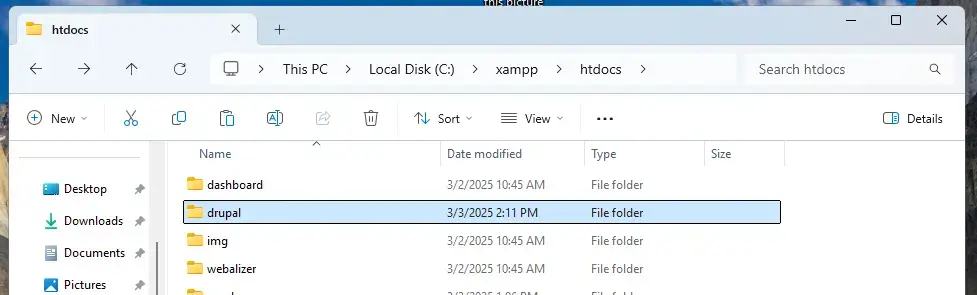
- Open your
C:\xampp\htdocsfolder on your computer. - Create a new folder called
drupalinside thehtdocsfolder. This is where your Drupal files will go. - Download the latest Drupal version from here: Drupal Downloads
- Extract the Drupal files you downloaded directly into the
drupalfolder.
Step 4Change Apache’s Default Page to Your Drupal Site
You’ll change the default XAMPP page to show your Drupal site instead by making a small adjustment in Windows.
What you’ll do:
- Go to
C:\xampp\htdocsand open theindex.htmlfile with a text editor like Notepad. - Replace everything in the file with this code:
<?php

  if (!empty($_SERVER['HTTPS']) && ('on' == $_SERVER['HTTPS'])) {

    $uri = 'https://';

  } else {

    $uri = 'http://';

  }

  $uri .= $_SERVER['HTTP_HOST'];

  header('Location: '.$uri.'/drupal/');

  exit;

?>

Something is wrong with the XAMPP installation :-( - Save the file.
Step 5Restart Apache
What happens when you do this? Apache will apply the changes you just made.
What you’ll do:
- Go back to the XAMPP Control Panel.
- Stop Apache by clicking the Stop button.
- Start Apache again by clicking the Start button.
Step 6Start Drupal Installation
After setting everything up, opening http://localhost in your web browser starts the Drupal installation right on your Windows 11 computer.
- Open your web browser and go to:
http://localhost - You should see the Drupal setup page.
- Choose your language and click Save and continue.
- Select the installation type (usually “Standard” works fine) and continue.
- Enter the database information you created earlier:
- Database name:
drupaldb - Username:
drupaldbuser - Password: (the password you chose in Step 2)
- Database host: leave this as
localhost
- Database name:
- Continue and fill in your website’s name.
- Create an admin username and password for yourself.
- Finish the setup. You now have your own Drupal site running locally!


Summary
- Install XAMPP on your Windows 11 computer.
- Create a database and user for Drupal using XAMPP’s Shell or phpMyAdmin.
- Download Drupal and put the files in a
drupalfolder insidehtdocs. - Change the default page to redirect to Drupal.
- Restart Apache to apply the changes.
- Open your browser at
http://localhostto complete Drupal setup.
Install XAMPP on your Windows 11 computer, create a database for Drupal using its tools, and download Drupal files into the htdocs folder.
Does Drupal run on Windows?
It is recommended to use Linux or a similar operating system for hosting Drupal websites. Windows is only supported for development environments. Running Drupal directly on Windows in a production environment is not supported.
Is XAMPP available for Windows?
XAMPP is a very easy to install Apache Distribution for Linux, Solaris, Windows, and Mac OS X.
Was this guide helpful?

About the Author
Richard
Tech Writer, IT Professional
Richard, a writer for Geek Rewind, is a tech enthusiast who loves breaking down complex IT topics into simple, easy-to-understand ideas. With years of hands-on experience in system administration and enterprise IT operations, he’s developed a knack for offering practical tips and solutions. Richard aims to make technology more accessible and actionable. He's deeply committed to the Geek Rewind community, always ready to answer questions and engage in discussions.



… liked this!