

This article explains how to enable or disable Voice Focus in Windows 11.
Voice Focus in Windows 11 enhances speech clarity during audio and video calls by reducing background noise and highlighting the speaker’s voice. This can improve the overall audio experience by making it easier to hear and understand the conversation.
To use Windows Studio Effects with Voice Focus, the device must have a neural processing unit (NPU) in the new Windows Copilot+ PC.
Windows Studio Effects automatically improves lighting and cancels noises during video calls—perfect for when presentation matters.
Voice Focus is available in two versions, depending on your computer’s hardware.
- One version reduces background noise from the microphone to help your voice stand out more clearly using software.
- The enhanced version reduces background noise from the microphone to help your voice stand out more clearly by using AI on the NPU.
Turn on or off Voice focus in Windows
As mentioned, users can enable or disable the new Voice focus in Windows 11 using the Quick Settings fly-out menu or the Settings app.
Here’s how to do it.
First, open the Windows Settings app.
You can do that by clicking on the Start menu and selecting Settings. Or press the keyboard shortcut (Windows key + I) to launch the Settings app.
When the Setting app opens, click the System button on the left.
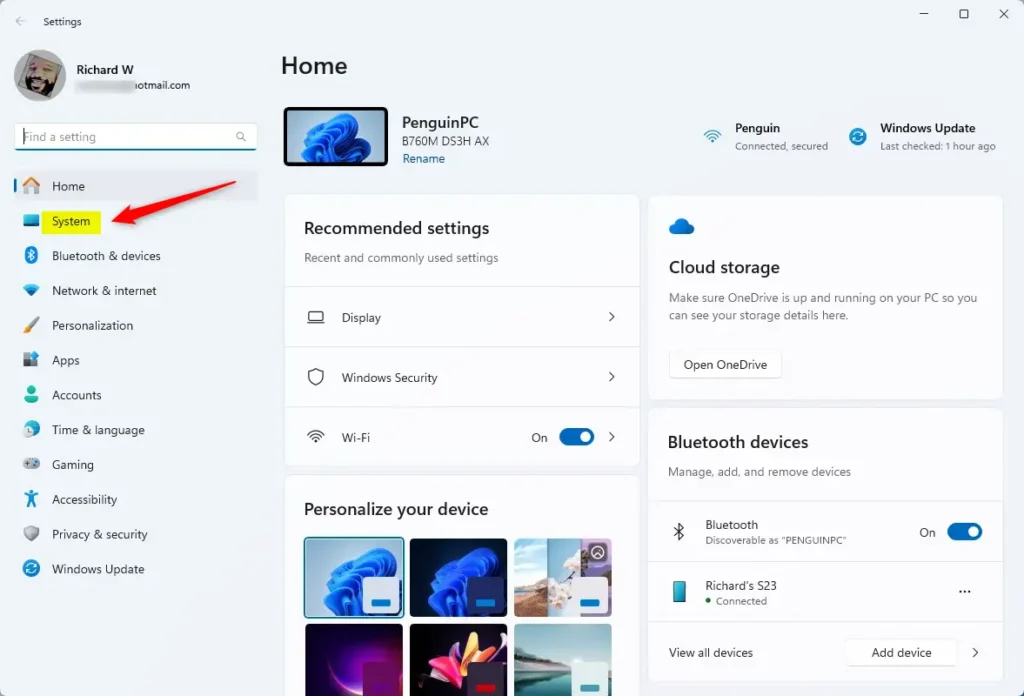
On the right, select the Sound tile to expand it.

Click an active sound device tile on the System > Sound settings pane to expand it.
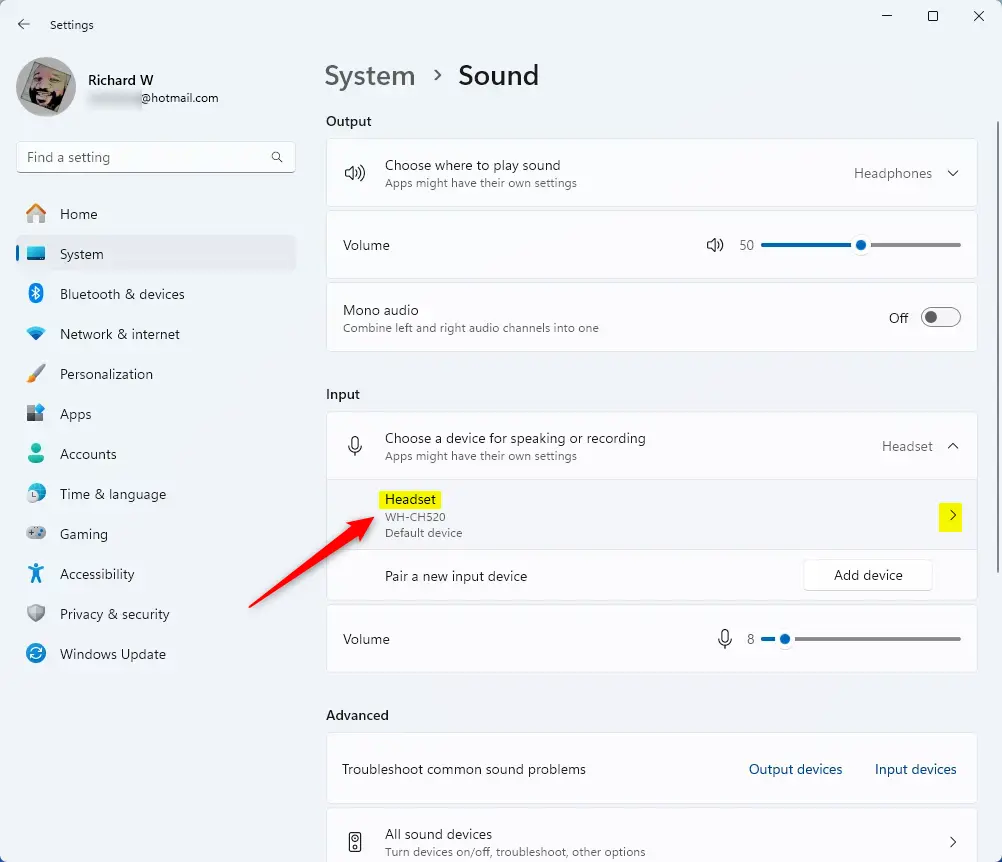
Next, select the “Audio enhancements” tile to expand it. Then, toggle the “Voice Focus” switch button to enable or disable this feature in Windows 11.
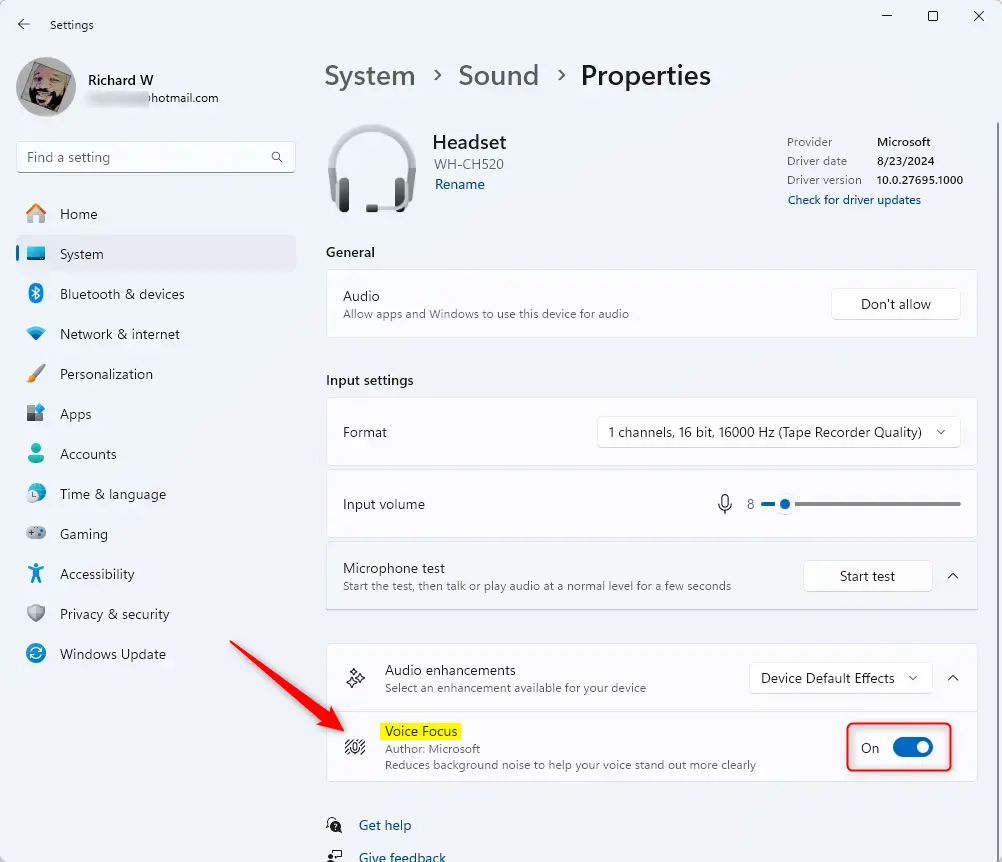
You can close the Settings app when you are done.
That should do it!
Reference:
Conclusion:
- Enabling Voice Focus in Windows 11 can significantly improve speech clarity during audio and video calls by reducing background noise and emphasizing the speaker’s voice.
- Windows Studio Effects, which includes Voice Focus, automatically enhances lighting and cancels background noise during video calls, making it ideal for professional presentations.
- Voice Focus is available in two versions, with the enhanced version utilizing AI on a neural processing unit (NPU) for advanced background noise reduction.
- Users can easily enable or disable Voice Focus in Windows 11 through the Quick Settings fly-out menu or the Settings app, providing flexibility in managing this feature.



Leave a Reply