

This article explains how to allow or block Microsoft Family Safety members from signing into a Windows 11 device.
Microsoft Family Safety is designed to help families create a safe and secure online environment. It enables parents to monitor and manage their children’s online activities, set appropriate restrictions and permissions, and receive regular reports on their online behavior.
After you create a Microsoft Family Safety member account, you can allow that account to sign into a Windows device. You can do that if you are signed in to Windows 11 with a Microsoft account as an administrator. You must also organize in the Microsoft Family Safety group to allow or block other members.
When the account sign for the first time, a user profile folder will be created for their account in the “C:Users” folder. The devices the family member signs into will be listed and monitored from the dashboard online.
Allow a Microsoft Family Safety member to sign into Windows
As mentioned above, once a family member is added to the Microsoft Family Safety group, the user can be allowed or blocked from signing into a Windows device.
Here’s how to allow the account.
First, open the Windows Settings app.
You can do that by clicking on the Start menu and selecting Settings. Or press the keyboard shortcut (Windows key + I) to launch the Settings app.
When the Setting app opens, click the Accounts button on the left.
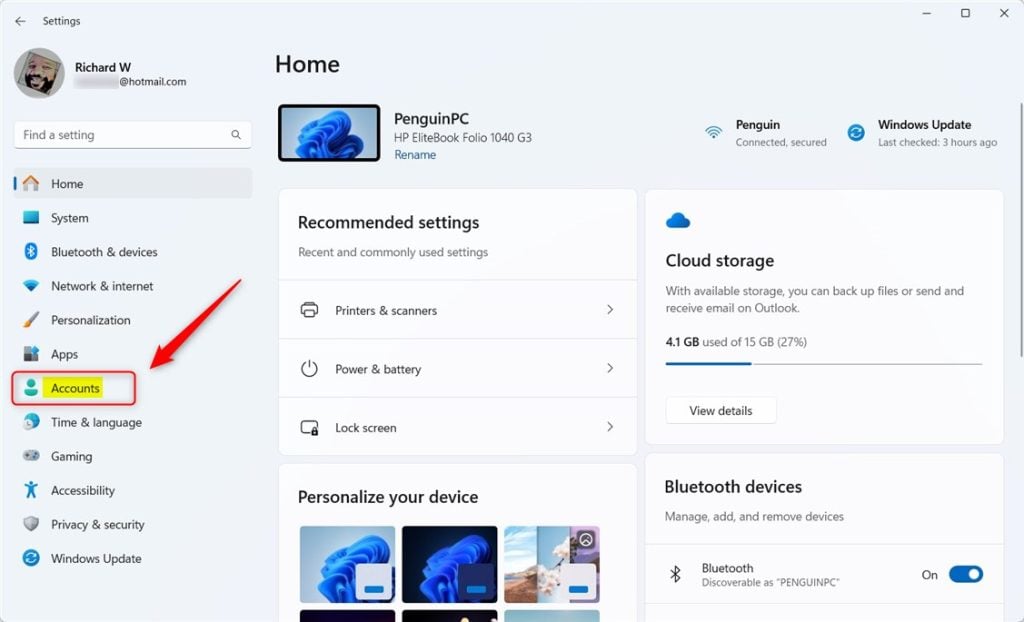
Select the Family tile under ‘Accounts‘ on the right to expand it.
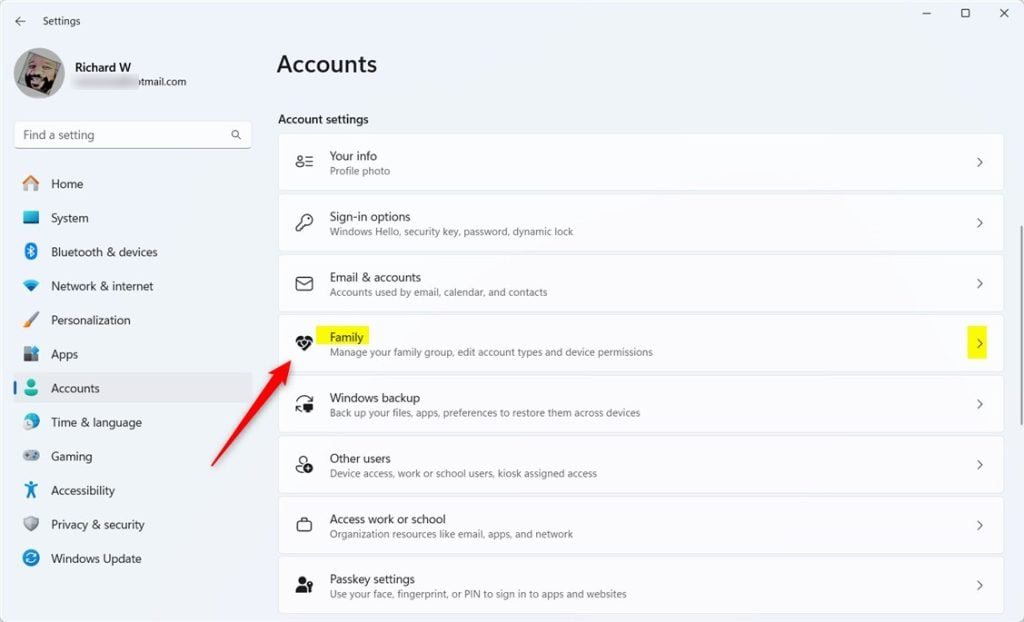
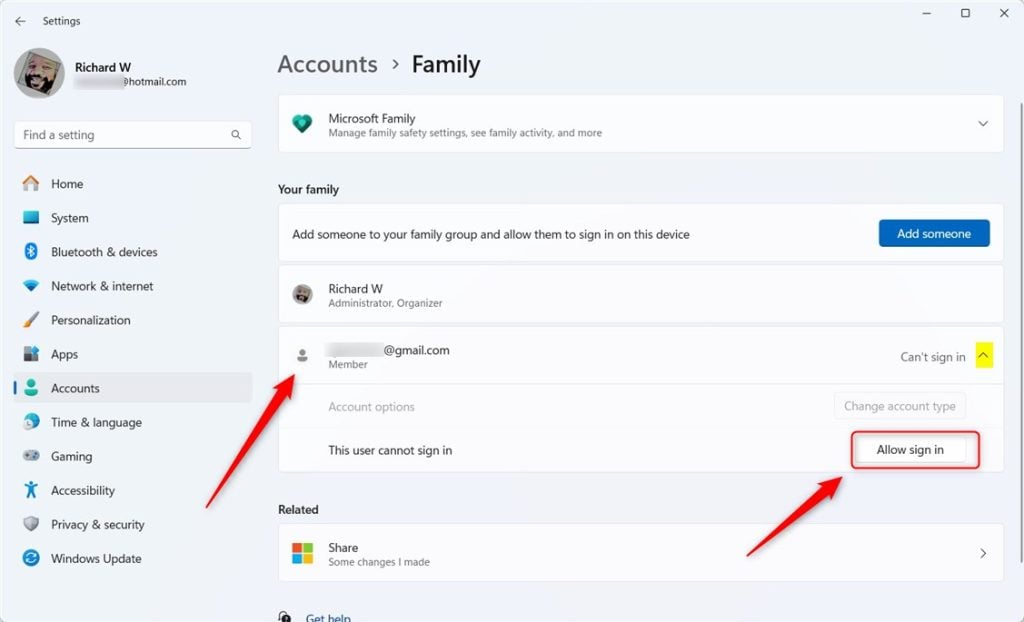
Select and expand the ‘family member’ added to the Microsoft Family Safety group on the Account -> Family settings page.
Then click the “Allow sign in” button.
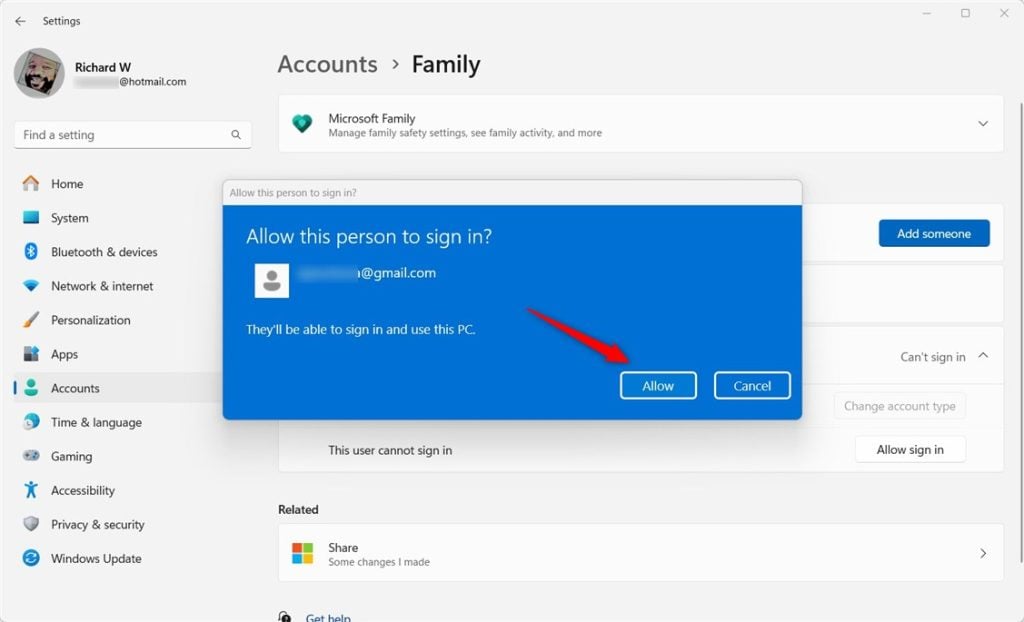
When prompted, click ‘Allow‘ to allow the member to sign into the device.
Once the member account is added, you can change the account type.
Block a Microsoft Family Safety member from signing into Windows
If you previously added a family safety member and want to block the account from logging into a Windows device, use the steps below.
First, return to the Family settings page in the Settings app as described above. Then, expand the account and click the ‘Block sign in‘ button.
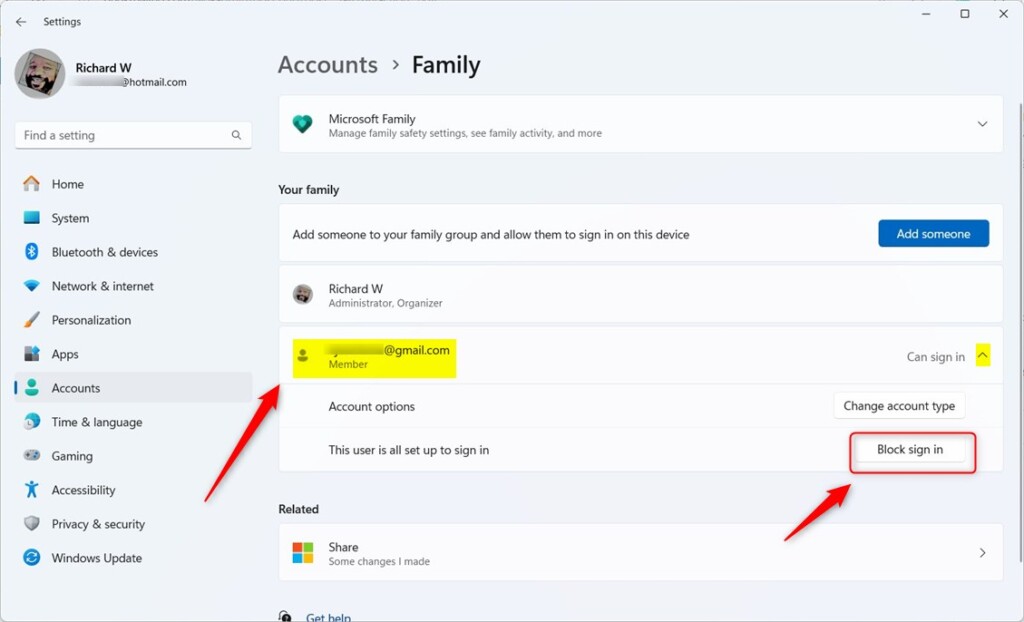
Confirm to block the account and exit.
That should do it!
Conclusion:
- Enabling Microsoft Family Safety membership on Windows 11 grants parents control over their children’s online activities
- Access to the Windows Settings app is essential for managing family member accounts
- Blocking user access ensures a secure online environment for the family



Leave a Reply