How to Setup osTicket with Nginx on Ubuntu Linux


osTicket is a free help desk program that puts customer support emails, chats, and phone messages into one shared inbox. Running osTicket on Ubuntu Linux (version 20.04 or newer) with the Nginx web server gives you a fast and stable support system for your business.
Getting this server ready requires root access to your machine and basic terminal skills to run command-line tools. You follow a sequence of steps to install PHP, set up a MySQL database, configure Nginx, and finish the osTicket web setup.
Install Nginx using `sudo apt install nginx`, then MariaDB with `sudo apt-get install mariadb-server`. Install PHP 7.2-FPM and related modules using `sudo apt install php7.2-fpm php7.2-common php7.2-mysql` and other necessary packages.
Install Nginx HTTP Server
Install Nginx on Ubuntu to host your helpdesk platform by running the package manager update and install commands in your terminal. This sets up the web server software that handles incoming web traffic for your osTicket installation.
To install the Nginx server, run the commands below:
sudo apt update
sudo apt install nginx
After installing Nginx, the commands below can be used to stop, start, and enable the Nginx service to always start up with the server boots.
sudo systemctl stop nginx.service
sudo systemctl start nginx.service
sudo systemctl enable nginx.service
Now that Nginx has been installed, browse your browser to the URL below to test whether the web server works.
http://localhost
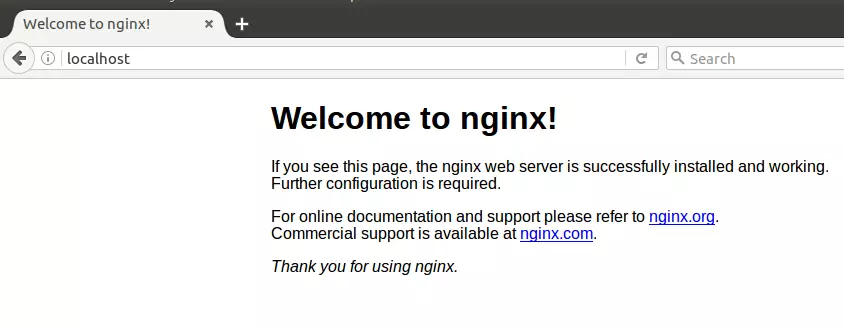
If you look at the page above, then Nginx has been successfully installed.
Install MariaDB Database Server
Install MariaDB on Ubuntu to store all your helpdesk data securely by running the server and client package installation command in your terminal. This relational database management system keeps your tickets, user accounts, and system settings organized.
To install MariaDB, run the commands below:
sudo apt-get install mariadb-server mariadb-client
After installing MariaDB, the commands below can stop, start, and enable the service to start when the server boots.
Run these on Ubuntu 16.04 LTS
sudo systemctl stop mysql.service
sudo systemctl start mysql.service
sudo systemctl enable mysql.service
Run these on Ubuntu 18.10 and 18.04 LTS
sudo systemctl stop mariadb.service
sudo systemctl start mariadb.service
sudo systemctl enable mariadb.service
sudo mysql_secure_installation
When prompted, answer the questions below by following the guide.
- Enter current password for root (enter for none): Just press the Enter
- Set root password? [Y/n]: Y
- New password: Enter password
- Re-enter new password: Repeat password
- Remove anonymous users? [Y/n]: Y
- Disallow root login remotely? [Y/n]: Y
- Remove test database and access to it? [Y/n]: Y
- Reload privilege tables now? [Y/n]: Y
Once MariaDB is installed, run the commands below to test whether the database server was installed.
sudo mysql -u root -p
Type the root password when prompted.
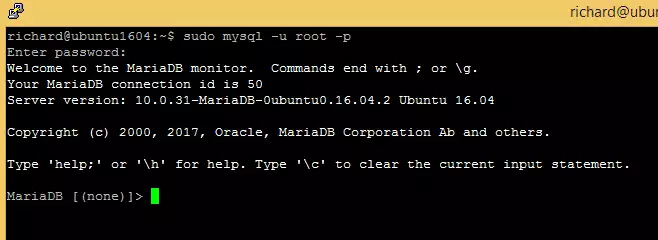
The server was successfully installed if you see a similar screen.
Install PHP 7.2-FPM and Related Modules
Install PHP 7.2-FPM and required modules on Ubuntu by adding the necessary software repository and updating your package list. osTicket requires PHP to process dynamic web requests and run its backend code properly.
sudo apt-get install software-properties-common
sudo add-apt-repository ppa:ondrej/php
Then update and upgrade to PHP 7.2-FPM
sudo apt update
Next, run the commands below to install PHP 7.2-FPM and related modules.
sudo apt install php7.2-fpm php7.2-common php7.2-mysql php7.2-gmp php7.2-curl php7.2-intl php7.2-mbstring php7.2-xmlrpc php7.2-apcu php7.2-gd php7.2-bcmath php7.2-soap php7.2-ldap php7.2-imap php7.2-xml php7.2-cli php7.2-zip
After installing PHP 7.1, run the commands below to open Nginx's PHP default configuration file.
sudo nano /etc/php/7.2/fpm/php.ini
The lines below are a good setting for most PHP-based CMS. Update the configuration file with these and save.
file_uploads = On
allow_url_fopen = On
short_open_tag = On
cgi.fix_pathinfo = 0
memory_limit = 256M
upload_max_filesize = 100M
max_execution_time = 360
date.timezone = America/Chicago
Restarting the Nginx web server whenever you change the PHP configuration file would be best. To do so, run the commands below:
sudo systemctl restart nginx.service
Create osTicket Database
Create the osTicket database and a dedicated user account in MariaDB by logging into the database command line interface as the root user. This storage space holds all your helpdesk application records and user data.
To log on to the MariaDB database server, run the commands below.
sudo mysql -u root -p
Then, create a database called osticket
CREATE DATABASE osticket;
Create a database user called osticketuser with a new password
CREATE USER 'osticketuser'@'localhost' IDENTIFIED BY 'new_password_here';
Then, grant the user full access to the Database.
GRANT ALL ON osticket.* TO 'osticketuser'@'localhost' WITH GRANT OPTION;
Finally, save your changes and exit.
FLUSH PRIVILEGES;
EXIT;
Download osTicket Latest Release
Download the latest osTicket source files to your server by using Git to clone the official repository or fetching the release package. This ensures you run the most up-to-date version of the ticketing system with all recent bug fixes.
To get osTicket latest release, you may use the GitHub repository… Install the git tool to download Bagisto packages.
sudo apt install git curl
curl -sS https://getcomposer.org/installer | sudo php -- --install-dir=/usr/local/bin --filename=composer
After installing curl above, change into the Nginx root directory and download osTicket packages from GitHub…
cd /var/www/
sudo git clone https://github.com/osTicket/osTicket osticket
cd /var/www/osticket
sudo php manage.php deploy --setup /var/www/osticket/
Rename the sample file include/ost-sampleconfig.php to ost-config.php by running the commands below:
sudo mv /var/www/osticket/include/ost-sampleconfig.php /var/www/osticket/include/ost-config.php
Next, run the commands below to update osticket root directory permissions so the web server can access them.
sudo chown -R www-data:www-data /var/www/osticket/
sudo chmod -R 755 /var/www/osticket/
Configure Nginx
Configure Nginx for osTicket by creating a new site file in your sites-available directory that defines your domain name and PHP processor settings. This server block tells the web server how to direct incoming visitors to your helpdesk application.
sudo nano /etc/nginx/sites-available/osticket
Then copy and paste the content below into the file and save it. Replace the highlighted line with your domain name and directory root location.
server {
    listen 80;
    listen [::]:80;

    server_name  example.com www.example.com;
    root   /var/www/osticket;
    index  index.php;

    access_log /var/log/nginx/example.com.access.log;
    error_log /var/log/nginx/example.com.error.log;

    client_max_body_size 100M;

    autoindex off;

    if ($request_uri ~ "^/api(/[^?]+)") {
          set $path_info $1;
       }

    location ~ ^/api/(?:tickets|tasks).*$ {
          try_files $uri $uri/ /api/http.php?$query_string;
       }

     if ($request_uri ~ "^/scp/.*.php(/[^?]+)") {
          set $path_info $1;
      }

     location ~ ^/scp/ajax.php/.*$ {
        try_files $uri $uri/ /scp/ajax.php?$query_string;
      }

    location / {
    try_files $uri $uri/ index.php;
      }

    location ~ .php$ {
         include snippets/fastcgi-php.conf;
         fastcgi_pass unix:/var/run/php/php7.2-fpm.sock;
         include fastcgi_params;
         fastcgi_intercept_errors on;
    }
}
Save the file and exit.
Enable the osTicket and Rewrite Module.
Enable your osTicket Nginx configuration by creating a symbolic link to the sites-enabled directory and restarting the web server service. This final step activates your site rules so visitors can access the setup wizard in their web browsers.
sudo ln -s /etc/nginx/sites-available/osticket /etc/nginx/sites-enabled/
sudo systemctl restart nginx.service
Then open your browser and browse to the server domain name. You should see the osTicket setup wizard complete. Please follow the wizard carefully.
http://example.com/
Then, follow the on-screen instructions to complete the setup.
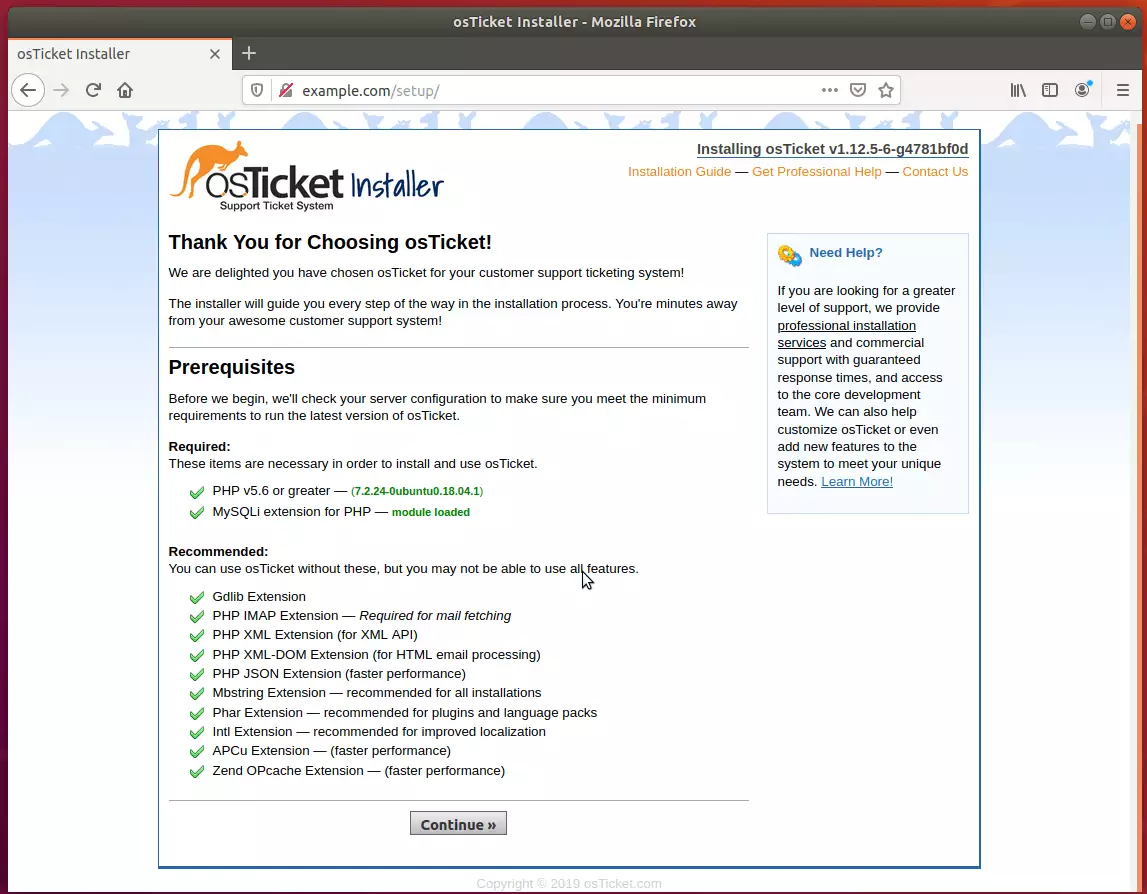
Before you begin, the installer will check your server configuration to ensure you meet the minimum requirements to run the latest osTicket version.
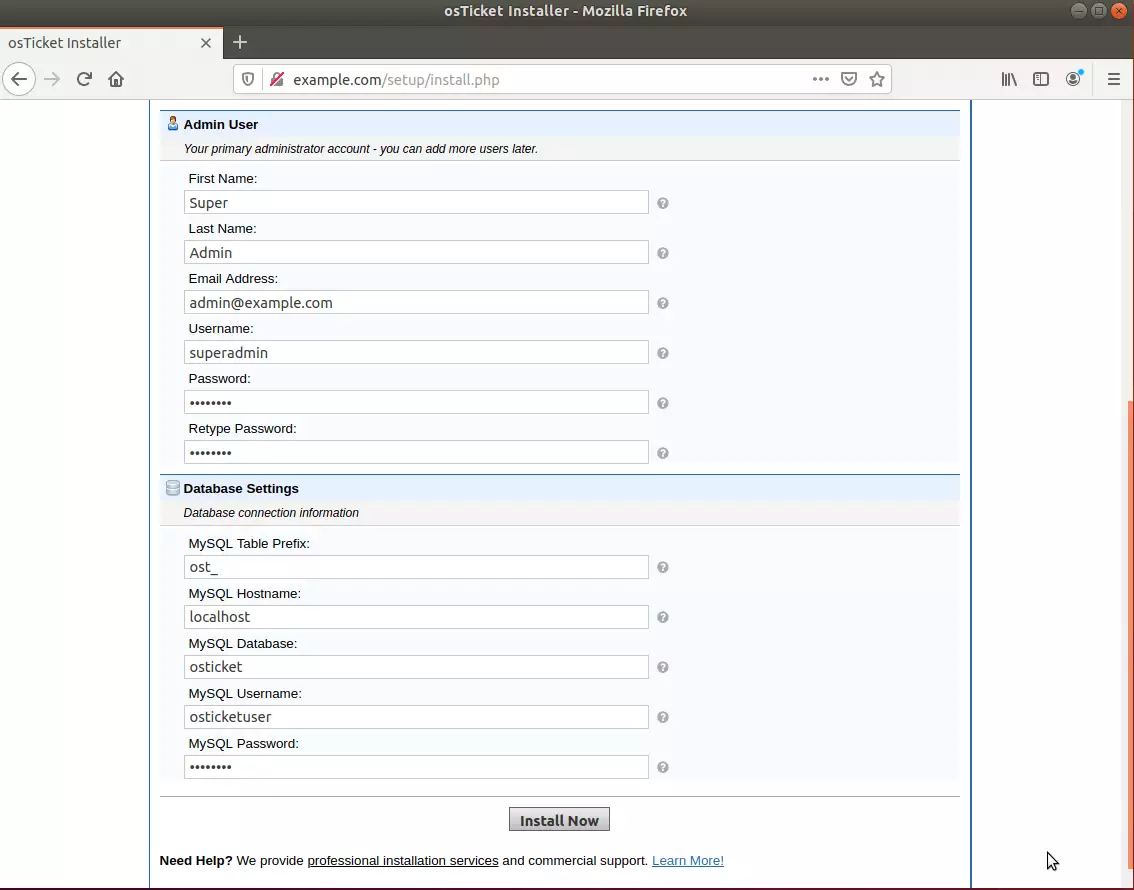
Next, type in the database name, username, and password. Then, create a backend admin account and continue.
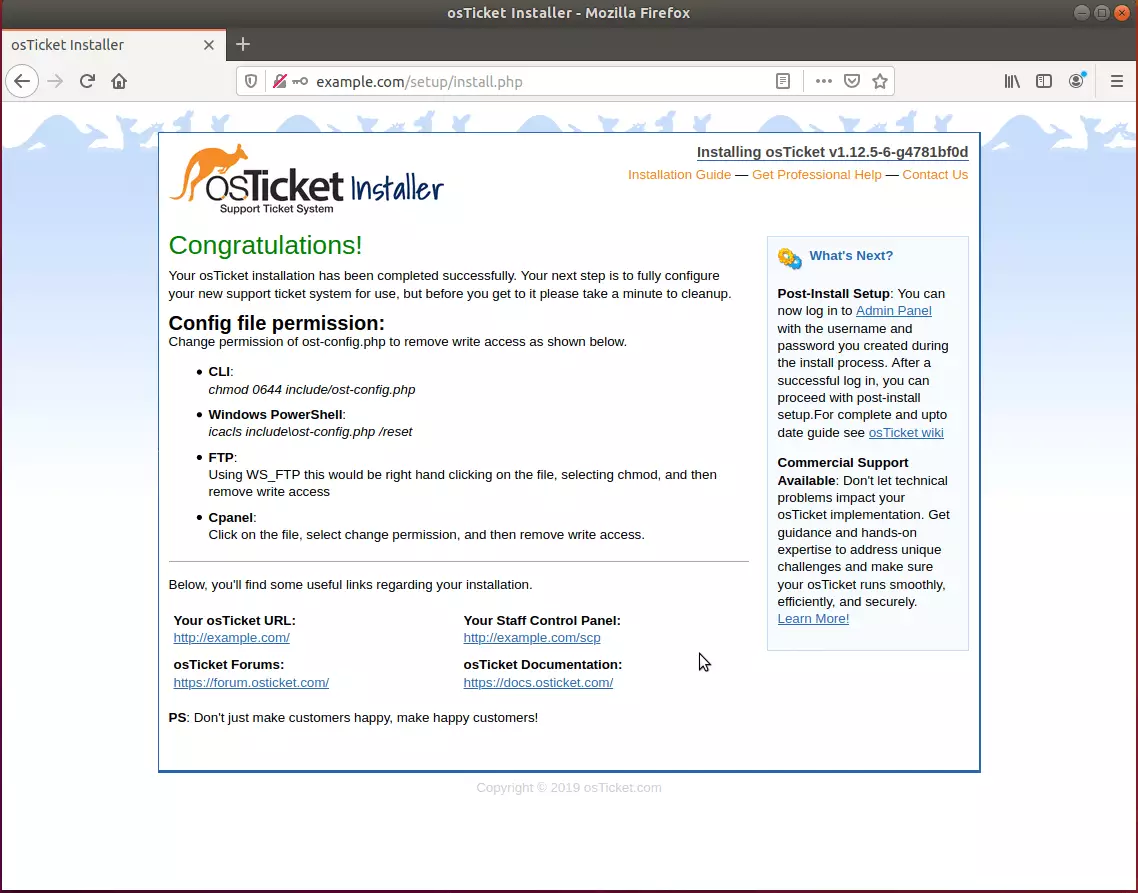
Your osTicket installation has been completed successfully. Your next step is to configure your new support ticket system for use entirely, but please take a minute to clean up before you get to it.
Conclusion:
You have successfully learned how to install the osTicket platform on Ubuntu. You may need to configure additional settings, but the steps above give you a basic starting point.
If you find errors with the steps above, please comment below:
You may also like the post below:
Was this guide helpful?

About the Author
Richard
Tech Writer, IT Professional
Richard, a writer for Geek Rewind, is a tech enthusiast who loves breaking down complex IT topics into simple, easy-to-understand ideas. With years of hands-on experience in system administration and enterprise IT operations, he’s developed a knack for offering practical tips and solutions. Richard aims to make technology more accessible and actionable. He's deeply committed to the Geek Rewind community, always ready to answer questions and engage in discussions.




No comments yet — be the first to share your thoughts!