Install Abante Cart with Nginx on Ubuntu 24.04


Installing AbanteCart with Nginx on Ubuntu 24.04 sets up a fast online store on your server. AbanteCart is a free shopping cart program for managing products and sales, while Nginx is a high-speed web server that handles visitors efficiently.
Ubuntu 24.04 provides the stable Linux foundation needed to run both tools smoothly together. This setup gives you a reliable platform to launch your e-commerce website with minimal server lag.
Install Nginx from the Ubuntu terminal using `sudo apt install nginx`. Then, install MariaDB with `sudo apt install mariadb-server`. Finally, install PHP using `sudo apt install php-fpm php-mysql php-curl php-cli php-zip php-xml php-gd php-common php-mbstring`.
Install Nginx HTTP server on Ubuntu
Nginx provides the web server environment needed to host AbanteCart on your Ubuntu 24.04 system. Open your terminal and run the commands sudo apt update followed by sudo apt install nginx to set up the Nginx web server and start serving web pages.
To do that, open the Ubuntu terminal and run the commands below to install the Nginx web server.
sudo apt update
sudo apt install nginx
Once Nginx is installed, the commands below can start, stop, and enable the Nginx web server to start automatically when your server boots up.
sudo systemctl stop nginx
sudo systemctl start nginx
sudo systemctl enable nginx
You can test the Nginx web server by opening your web browser and browsing to the server’s localhost or IP address.
http://localhost
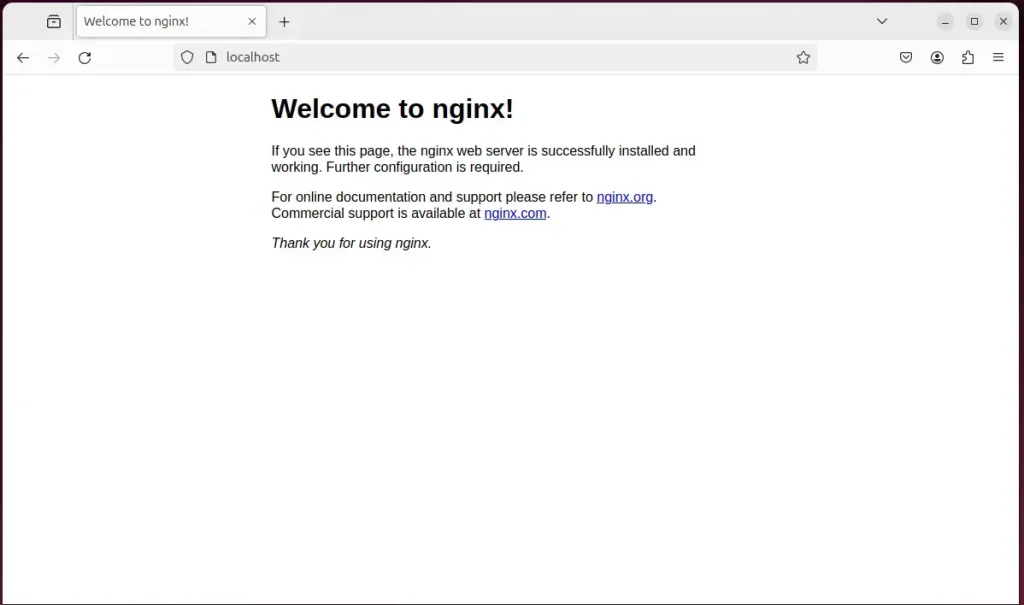
When you see the Welcome to nginx!, it means the Nginx HTTP server is successfully installed.
Additional help on installing Nginx on Ubuntu is in the link below.
Install the MariaDB database server on Ubuntu
MariaDB stores product catalogs, customer data, and orders for your online store. Run the command sudo apt install mariadb-server in your terminal to install the MariaDB database server on Ubuntu 24.04 and prepare your system for the AbanteCart installation.
To install and use the MariaDB database server, use the instructions below.
Open the Ubuntu terminal and run the commands below to install the MariaDB database server.
sudo apt update
sudo apt install mariadb-server
Once the MariaDB database server is installed, use the commands below to stop, start, and enable the MariaDB server to start automatically when the server boots.
sudo systemctl stop mariadb
sudo systemctl start mariadb
sudo systemctl enable mariadb
Run the following commands to validate and test if the MariaDB database server is installed successfully.
sudo mariadb
Once you run the commands above, it will log you onto the MariaDB console and display a message similar to the one below.
Welcome to the MariaDB monitor.  Commands end with ; or g.
Your MariaDB connection id is 32
Server version: 10.11.2-MariaDB-1 Ubuntu 23.04

Copyright (c) 2000, 2018, Oracle, MariaDB Corporation Ab and others.

Type 'help;' or 'h' for help. Type 'c' to clear the current input statement.

MariaDB [(none)]>
The message tells you that the server is installed successfully.
Additional help on installing MariaDB.
- How to install MariaDB on Ubuntu Linux
- MariaDB without password prompt
Create an AbanteCart database
AbanteCart requires a dedicated database and a user account with full permissions to store store data. Access the MariaDB prompt using sudo mysql and run CREATE DATABASE abcartdb; along with user grant commands to set up the required database.
As part of the setup, we will create an abcartdb database and a user account called abcartdbuser.
Finally, we'll grant the abcartdbuser full access to the abcartdb database.
All the database steps above can be done using the commands below:
But first, log on to the MariaDB database server:
sudo mariadb
Then run the commands below to complete the steps:
CREATE DATABASE abcartdb CHARACTER SET utf8mb4 COLLATE utf8mb4_general_ci;
CREATE USER abcartdbuser@localhost IDENTIFIED BY 'type_your_password_here';
GRANT ALL ON abcartdb.* TO abcartdbuser@localhost WITH GRANT OPTION;
FLUSH PRIVILEGES;
exit
Install PHP on Ubuntu Linux
PHP processes the backend code that powers AbanteCart on your server. Run sudo apt install php-fpm php-mysql and the required extension packages in your terminal to install PHP and ensure your Ubuntu 24.04 system can run the shopping cart software.
Then, run the commands below to install the latest PHP version.
sudo apt install php-fpm php-intl php-mysql php-curl php-cli php-zip php-xml php-gd php-common php-mbstring php-xmlrpc php-bcmath php-json php-sqlite3 php-soap php-zip
Additional help on installing PHP
Download AbanteCart files
AbanteCart source files must be downloaded and extracted into your web root directory before you can run the web installer. Use the wget command followed by the official release link to download the archive directly into your server's temporary folder.
To always install the latest version, check the download page for AbanteCart. Get the download link and download the archived package to your computer. Then, extract it.
First, navigate to the /tmp/ directory and download AbanteCart files. Next, move the content into the AbanteCart folder in the Nginx root directory.
This will allow the Nginx web server to interact safely with the files, ensuring a secure environment for your AbanteCart installation.
cd /tmp/
wget https://github.com/abantecart/abantecart-src/archive/master.zip
unzip master.zip
sudo mv abantecart-* /var/www/abantecart
sudo chown -R www-data:www-data /var/www/abantecart
Once you have completed all the above steps, continue configuring the Nginx web server below to serve the AbanteCart content.
Run the commands below to create an Nginx virtual host file for AbanteCart.
sudo nano /etc/nginx/sites-available/abantecart.conf
Then, copy and paste the content block below into the Nginx server block.
server {
    listen 80;
    listen [::]:80;
    root /var/www/abantecart/public_html;
    index  index.php;
    server_name  abantecart.example.com;

    access_log /var/log/nginx/example.com.access.log;
    error_log /var/log/nginx/example.com.error.log;

    location / {
        try_files $uri @abantecart;
    }

    location /admin {
        index index.php;
    }

    location @abantecart {
	 rewrite ^/(.+)$ /index.php?_route_=$1 last;
    }

    location ~* .(engine|inc|info|install|make|module|profile|test|po|sh|.*sql|theme|tpl(.php)?|xtmpl)$|^(..*|Entries.*|Repository|Root|Tag|Template)$|.php_ {
        deny all;
    }

    location ~* ^(.*).(jpg|jpeg|png|gif|webp|avif)$ {
        set $hidpi_uri $1@2x.$2;
        if ($http_cookie !~ 'HTTP_IS_RETINA=1') {
          break;
        }
        try_files $hidpi_uri $uri =404;
    }

    location ~ /(system/logs|resources/download) {
      deny all;
      return 403;
    }


    location ~ .php$ {
         include snippets/fastcgi-php.conf;
         fastcgi_pass unix:/var/run/php/php8.3-fpm.sock;
         fastcgi_param SCRIPT_FILENAME $document_root$fastcgi_script_name;
         include fastcgi_params;
    }
}
Save the file.
You enable the Abante Cart virtual host by running `sudo a2ensite abantecart.conf` and then restart the Nginx web server with `sudo systemctl restart nginx` to apply the changes. This ensures Nginx will serve your Abante Cart store.
sudo ln -s /etc/nginx/sites-available/abantecart.conf /etc/nginx/sites-enabled/
sudo systemctl restart nginx.service
Setup Let’s Encrypt SSL/TLS for AbanteCart
Let's Encrypt provides free SSL/TLS certificates to secure your AbanteCart checkout pages with HTTPS encryption. Install the Certbot tool using your terminal and run the Nginx plugin command to automatically configure your certificate and enable secure browser connections.
Please read the post below for additional resources on installing and creating Let’s Encrypt SSL certificates for Nginx.
How to set up Let’s Encrypt SSL certificate for Nginx on Ubuntu Linux
Once you have restarted the Nginx web server, open your browser and browse to the server hostname or IP address defined in the Nginx server block.
http://abantecart.example.com
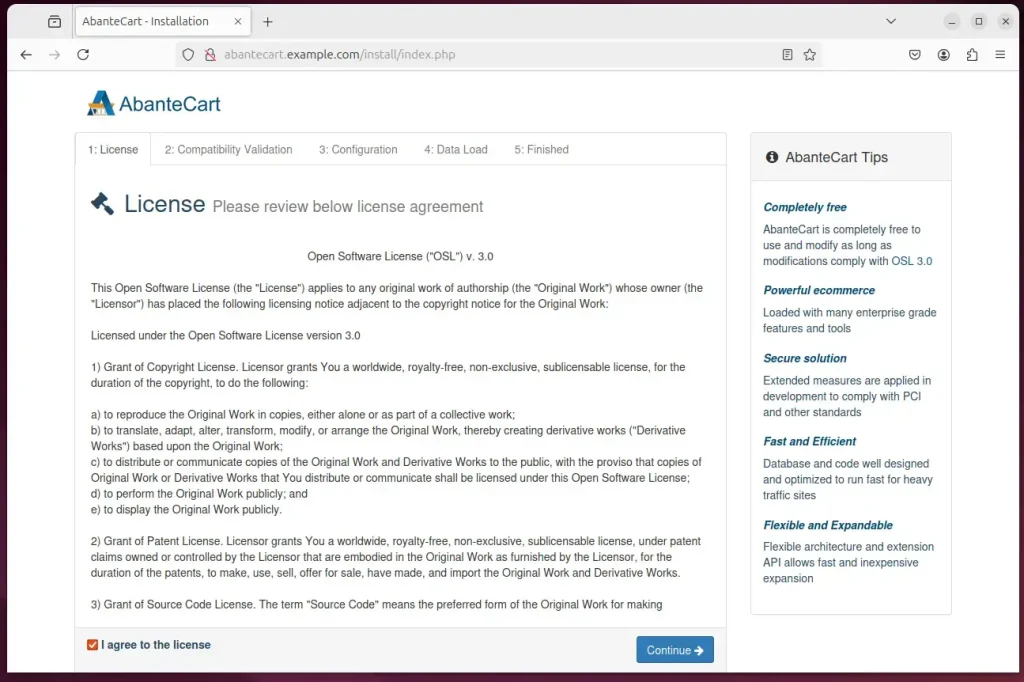
An AbanteCart installation wizard page should appear. Accept the license and continue.
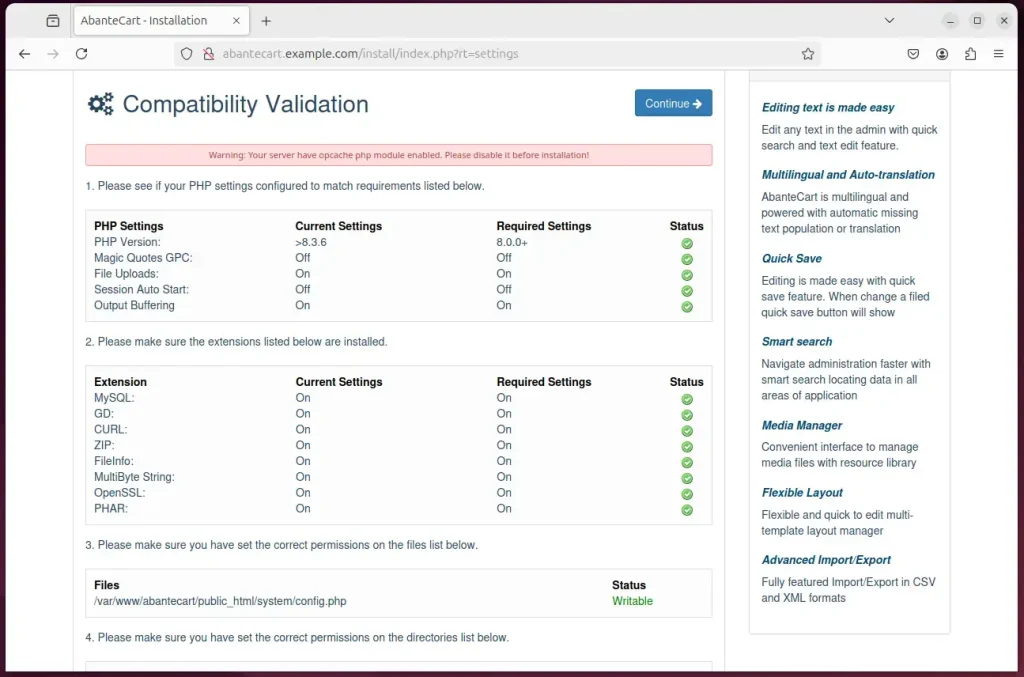
Check your server meets the requirements and continue with the installation wizard.
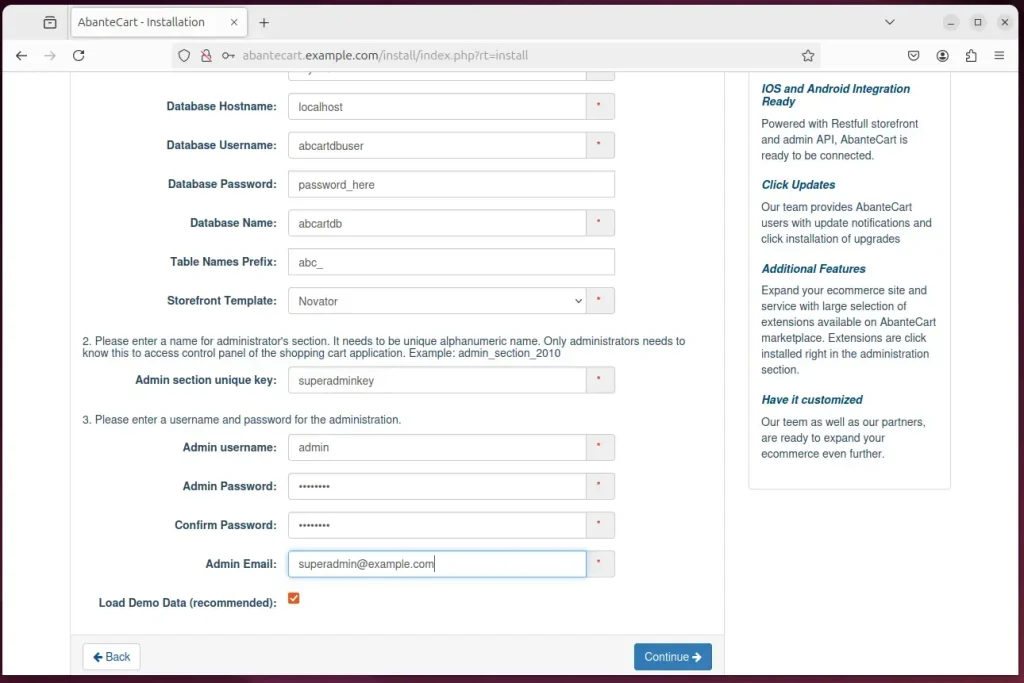
Type in the database connection details created above and create an admin account.
After that, your site should be ready.
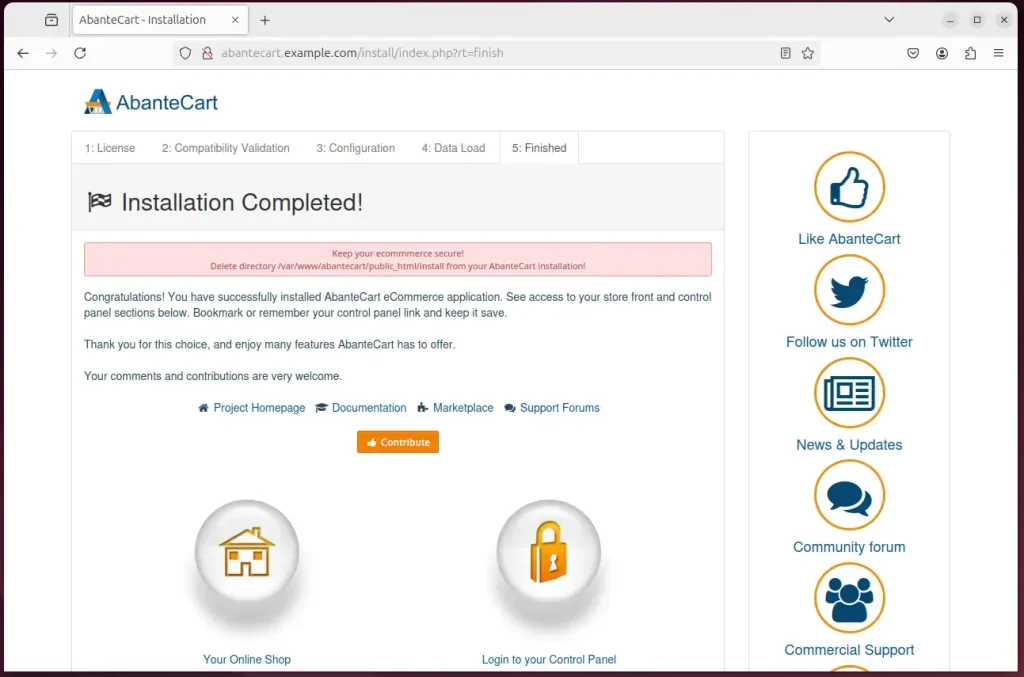
After the installation, run the command below to delete the install folder.
sudo rm -rf /var/www/abantecart/public_html/install
That should do it!
Conclusion:
In summary, setting up AbanteCart with Nginx on Ubuntu 24.04 provides a robust and efficient platform for eCommerce. Here are the key takeaways:
- Easy Installation: The installation process for Nginx, MariaDB, and PHP is straightforward and well-documented.
- Secure Environment: Utilizing Let’s Encrypt for SSL/TLS certificates enhances the security of your online store.
- High Performance: Nginx offers excellent performance and can handle high traffic loads effectively, ensuring a smooth shopping experience.
- Feature-Rich Platform: AbanteCart provides a comprehensive suite of features catering to small, medium, and large businesses, making it a versatile choice.
- Community and Support: AbanteCart has an active community and support resources, making troubleshooting and enhancements more accessible.
This guide provides clear steps to install AbanteCart, an eCommerce platform, on Ubuntu 24.04 using Nginx. Following this installation guide helps you launch your online store, enabling you to sell products and manage orders effectively.
Was this guide helpful?

About the Author
Richard
Tech Writer, IT Professional
Richard is a writer at Geek Rewind who turns complex IT tasks into clear, step-by-step guides. He draws on years of hands-on experience in system administration and enterprise IT operations, focusing on Windows, Linux and WordPress: the problems people actually run into, and the fixes that work. His server and WordPress guides come from systems he runs himself. Richard builds and maintains the platform behind Geek Rewind, from its Ubuntu servers and Nginx configuration to its custom WordPress plugins. Many new tutorials start with readers' questions, and he's always glad to answer them in the comments.




No comments yet — be the first to share your thoughts!