How to Uninstall and Reinstall Outlook on Windows 11

This simple guide will show you how to remove and then put back Outlook on your Windows 11 computer.
The calendar-in-outlook-on-windows-11/" class="sal-link" rel="noopener" target="_blank" data-sal-id="37534">new Outlook app for Windows is a fresh version of the old Outlook program. It has a clean design and new features that make it easier to check your email, calendar, and contacts all in one place.
Why uninstall Outlook? Sometimes you might want to uninstall Outlook because you prefer to use a different email app, or you just don’t want it on your computer.
How to Uninstall the New Outlook App
Follow these easy steps to uninstall Outlook:
- Close Outlook if it is open.
- Open Settings on your computer. Click the Start button and type
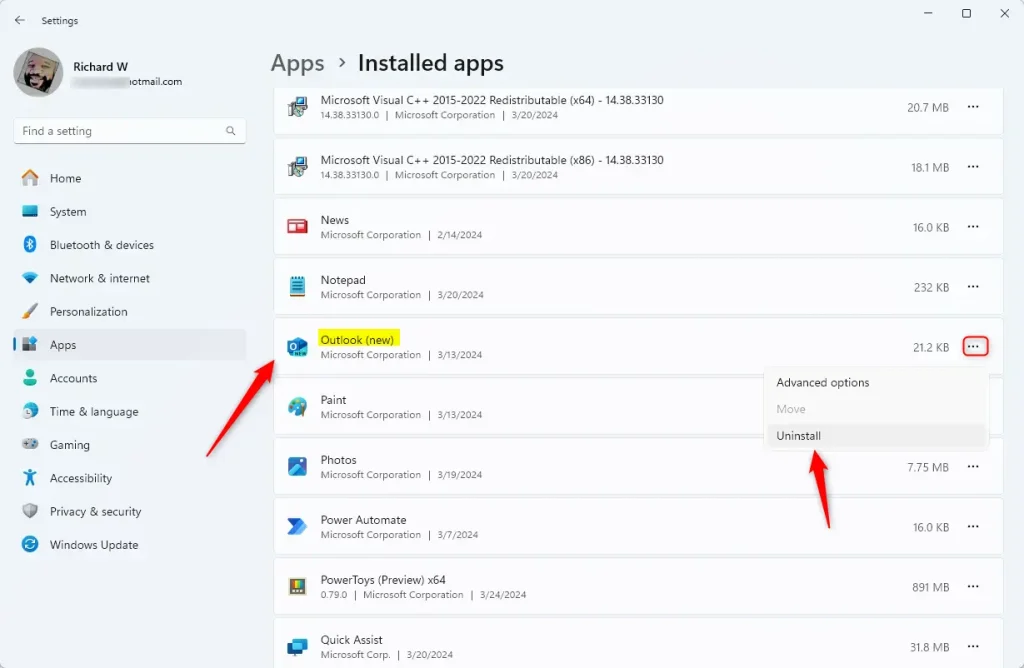
Settings, or pressWindows key + Ion your keyboard. - In Settings, click on Apps from the left menu.
- Then click Installed apps to see all the apps on your computer.
- Scroll down or search for
Outlook (New). - Click the three dots next to Outlook and choose Uninstall.
- Confirm that you want to uninstall it.
Uninstall Outlook Using PowerShell (Advanced)
If you like using commands, you can uninstall Outlook with PowerShell:
For Your User Account Only
- Open the Windows Terminal app.
- Copy and paste this command, then press
Enterto uninstall Outlook for your user account:
Get-AppxPackage | Where-Object {$_.Name -Like '*OutlookForWindows*'} | Remove-AppxPackage -ErrorAction ContinueFor All Users on the PC ⚙️ Admin Required
To uninstall Outlook for all users on the PC, do this:
- Open Windows Terminal as an administrator. Right-click it and select Run as administrator.
- Paste this command and press
Enter:
Get-AppxPackage -AllUsers | Where-Object {$_.Name -Like '*OutlookForWindows*'} | Remove-AppxPackage -AllUsers -ErrorAction ContinueHow to Reinstall the New Outlook App
If you want to put Outlook back on your PC, just follow these steps:
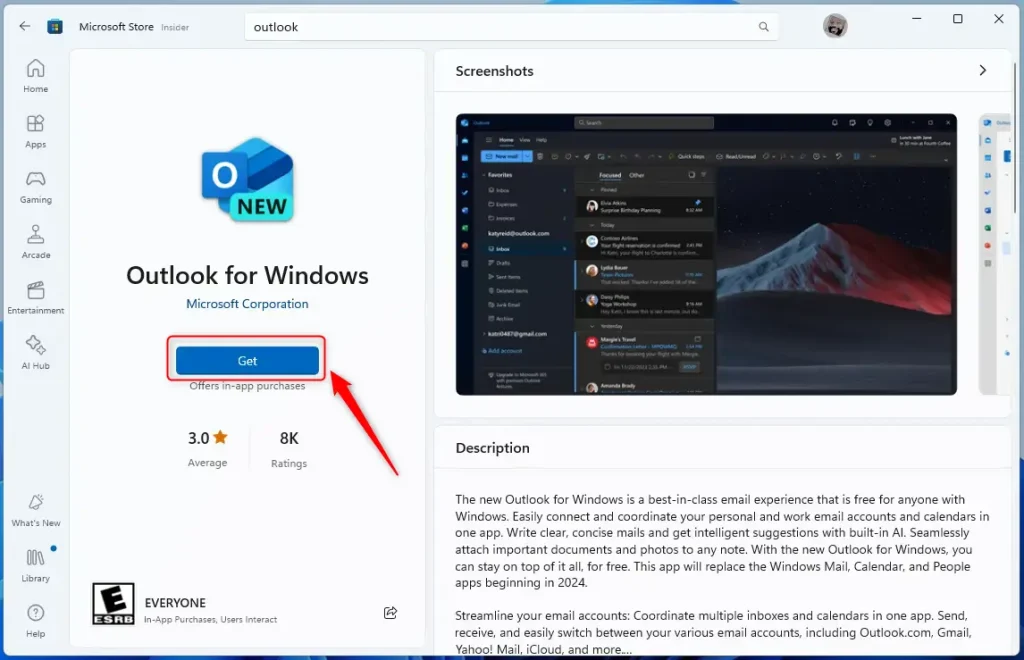
- Open the Outlook app page in the Microsoft Store.
- Click the Install button to download and install Outlook again.
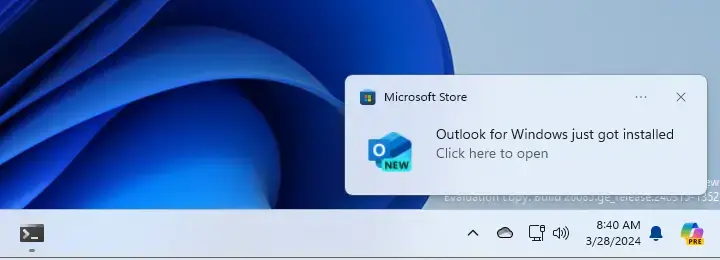
Once done, you will see a notification that Outlook was installed successfully.
Summary
- You can easily remove and reinstall the new Outlook app on Windows 11 through Settings or PowerShell commands.
- Some people uninstall Outlook because they want to use a different email program.
- The Microsoft Store makes it simple to reinstall Outlook whenever you want it back.
- If you need more help, feel free to ask!
Was this guide helpful?

About the Author
Richard
Tech Writer, IT Professional
Richard, a writer for Geek Rewind, is a tech enthusiast who loves breaking down complex IT topics into simple, easy-to-understand ideas. With years of hands-on experience in system administration and enterprise IT operations, he’s developed a knack for offering practical tips and solutions. Richard aims to make technology more accessible and actionable. He's deeply committed to the Geek Rewind community, always ready to answer questions and engage in discussions.



No comments yet — be the first to share your thoughts!