
Did you know that Windows 11 has a hidden “Administrator” account? It’s a special user account that has full control over your computer. By default, it’s turned off (hidden) because it has powerful access that you don’t usually need.
Why would you want this? If you need to fix big problems or want to do things that your normal account can’t do, you can turn this Administrator account on. Below, we’ll show you simple steps to do that.
What is the Built-in Administrator Account?
When you first set up your Windows 11 PC, you create a user account. This account can install programs and change settings because it has administrator rights.
But Windows also has a hidden Administrator account with even more control. This account is usually off and hidden to keep your computer safe.
How to Turn On the Hidden Administrator Account
We will use the Command Prompt to turn on this account. Don’t worry, it’s easier than it sounds! Just follow these steps:
Open Command Prompt as Administrator
- Click on the Start button (Windows icon) or press the Windows key.
- Type
cmdor Command Prompt. - Right-click on Command Prompt and choose Run as administrator. ⚠️ Admin privileges required
- If a security box pops up, click Yes to allow it.

Enable the Administrator Account
In the black Command Prompt window, type this command and press Enter:
net user Administrator /active:yes
If it worked, you’ll see a message like this:
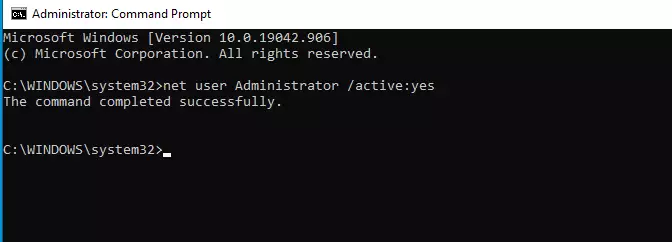
What does this mean? The Administrator account is now turned on. But you still can’t log in to it because it doesn’t have a password yet.
Set a Password for the Administrator Account
To make sure your Administrator account is secure, you need to set a password. Here’s how:
In the same Command Prompt window, type this command but replace your_strong_password with a password you want to use (make it something strong and hard to guess):
net user Administrator your_strong_password
For example, if your password is MySecurePass123!, type:
net user Administrator MySecurePass123!
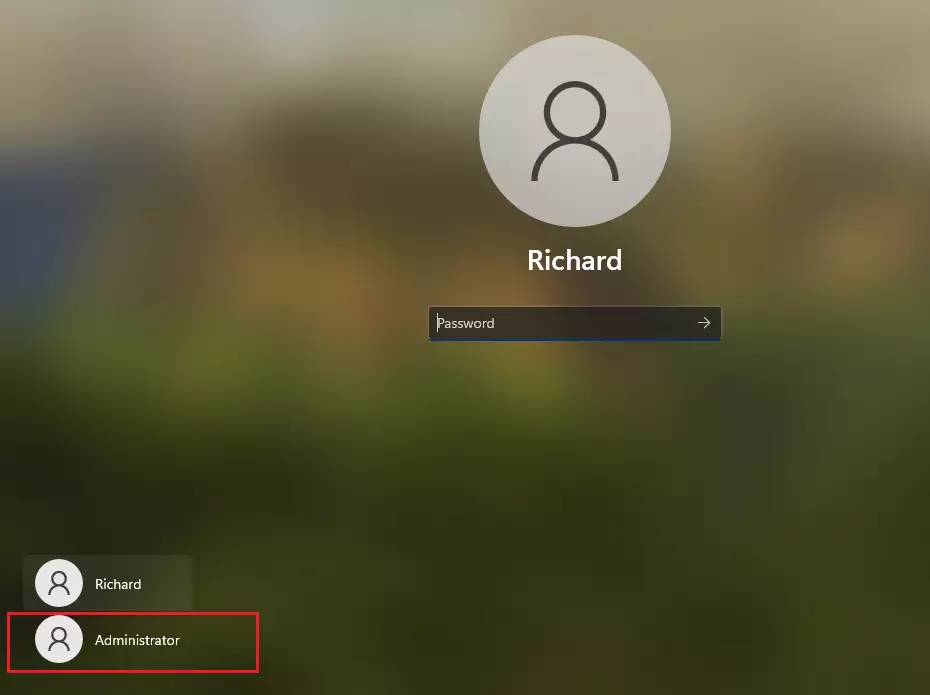
After this, you can log out of your current account and see the Administrator account as an option to sign in with your new password.
How to Turn Off the Administrator Account
If you no longer need the Administrator account or want to keep your PC safe, you can turn it off again.
Just open Command Prompt as administrator (see steps above), then type this command and press Enter: ⚠️ Admin privileges required
net user Administrator /active:no
What happens? This will hide and disable the Administrator account again.
Summary
- The hidden Administrator account has full control of Windows 11.
- It’s useful if your main account stops working or you need to fix big problems.
- Always set a strong password when you turn it on.
- Be careful using this account — it can make big changes to your PC.
- Turn off the Administrator account when you don’t need it to keep your PC safe.
- If you want to learn more about Windows 11 tips and tricks, visit Microsoft Support for Windows.

Leave a Reply