Protect Your Data: Enable Ransomware Protection in Windows 11

Windows 11 ransomware protection stops unauthorized applications from changing or deleting your important files, preventing data encryption and extortion.
Controlled Folder Access is the primary Windows 11 feature that creates this defense. It specifically blocks malicious programs from modifying or encrypting files within designated protected folders.
This protection is vital because ransomware can lock away your personal documents, photos, and business files. Enabling Controlled Folder Access adds a critical security layer to your most valuable data.
Once activated, Windows 11 actively monitors programs trying to access your protected folders. You then choose which applications are allowed access, significantly boosting your data security.
Enable Controlled Folder Access in Windows Security to protect your files. Navigate to Privacy & Security > Windows Security > Virus & threat protection > Manage ransomware protection and toggle the switch to On. You can then add specific folders for extra security.
How to enable controlled folder access
Windows 11 ransomware protection includes a feature called Controlled Folder Access, which stops unwanted apps from changing files in protected folders.
- Open Settings by pressing the Windows key + I on your keyboard.
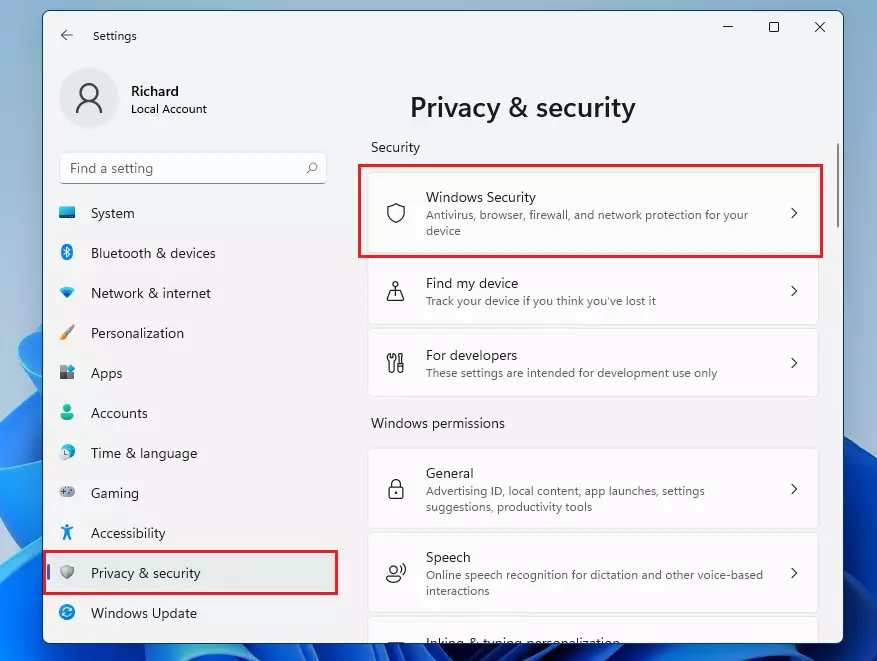
- Select Privacy & Security from the left menu, then click Windows Security.
Note: Administrative privileges are required to change security settings.
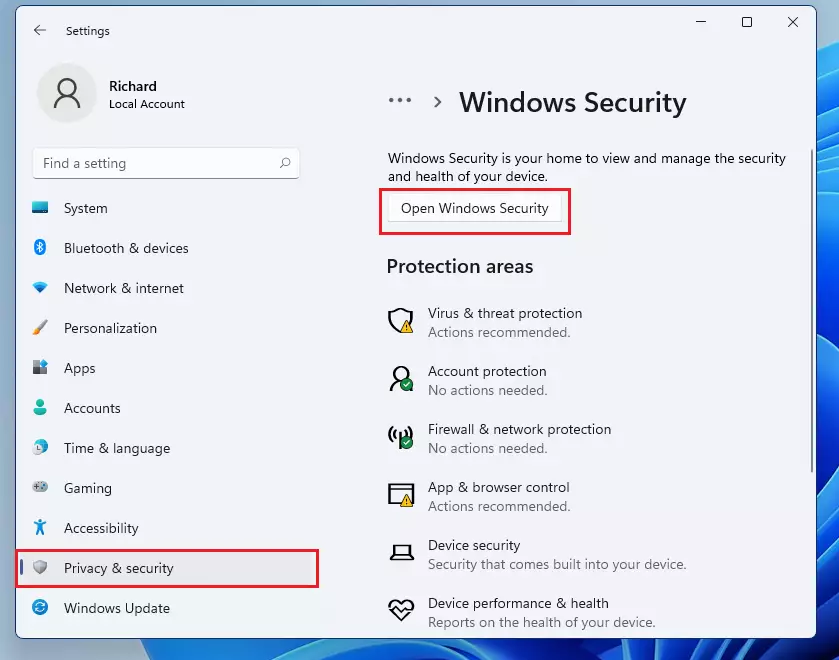
- Click the Open Windows Security button.
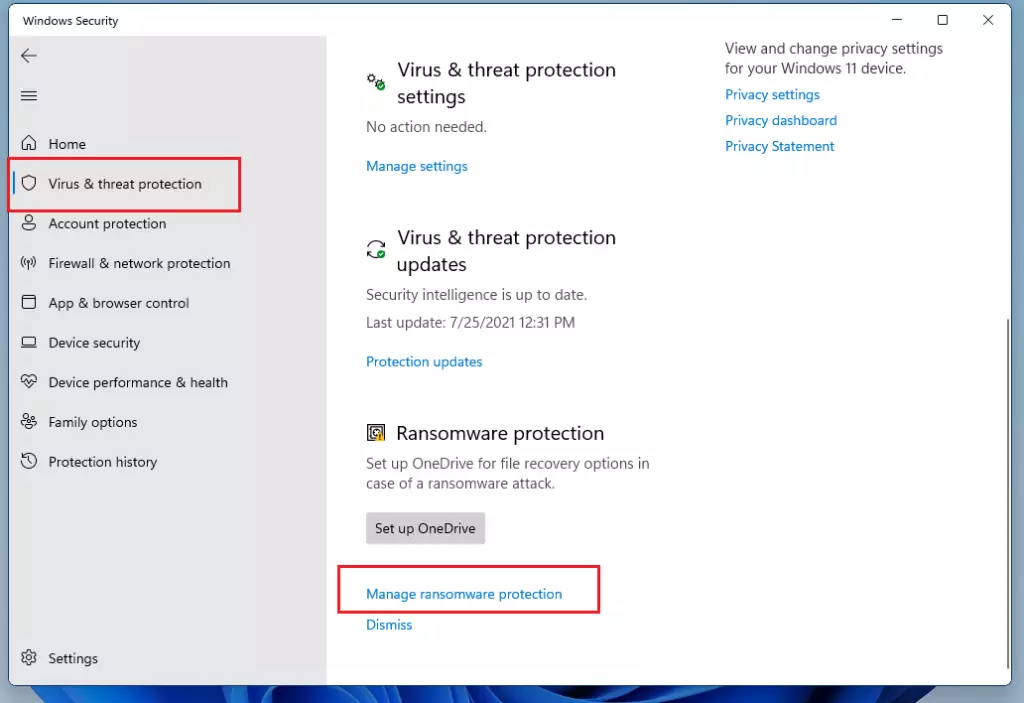
- Click on Virus & threat protection in the menu on the left.
- Scroll down to the bottom and click Manage ransomware protection.
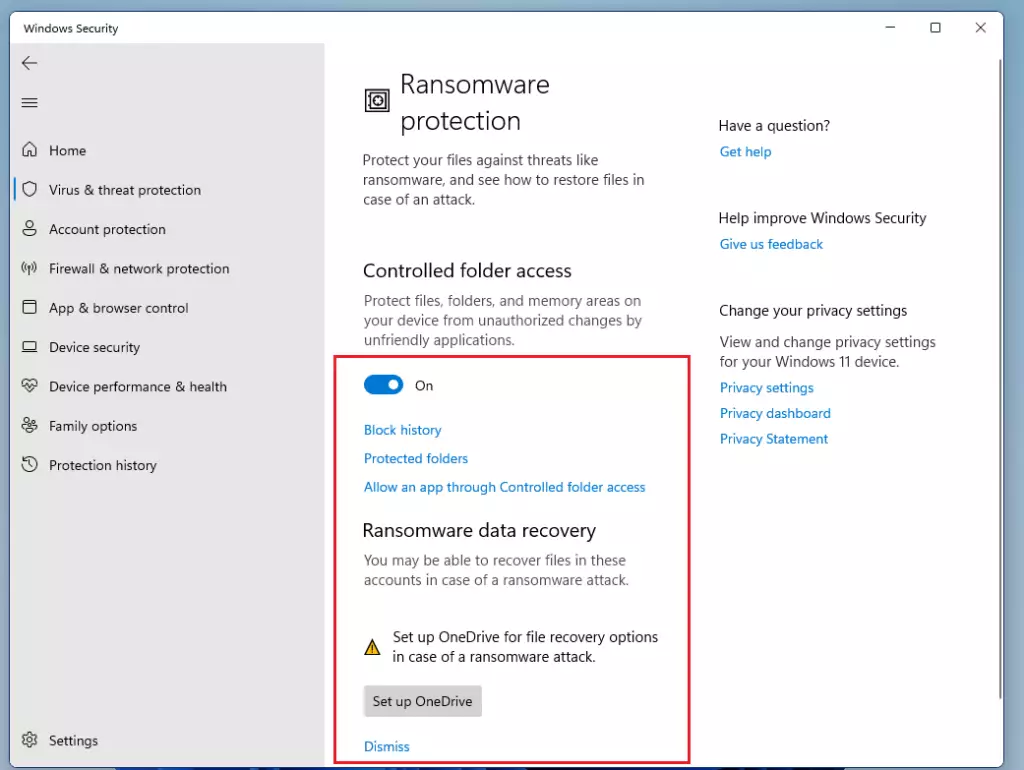
- Toggle the switch to On to enable protection.
Managing your protected folders
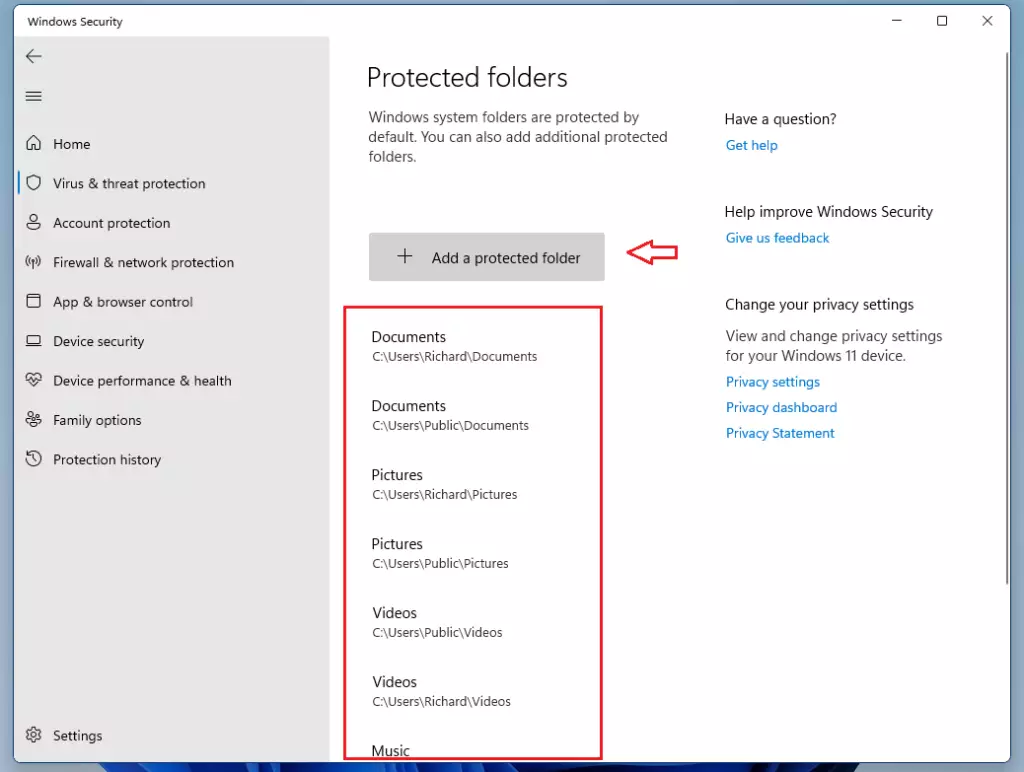
Windows automatically protects your main home folders. You can see which folders are covered by clicking Protected folders. You can add your own folders by clicking Add a protected folder.
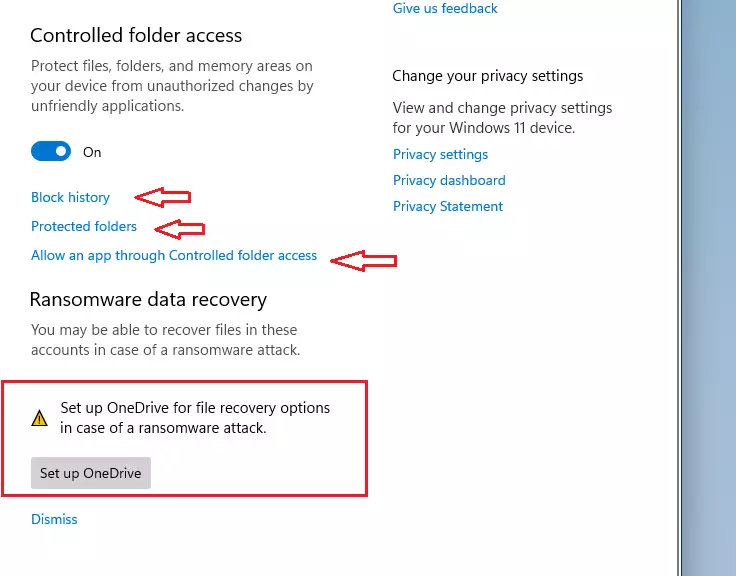
If a legitimate program you trust is blocked, you can check the Block history to allow it access.
Backing up with OneDrive
It is always smart to keep a backup. Using OneDrive allows you to restore your files if the worst happens. %📂%LNK1%% to learn how to set up your backups.
Summary
- Enable Protection: Use the Windows Security settings to turn on Controlled folder access.
- Customize: Add specific folders to the protected list to keep them safe.
- Check History: If an app stops working, check your block history to give it permission.
- Use Backups: Always keep a backup of your data using OneDrive.
To keep your Windows 11 computer safe from ransomware, you should turn on Controlled Folder Access in Windows Security and add important folders to the protected list.
Was this guide helpful?

About the Author
Richard
Tech Writer, IT Professional
Richard, a writer for Geek Rewind, is a tech enthusiast who loves breaking down complex IT topics into simple, easy-to-understand ideas. With years of hands-on experience in system administration and enterprise IT operations, he’s developed a knack for offering practical tips and solutions. Richard aims to make technology more accessible and actionable. He's deeply committed to the Geek Rewind community, always ready to answer questions and engage in discussions.
📚 Related Tutorials
[…] How to enable ransomware protection in Windows 11 […]
[…] written multiple detailed steps here that can help you, from ransomware protection to backing up your computer and protecting your data […]
[…] Controlled folder access helps protect your valuable data from malicious apps and threats, such as ransomware. […]
[…] Controlled folder access helps protect your valuable data from malicious apps and threats, such as ransomware. […]
[…] This post shows students and new users steps to turn Core Isolation Memory Integrity on or off with Microsoft Security in Windows 11. Core Isolation is a security feature that protects critical Windows core processes from malicious software like ransomware. […]
[…] Microsoft Defender Firewall helps protect your device and data against unauthorized access, malware, and other attacks that may steal your identity or lock your computer for ransom. […]
[…] Windows 11 has many security tools to keep your PC safe from viruses and malware. One important tool is called Core Isolation. Core Isolation protects the most important parts of Windows from attacks like ransomware. […]