How to Turn On or Off Widgets on the Windows 11 Lock Screen

You can turn on or off widgets on the Windows 11 Lock screen to display quick information without logging in.
Widgets are small apps that show glanceable data, such as weather forecasts, stock prices, or calendar events, directly on your lock screen.
This feature is available starting with Windows 11, version 22H2, and allows you to personalize your lock screen experience for instant updates.
You can turn widgets on or off from the Lock screen settings. Open Settings, navigate to Personalization > Lock screen, and toggle “Widgets on Lock screen” on or off. Alternatively, use ViVeTool or Registry Editor for advanced control.
Who Can Use This?
Right now, this feature is mainly available for Windows 11 users in certain European countries. But soon, it will be available everywhere.
How to Turn On or Off Lock Screen Widgets
You can turn on or off Widgets on the Lock screen using one of two easy ways:
Method 1Use ViVeTool to Enable Widgets
You can turn Windows 11 lock screen widgets on or off using the ViVeTool. This tool lets you see quick info like weather and news right on your lock screen before you even sign in.
- First, learn how to download and use ViVeTool.
- Open Command Prompt or Windows Terminal as an administrator. ⚠️ Admin privileges required
- Type this command and press Enter:
vivetool /enable /id:50179255,53672489 - After running the command, restart your computer.
- Once your PC restarts, open the Settings app:
- Click the Start menu and then the Settings gear icon, or
- Press
Windows key + Ion your keyboard.
- In Settings, click on Bluetooth & devices in the left menu:
Windows 11 Settings menu with Personalization highlighted. - Next, click on Lock screen on the right side:
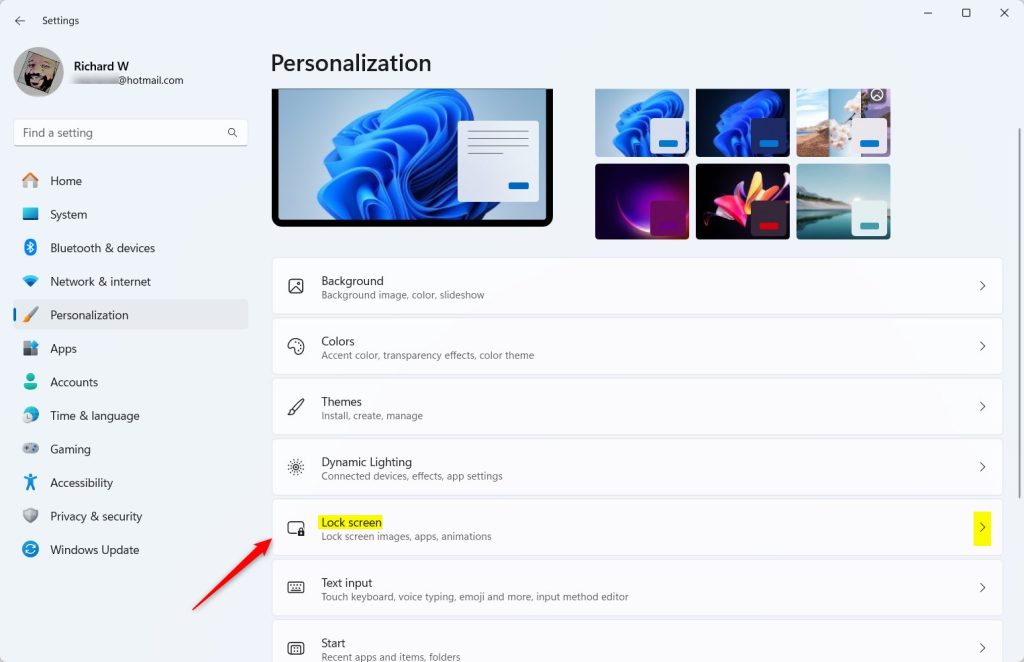
Windows 11 Lock screen settings tile - Scroll down to find the Widgets on Lock screen option and toggle it On or Off:
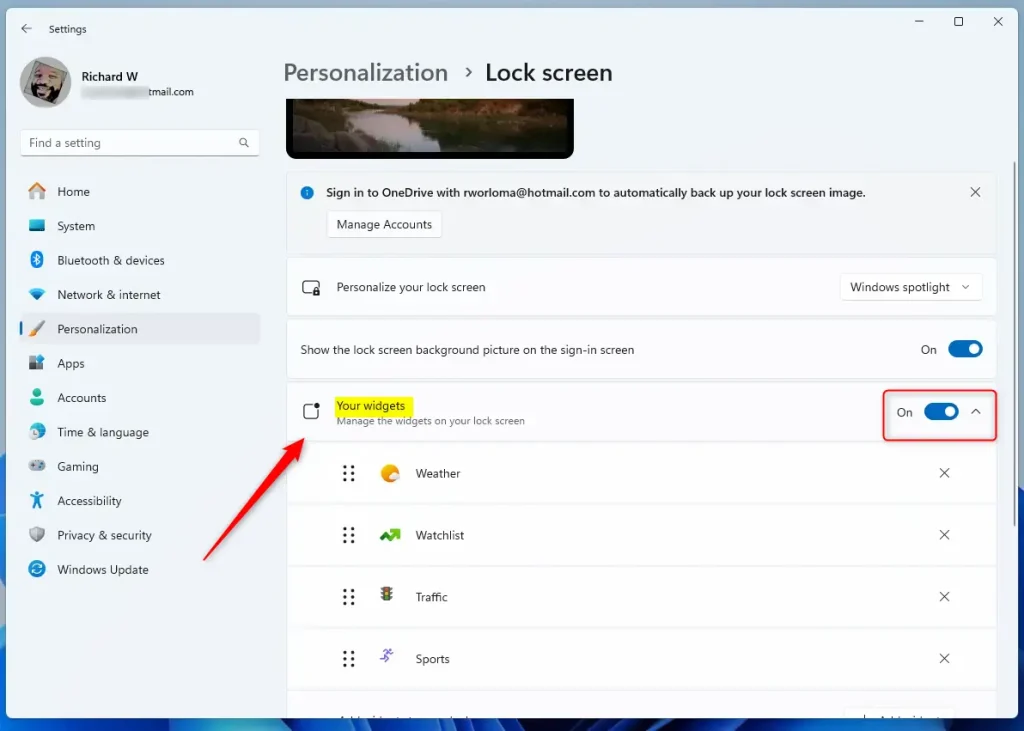
Toggle Widgets on Lock screen button - Close the Settings app when done.
Method 2Use Registry Editor (For Advanced Users)
For those comfortable making direct system changes, you can turn Windows 11 lock screen widgets on or off using the Registry Editor. It’s crucial to back up your system first, just in case something goes wrong.
Important: Before you start, back up your registry or create a System Restore point. This helps protect your computer if something goes wrong.
- Open the Registry Editor: Press
Windows key + R, typeregedit, and press Enter. ⚠️ Admin privileges required - Navigate to this folder:
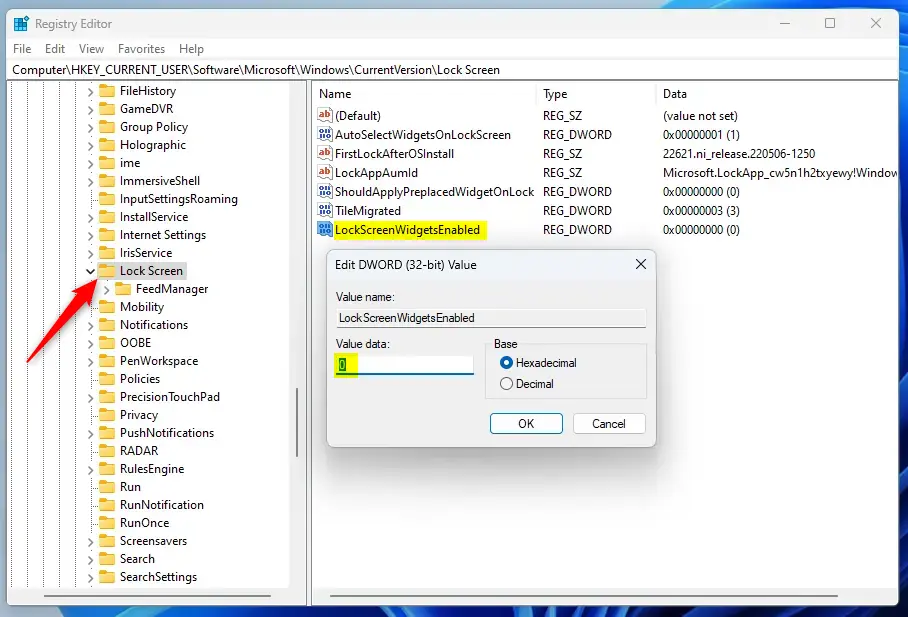
HKEY_CURRENT_USER\Software\Microsoft\Windows\CurrentVersion\Lock Screen - Right-click on Lock Screen > select New > DWORD (32-bit) Value.
- Name the new DWORD:
LockScreenWidgetsEnabled - Double-click the new DWORD and set its value to:
1to turn ON Widgets0to turn OFF Widgets
- Click OK and close Registry Editor.
- Restart your computer to apply the changes.
Summary
Turning Windows 11 lock screen widgets on or off is simple, with the ViVeTool offering a quick method and the Registry Editor providing more control for those comfortable with system changes.Was this guide helpful?

About the Author
Richard
Tech Writer, IT Professional
Richard, a writer for Geek Rewind, is a tech enthusiast who loves breaking down complex IT topics into simple, easy-to-understand ideas. With years of hands-on experience in system administration and enterprise IT operations, he’s developed a knack for offering practical tips and solutions. Richard aims to make technology more accessible and actionable. He's deeply committed to the Geek Rewind community, always ready to answer questions and engage in discussions.


No comments yet — be the first to share your thoughts!