
The Lock screen is the screen you see before you log in to your computer or when it’s locked. You can lock your PC by pressing Windows key + L.
Windows 11 now lets you add small apps called Widgets on your Lock screen. Why would you want this? These widgets show you quick information like weather updates, sports scores, and traffic info. What happens when you use them? You can see useful information without even signing into your computer.
Who Can Use This?
Right now, this feature is mainly available for Windows 11 users in certain European countries. But soon, it will be available everywhere.
How to Turn On or Off Lock Screen Widgets
You can turn on or off Widgets on the Lock screen using one of two easy ways:
Method 1: Use ViVeTool to Enable Widgets
ViVeTool is a small tool that lets you turn on hidden Windows features. Here’s how:
- First, learn how to download and use ViVeTool.
- Open Command Prompt or Windows Terminal as an administrator. ⚠️ Admin privileges required
- Type this command and press Enter:
vivetool /enable /id:50179255,53672489 - After running the command, restart your computer.
- Once your PC restarts, open the Settings app:
- Click the Start menu and then the Settings gear icon, or
- Press
Windows key + Ion your keyboard.
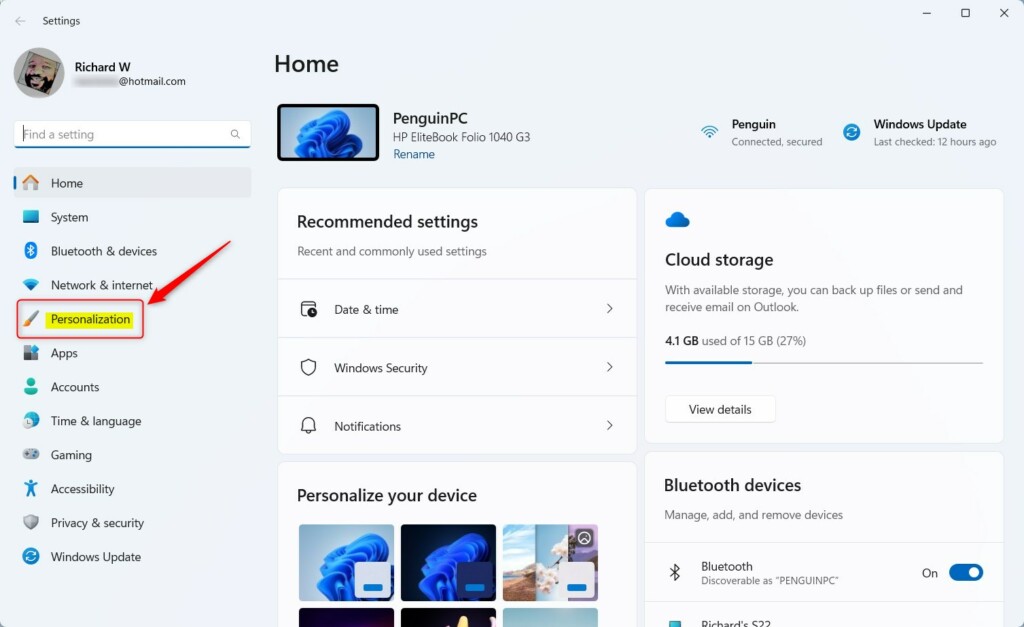
- In Settings, click on Bluetooth & devices in the left menu:
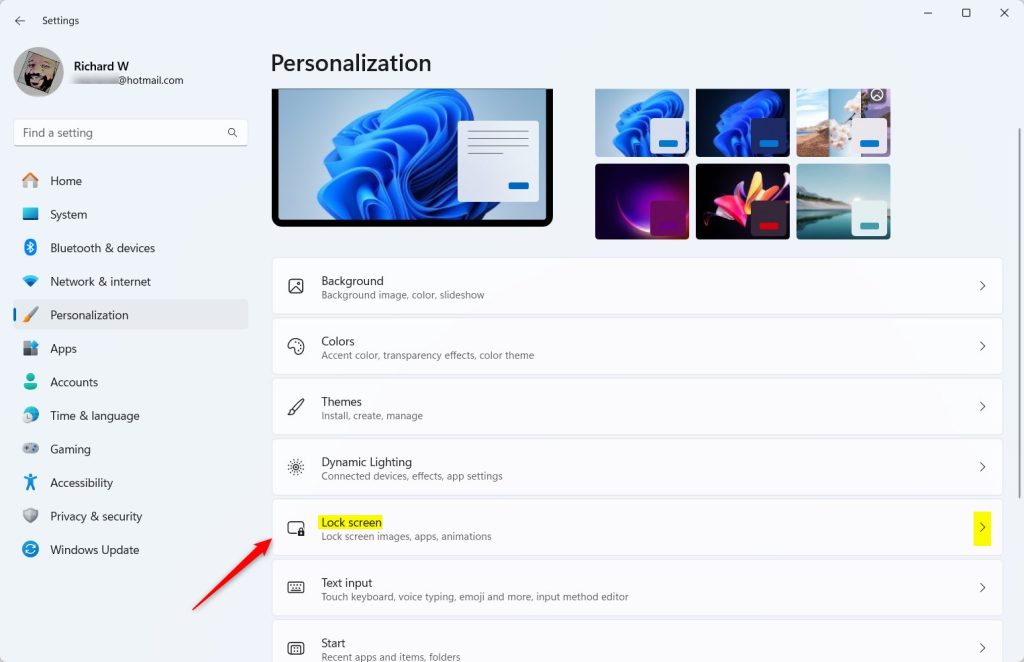
- Next, click on Lock screen on the right side:
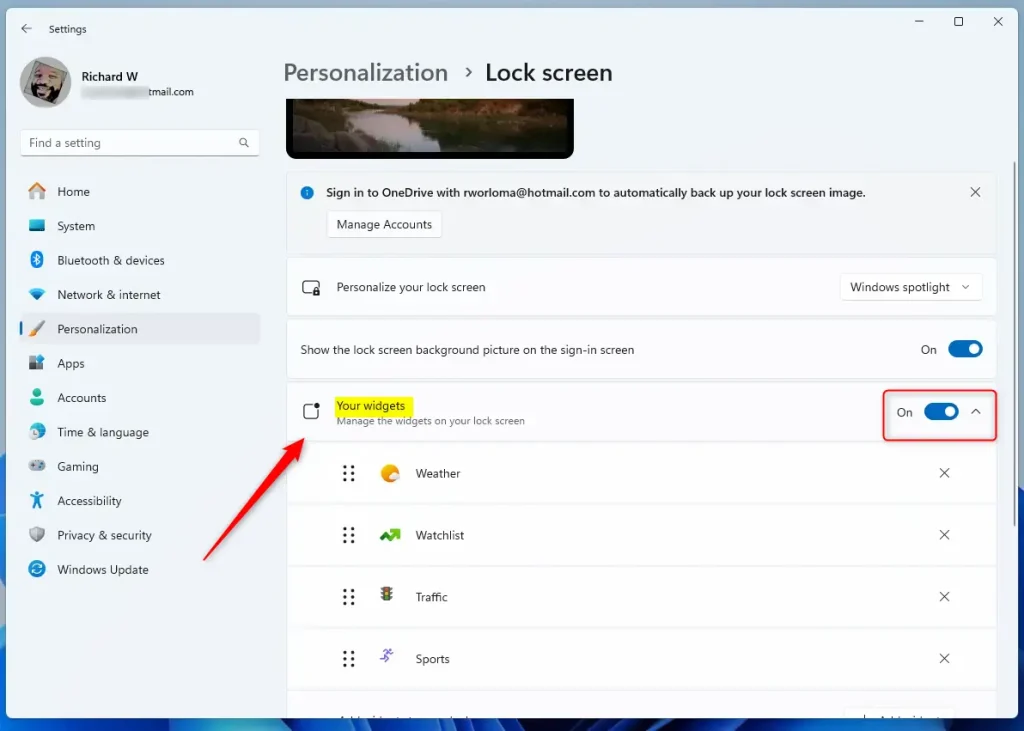
- Scroll down to find the Widgets on Lock screen option and toggle it On or Off:
- Close the Settings app when done.
Method 2: Use Registry Editor (For Advanced Users)
If you’re comfortable making changes to your computer’s system files, you can use the Windows Registry Editor to turn Widgets on or off.
Important: Before you start, back up your registry or create a System Restore point. This helps protect your computer if something goes wrong.
- Open the Registry Editor: Press
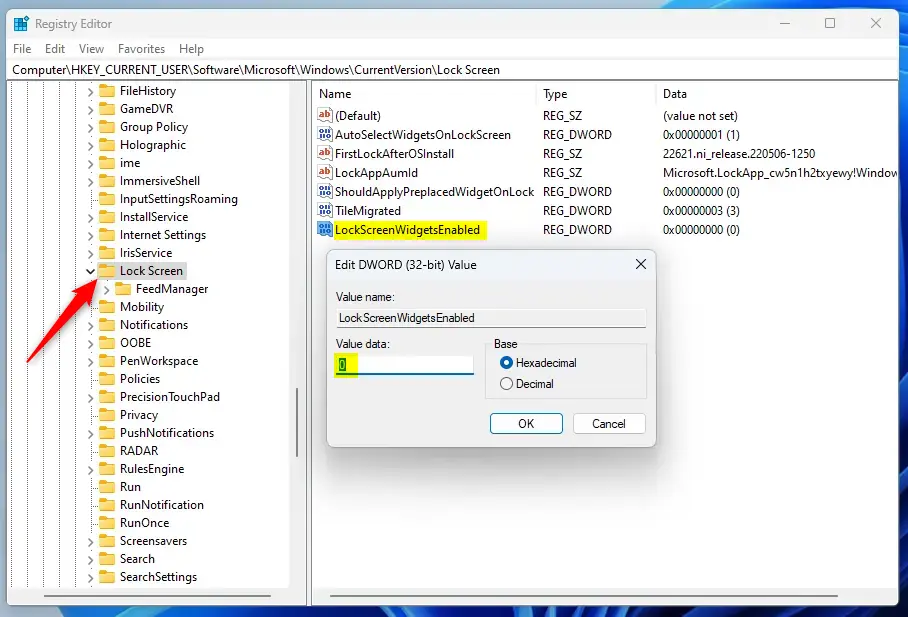
Windows key + R, typeregedit, and press Enter. ⚠️ Admin privileges required - Navigate to this folder:
HKEY_CURRENT_USER\Software\Microsoft\Windows\CurrentVersion\Lock Screen - Right-click on Lock Screen > select New > DWORD (32-bit) Value.
- Name the new DWORD:
LockScreenWidgetsEnabled - Double-click the new DWORD and set its value to:
1to turn ON Widgets0to turn OFF Widgets
- Click OK and close Registry Editor.
- Restart your computer to apply the changes.
Summary
- You can easily turn on or off Widgets on your Windows 11 Lock screen.
- Use the ViVeTool method for a quick way to enable it.
- If you prefer, use the Registry Editor method—but be sure to back up your system first.
- Lock screen Widgets help you get quick info like weather and news without signing in.
- Learn more from Microsoft: Windows Insider Blog



Leave a Reply