How to Manage Microsoft Store App Updates in Windows 11


Microsoft Store app updates in Windows 11 keep your installed programs secure by downloading security patches and new features automatically in the background. By default, Windows checks for and installs these updates every few hours without asking you.
You can turn off automatic updates in the Microsoft Store app settings if you want to save internet data or stop downloads from slowing down your PC. Managing these updates manually lets you choose exact times to download new versions on your own schedule.
Turn automatic updates off in Microsoft Store settings by clicking your profile, selecting Settings, and toggling App updates. If updates fail, run wsreset.exe from the Run dialog to clear the cache.
Why Update Your Apps?
App updates patch security holes and fix bugs. Outdated software leaves your PC open to attacks. Regularly updating applications enhances overall security.
What Are Microsoft Store Apps?
Microsoft Store apps are programs downloaded from the official platform, differing from traditional desktop software that relies on standalone installers. These apps usually update automatically by default. Certain programs, however, rely on internal updater tools rather than the Store mechanism.
Method 1Turn Off Updates in the Microsoft Store App
Open the Microsoft Store app and click your profile picture in the top right corner to get started.
- Open the Microsoft Store app.
- Click your profile picture in the top right.
- Select Settings.
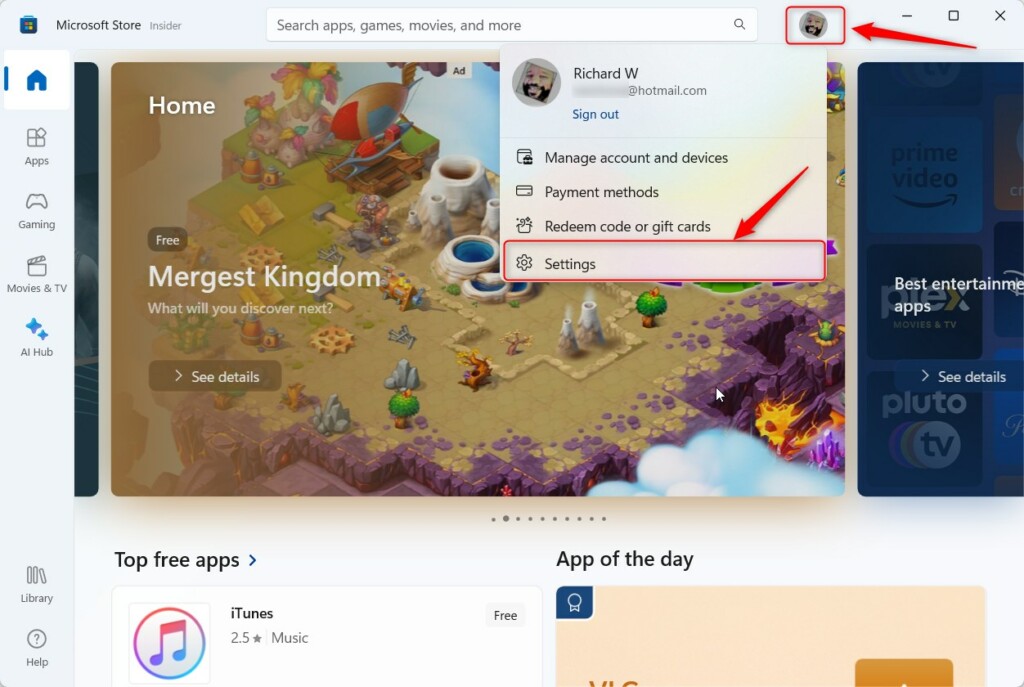
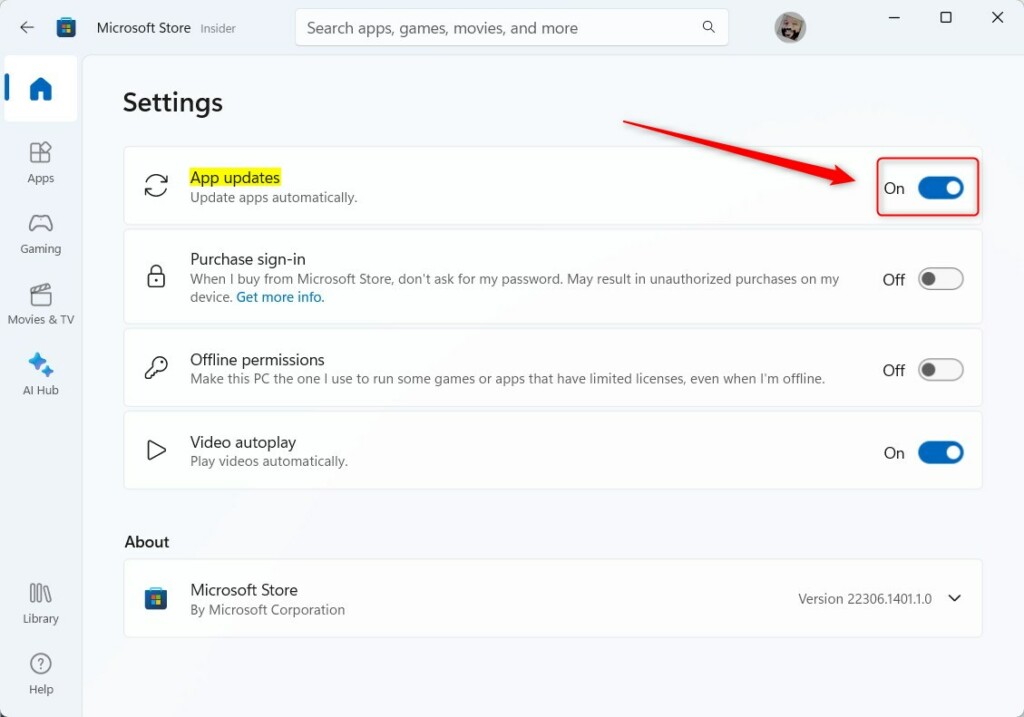
- Click App updates.
- Toggle the switch to On or Off.
Troubleshooting Failed Updates
Stuck downloads often require clearing the Microsoft Store cache. This removes corrupted temporary files blocking update retrieval. Follow these steps to restore proper functionality.
1Use the WSReset Command
Running the WSReset command clears the Microsoft Store cache so you can fix stuck Microsoft Store app updates without losing any of your installed apps. The tool resets the store backend and forces it to fetch fresh update lists from Microsoft servers automatically.
- Press the Windows Key + R on your keyboard.
- Type
wsreset.exeand press Enter. - A blank window will appear. Wait for it to close automatically. The Store will then open.
2Run the Windows Update Troubleshooter
Persistent failures require running the official Windows Update Troubleshooter. This diagnostic utility checks system services like BITS (Background Intelligent Transfer Service), which coordinates background file transfers.
Method 2Use the Group Policy Editor (Admin Only)
Using the Group Policy Editor (a tool used to manage system settings across Windows) lets you turn off automatic Microsoft Store app updates for every user account on your computer at the same time. This works well if you manage multiple accounts and want complete control over when software updates happen.
Review these steps when managing environments that require centralized update control.
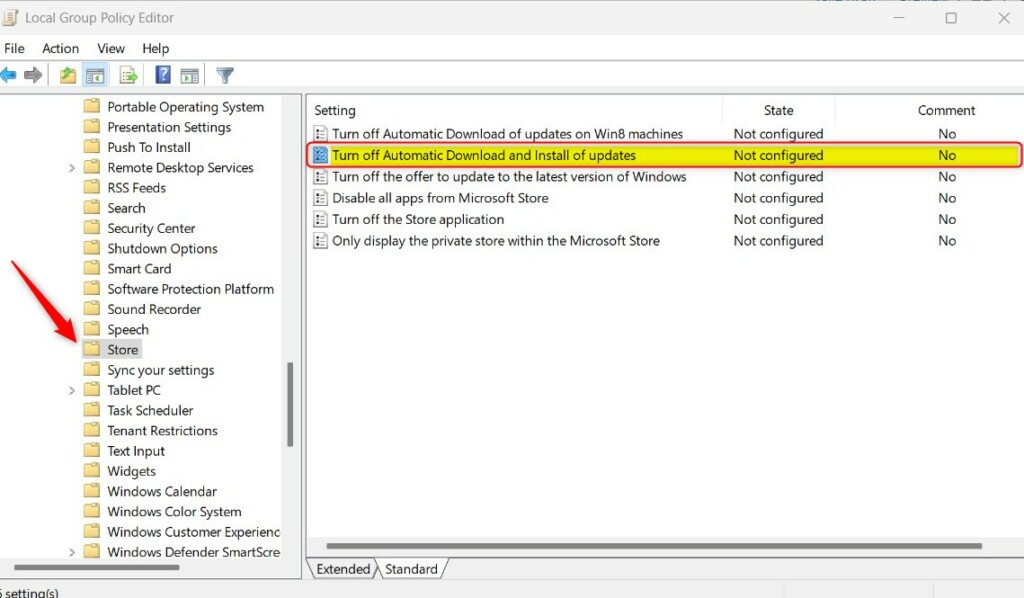
- Press Windows Key + R, type
gpedit.msc, and press Enter. - Go to:
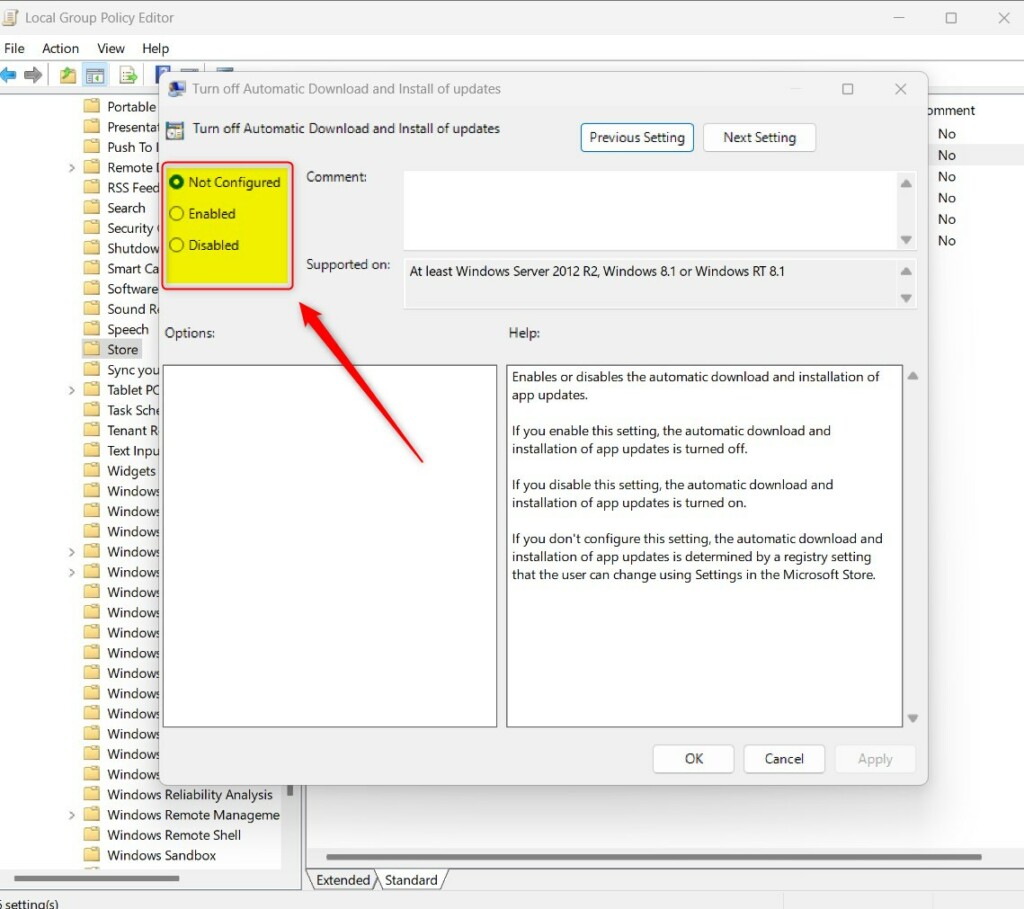
Computer Configuration\Administrative Templates\Windows Components\Store - Find Turn off Automatic Download and Install of updates.
- Set it to Enabled to stop updates or Disabled to allow them.
Method 3Use the Registry Editor (Admin Only)
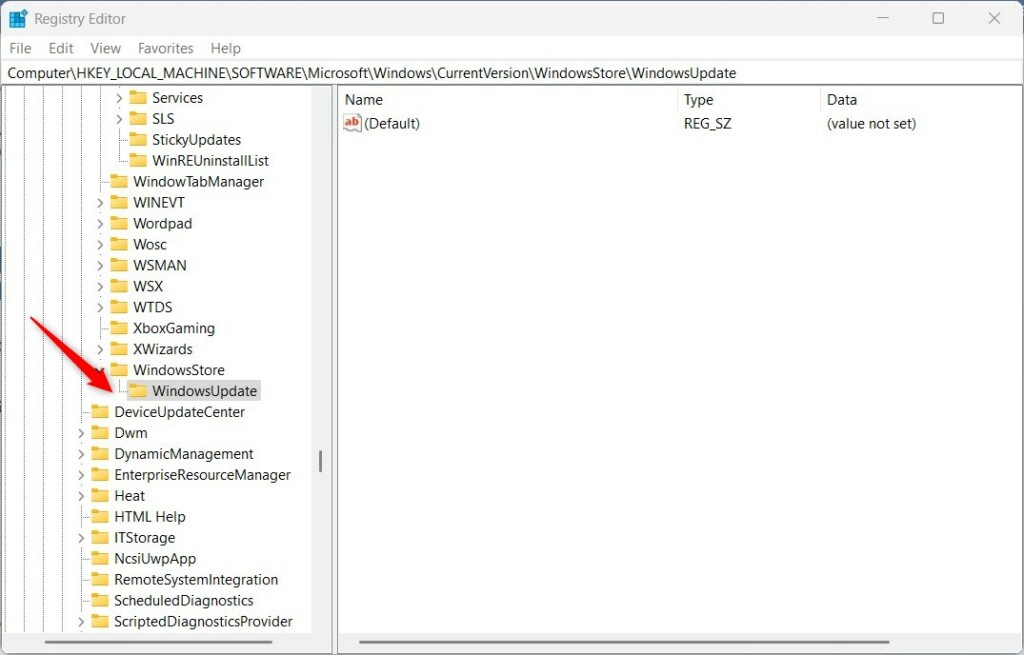
Modifying the Registry Editor (a database that stores low-level Windows settings) lets you block Microsoft Store app updates on Windows versions that do not include the Group Policy Editor. This method achieves the exact same update restriction by changing system keys directly.
Apply this registry method when policy management tools are absent from the operating system edition.
- Press Windows Key + R, type
regedit, and press Enter. - Navigate to:
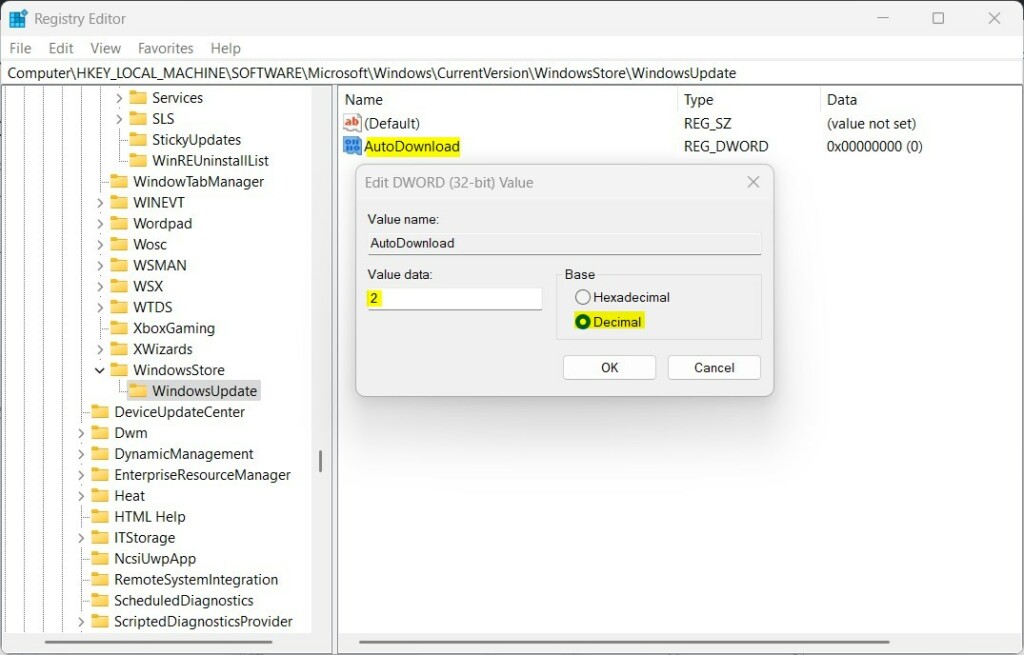
HKEY_LOCAL_MACHINE\SOFTWARE\Microsoft\Windows\CurrentVersion\WindowsStore\WindowsUpdate - Right-click, select New DWORD (32-bit) Value, and name it
AutoDownload. - Set the value to 4 to stop updates or 2 to allow them.
Summary
Controlling software updates helps maintain system performance and security compliance. Tailoring these behaviors keeps workstations running efficiently.
Why are my Microsoft Store apps stuck on pending?
Corrupted caches or stalled background services frequently cause pending update loops. Clearing temporary cache files or restarting the Background Intelligent Transfer Service (BITS) resolves communication errors and resumes normal downloading.
How do I clear the Microsoft Store cache to fix update issues?
Press the Windows Key + R combination on the keyboard, type wsreset.exe, and hit Enter. This clears corrupt temporary data. The Microsoft Store reopens automatically once the process completes.
Was this guide helpful?

About the Author
Richard
Tech Writer, IT Professional
Richard, a writer for Geek Rewind, is a tech enthusiast who loves breaking down complex IT topics into simple, easy-to-understand ideas. With years of hands-on experience in system administration and enterprise IT operations, he’s developed a knack for offering practical tips and solutions. Richard aims to make technology more accessible and actionable. He's deeply committed to the Geek Rewind community, always ready to answer questions and engage in discussions.



No comments yet — be the first to share your thoughts!